Jeff Benjamin

Jeff has been with iDownloadBlog since 2010, acting as resident video specialist, and tutorial expert. He earned his degree in Computer Network Systems back in 2001, but decided Cisco routers and the like just weren’t for him. Since then, he’s been heavily involved with online writing. He’s written for numerous tech and video game sites since the late 1990′s, and has a knack for explaining things in a simple, clear, and concise manner. Jeff works primarily from the east coast on his Retina Macbook Pro, and shoots video with a Canon DSLR. During downtime he likes to travel the world, visiting the various Apple Stores across the globe. You can email him at jeff [at] idownloadblog.com and follow him on Twitter @JeffBenjam or on Google+.

Let’s Talk iOS 102: The Fast and the Siri-ous

Episode 102: Our in-depth thoughts on the iPhone 6s launch and hardware, plus commentary on watchOS 2.

Subscribe on iTunes


Sponsors: 

Go to WIX.com and create your own stunning website. It’s easy and free! CASPER — Get $50 toward any mattress purchase by visiting www.casper.com/ios and using promo code ios.

How to prepare for OS X El Capitan

Tomorrow, Apple is releasing its yearly update to its desktop operating system, OS X 10.11 El Capitan. It rightly caps off a long month of activity that started with Apple's media event, and from there featured the release of iOS 9, followed by the release of the iPad mini 4, two new iPhone's—the iPhone 6s and iPhone 6s Plus, and culminates with tomorrow's launch.

It's been a busy month of announcements and releases for Apple, and it just feels right that Apple ends the month with an update to the platform that really started it all—the Mac. Tomorrow, likely around 10AM PST, Apple will release OS X El Capitan. It's the follow up to OS X Yosemite, and as its name suggests, it shares a lot in common with that release.

What should you do to prepare for the release? Follow our simple guide for more info.

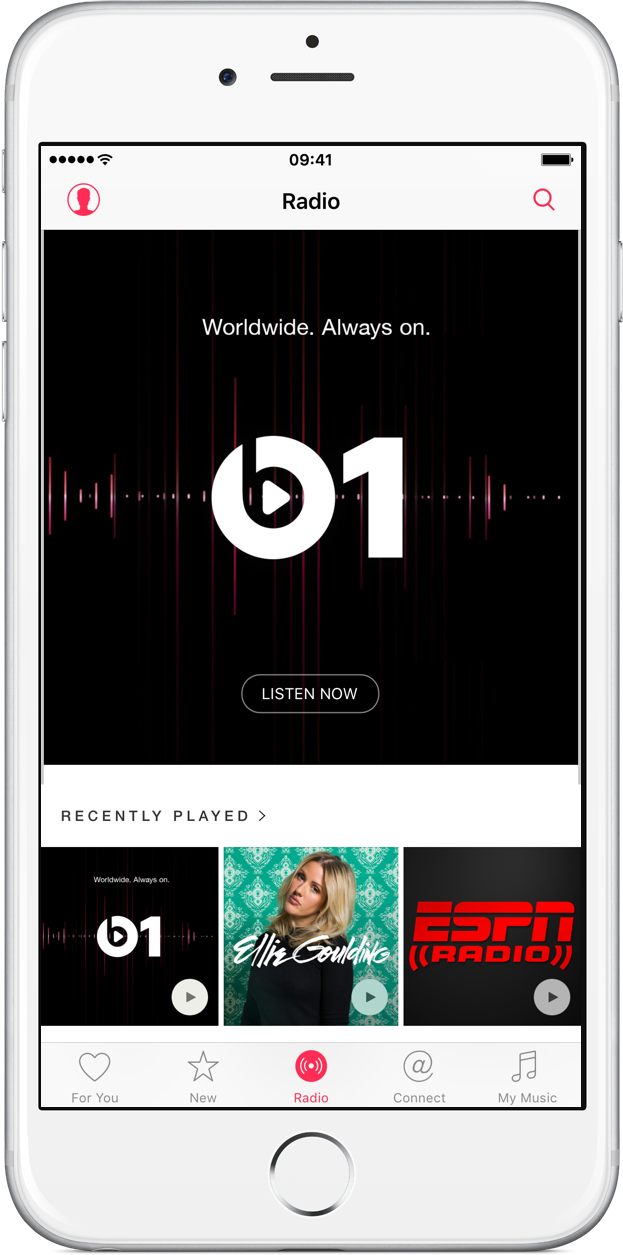
Apple Music guided tour series goes live prior to initial wave of free trial expirations

Just as the initial batch of Apple Music free trials are set to expire, Apple has posted over a half-dozen new guided tour videos on its YouTube channel. The aim of the video series is clear—to help new and existing users understand how Apple Music works.

Although over 11 million users have signed up for the free trial, the general consensus seems to be that Apple Music is more difficult to use than necessary. Apple faces stiff competition, primarily from the likes of Spotify, who's service is fairly straightforward and easy to use.

On the eve of the first wave of free trial expirations, it's a critical time for Apple Music. After giving users three months to test out its service, Apple must convince its trial user base that its monthly subscription service is worth paying for. The new guided tours are aiming to clear up misconceptions, answer questions, and serve as virtual how tos.

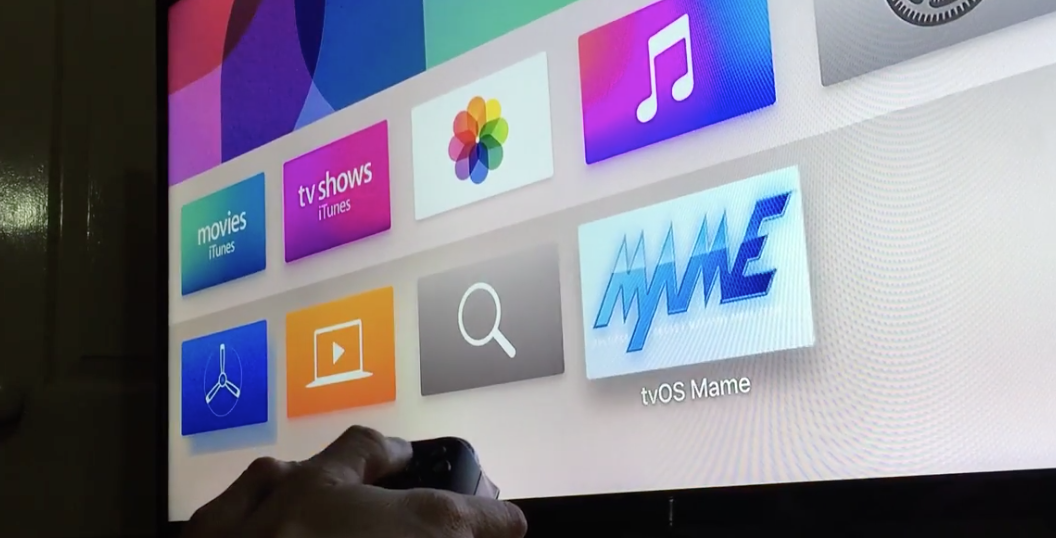
MAME emulator shown running on an Apple TV dev kit

The new Apple TV, which still lacks an official launch date, but is scheduled to touch down sometime in late October, is looking like quite the winner. Not only do the apps look great, but the Siri remote looks lightyears better than its predecessor. Even more exciting, for me however, is the prospect of running old school games by way of emulators.

While it's doubtful that we'll ever see emulators allowed in the App Store, users can now take it upon themselves to side load apps using Xcode 7. With this in mind, several developers have taken the initiative to create Apple TV emulators. One of the latest emulators to be shown off is a MAME emulator by developer Kevin Smith.

MAME stands for Multiple Arcade Machine Emulator, and as its name states, it allows gamers to emulate games from a variety of arcade hardware. As first spotted by MacRumors' Juli Clover, Smith has posted a video of the his MAME emulator running on an Apple TV dev kit.

Why 4K video matters on the iPhone 6s

Why would Apple enable 4K video capture on a phone that can't actually display 4K content in full resolution on screen? The reasons are multifaceted, but one obvious reason is that it allows users to zoom in on video while still maintaining crisp resolution.

Coincidently, iOS 9 now supports pinch to zoom and double-tap to zoom on videos in the Photos app. This makes it possible to zoom in to a specific portion of the video without necessarily sacrificing the amount of resolution needed to look great on most of today's displays. Zooming also allows for creative and flexible video editing solutions while working in apps like iMovie, which supports 4K editing. To make a long story short: it's all about the zoom.

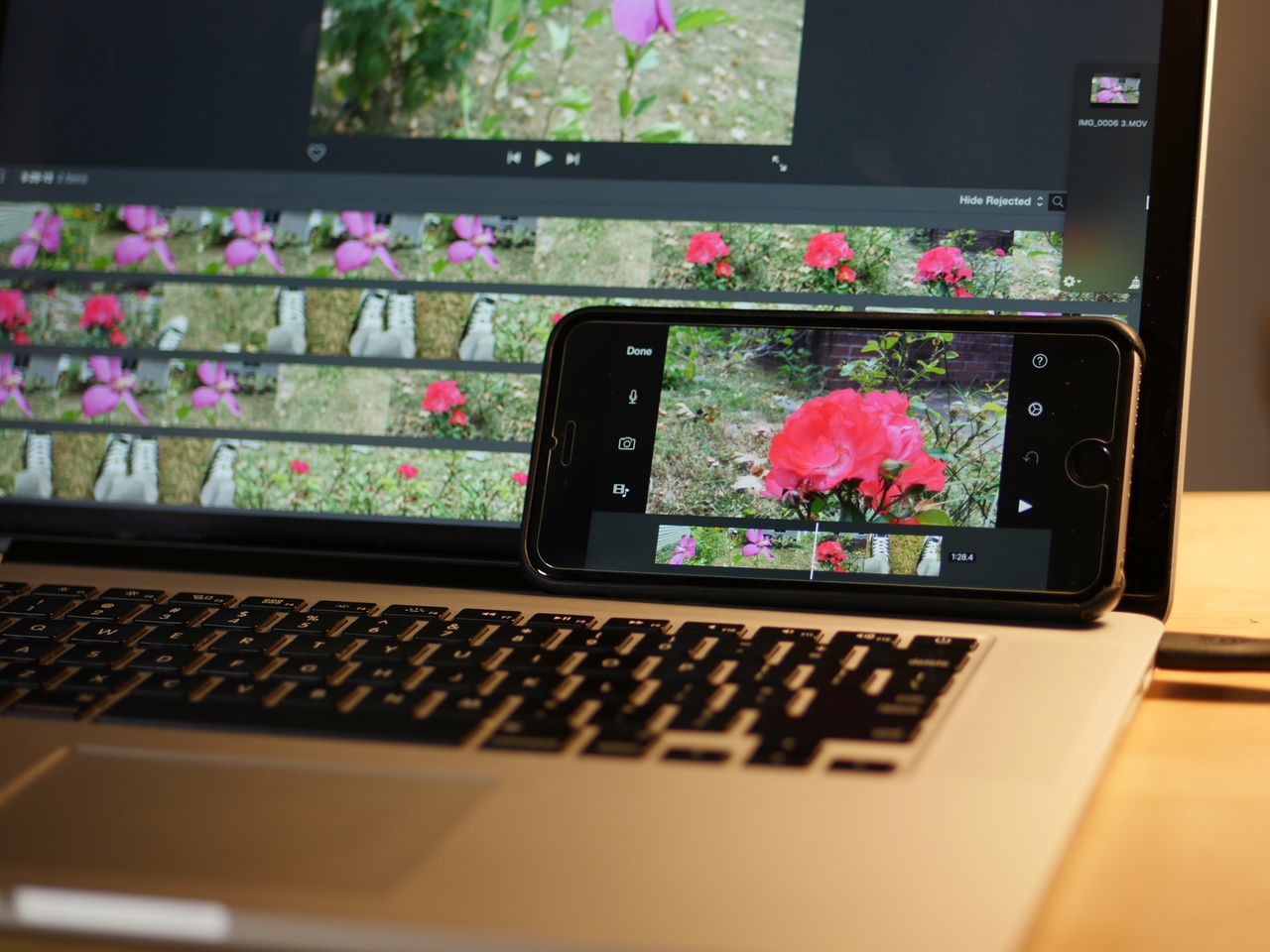
iPhone 6s Plus vs MacBook Pro: Exporting 4K video from iMovie

By now, it's well documented how fast the new A9 processor is in the iPhone 6s. The benchmarks show a marked improvement over last year's iPhone 6, and it even compares nicely with the iPad Air 2.

The iPhone 6s benchmarks better than the entry-level 12" MacBook, and compares nicely with some the earlier generations of MacBook Airs. Needless to say, this device is quite something from a technical perspective. So much so, that I thought it would be fun to compare it with my MacBook Pro.

I decided to install iMovie on my Mac, and compare a 4K export between it and the iPhone 6s. By no means is this a scientific test, but the results paint a general picture that may surprise some people.

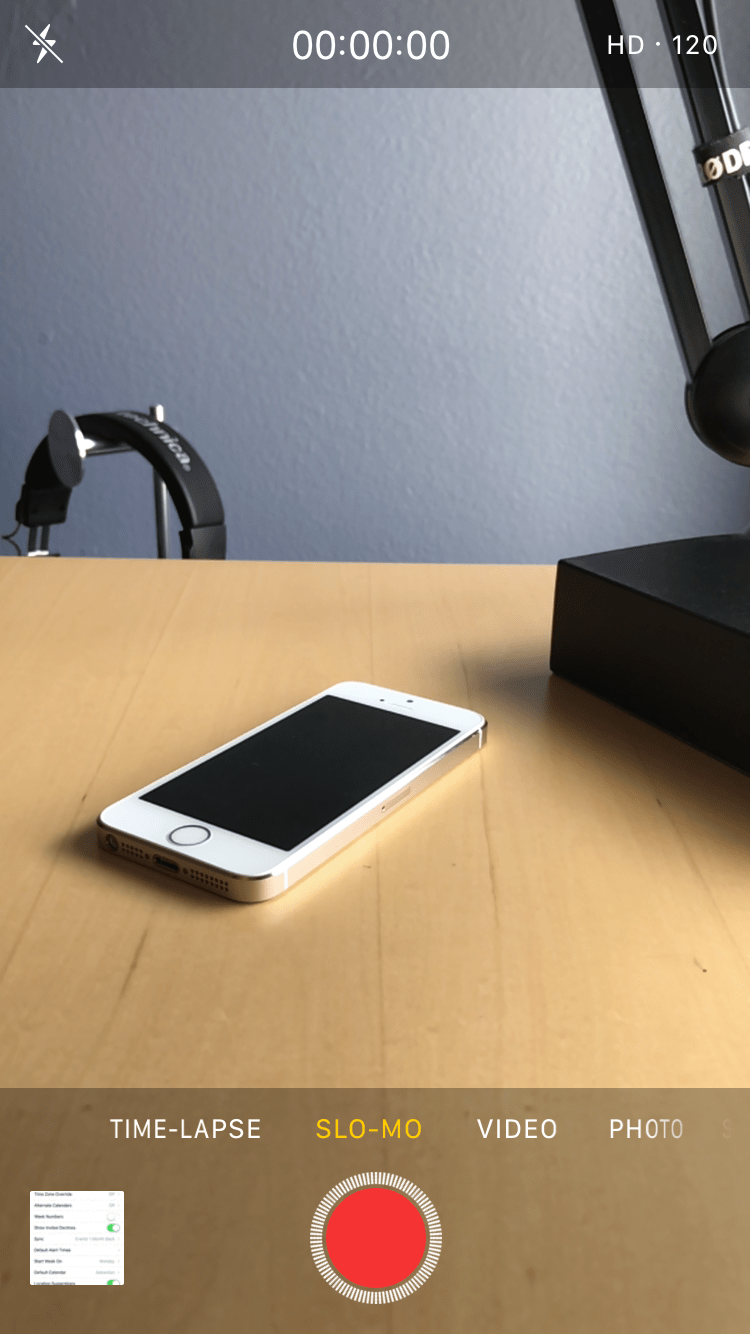
How to enable 1080p Slo-mo videos on iPhone

The iPhone iSight camera has received several remarkable improvements over the year, headlined by its ability to shoot 4K video. Another big feature is its ability to shoot slow motion videos in 1080p. Older iPhones, like the iPhone 6, were only capable of shooting "Slo-mo" videos in 720p resolution. With new iPhones, you can now enjoy slow motion videos in full HD glory.

Poll: What’s your favorite thing about the iPhone 6s?

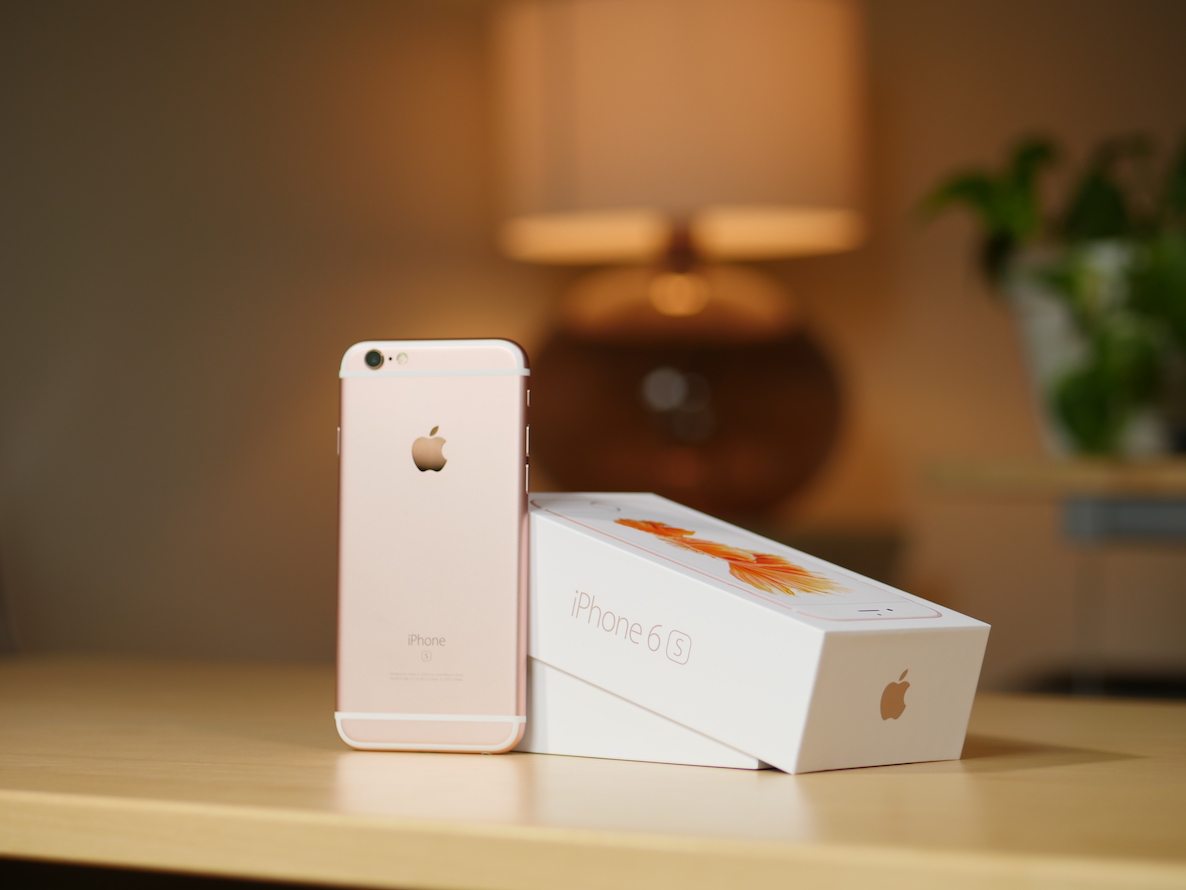
Now that the iPhone 6s has been here for a few days and we've been able to at least partly digest its presence, it's time to tell us about your favorite new feature. Is it the new rose gold color? How about 2GB of RAM? Or maybe you think 3D Touch widely exceeds expectations?

We have our favorites, now it's time to share yours. Vote in our poll, and let your opinion be heard.

New in iOS 9: Safari hides private tab information when the App Switcher is opened

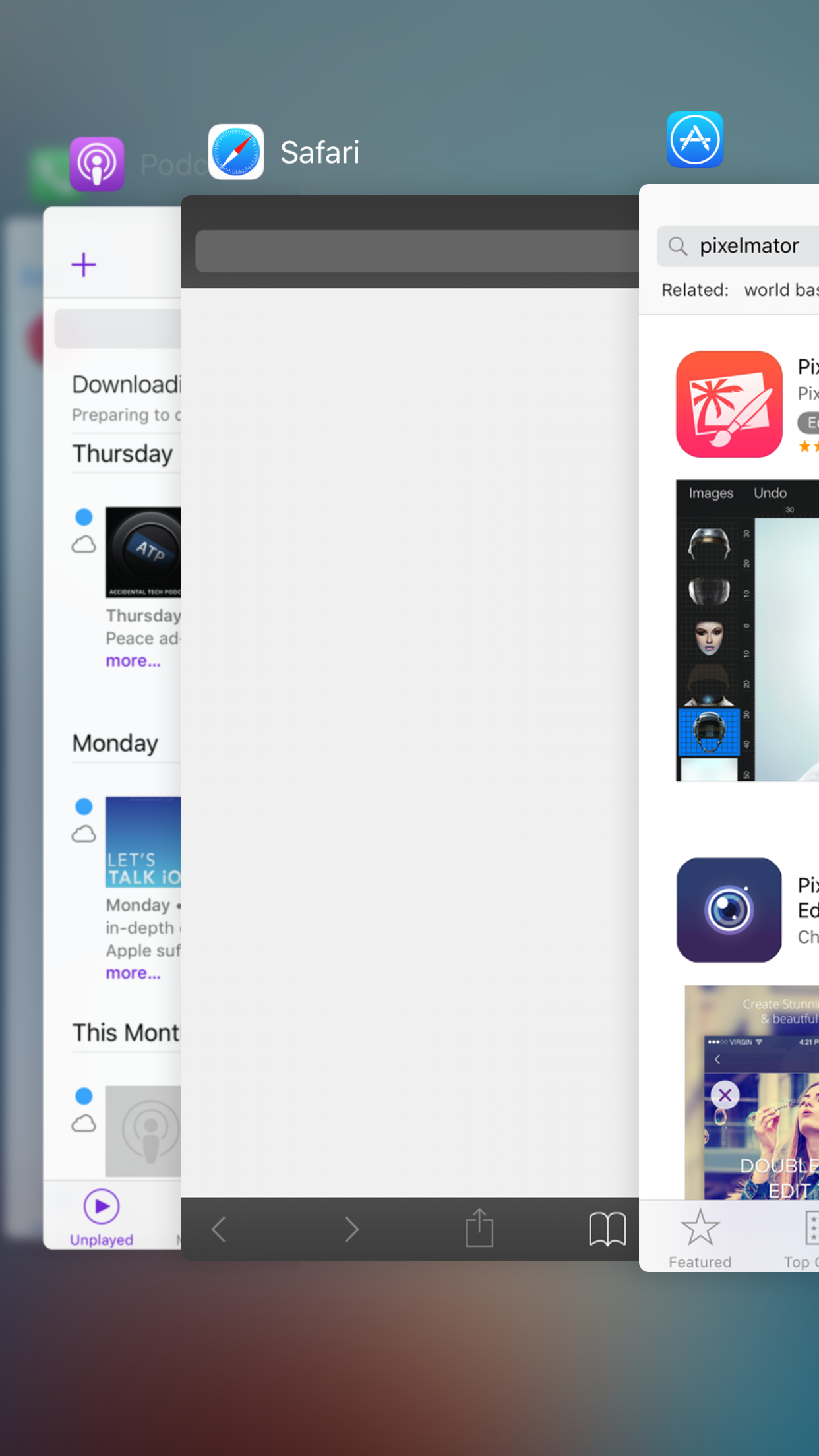
When you open the App Switcher in iOS 9, Safari will automatically blank out the preview page if you happen to leave off while browsing in Private mode. In iOS 8, Safari would show the preview card, regardless of whether or not a Private browsing session was last engaged.

There is already an API available for third-party developers to blur out App Switcher previews to protect sensitive data. Some banking apps and other apps with sensitive customer data do this already. But Apple's method for going about obscuring potentially sensitive web browsing sessions is a bit different. Instead of blurring out the page, Safari simply blanks out everything when the App Switcher is opened.

Here’s how Huawei implemented its version of ‘Force Touch’ into the Huawei Mate S

Last month, Huawei made headlines by introducing a phone with Force Touch before Apple. Everyone knew that Apple was releasing a phone with Force Touch, (now more appropriately named 3D Touch in the iPhone 6s) so Huawei probably thought it was a good idea to strike preemptively and build off of the already established momentum.

The result, as you can see from the following video, is a mixed bag. While Apple's implementation is focused with a defining purpose, Huawei's version seems to be all over the place. Judge for yourselves...

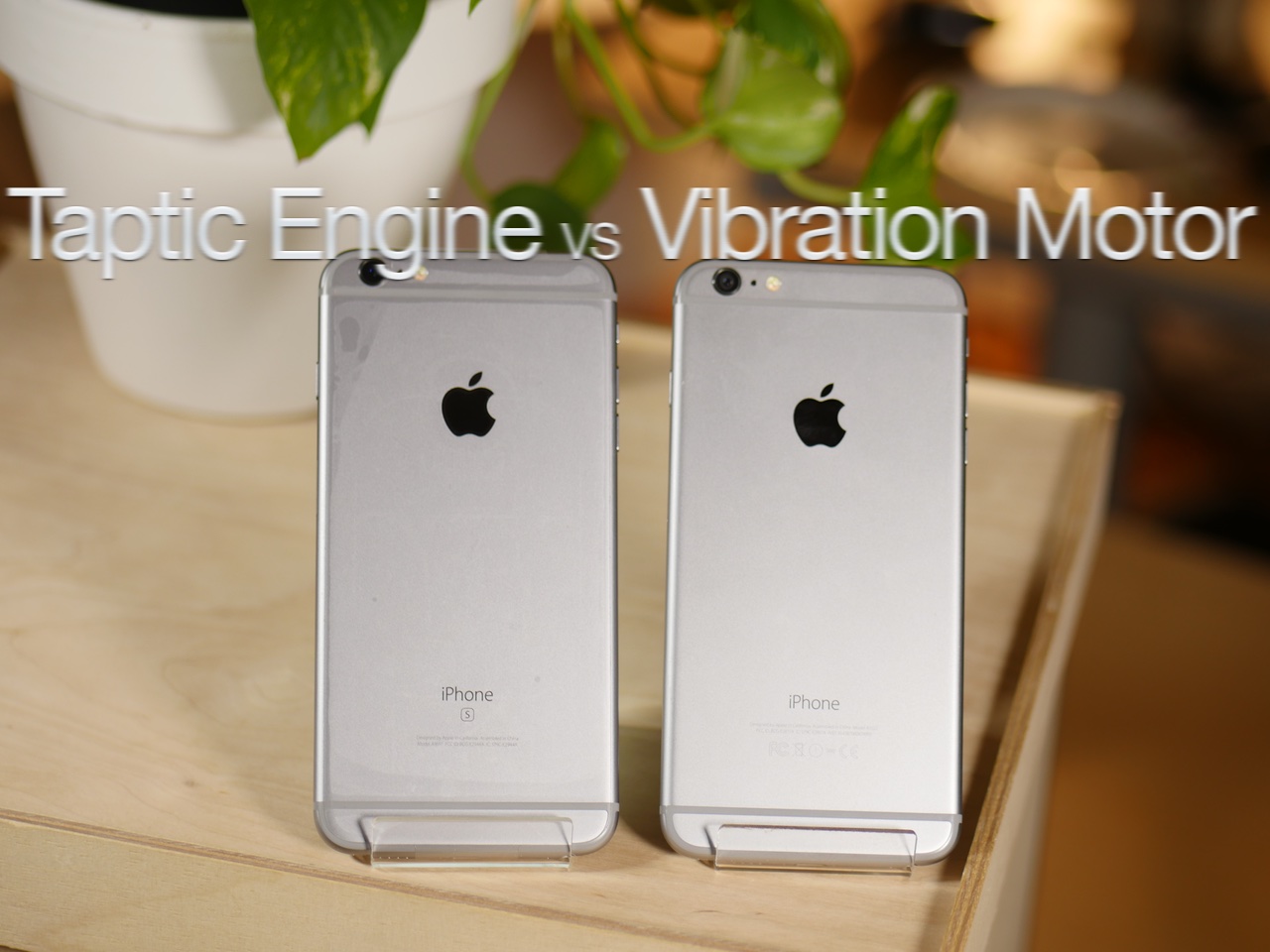
How the iPhone 6s Plus Taptic Engine compares to the vibration motor in the iPhone 6 Plus

If you're rocking a new iPhone 6s, then you've no doubt felt the difference that the new Taptic Engine makes when it comes to vibrations. Vibrations are now audibly quieter on the iPhone 6s, yet still just as strong, if not stronger. If you've ever felt a vibration from the Apple Watch, a device the necessitated the creation of the Taptic Engine, then you already understand the difference.

You'll also notice a new default vibration option for text tones in the Settings app. The new default vibration, called Synchronized, replaces the older Staccato default vibration from older devices. Synchronized allows for the Taptic Engine to sync with the sound of a selected text tone. This provides users with a unique vibration that matches each selected text tone, which is really cool.

We've created a video highlighting some of the differences between iPhone 6s Plus and the iPhone 6 Plus' vibration patterns. It's a change that goes unnoticed to the eye, but you can certainly feel and even hear the differences.