Jeff Benjamin

Jeff has been with iDownloadBlog since 2010, acting as resident video specialist, and tutorial expert. He earned his degree in Computer Network Systems back in 2001, but decided Cisco routers and the like just weren’t for him. Since then, he’s been heavily involved with online writing. He’s written for numerous tech and video game sites since the late 1990′s, and has a knack for explaining things in a simple, clear, and concise manner. Jeff works primarily from the east coast on his Retina Macbook Pro, and shoots video with a Canon DSLR. During downtime he likes to travel the world, visiting the various Apple Stores across the globe. You can email him at jeff [at] idownloadblog.com and follow him on Twitter @JeffBenjam or on Google+.

RedSn0w 0.9.15b2 released to add fixes for 3GS and iPad owners

The iPhone Dev Team has released RedSn0w 0.9.15b2, which fixes a few items for owners of older devices.

The most outstanding fix is for 3GS owners with old bootroms — RedSn0w 0.9.15b2 brings back untethered jailbreak support for end users who fall into that category.

Most of the changes don't pertain to owners of newer devices, but it's always a good idea to ensure that you're running the latest and greatest version anyway. Take a look inside for the full release notes.

How to downgrade pre-A5 devices easily with RedSn0w

RedSn0w 0.9.15b1 was a gargantuan update. In fact, we're still trudging through all of the new features. One new addition that has us really excited is the new direct restore option for pre-A5 devices.

This new restore option allows you to downgrade your device without having to fool with host files, stitching, Pwned DFU, iTunes, or anything else that made downgrading so incredibly cumbersome in the past.

We've made a step-by-step tutorial that shows you how to use this new restore feature, along with getting by those pesky Mismatched APTicket errors. Check inside for the full tutorial.

How to jailbreak iOS 6 with RedSn0w 0.9.15b1

As we reported a couple of days ago, RedSn0w 0.9.15b1 is now available to jailbreak A4 devices and below running iOS 6. This latest version is a pretty massive update with a lengthy change log, but the most important aspect about the update is the ability to jailbreak iOS 6 and install Cydia.

Previous iOS 6 jailbreaks required users to install Cydia manually, but the latest public version of RedSn0w works just as you might expect it would. Take a look inside for our full tutorial.

iPod touch 5th generation review

I never planned on purchasing a new iPod touch, but the impulse bug got me. I bought one last year for testing purposes. But despite that justification, I still had buyers remorse soon afterwards. That's how bad the iPod touch 4th generation was. It lacked power, had a terrible screen, and the design was, well, disgusting.

But when Apple showed off the new iPod touch hardware last month, my interest was piqued. Still reeling, though, from the 4th generation product, I kept myself from getting too excited about it.

Unfortunately (thankfully?) I struggle to control myself when it comes to Apple product purchases. But that lack of control allowed me to witness first hand a marvelous turnaround to the iPod touch line. Yes, the iPod touch 5th generation shares little with the previous generation hardware, and that's a good thing.

Indeed, the new iPod touch is — wow — it's actually good. I mean, it's really good. If you haven't yet seen it in person, you owe it to yourself to check out this review...
We unbox the new 5th generation iPod touch

Just about an hour ago I was able to get my hands on a brand new 32GB Slate Black 5th generation iPod touch. Here is our official unboxing video of Apple's revamped mobile gaming everything device.

The first thing you'll notice about the new iPod touch is how thin it is when compared with the iPhone 5. If you thought Apple's new iPhone was thin, wait until you get a load of the 5th generation iPod touch!

The second thing you'll notice is how drastically better the 5th generation is when compared to the previous generations. The new iPod touch is leaps and bounds above any previous touch when it comes to build quality. Even the screen looks amazing. What do you think? Oh, and uh, the Lightning cable is $19, not $29 like I mistakenly stated in the video.

Hide the Newsstand app using StifleStand for Windows

Yesterday we showed you how to hide the maligned Newsstand app using StifleStand — a new Mac app from developer, Filippo Bigarella.

What makes StifleStand special is that it doesn't require a jailbreak in order to use it, which means that it even works with the new iPhone 5. No doubt, hundreds of users who despise Newsstand flocked to the app, but Windows users were sadly left in the cold...that is, until now.

As promised by Bigarella, and as noted by iOS blog ModMyi, a Windows version of StifleStand has been created, and it is now available for download. Check inside for a brief video demonstration of StifleStand for Windows, along with the download link.

How to install Siri on iOS devices running iOS 6

Would you like to use Siri on your old iPod touch 4th generation or iPhone 4 running iOS 6? The first thing you need to do is jailbreak your device, and then install Cydia.

Once you've jailbroken your device and installed Cydia, you can then add the necessary Cydia repo to install the package needed to configure Siri on these devices.

Check inside for our full tutorial.

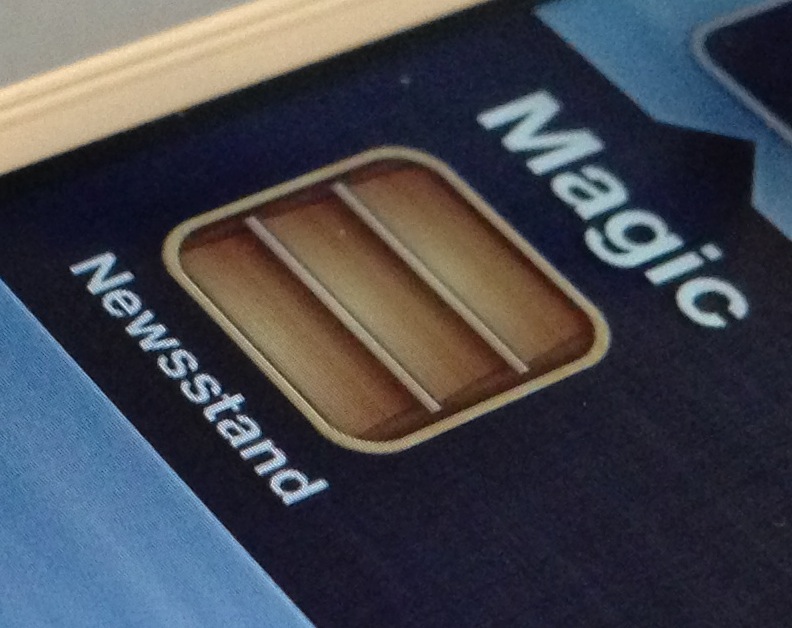
How to hide Newsstand on the iPhone, iPad, and iPod touch, no jailbreak required

Although I occasionally use Newsstand, I can plainly see why many deem it to be worthless. Almost all of my friends have Newsstand apps that look just like the screenshot above — empty. With that in mind, wouldn't it be great if Apple didn't force the app upon you?

I mean, it's not even really an app after all, it's a folder, yet Apple forces you to keep it on your Home screen with no way to hide it. Most people who really hate the app, and don't have the luxury of a jailbreak, relegate Newsstand to the last page of their Home screen, but this latest Mac app one-ups that solution.

Like previous tricks that allowed you to place Newsstand in a folder, Filippo Bigarella's StifleStand does something similar. StifleStand, though, is much more easy to execute, because it doesn't require any special timing on your part.

The best thing about StifleStand is that it doesn't require a jailbreak, which makes it entirely possible to hide the Newsstand app on the iPhone 5, or any other iOS device for that matter. Take a look inside as I show off the easy to follow process on video...

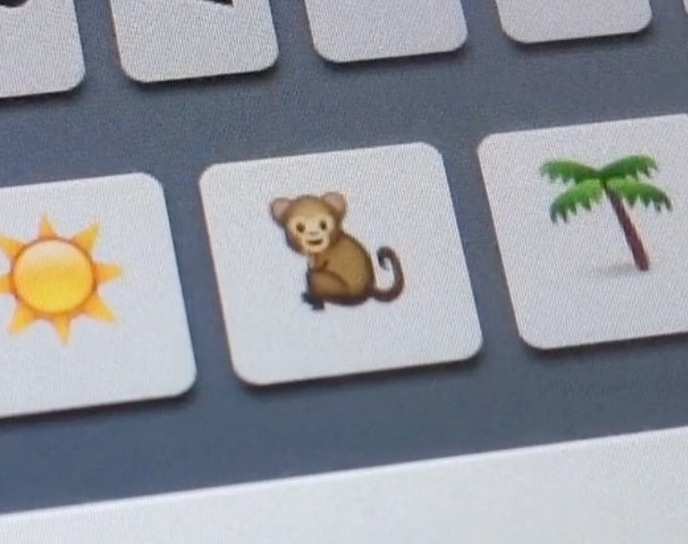
How to quickly access Emoji characters via the iPhone’s stock keyboard

QuickEmoji is a brand new jailbreak tweak that allows you to quickly access Emoji characters using the stock iOS keyboard. Normally, you'd have to switch to a dedicated Emoji keyboard to use Emoji characters, but this tweak takes on a more practical approach.

Take a look on the inside, as we show you how to access your precious Emoji characters in a more efficient manner...

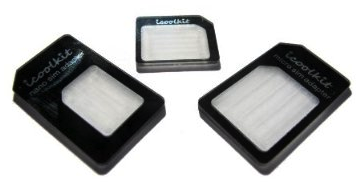
How to use a Nano SIM in the iPhone 4 or iPhone 4S

If you just purchased an iPhone 5, then you know first hand how much smaller the new Nano SIM is when compared to the already diminutive Micro SIM it replaces.

But what if you want to use the new Nano SIM in an older phone, like the iPhone 4, or the iPhone 4S? Obviously you can't just stick it in there.

Your best option is to purchase an adapter that can be cheaply had on Amazon for $1.99. That's exactly what I did, and here's the video to prove it.

How to import media on your iPhone or iPad without iTunes

Bridge is a jailbreak app that allows you to import music from your iDevice directly into your media library. While it works best in cohesion with a download tool like Safari Download Manager, it can work independently as well.

Files can be accessed via a built in file browser, or you can paste the URL of a specific file directly into the app. Have a look at our brief video for more insight...