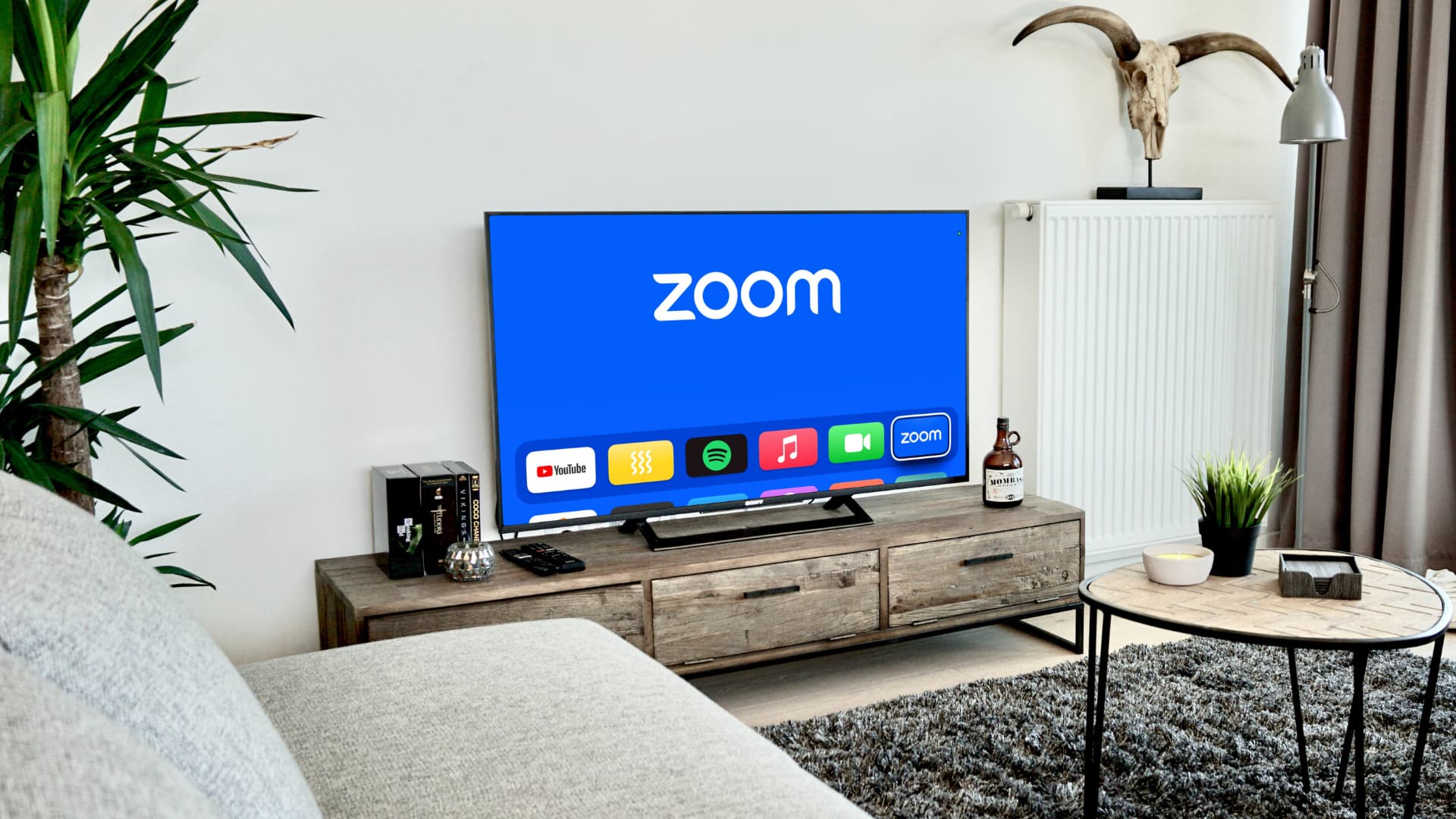
Learn how to make a Zoom call or join an existing Zoom meeting on your Apple TV to video conference from the big screen.
What you need
The requirements for Zoom are the same as those for FaceTiming on an Apple TV.
- Apple TV 4K (2nd generation or later) running the latest version of tvOS.
- iPhone or iPad as a wireless camera and mic via Apple’s Continuity Camera feature.
- Your iPhone or iPad and Apple TV must be signed into the same Apple account.
Make Zoom calls from Apple TV
1) Download the Zoom app on your Apple TV by opening the App Store and searching for it or by asking Siri.

2) Open Zoom and sign in with your Apple device (easiest), browser, or email.

If you choose the first option, you’ll get a notification on your nearby iPhone or iPad; just tap it and authenticate with Face ID or Touch ID.

3) You’ll now see the Continuity Camera screen listing Apple TV users. Select the person whose iPhone you’d like to use as a wireless camera for Zoom calls on your Apple TV.

If you don’t see your own account, choose Other and scan the QR code displayed on the TV with the built-in Camera app of your iPhone. Your iPhone and Apple TV must use the same Apple account for the Continuity Camera feature to work.
4) Tap a Continuity Camera notification on your iPhone, then choose Accept.

Mount your iPhone horizontally on a MagSafe stand so that the rear cameras face you. If you’re on an iPad, it should automatically switch to the front camera, so no need to turn it like your iPhone.
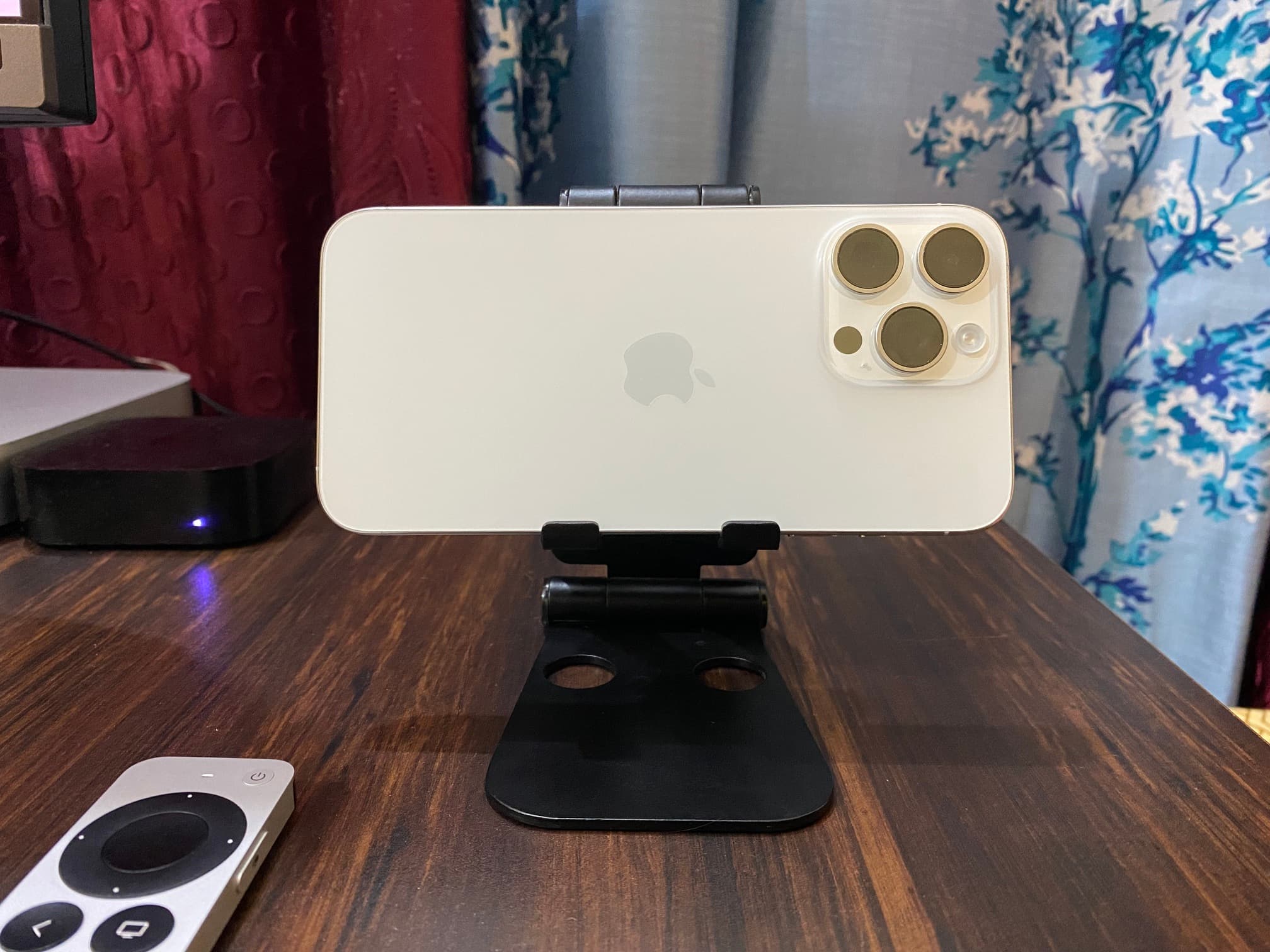
A ‘Connected to Apple TV’ message appears on the phone. Otherwise, choose ‘Skip this step,’ and it will show up.

5) Set a six-digit PIN code to secure Zoom on this Apple TV and prevent unauthorized use.

6) Select Allow when Zoom on your Apple TV asks permission to use the cameras and microphone in your iPhone.

7) With everything set up, select the Contacts tab in the Zoom app on your Apple TV to start a call.
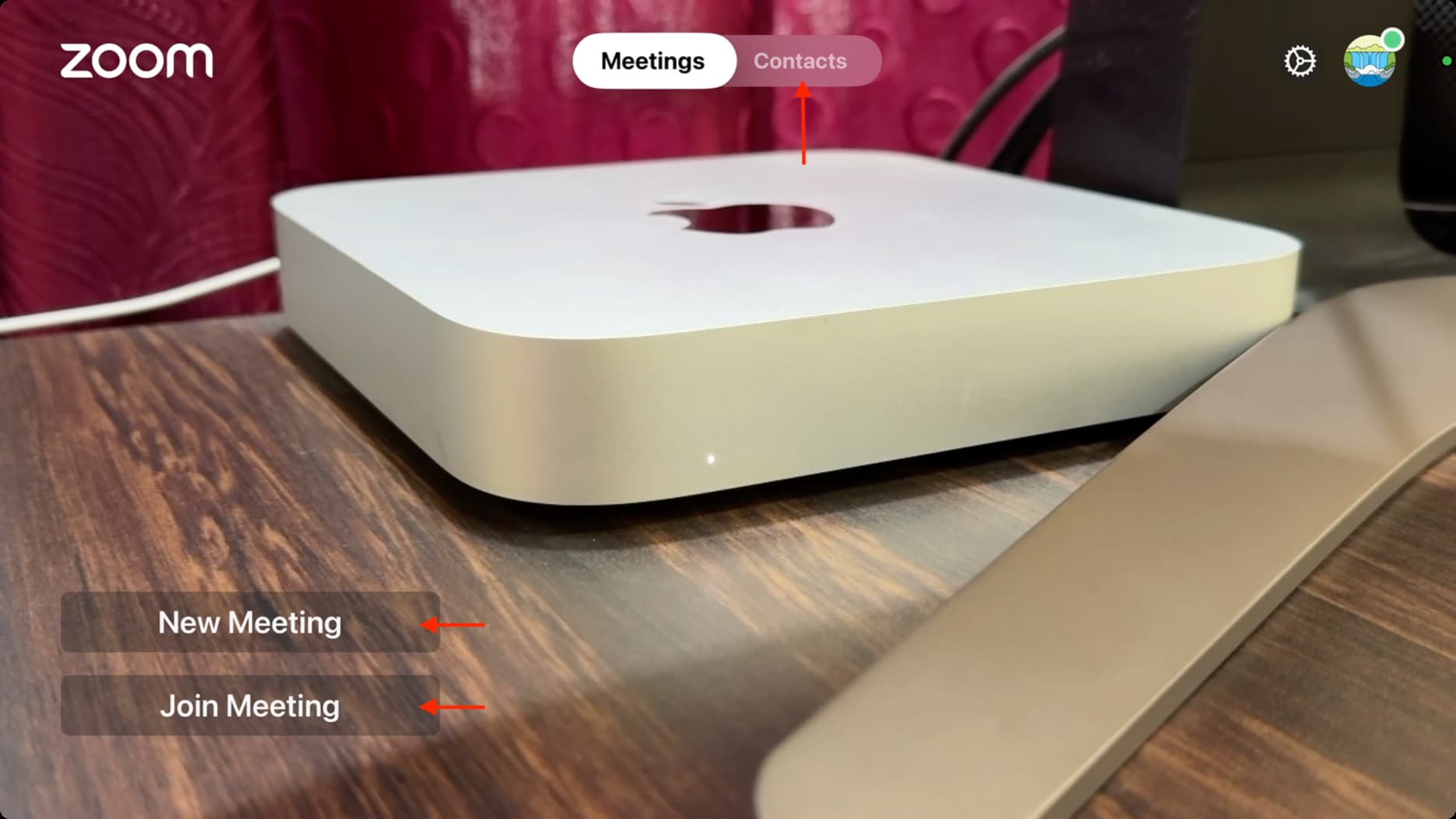
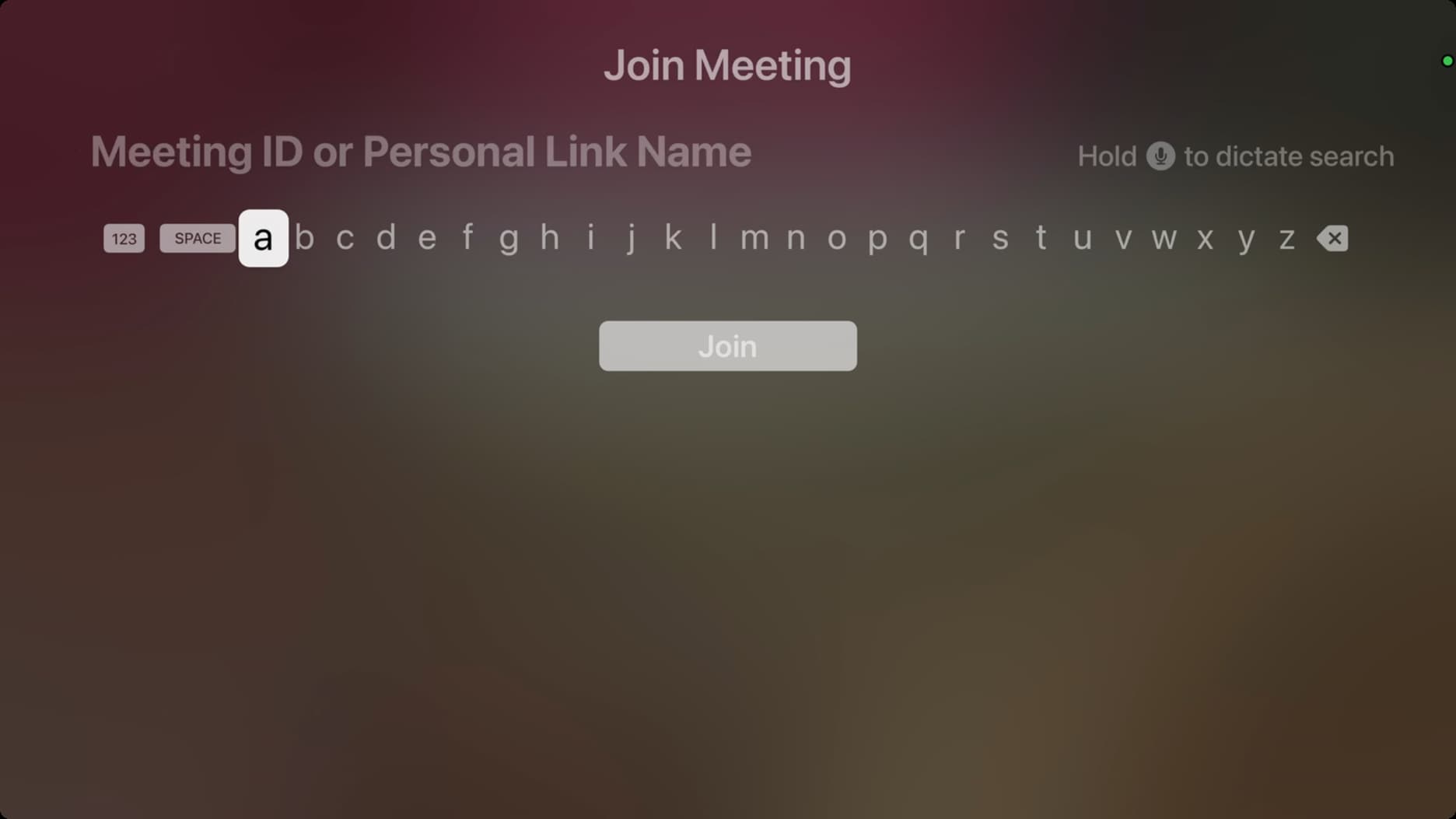
To join an existing Zoom meeting, choose ‘Join Meeting’ instead. You’ll need to enter your meeting ID or personal link name, followed by the meeting password. Ask the call organizer for these details if you haven’t received them already.
To set up a new Zoom call, click New Meeting, and then the green safety mark in the top-left corner to view your Meeting ID and Password. You can share these details with meeting participants via text, email, or other means.
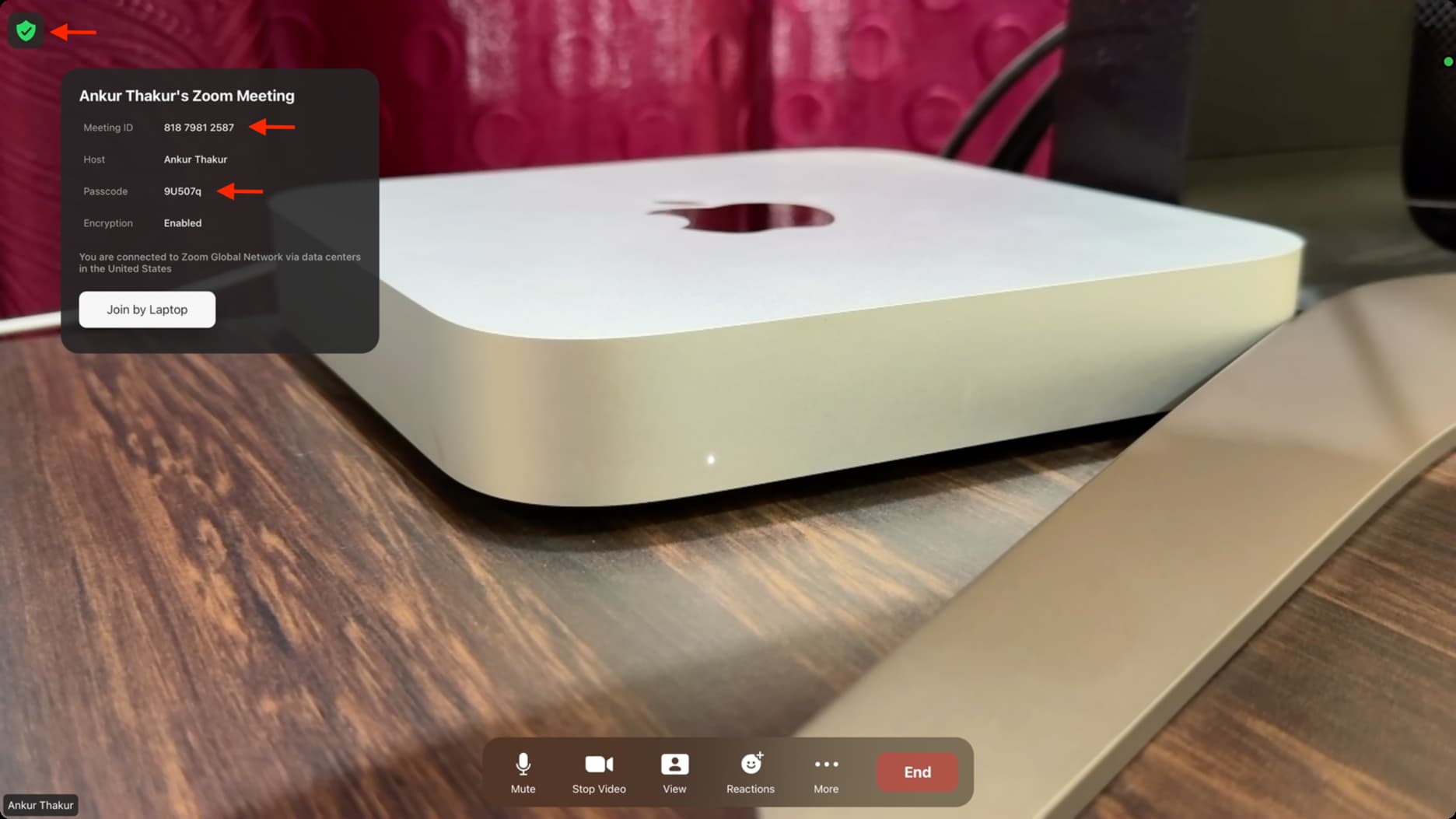
The other person must enter the Meeting ID and Password in the Zoom app or website to join your call.
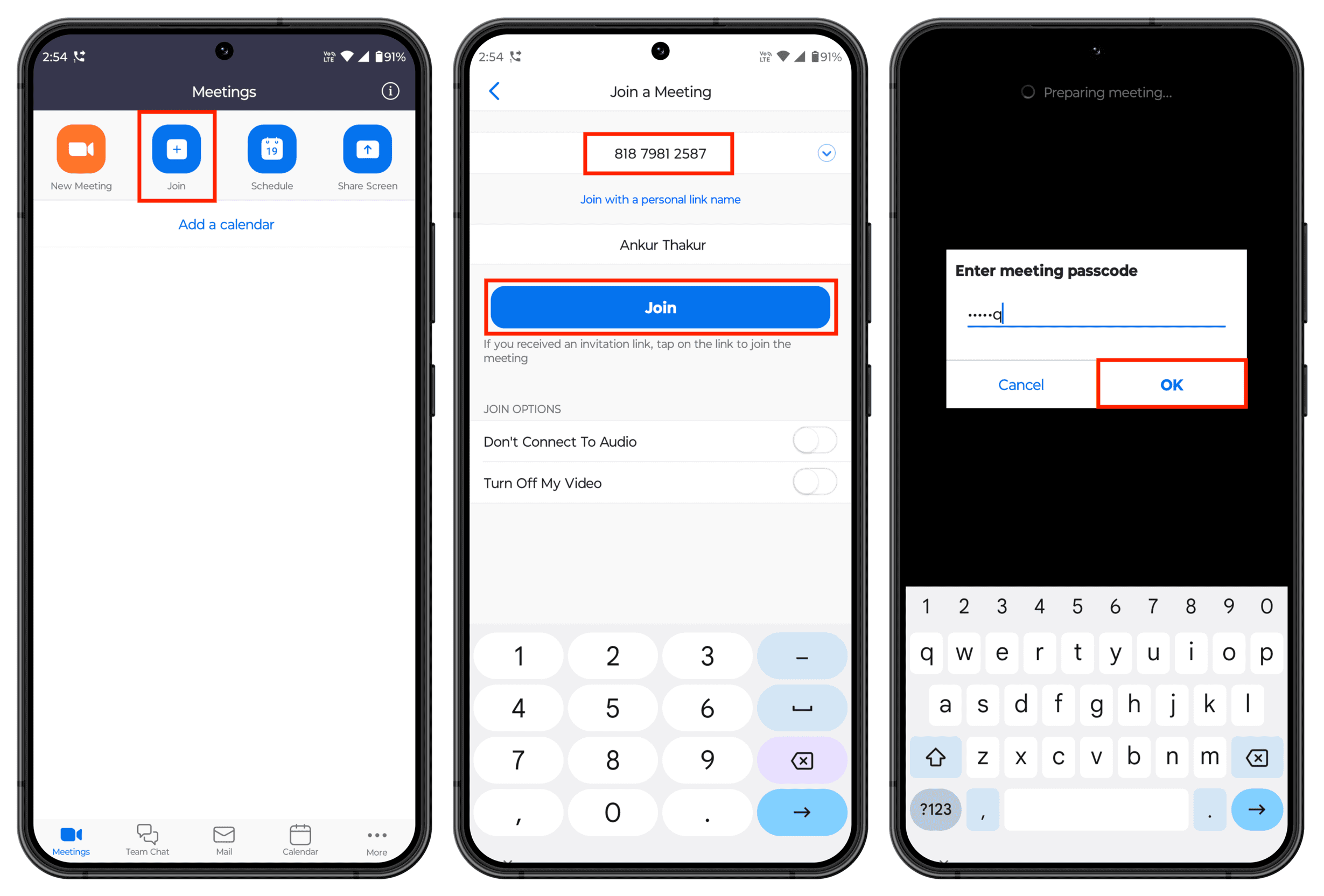
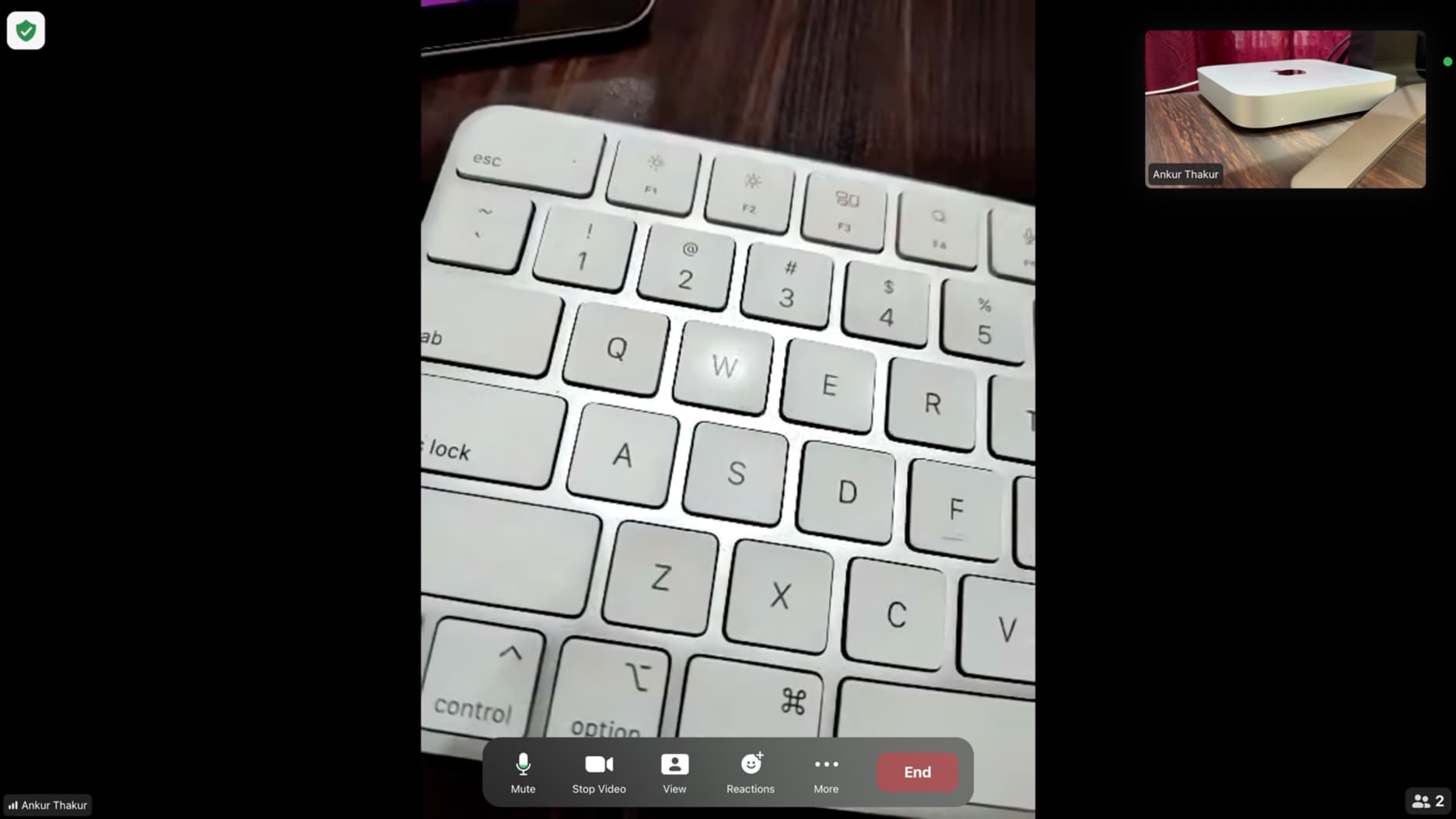
Only after that can you video conference with them via Zoom on your Apple TV.
Continue a Zoom call on Apple TV
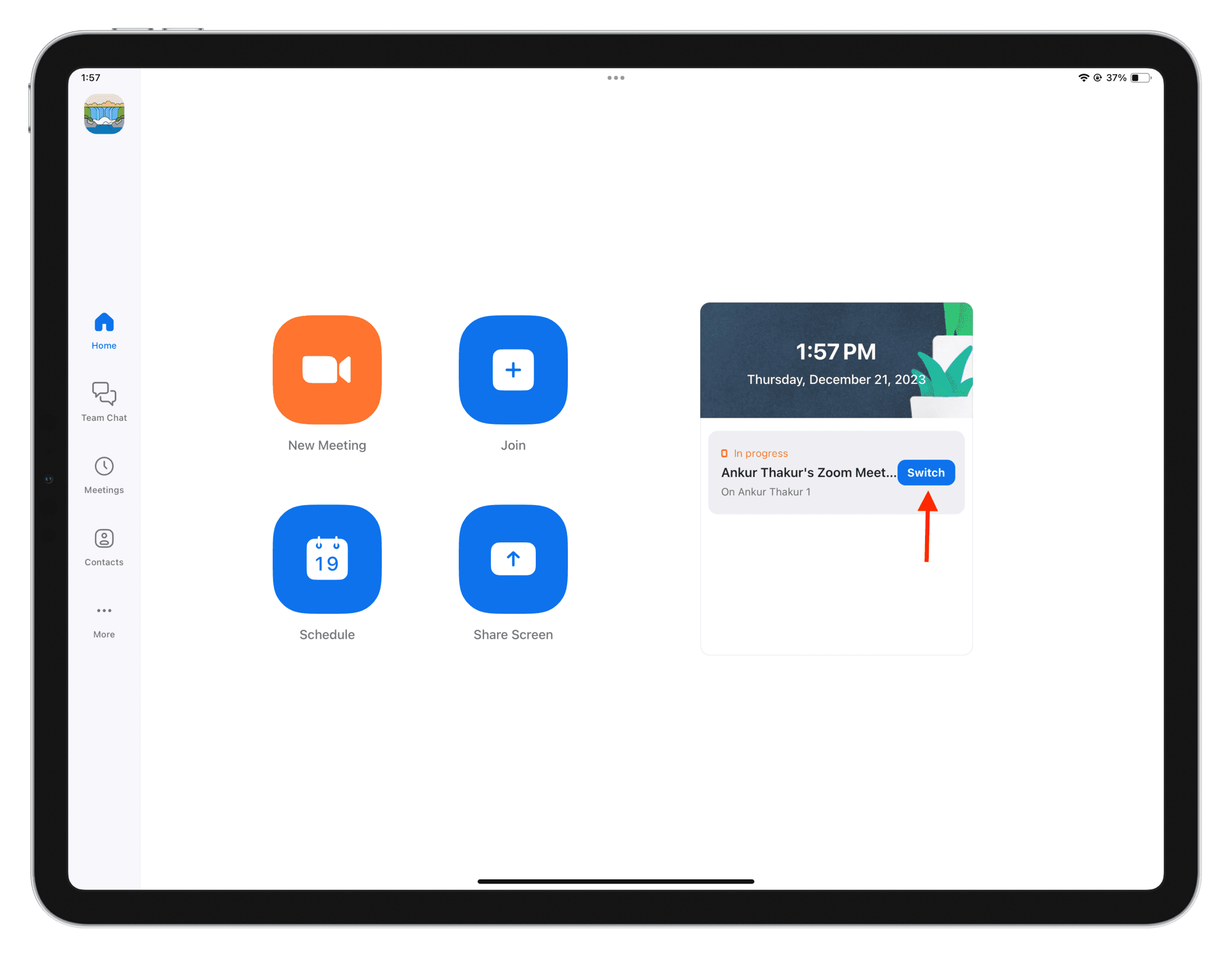
If you’re already on a Zoom call on your iPad, Mac, or another device, you can hand it off to Zoom on your Apple TV. To do this, open the Zoom app on your Apple TV and connect your iPhone or iPad as a wireless camera, then select the in-progress Zoom meeting and the call will continue on your TV.
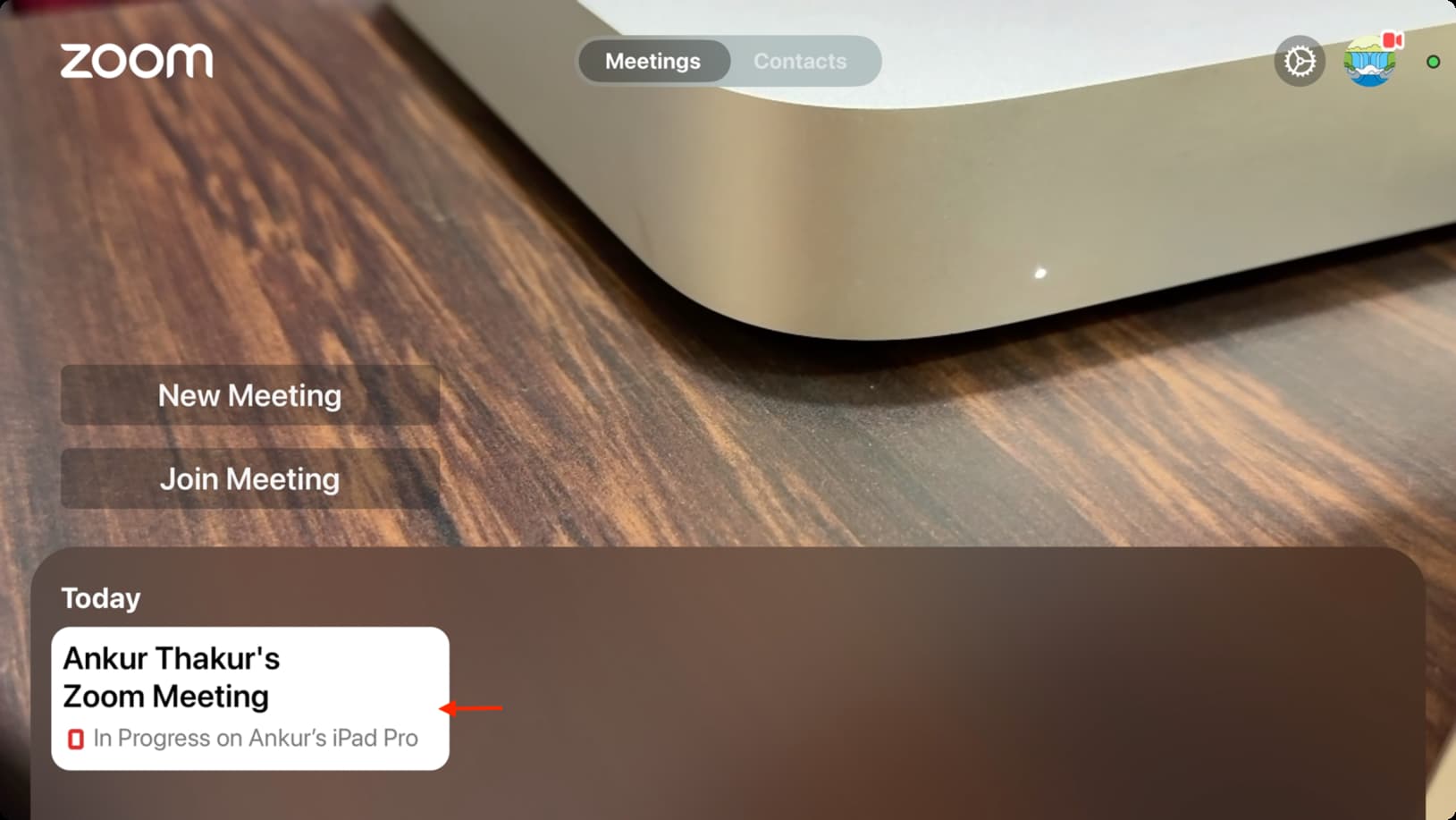
To hand off the call to another device, open Zoom there and tap Switch in the ‘In progress’ tile.
Zoom controls
During a video meeting, use the Siri Remote’s touchpad or directional buttons to display a panel with the familiar Zoom options.

- Mute: Mute the call
- Stop Video: Temporarily stop your video feed
- Share Content: Share your phone or computer screen here
- View: Change your view
- Reactions: Use AR reactions
- More: Access security settings, manage participants, invite additional people, toggle captions, choose from video effects, adjust microphone mode, and more.
- End: Leave the meeting or end the call for all meeting participants
End a meeting
To end a Zoom meeting on your Apple TV, bring up the controls and choose End, then click Leave Meeting or End Meeting for All.
Set your Zoom status
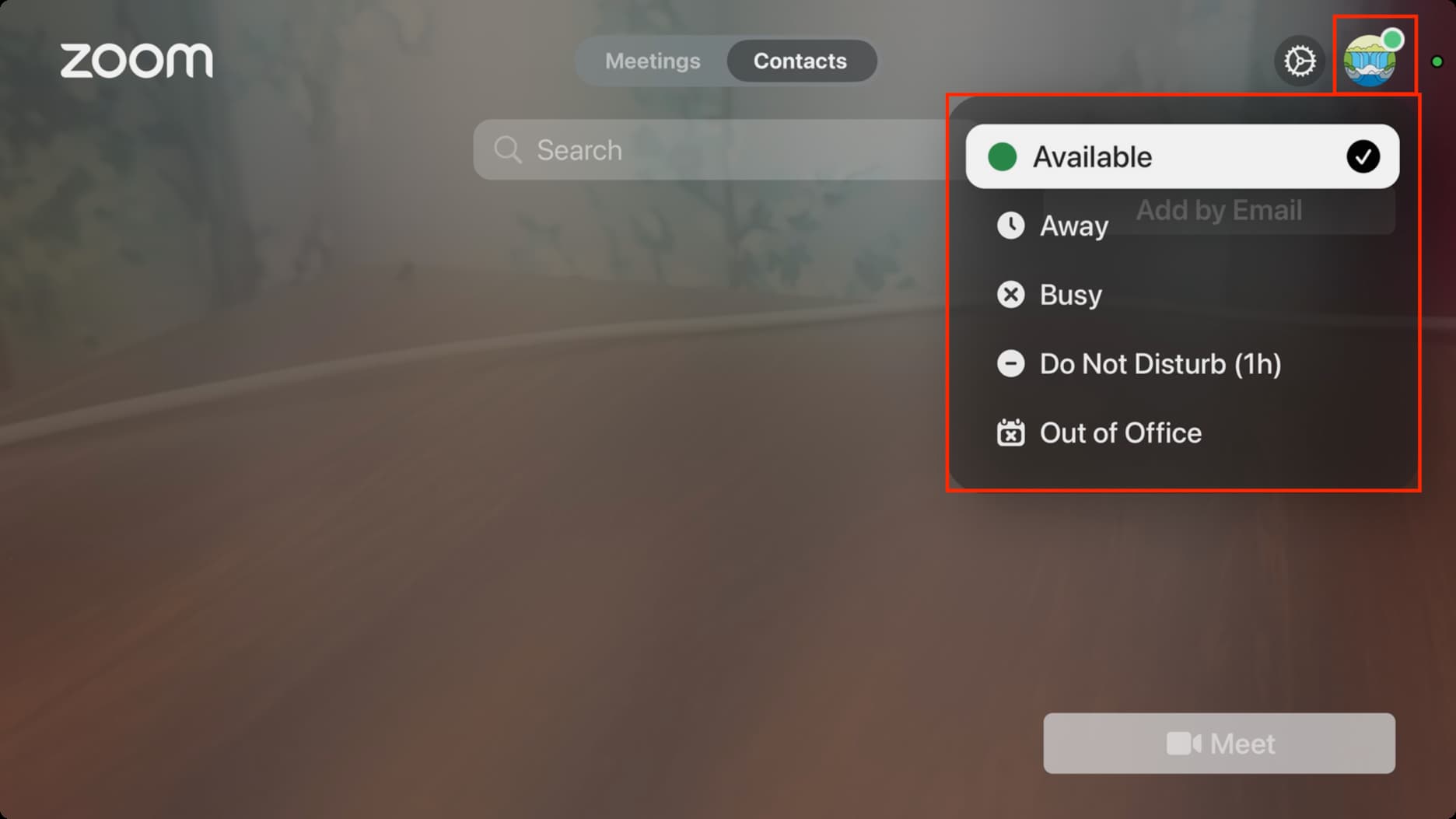
Select your profile picture in the top-right corner and choose between the Available, Away, Busy, Do Not Disturb (1h), or Out of Office options. You cannot access these statuses when on a Zoom call.
Adjust settings
Select the three-dot icon in the top-right corner of the Zoom app on your Apple TV to access the app’s settings spanning three categories. The General section provides handy options to adjust your video preview, toggle silence ringer, manage the screen lock security features, and more.

Lock Zoom for privacy
If you won’t be using your Apple TV for a while, click the three-dot icon in the top-right corner and choose Lock Screen from the menu. This will enable you to secure Zoom on this Apple TV with a six-digit passcode.

Zoom calls in a picture-in-picture window
FaceTime for Apple TV allows you to use picture-in-Picture (PiP) mode, but Zoom lacks this handy option. Pressing the Siri Remote’s back button will bring up an empty PiP window without your camera feed or other participants.
Fix the Zoom app stuck on Apple TV
If Zoom freezes on your Apple TV, try pressing the Back or TV button on your Siri Remote. If that doesn’t fix the issue, wake your iPhone and tap Disconnect to turn off Continuity Camera, which may unfreeze Zoom on the Apple TV. If the issue persists, delete and reinstall the app.
Check out next: How to install, connect, and use a VPN on Apple TV