Learn how to ask Siri to read web articles in Safari on your iPhone and iPad so you can multitask without having to stare at the screen.
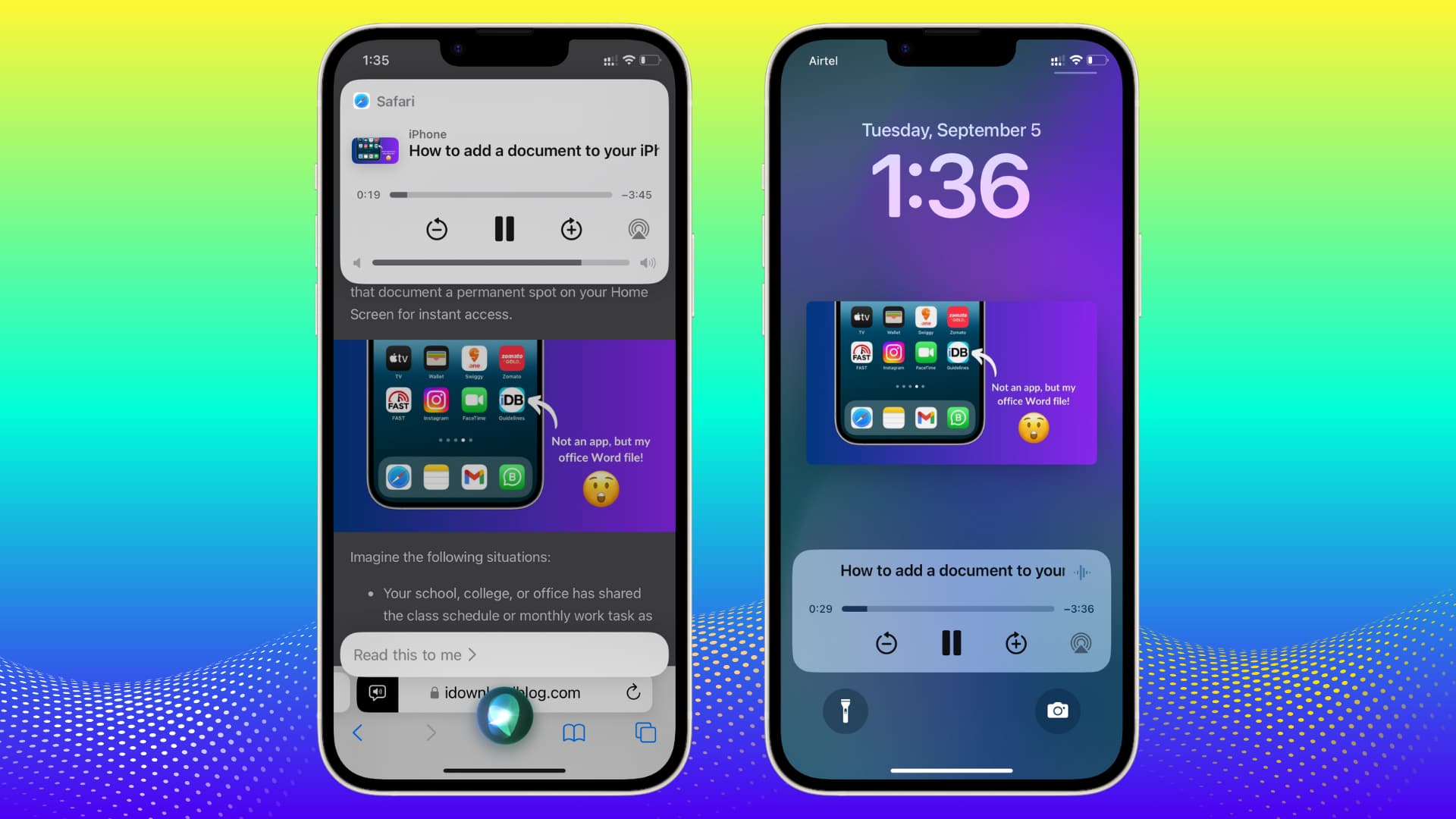
Ask Siri to read web articles in Safari
1) Open an article in Safari on your iPhone or iPad.
2) Invoke Siri and say something like:
- “Read this”
- “Read this web page”
- “Read this article”
- “Read this to me”
- “I want to listen to this page”
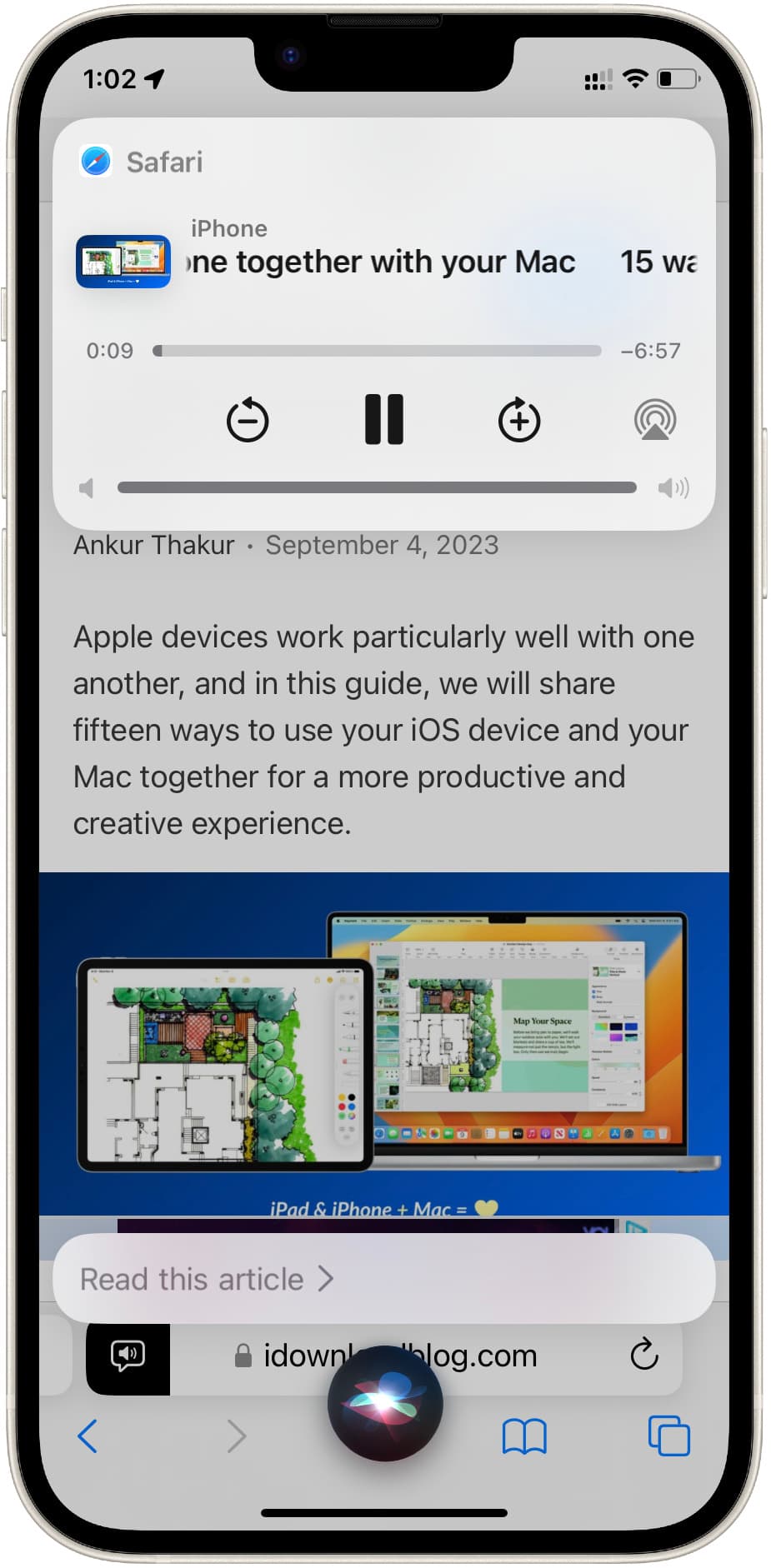
Your iPhone will start reading the article in the current Siri voice.
Or, you can follow these steps instead:
- Open an article on your favorite blog or news site in Safari.
- Once the page fully loads, tap the menu icon on the left side of the address field.
- Tap Listen to Page.

Try these fixes if the “Listen to Page” option is missing:
- Refresh the web page
- Force quit and reopen Safari
- Invoke Reader Mode, then use the Listen to Page command
- Try another web page
- Restart your iPhone
- Update to the latest iOS version
Once Siri has started reading a webpage, you can reveal the playback by tapping the blue-white speaker icon in the address bar or the usual Now Playing tile in Control Center and Lock Screen. Use the playback controls to pause (||), skip back and forward (- and +), and change the speaking rate (1x).

Pause or end listening
You can tell Siri to stop Siri reading you an article in 3 ways:
- Follow the above steps to pause the playback using the in-app controls
- Use the media controls on your Lock Screen and in the Notification and Control Center.
- Force Quit Safari.
What type of web articles can Siri read?
Siri can read most web pages, with these important caveats:
1) Page must be Reader View-compatible: Siri can only read web pages that work with Safari’s ad-free Reader View. If you don’t see the Show Reader option after hitting the options button in the address bar, that page is unavailable in Reader View, and Siri won’t be able to read it to you. You may see “Reader Available” in the URL bar briefly when Safari is loading a Reader View-compatible article.
2) Uncover the text: Opening a Wikipedia article on your iPhone will hide most of the text under collapsible subheadings to improve navigation. As Siri won’t read any hidden text, be sure to expand hidden sections and subheadings before asking Siri to read that page to you.

If Siri won’t read you certain web pages no matter what, you can always try the various text-to-speech methods available on an iPhone, iPad, and Mac.