Learn how to turn text into spoken content on your iPhone or iPad, and adjust speaking rate, pronunciation, text-to-speech voice, etc.

Text-to-speech saves you time and boosts your productivity by having you listen to spoken content while doing something else instead of reading long passages of text. It’s also a great accessibility option for people with vision problems.
So grab your iPhone or iPad and follow along with our step-by-step tutorial right ahead. We’ll show you how to hear anything using the built-in features and third-party apps.
Speak Selection and Speak Screen
These two text-to-speech features are built into iOS.
Speak Selection
Speak Selection is one of the built-in accessibility features available on the iPhone, iPad, or Mac. With it, you can hear selected text in nearly all apps where you can select text, such as Mail, Messages, Notes, Safari, Gmail, Chrome, and others.
- Open the Settings app and tap Accessibility.
- Tap Read & Speak (formerly Spoken Content) and turn on Speak Selection.
- Launch an app like Safari or Notes and select a block of text you’d like to hear spoken aloud.
- Choose Speak from the floating menu (tap the arrow icon if you need to), and your device will speak the selected text, whether it be a single word, multiple paragraphs, or an entire long-form article.

Speak Screen
- Go to iPhone Settings > Accessibility > Read & Speak > Speak Screen and turn it on.
- Now go to an app and swipe down with two fingers from the top edge of the screen to have your iPhone speak onscreen text. Speak Screen can be tricky to trigger; I’ve found that swiping down with two expanded fingers from the display notch where the Face ID sensors are works most of the time. And if you turn on the Show Controller option in the Speak Screen settings, you’ll be able to activate Speak Screen via handy onscreen controls.

To change the computer voice for both these text-to-speech features, go to Settings > Accessibility > Read & Speak and adjust the Voices options there. Here, you can choose a different voice, adjust the speaking rate, and adjust other settings to your liking.
Live Speech
Live Speech is an accessibility feature that lets you type some text and have it spoken aloud, even on FaceTime or cellular calls. And if you use the Personal Voice feature, Live Speech can use it to read any entered text in your voice!
Listen to a webpage in Safari
Siri can read web articles in Safari, a convenient multitasking option for those times when you don’t have the time to sit and read a particularly lengthy research paper or a similar web article. For instance, you could be listening to this tutorial in Safari while driving or editing an image on your Mac. Keep in mind that some websites block this feature.

Text-to-speech in Apple Shortcuts
You can use two Apple-curated shortcuts from the iOS Shortcuts app to convert text or a web article to spoken word.
Open the Shortcuts app, go to the Gallery section, and use the search bar to find and add the Turn Text Into Audio or Speak Body of Article shortcut.
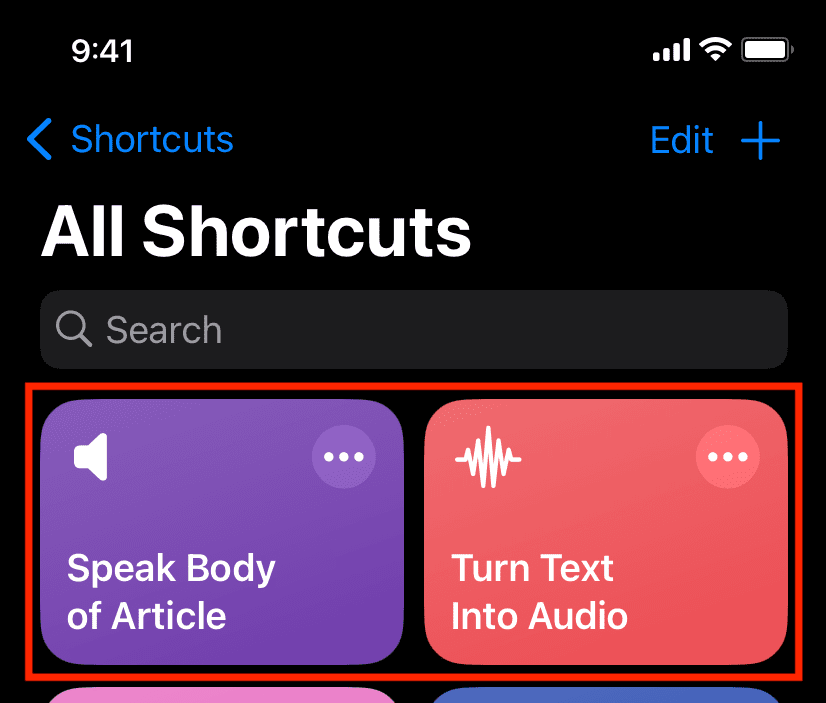
Tap the shortcut to run it:
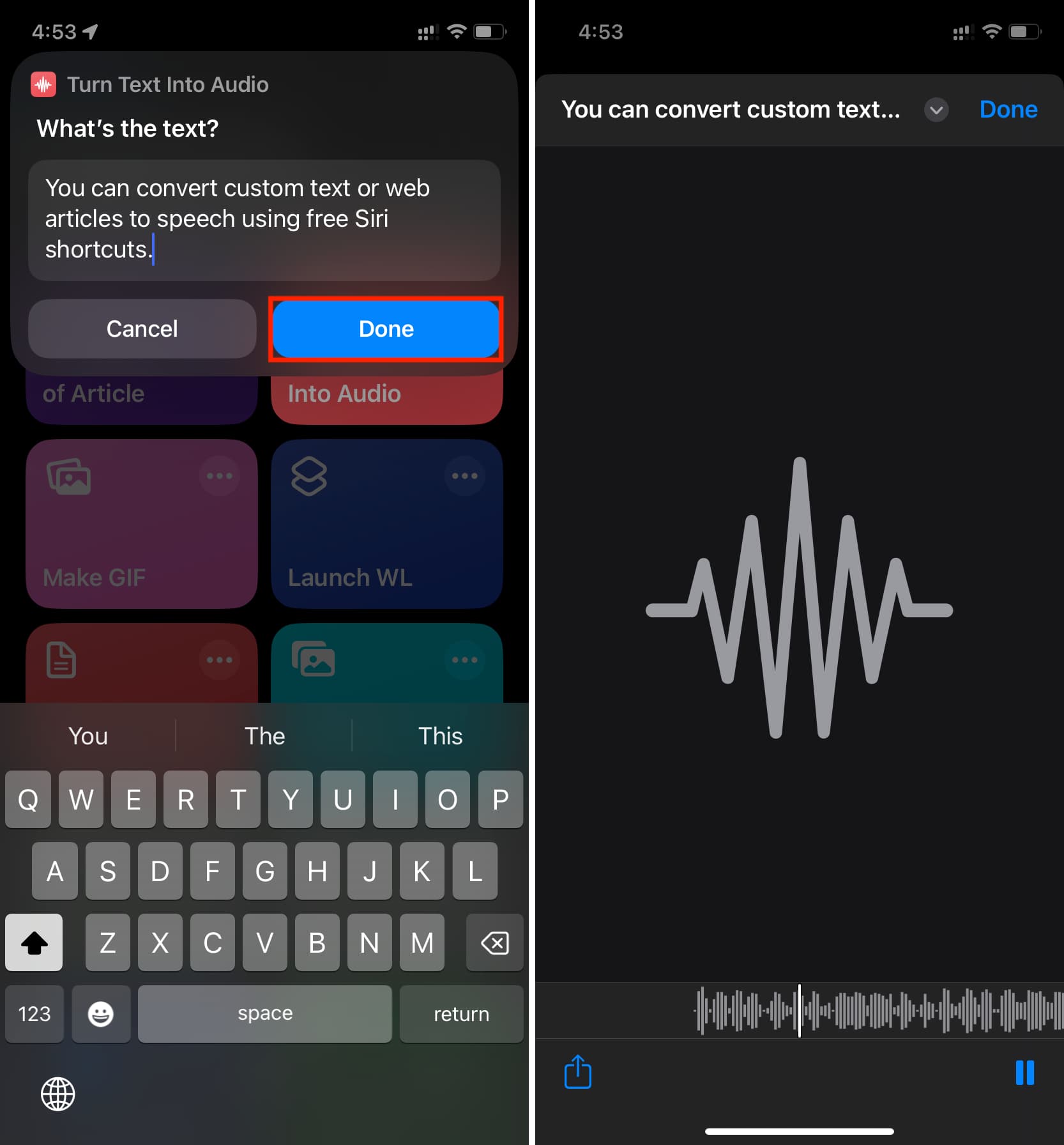
- Turn Text Into Audio: This shortcut will speak whatever text you’ve entered. Simply type or paste the text you want spoken aloud and hit Done, followed by the play button.
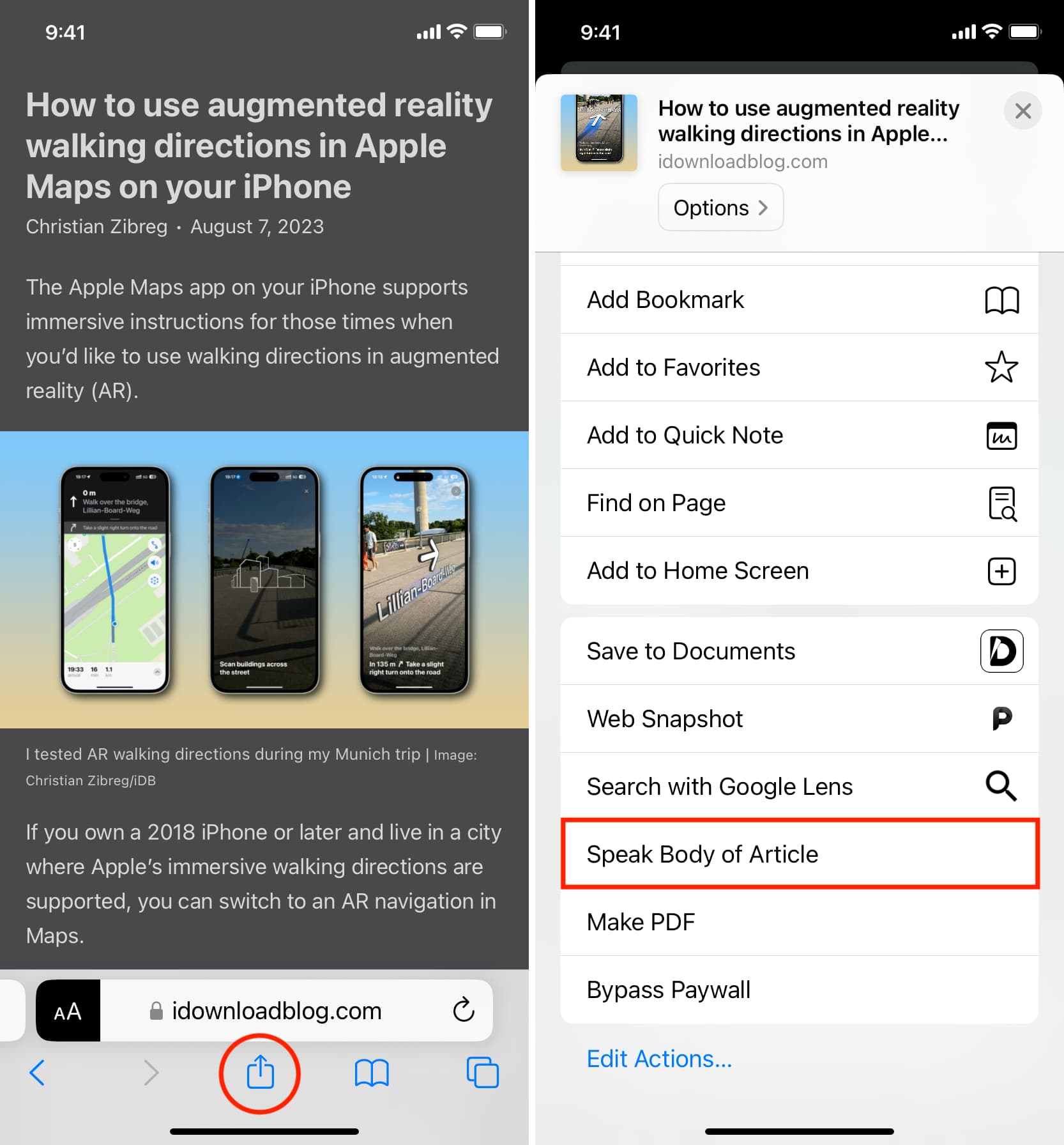
- Speak Body of Article: This shortcut will read the main content of the article. Open a webpage like a news article in Safari or Chrome and select Speak Body of Article from the Share menu. There are no onscreen playback controls; to stop the playback, touch and hold the shortcut indicator in the Dynamic Island area and tap the stop button. Alternatively, force close the browser, and the shortcut will stop speaking immediately.
Hear the pronunciation on Google
This feature is suitable if you just want to read a quick word definition and hear the correct pronunciation.
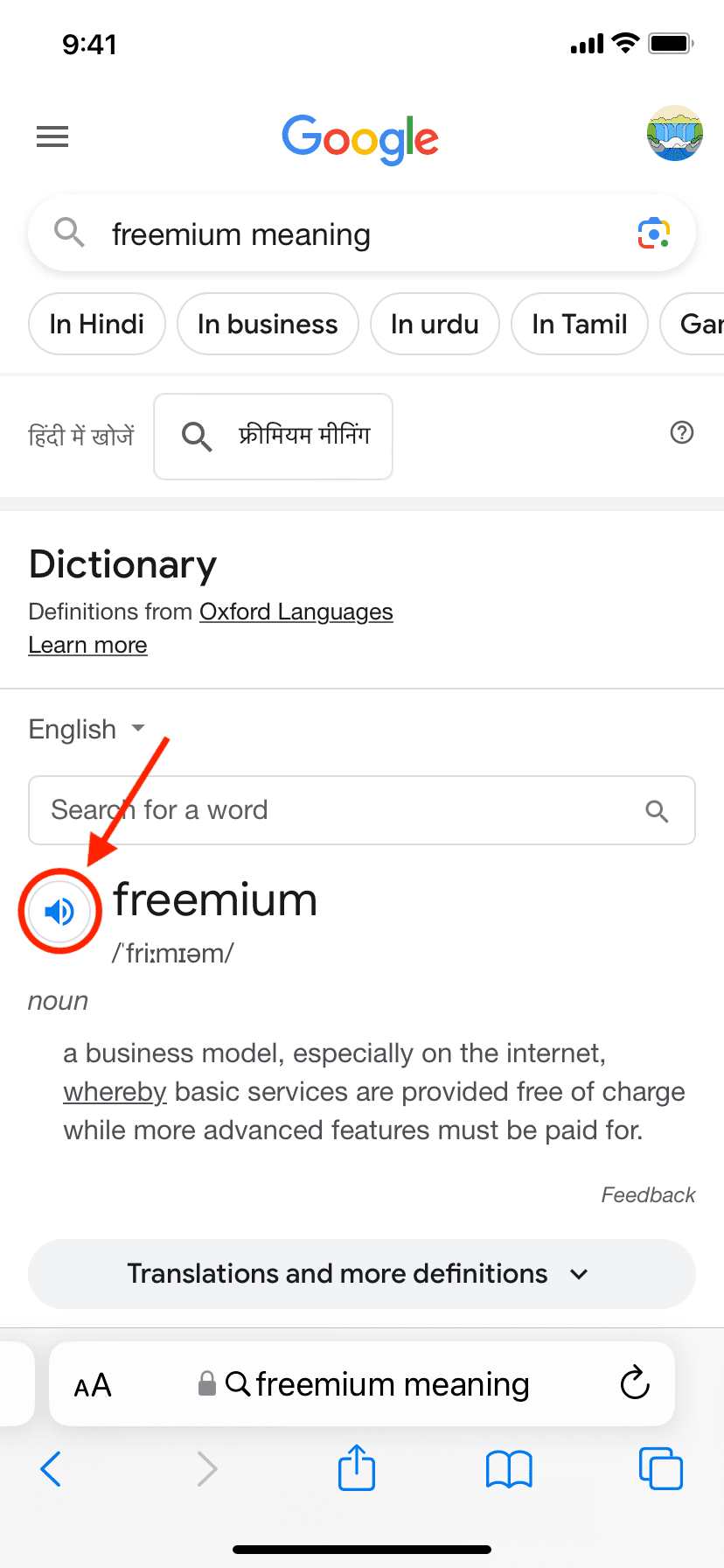
- Visit Google.com in Safari, Chrome, or another browser and search for the word. You may want to add ‘meaning’ to the end of your query or prefix it with ‘define’, as in ‘freemium meaning’ or ‘define sacrosanct.’
- Tap the tiny speaker icon below the dictionary definition to hear pronunciation in the selected language.
Use third-party text to speech apps
The App Store is home to free and paid text-to-speech apps that you can download to not only hear text in various pronunciations, but also export text as audio and access other advanced features.
Text to Speech
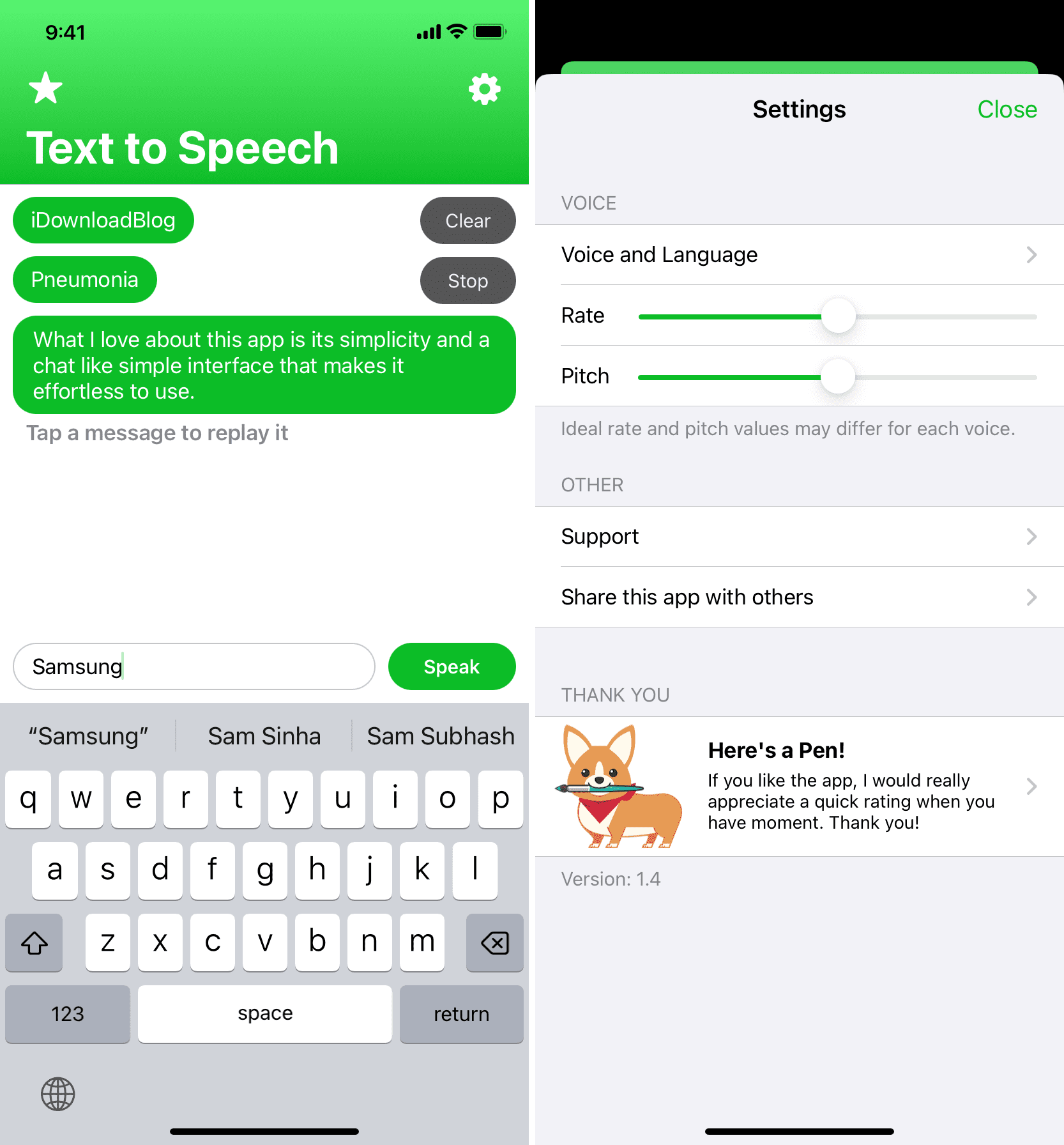
Text to Speech is a free app, featuring a simple chat-like interface that makes it a cinch to use. Just type a word or sentence, and tap the Speak button to convert it into spoken content without any fuss. To customize text-to-speech settings, tap the cog gear icon in the top-right corner.
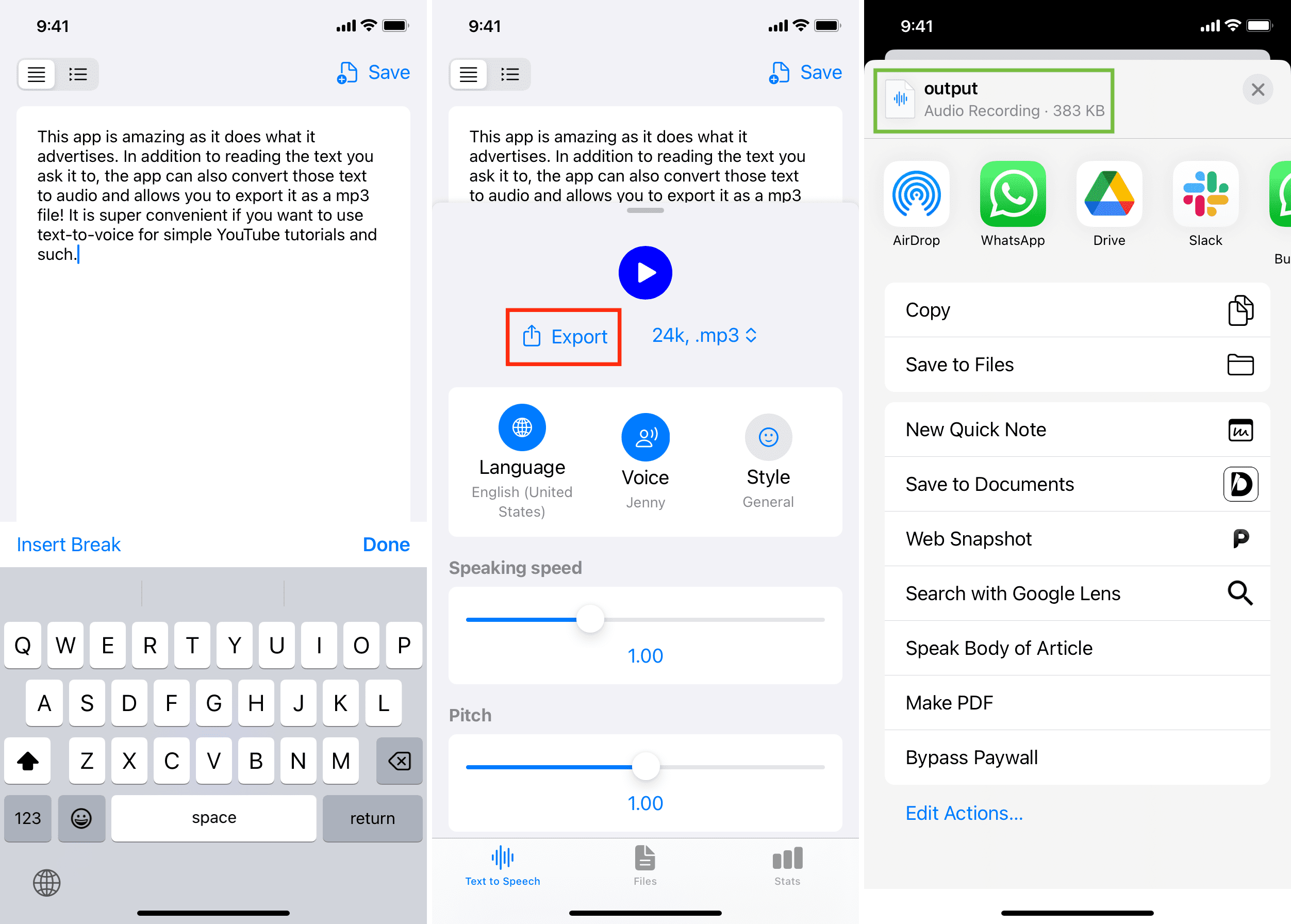
Text to Speech: Voice Reader
Text to Speech: Voice Reader lets you export text as an audio file. The app works as advertised. You can hear any text spoken aloud and easily convert it into audio for export as an MP3 file. This is super convenient if you need to use text-to-speech for YouTube videos like tutorials, walkthroughs, and the like.
Download Text to Speech: Voice Reader
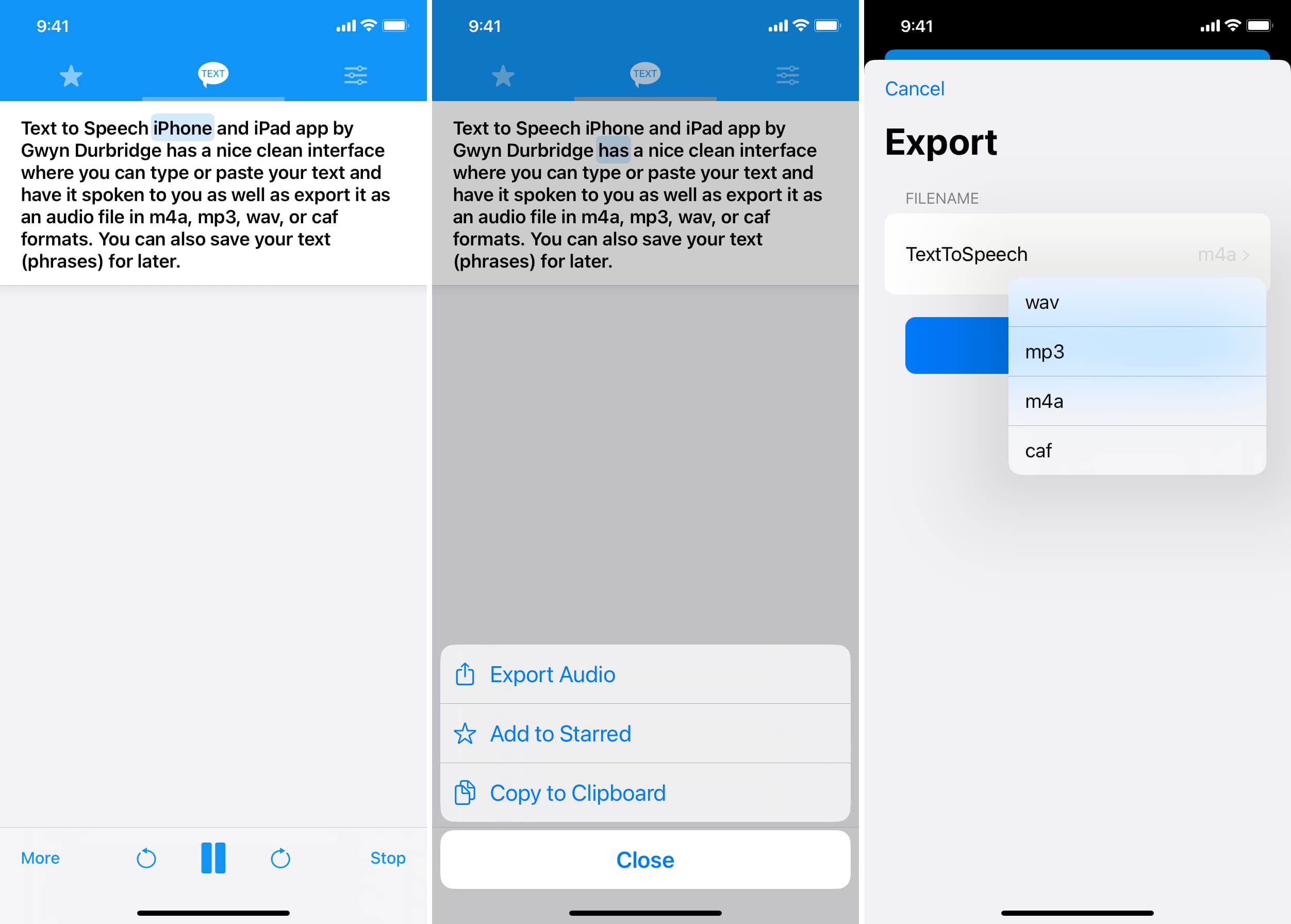
Text to Speech!
Text to Speech lets you hear any text and export it as audio. Created by Gwyn Durbridge, the app sports a clean interface allowing you to turn text into speech and export it as an audio file in just a few taps. Supported audio formats include M4A, MP3, WAV, and CAF. You can also save your text (phrases) for later.
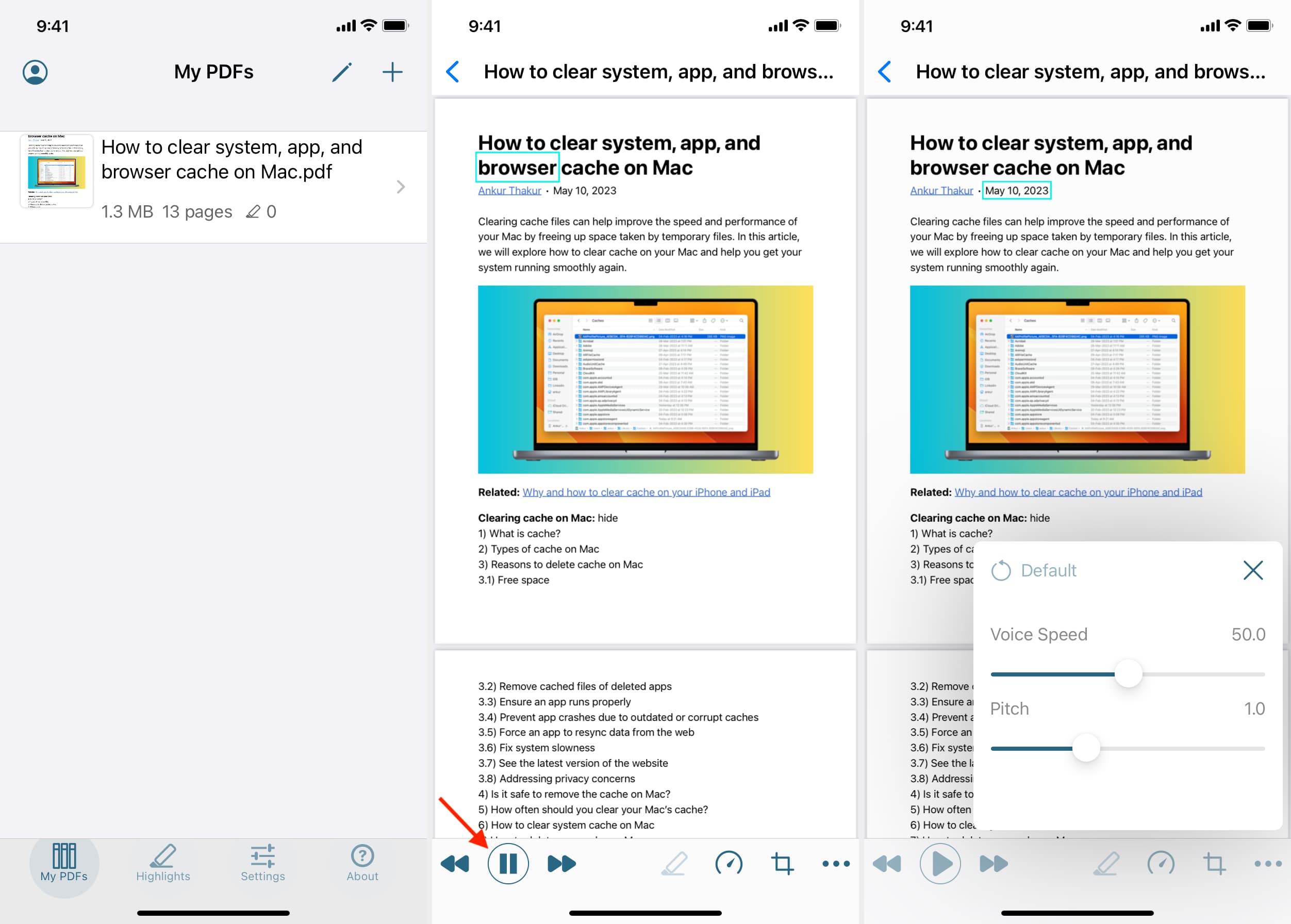
Text to Speech PDF Reader
Text to Speech PDF Reader specializes in reading aloud PDF documents, which may include special formatting and complex layouts. But first, you’ll need to import PDFs from the built-in Files app. The app lets you adjust voice speed, pitch, and other playback settings.
Voice Aloud Reader
Voice Aloud Reader will read electronic books and documents in common formats such as epub, pdf, or rtf. After importing a compatible document from the built-in Files app, use the app to have it read any e-book in the selected voice.
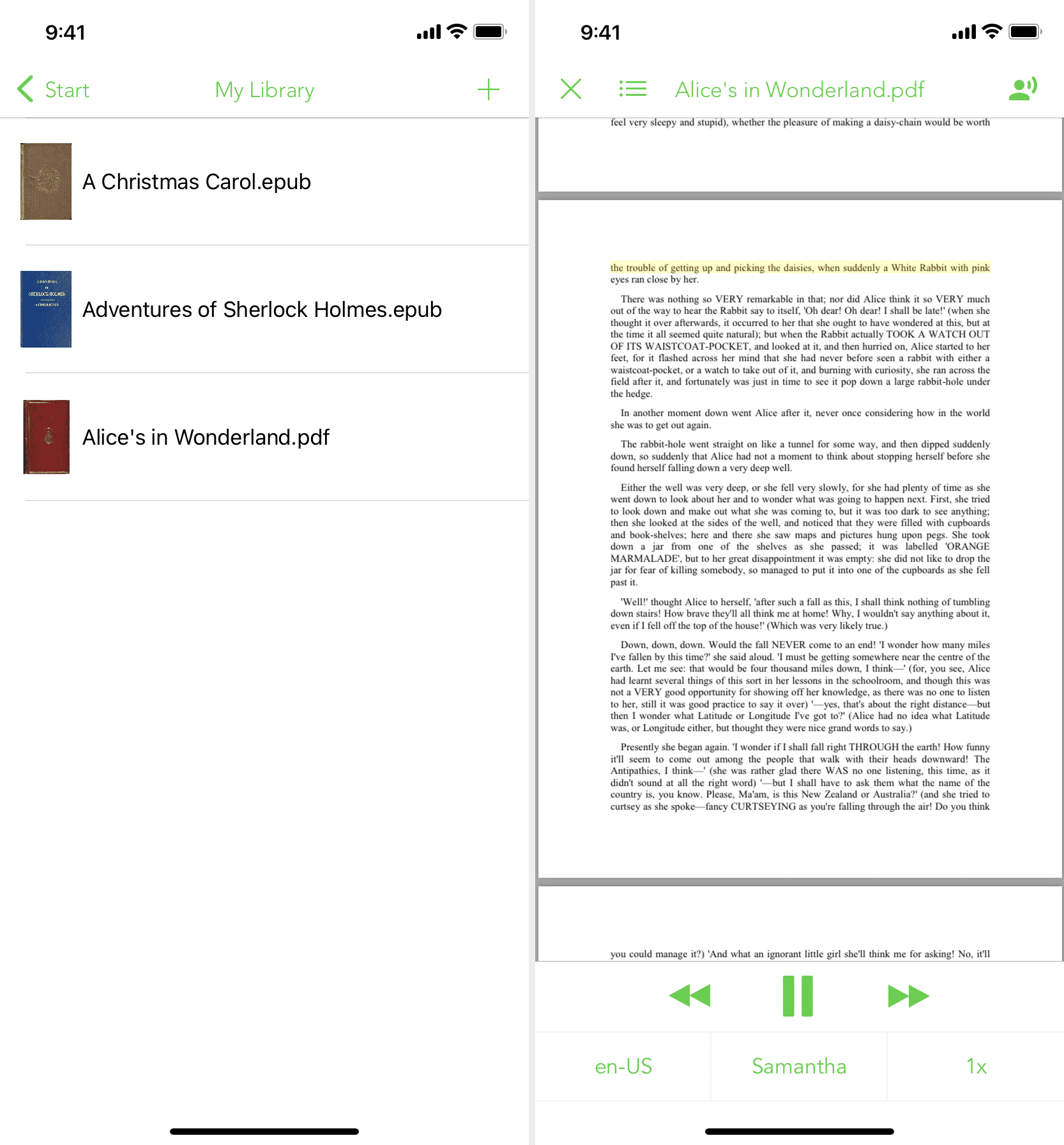
Honorable mentions:
- Speechify: Lots of high-quality voice options, with additional voices like Snoop Dogg and Gwyneth Paltrow available for subscribers.
- Peech: A well-designed app that lets you add custom text or web articles by URL, as well as import PDFs, Word documents, and other files to turn into speech.
- Natural Reader: Very human-like voices and a clean, approachable interface make this app well worth a try.
- Text To Speech: Natural Voices: Remembers your textual entries so you can replay them anytime with a few taps, which comes in handy for listening to long articles in breaks.
- AIVoice: It can generate audio from text and even help you make a video.
- TTS: You’ll appreciate a huge list of computer voices to choose from and simple onscreen playback controls.
- Speak4me: Scan a document with the in-app camera to hear its contents spoken aloud.
Also, check out: How to turn a PDF into an audiobook or have your computer read it out