Learn how to configure Apple’s Safari browser on your Phone, iPad, and Mac to pause animated GIFs on webpages and render them as static images instead.
Animated images on websites bring value unless you’re sensitive to rapid animations.
People with vestibular disorders, motion sickness, and related health conditions are especially at risk of getting dizzy or feeling unwell when staring at animated GIFs on web pages.
Thankfully, Apple thought of that with a simple Safari setting that automatically pauses animated images on iPhone, iPad, and Mac.
Disable animated images while browsing with Safari
Follow these steps to temporarily stop motion on animated images like GIFs.
iPhone and iPad
- Open the Settings app and tap Accessibility.
- Select Motion.
- Turn off Auto-Play Animated Images (formerly just Animated Images).

Mac
- Open System Settings and select Accessibility.
- Click Motion.
- Turn off Auto-play animated images.

If your Mac is on an older version of macOS, go to System Settings > Accessibility > Display and turn off the switch for “Auto-play animated images” or “Animated images.”
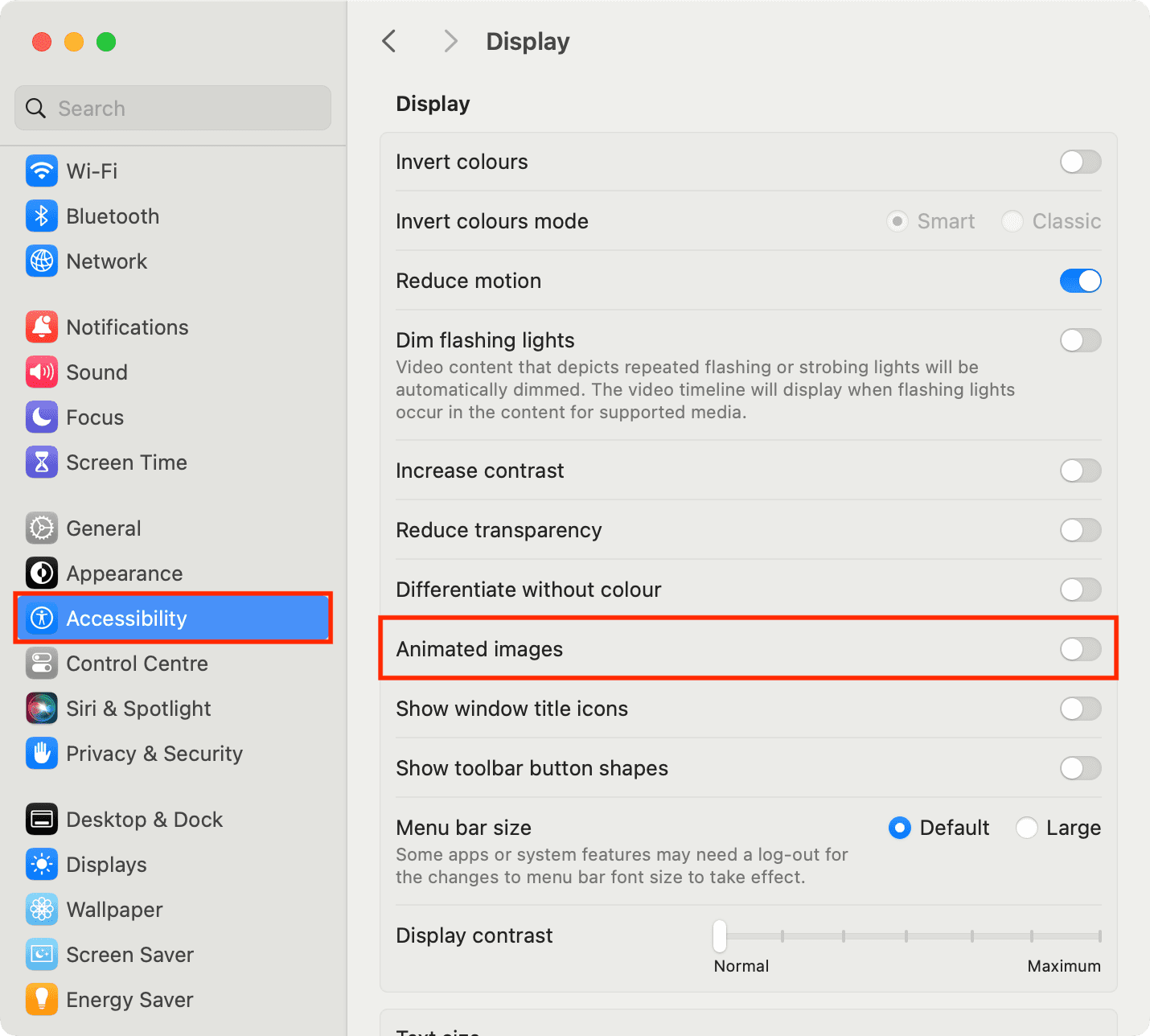
This will make animated images appear still.
To check, visit GIPHY’s homepage, and Safari shouldn’t play animated GIFs automatically. But if you toggle this option and revisit GIPHY, animated GIFs will spring into life. Some sites may also let you manually play animated images by hovering over them or hitting a play button.
Does this work in Chrome, Firefox, and other web browsers?
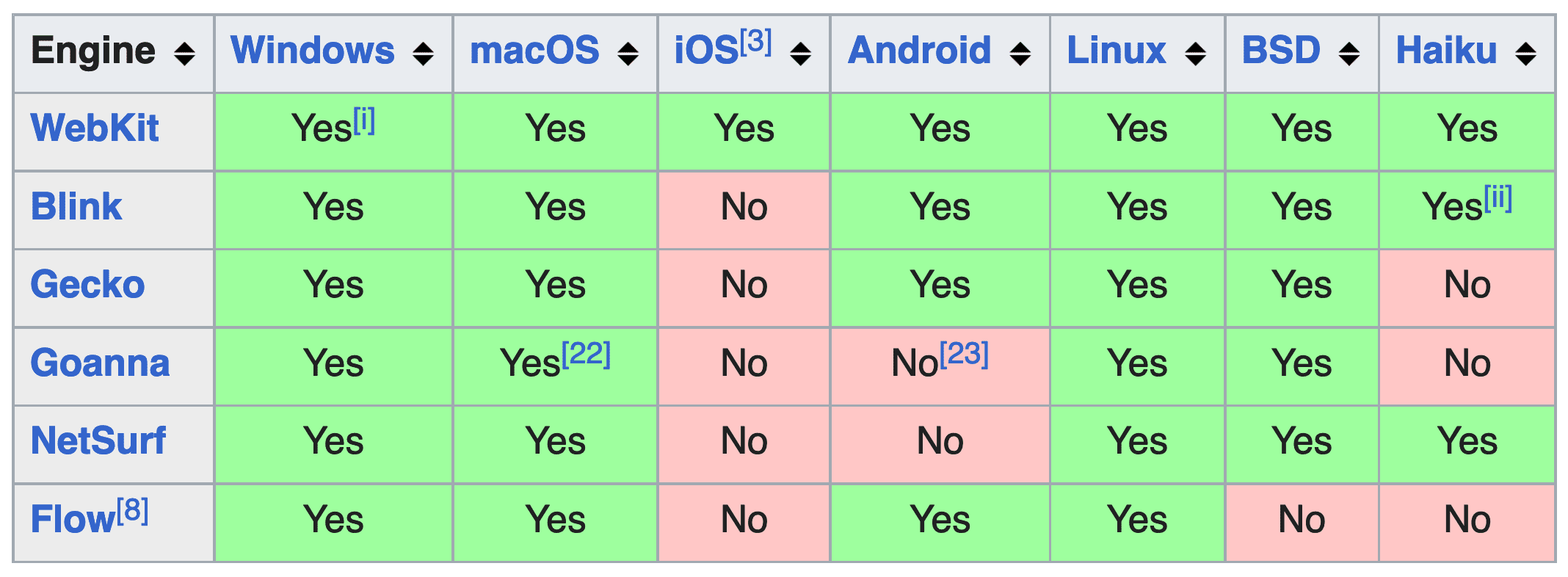
Turning on this accessibility feature on iPhone and iPad automatically disables animated images in other browsers like Chrome and Firefox. That’s because third-party browsers on iOS and iPadOS are required to use Safari’s WebKit engine.
However, Mac browsers can use custom engines like Blink (Chrome and Chromium browsers like Edge, Brave, and Opera) and Gecko (Mozilla Firefox). In other words, blocking web animations on a Mac will only affect Safari, not other browsers.
The Animation Policy extension available on the Chrome Web Store can stop animated GIFs from playing in Google Chrome for macOS and Windows.
Does it block all animated images?
In my testing, the feature worked well, but not perfectly. It did block animated GIFs on GIPHY, but the sidebar image continued playing. Also, images served as web ads may animate at times. Nevertheless, this feature is a step in the right direction, especially if you get uncomfortable watching rapid onscreen changes.

Turn off system motion
If you suffer from motion sickness, you can also reduce system-wide animations on iPhone, iPad, and Mac by going to accessibility settings.
Related readings:
- The Verge: My war on animation
- A List Apart: Designing Safer Web Animation For Motion Sensitivity
- The Guardian: Why iOS 7 is making some users sick
Check out next: