Learn how to control your iPhone or iPad using head tilts and hand pinch gestures by enabling the Switch Control accessibility feature.
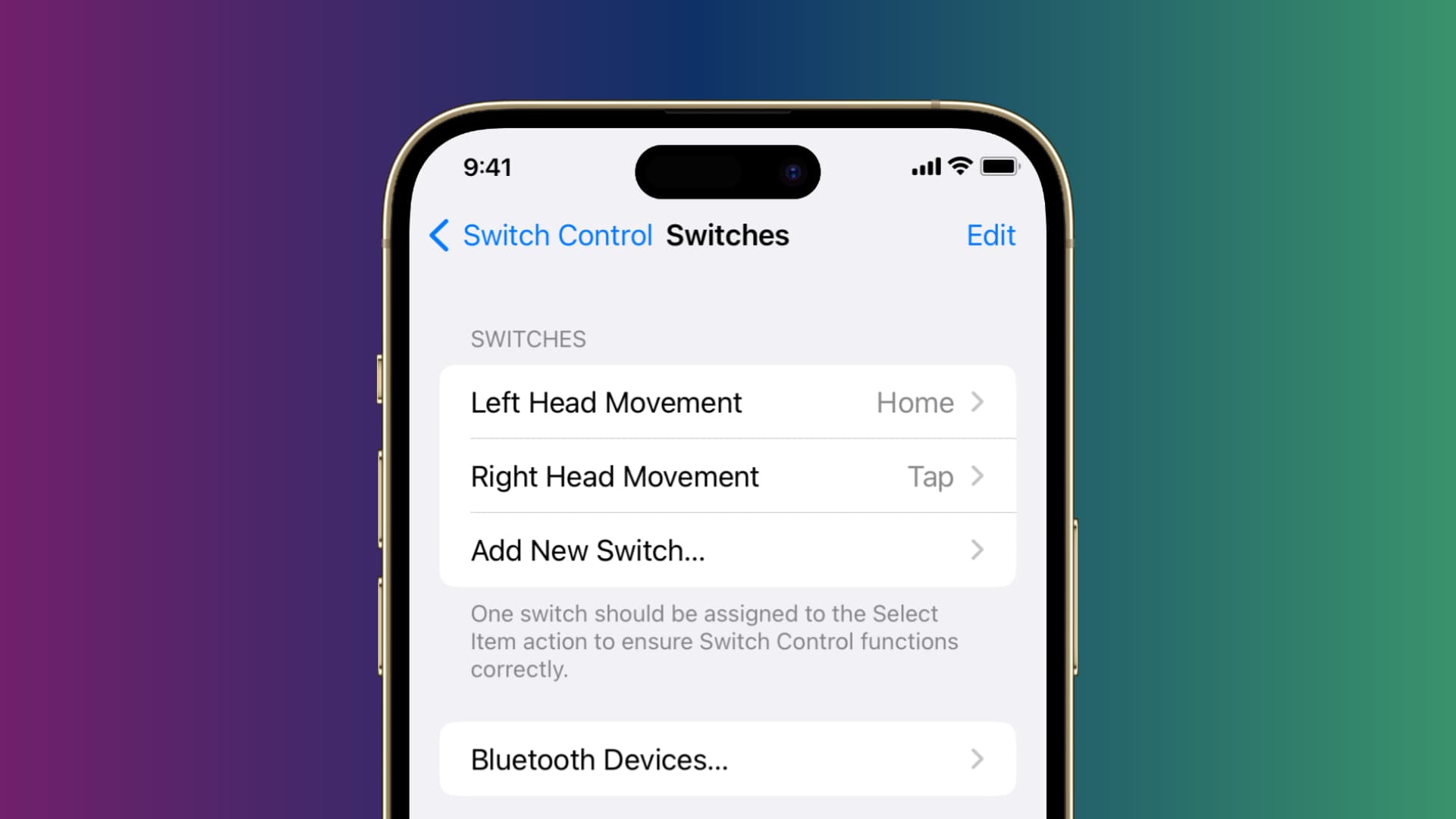
What is Switch Control on iPhone and how does it work?
Controlling an iPhone or iPad with head movements and hand gestures is a part of Switch Control, an accessibility feature designed for users with motor impairments who cannot interact with their devices through touch.
Switch Control highlights onscreen buttons, sliders, and other interface elements, allowing users to control the device with adaptive accessories or an external hardware switch.
Switch Control lets you manage various device features, such as adjusting volume, using Back Tap shortcuts, invoking Siri, and more. For instance, you can assign left head movement to show the Home Screen and right head movement to trigger the App Switcher or another iOS function.
Moving your head to either side will automatically perform the assigned action, with visual confirmation on the screen. Additionally, you can configure actions for pinching gestures with your left or right hand or even for making specific sounds (like clicking or “T” and “K” sounds) with your mouth.
Switch Control is a versatile accessibility tool with impressive switch options. In this tutorial, we’ll focus on setting up camera control as a switch.
Trigger actions with head movements and hand gestures on iPhone or iPad
1) Open the Settings app and navigate to Accessibility > Switch Control > Switches.
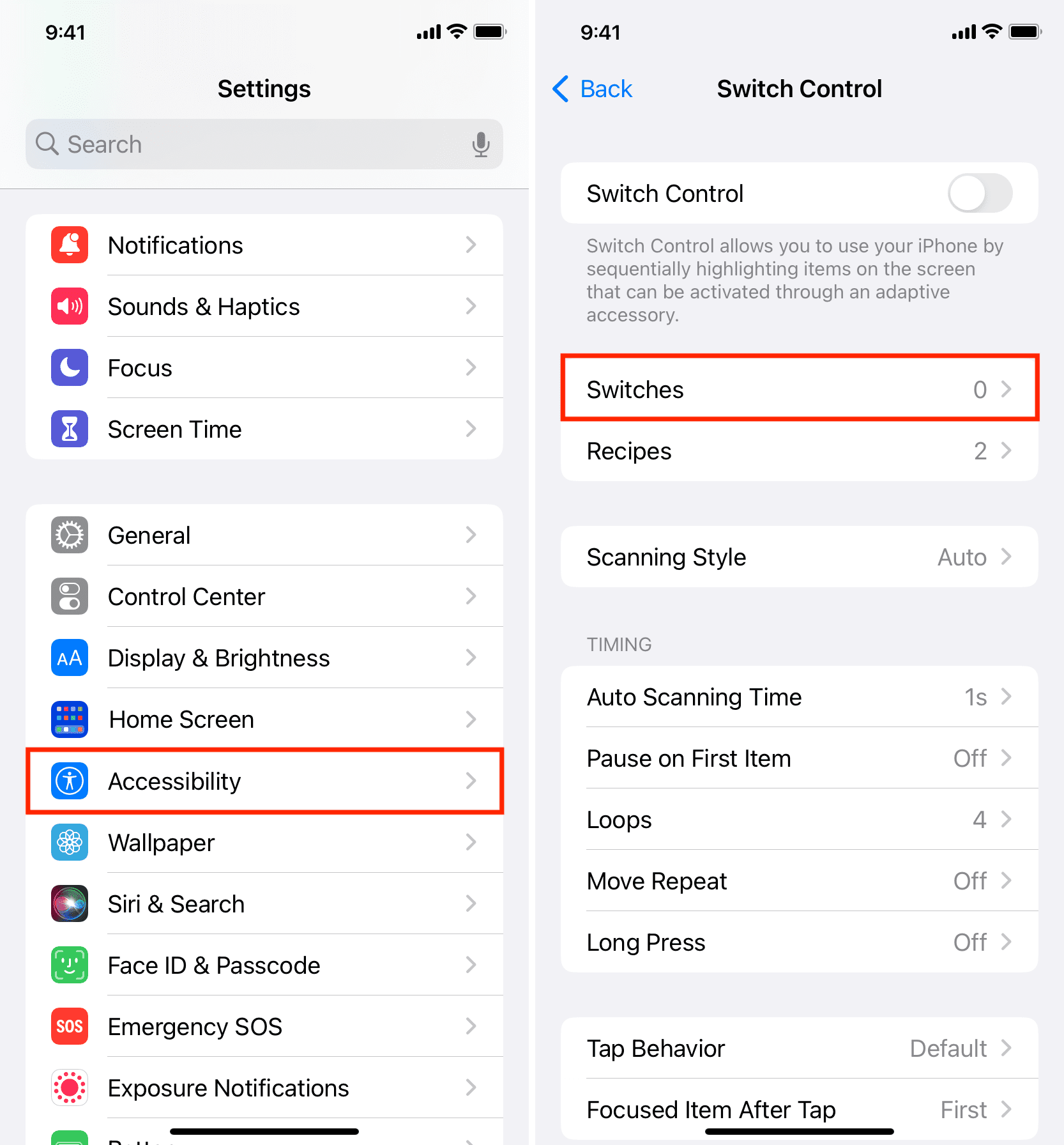
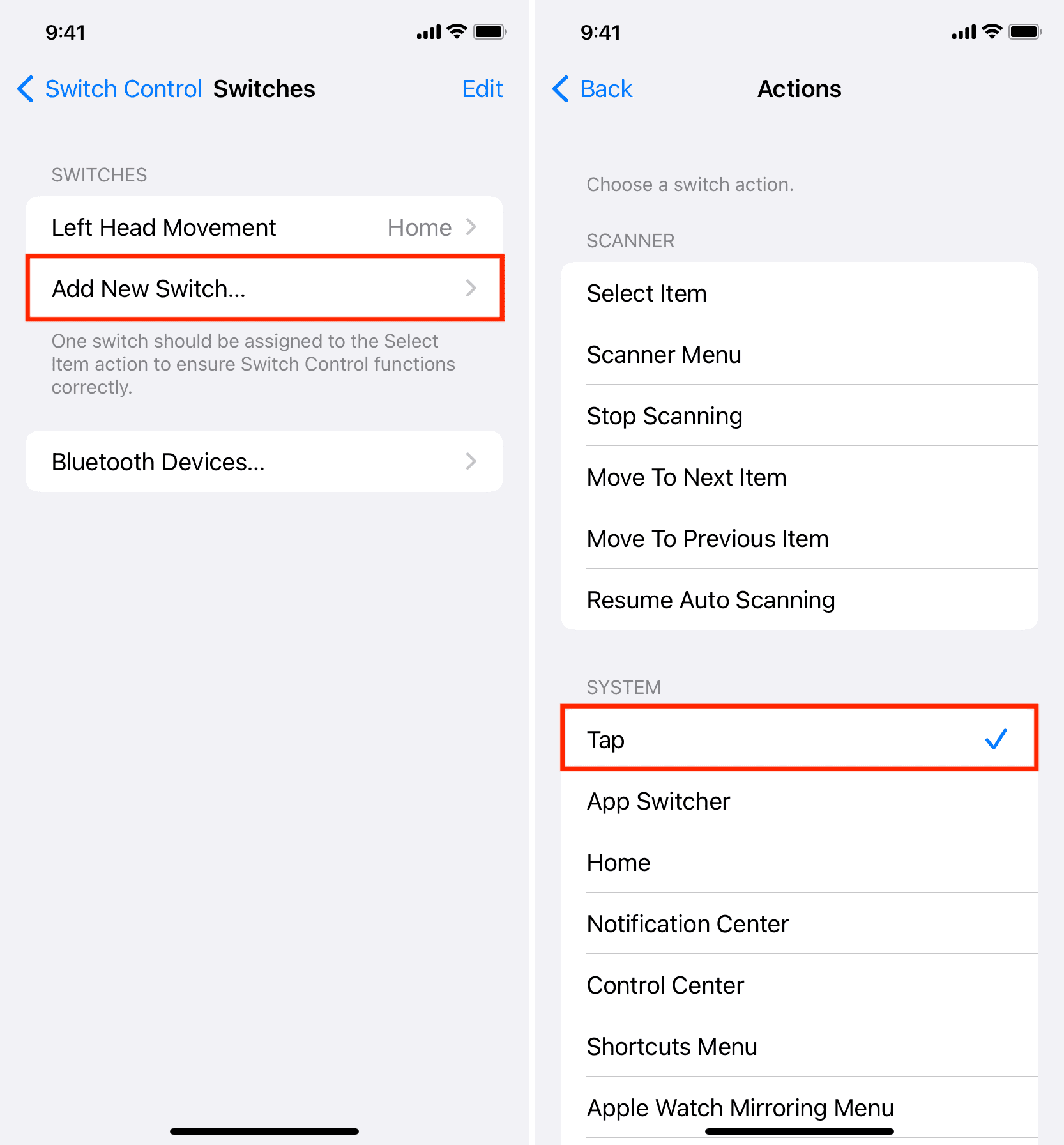
2) Tap Add New Switch and then select Camera as your switch source.
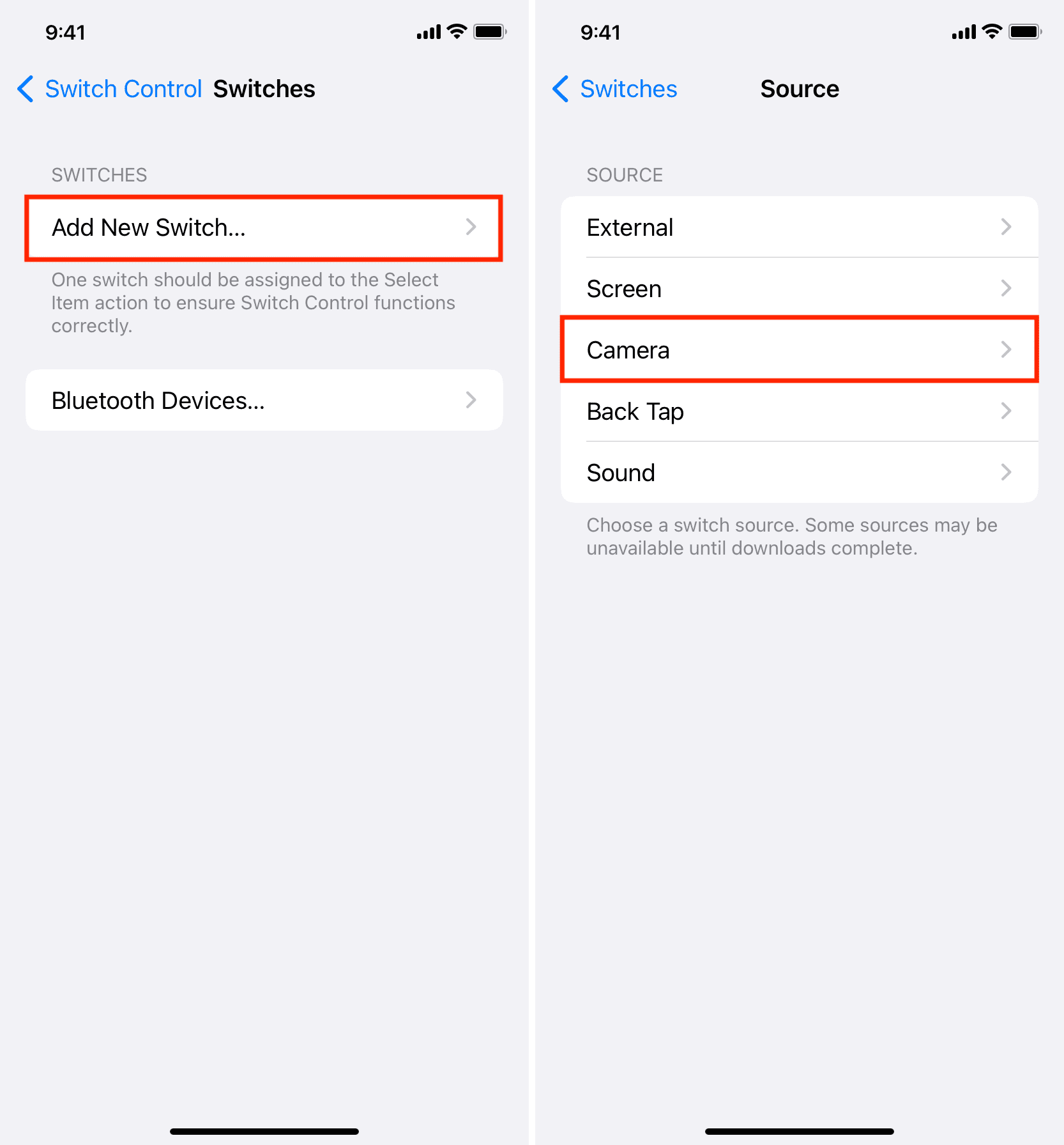
3) Pick Head Gestures or Hand Gestures, then choose either Left Head Movement/Right Head Movement or Left Pinch/Right Pinch. I am selecting Left Head movement for this tutorial.
4) You’ll notice there is a list of switch actions. Select one to perform when you tilt your head or pinch your hand. I’m going to choose the Home action.
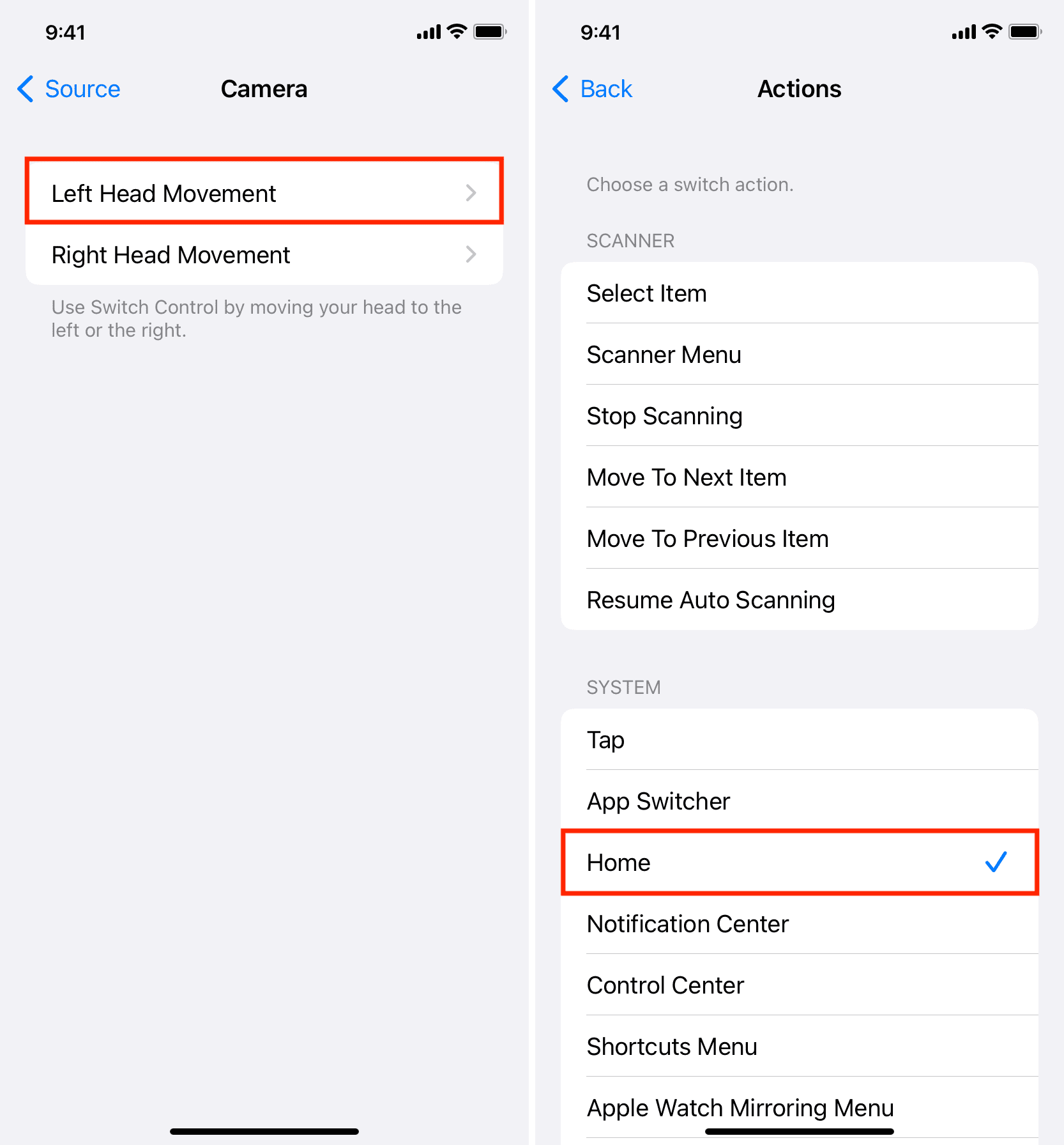
5) With the first Switch movement set up, tap Add New Switch > Camera and select a desired switch action for the remaining head movement or hand pinch. I will go with Tap.
6) Hit the back button in the top-left corner to return to the Switch Control screen.
7) Turn on the Switch Control toggle.
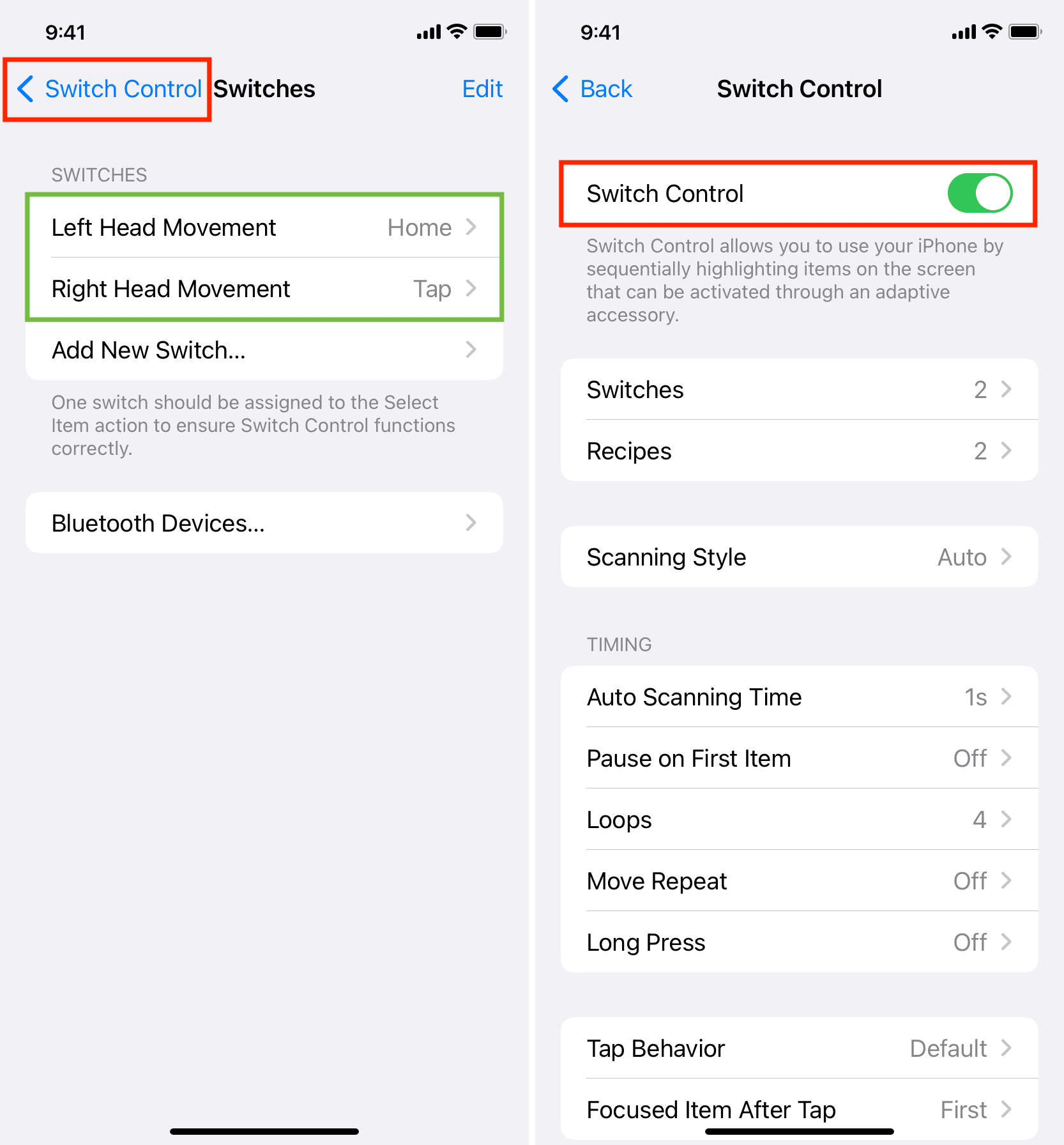
With Switch Control enabled, a blue outline highlights user interface elements such as buttons and sliders, providing a visual confirmation of the current focus.
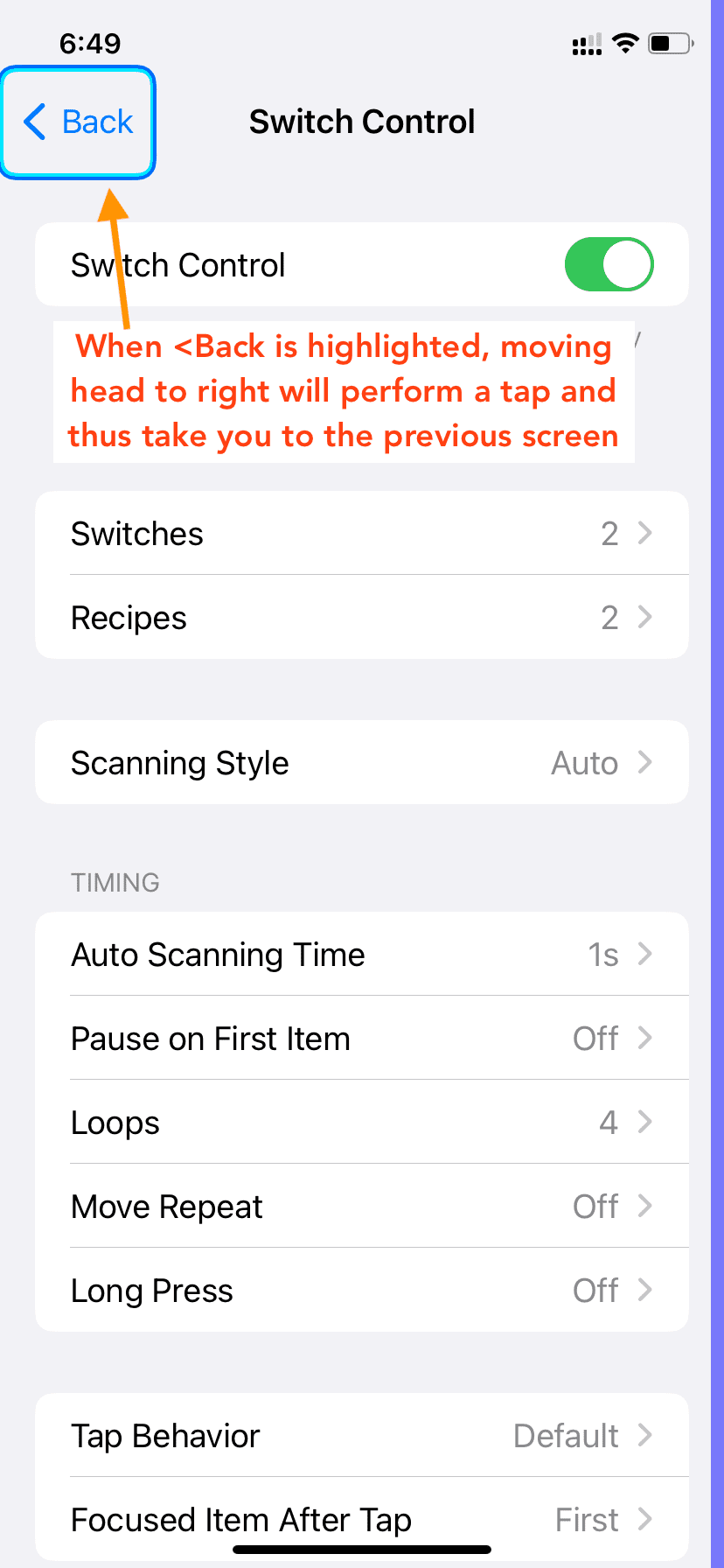
Now:
- Right head movement: We’ve configured the right head movement to simulate a tap. If the selection outline is around the Back button, tilting your head to the right will prompt iOS to simulate a click, returning you to the previous screen.
- Left head movement: We’ve set the left head movement to invoke the Home action, so if you do that, you should end up on the home screen.
Similarly, if you had set up left/right hand gestures, tapping your thumb and index finger together in front of your iPhone’s front camera will perform the said action.
Face or hand too far?
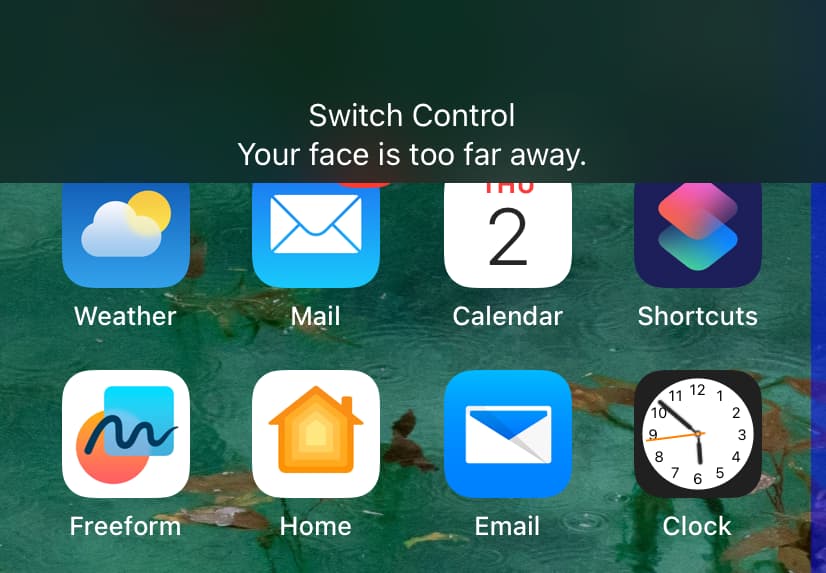
If your face or hand is too far, the Switch Control feature may start acting up or refuse to work.
If you see a “Your face is too far away” banner at the top, point your device straight at your face, then move it either closer or farther as needed. Similarly, if you see “Hands are not in view,” try to place your left or right hand in front of your iPhone screen at an appropriate distance, like 1.5 feet.
Change head movement or hand gesture controls
Go to Settings > Accessibility > Switch Control > Switches > Left/Right Head Movement or Left Pinch/Right Pinch > Default and choose a different action.
Delete the head and hand controls
Open the Settings app and navigate to Accessibility > Switch Control > Switches. Now choose the Edit option, then hit the red minus button for Left/Right Head Movement or Left/Right Pinch, and confirm the action by tapping Delete.
Turn off Switch Control
To stop using the Switch Control feature to control your iPhone, go to Settings > Accessibility > Switch Control and turn off the Switch Control toggle.
More accessibility tips: