In this tutorial, we’ll show you how to change the color, font, and even the script for the clock on your iPhone or iPad Lock Screen to create a unique look.
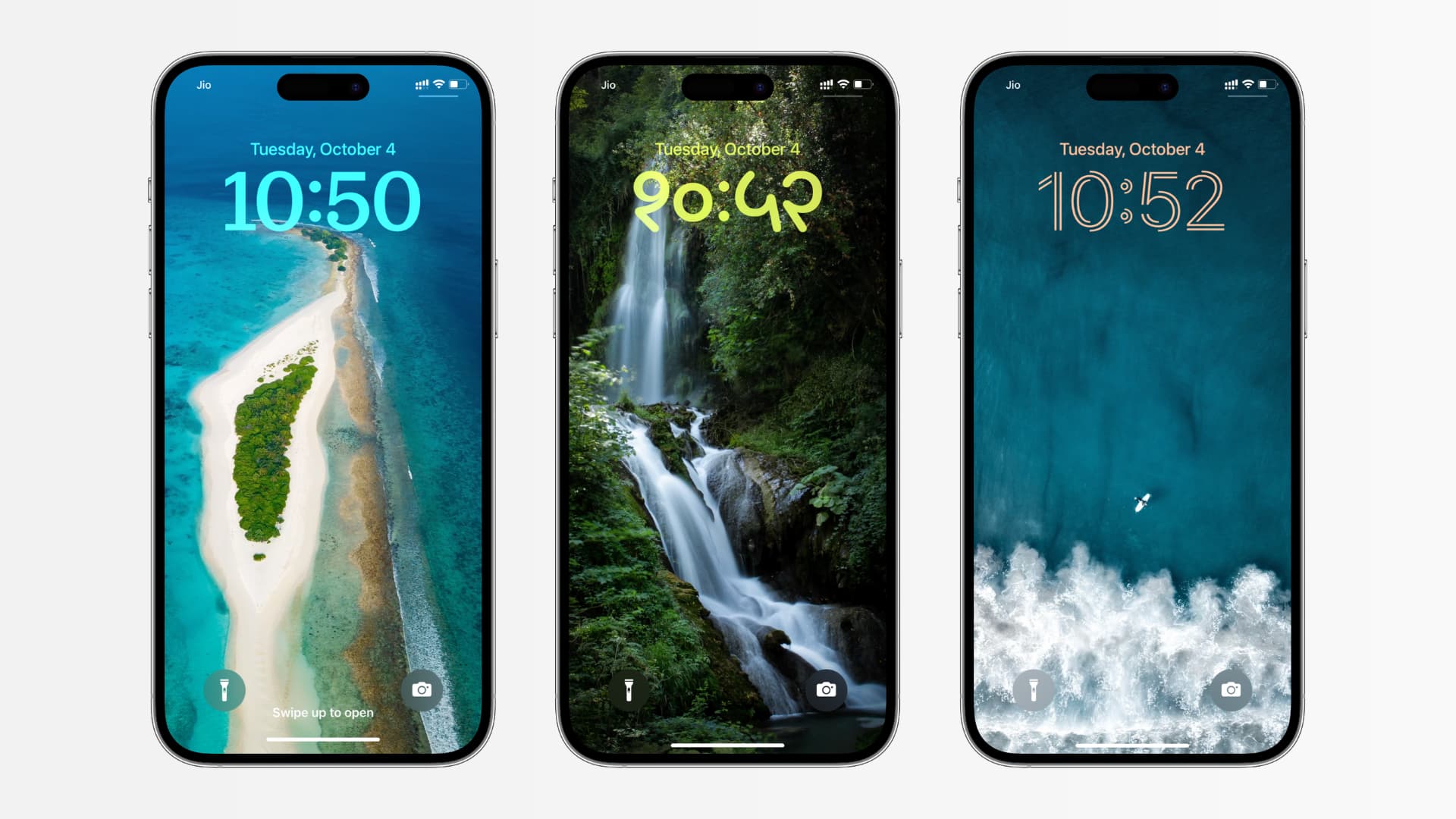
You glance at the time on the Lock Screen several times daily. Therefore, styling it with your favorite color and font will go a long way in making your iPhone truly yours.
Customize how time and date look on your iPhone or iPad Lock Screen
1) Open the Settings app and tap Wallpaper. After that, tap Customize in the Lock Screen section.
Alternatively, you can touch and hold the unlocked Lock Screen to enter editing mode and then tap Customize.
2) Tap the clock area, and a Font & Color pane will slide up from the bottom of the screen.

Font style: Pick a different font style from the top. You have six options to choose from
Font script: Tap the globe icon to see fonts from different scripts. For instance, you can choose from Arabic (the most common around the world), Arabic Eastern/Indic (used in the regions east of the Arab world, like Egypt, UAE, Oman, etc.), Devanagari (meaning divine city’s script, used in India and adjoining areas), or something else shown to you.

Font thickness: Drag the slider under the font style to make it thicker or thinner.
Note: The font for the day, month, and date can’t be altered in all ways.
Font color: Use the colored dots, slider, and glass and solid styles to change how it looks.
To choose from millions of colors, swipe left to the end and tap the last dot. From here, you can use the various options to set the perfect color you want. One very useful tool here is the color picker, shown with a dropper bottle icon. Tap this icon from the top left and then drag its selector over a part of your wallpaper. It will recognize that color and set it as the date and time color.

Note: The color you pick for your clock will also apply to the day, month, and date indicator that sits above it.
5) With everything done, tap the X icon followed by Done to save your changes.
To make further revisions, follow the same steps mentioned above. And if you have added multiple Lock Screens, you can customize the clock style for all of them.
Also, check out: 8 new ways to customize your iOS 26 Lock Screen