In this brief tutorial, we’ll discuss two ways to check the file extension for saved images, videos, audio, documents, and more in the Files app on iPhone and iPad.
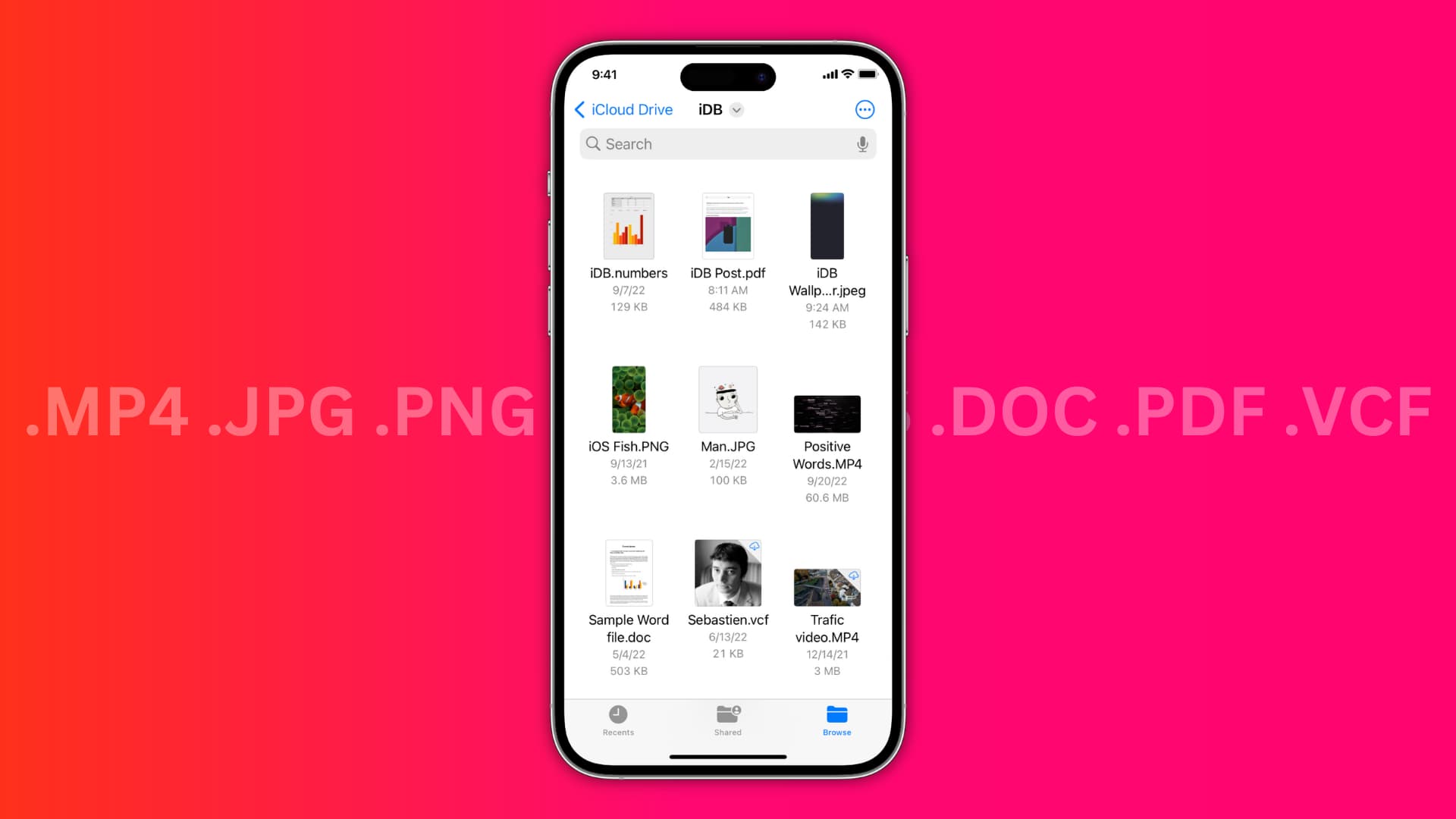
You have the option to see the file type on a per-file basis or to enable the option to permanently display the extension for all files in the iOS and iPadOS Files app.
Get information about a file in the iOS Files app
- Open the Files app and go into a folder.
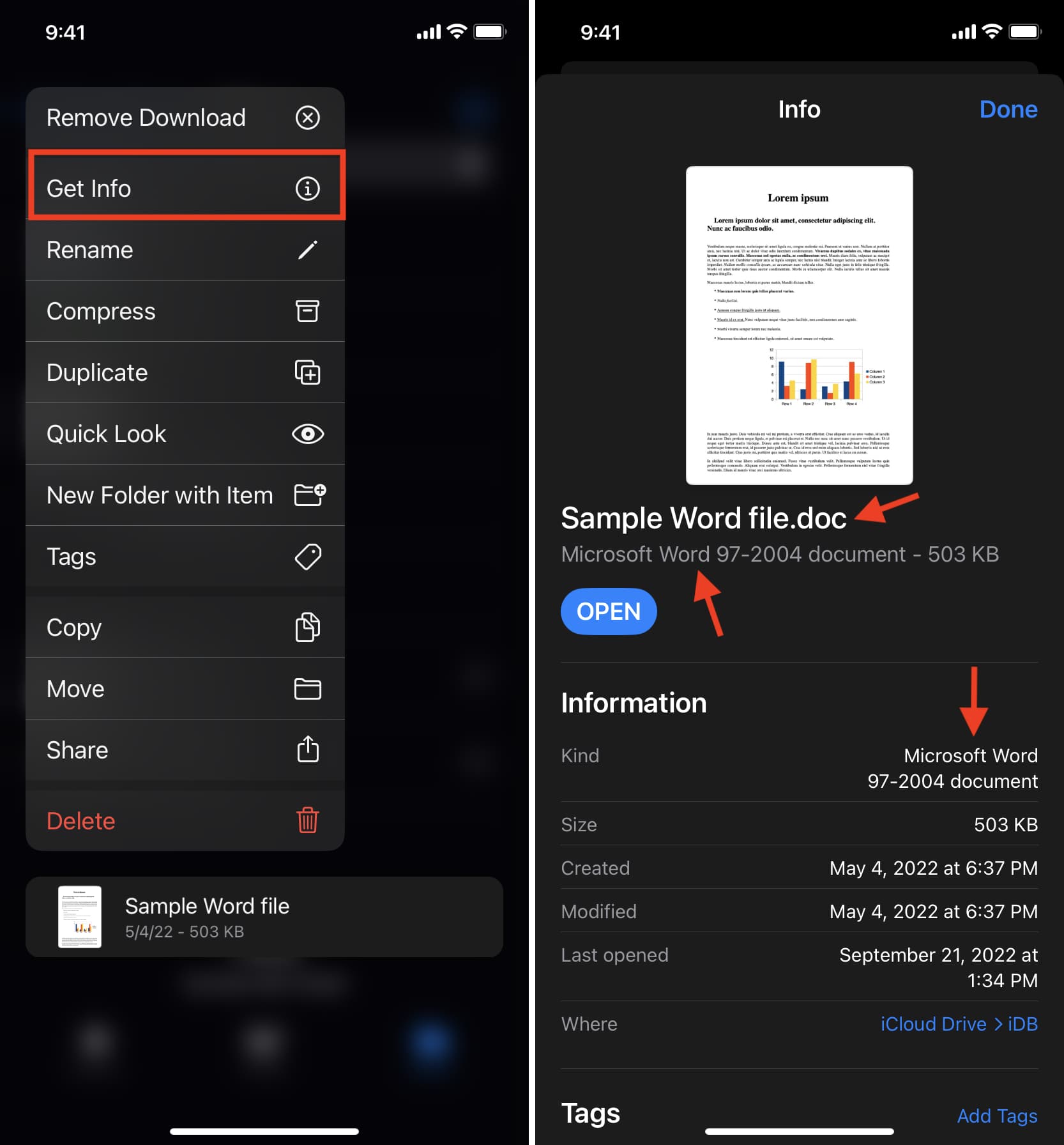
- Touch and hold the file and choose Get Info.
- You’ll see the file type extension next to the file name, below the file name, and in the Kind field.
Set the Files app to show file extensions
Follow these steps to set your iPhone or iPad to always display a file’s extension.
- Open up the Files app and go to a folder.
- Tap the three dots menu button in the upper right corner, and select View Options from the list.
- Turn on the switch for Show All Filename Extensions.

Now, you should see the file extension at the end of each file name. This setting to display the file extension applies to the entire Files app, meaning you will always see the extension names, even when you go to other folders such as On My iPhone, iCloud, or added third-party locations like Google Drive.
On a related note: