If Apple Pay Touch ID authentication isn’t working on your Intel-based or Apple silicon Mac, this is by design. Here’s what you need to know.
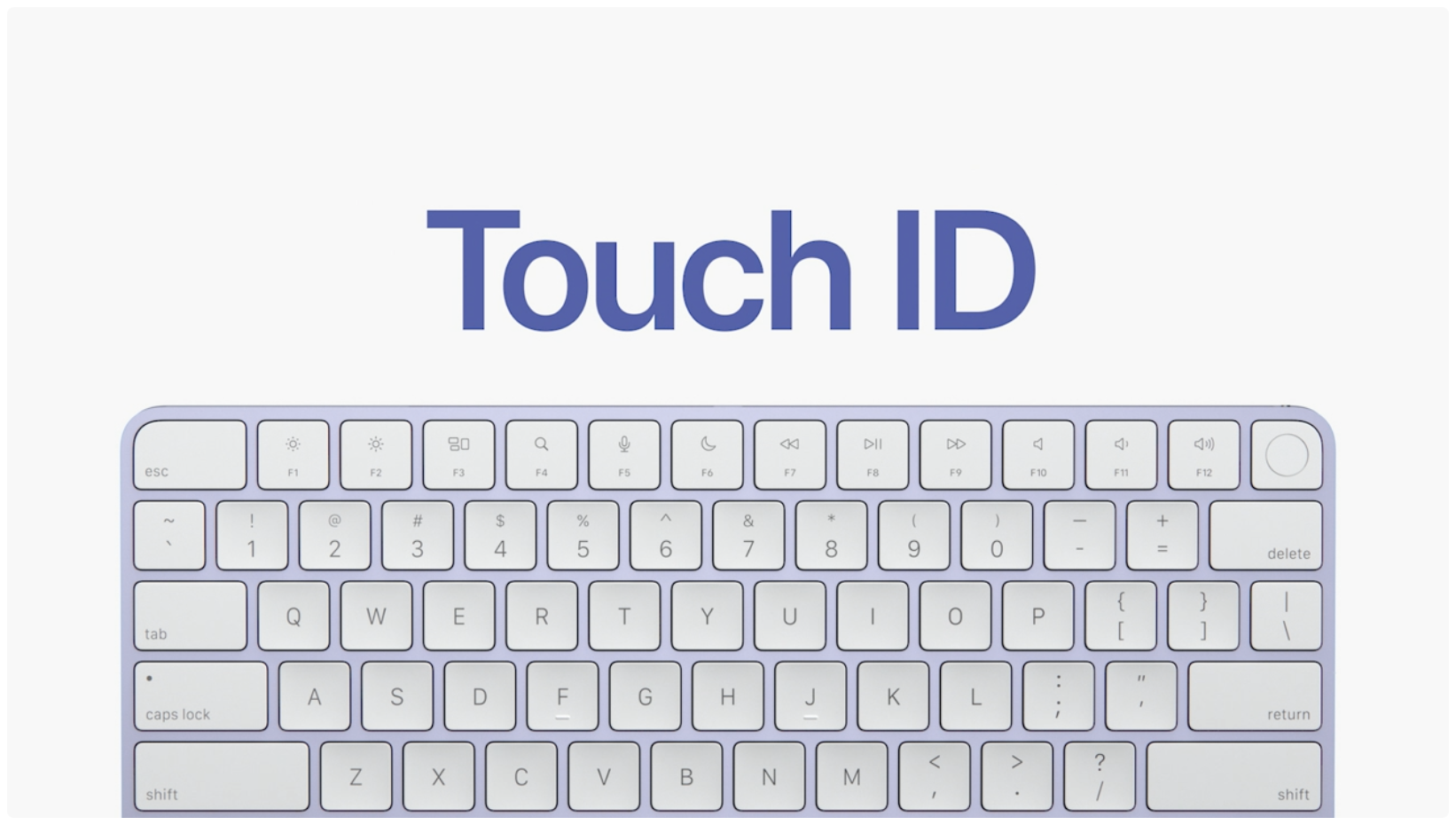
Apple Pay Touch ID authentication not working?
Apple Pay transactions on your Mac can be authorized with a Touch ID match.
That said, in some scenarios, you may see a message in System Settings or System Preferences > Wallet & Apple Pay cautioning you that “Apple Pay has been disabled because the security settings of this Mac were modified.” So why are you seeing this?
Long story short, if Apple Pay isn’t working on your Mac system with Touch ID, then you’re probably using your Mac notebook in clamshell mode, that is, connected to an external monitor and an external keyboard and mouse/trackpad.
macOS security policy prompts the system to disable mobile payments as soon as the lid of your Mac notebook is closed. This has always been the case on Intel-based Macs, and it’s very much true for their Apple silicon counterparts. So, if you’re using a Touch ID fingerprint scanner that’s integrated into the keyboard of your MacBook Pro, keep the lid open when using Touch ID to authenticate an Apple Pay transaction.
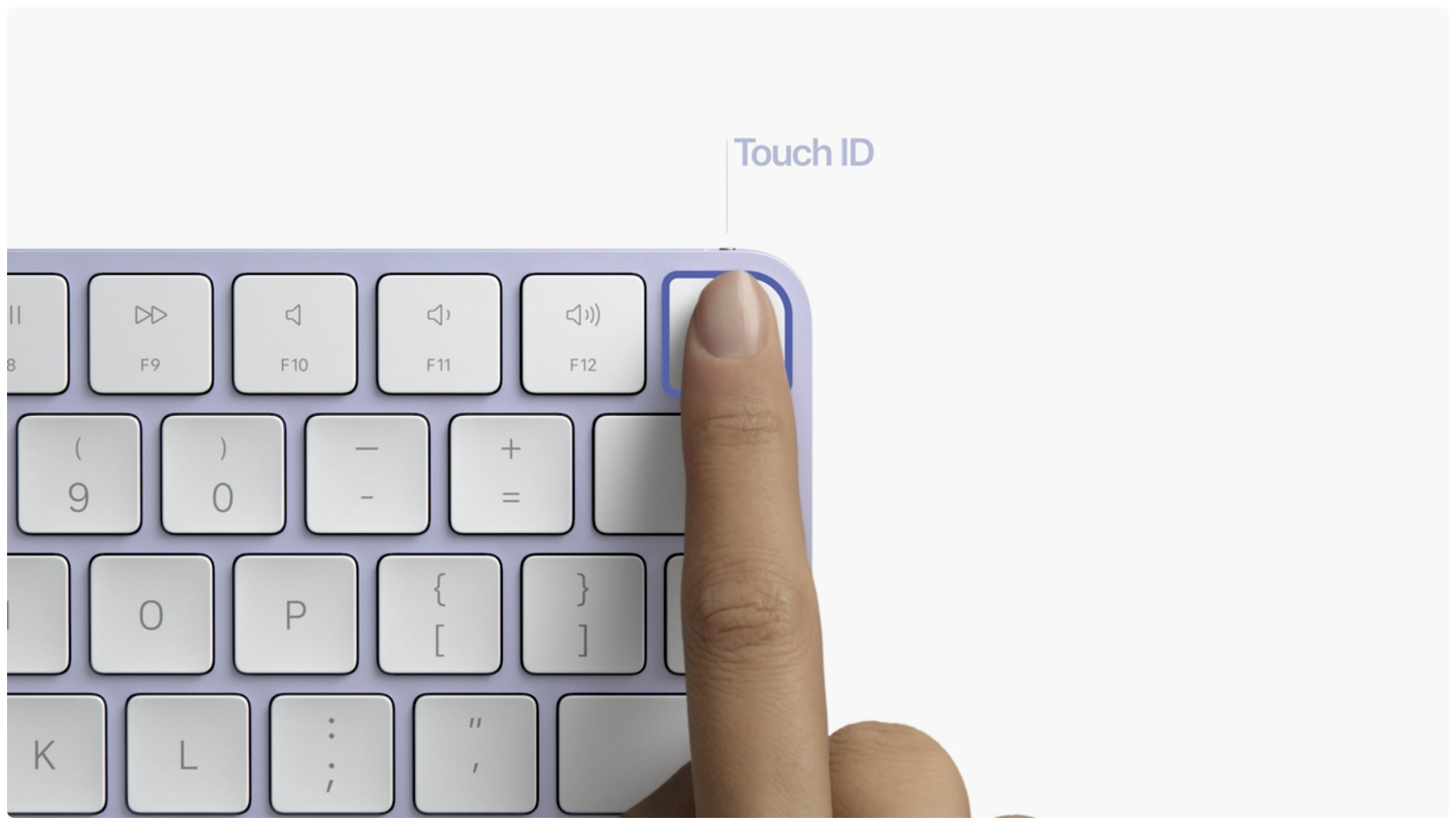
Okay, but what happens if you try to authorize Apple Pay with a wireless Touch ID like that integrated into Apple’s wireless Magic Keyboard that ships with the Apple silicon iMacs and is also sold separately? The same: Using that keyboard with an Apple silicon notebook, such as the new MacBook Pro, will prevent you from approving Apple Pay transactions with wireless Touch ID.
And why is that?
Whether you’re using a Magic Keyboard with Touch ID or a Magic Keyboard with Touch ID and Numeric Keypad on your Apple silicon Mac, biometric matching is performed by the Secure Enclave in the computer itself. “The Secure Enclave performs the enrollment and matching operations and enforces security policies in the same way it would for a built-in Touch ID sensor,” reads the Apple Platform Security document.
In other words, Apple Pay functionality is always disabled for security purposes with wireless Touch ID keyboards.
Other causes behind Apple Pay Touch ID issues
According to a support document on the Apple website, third-party kernel extensions could also interfere with Apple Pay on Apple silicon Macs. As an example, if you turn on Reduced Security mode in macOS to install a kernel extension for direct access to system input and output, the system could decide to temporarily turn off Apple Pay.
Specifically, as the document states, Apple Pay capabilities may be disabled if third-party kernel extensions are loaded, which could interfere with the trustworthiness of macOS.
MacWorld has more:
With a reduced-security macOS startup, Apple may be unable to create the level of integrity it and the credit card system requires for mobile payments that match the degree offered by a point-of-sale system accepting a chip on a card. If so, Apple Pay is disabled on the Mac.
MacWorld mentions several other possible causes that could throw Apple Pay, including the switched-off/unchecked “Install Security Responses and system files” or “Install system data files and security updates” in System Settings > General > Software Update > info button ⓘ for Automatic Updates or System Preferences > Software Update > Advanced.
On top of that, macOS shuts down Apple Pay functionality when it has detected third-party software or malware that affects its ability to keep user payment information secure. To ensure Apple Pay works, as MacWorld explains, set system security to Full Security on your Mac (be it an Intel model or an Apple silicon one) in macOS recovery mode, then use Startup Security Utility to reset system security.
On a related note: