Learn how to enable the Low Power Mode on your MacBook Air, Pro, or Neo to extend battery life and help it run cooler and quieter.
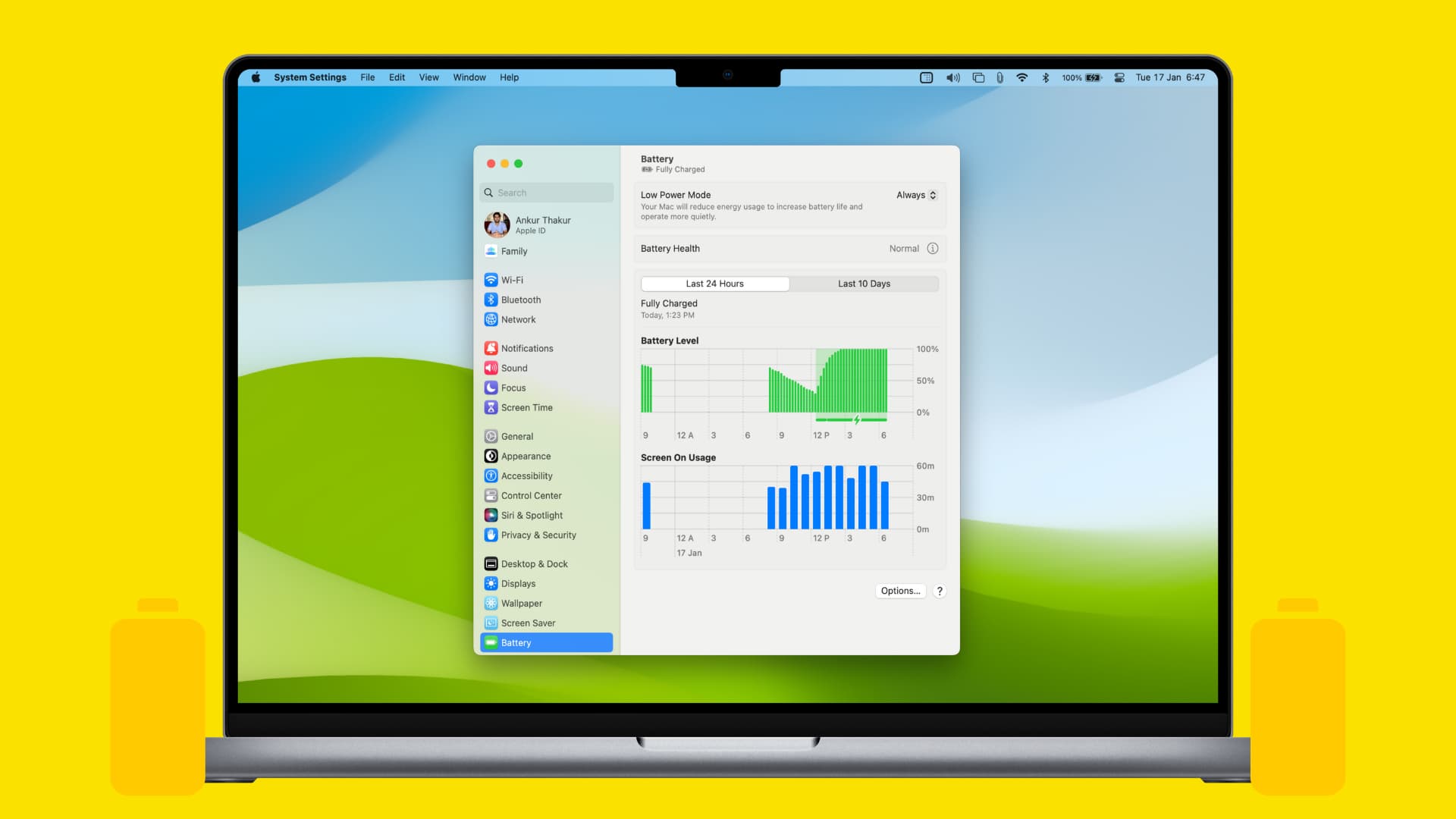
What is Low Power Mode?
Low Power Mode is a battery-saving feature available on Mac notebooks manufactured in 2016 or later and running macOS Monterey or later. It helps increase battery life by reducing display brightness, decreasing the CPU clock frequency, and temporarily suspending some background activity.
Underclocking the CPU and dimming the display helps extend battery life, but the machine won’t run as smoothly as before, and you may notice some choppiness.
Turn on Low Power Mode on MacBook
There are a few ways to toggle Low Power Mode, and you can independently adjust it for when the computer is on battery power or plugged into power.
From System Settings
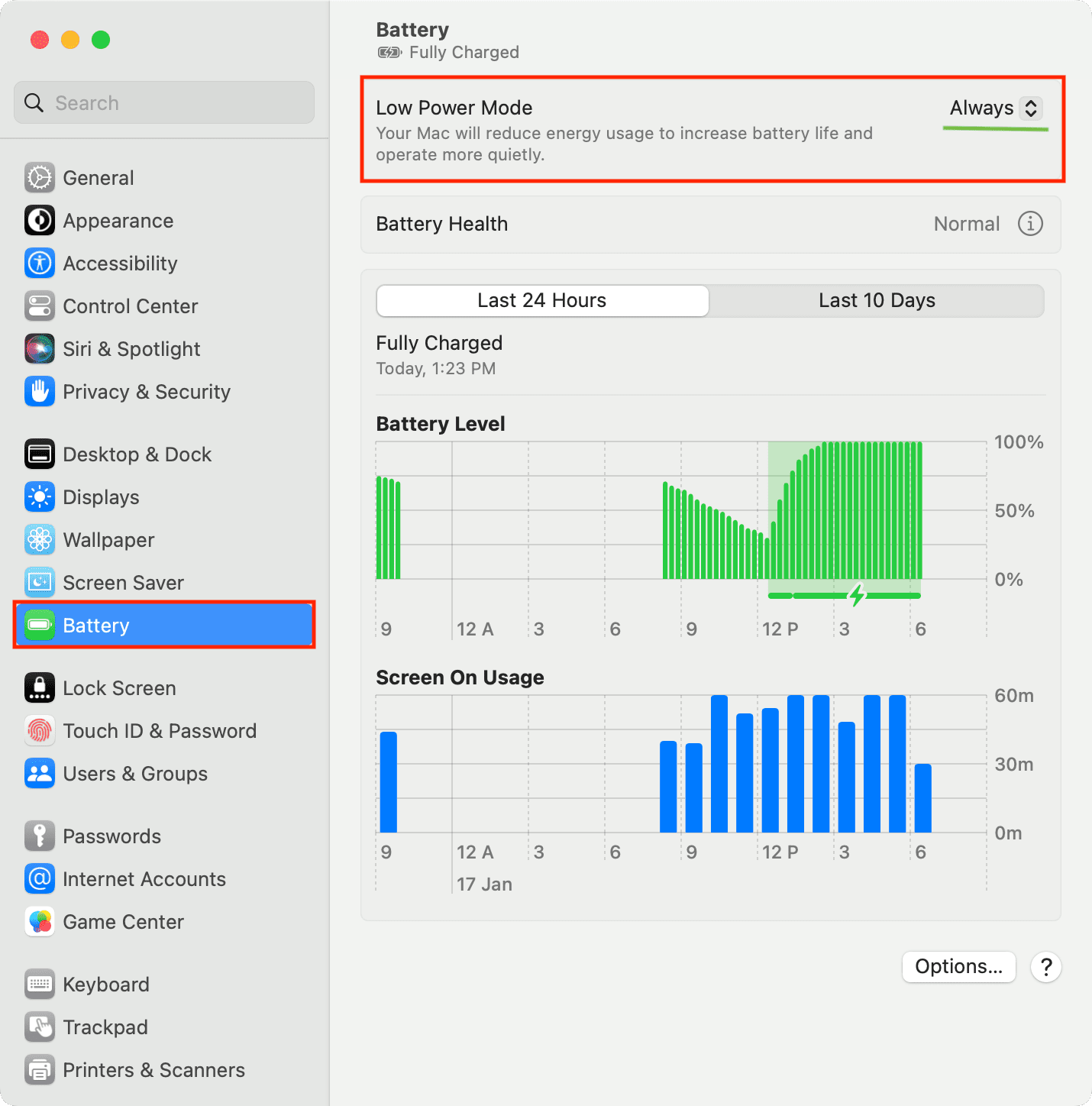
- Open System Settings.
- Select Battery in the sidebar.
- Click the menu next to Low Power Mode and choose Always, Only on Battery, or Only on Power Adapter.
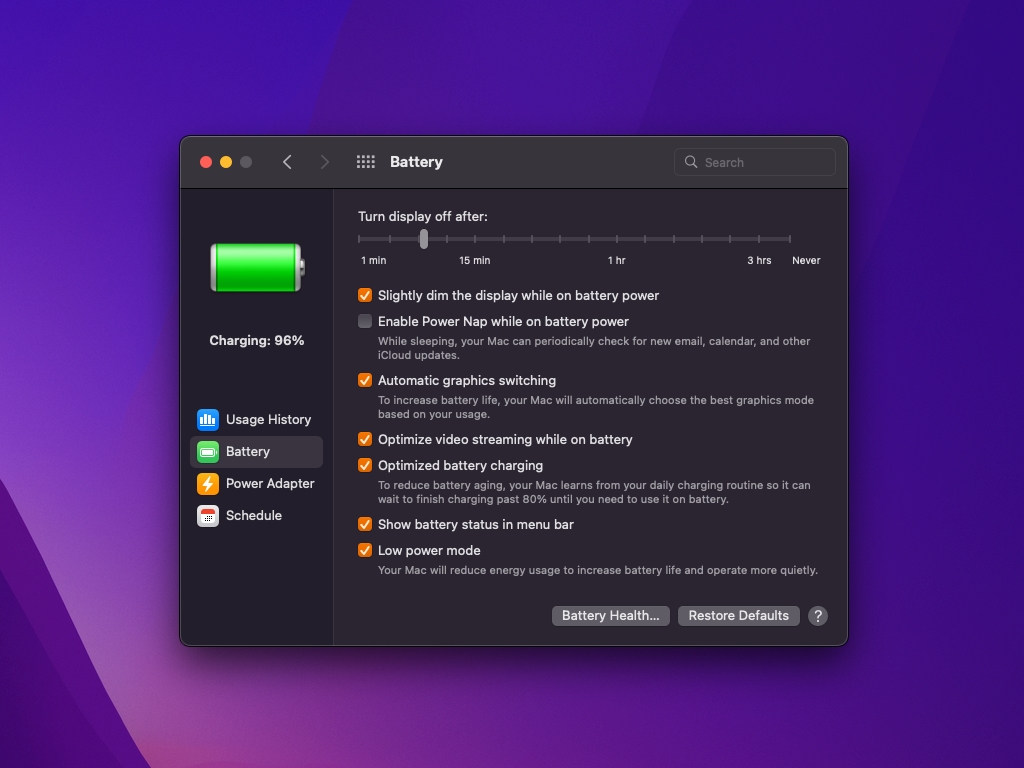
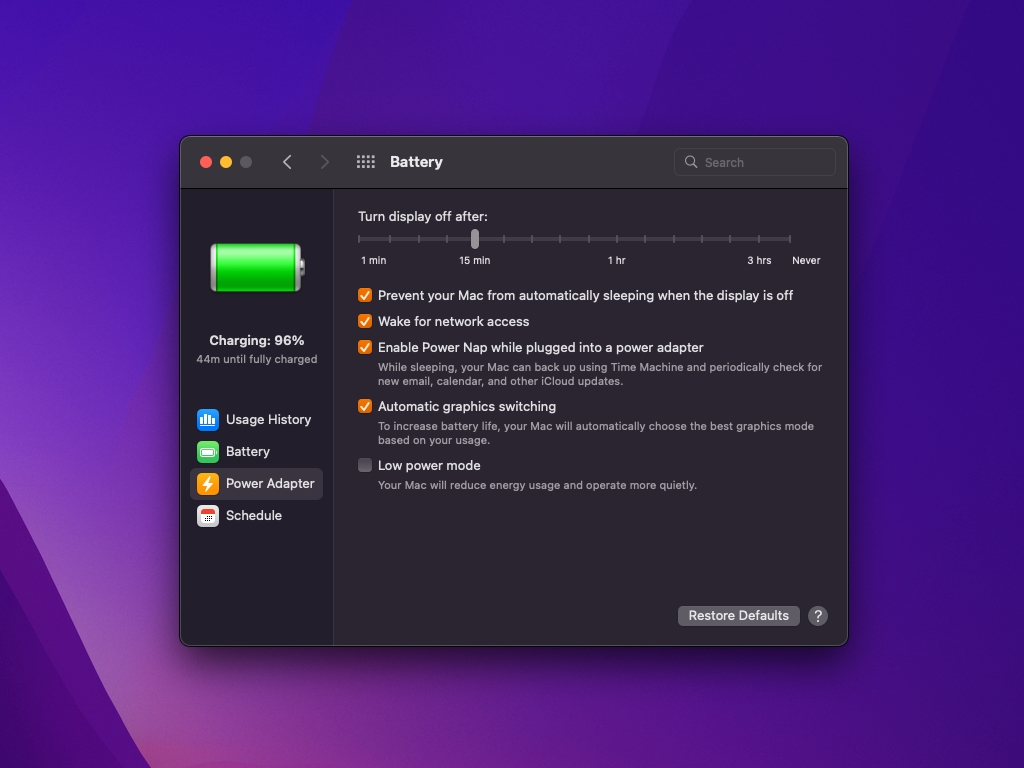
If your Mac is running macOS Monterey or older, navigate to System Preferences > Battery and select Battery or Power Adapter in the sidebar, then tick the box next to ‘Low power mode’ to turn the feature on.
From the menu bar
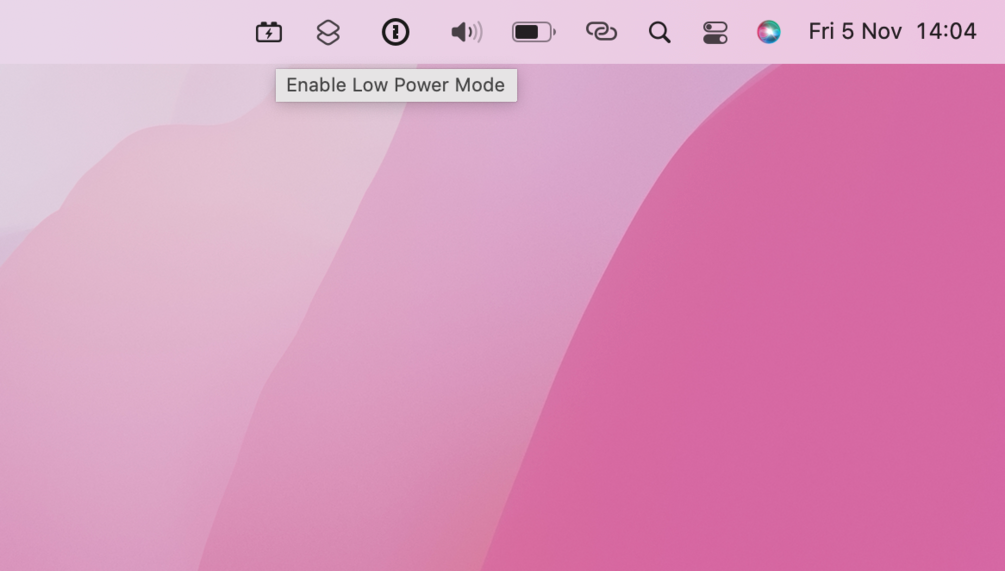
You can also toggle Low Power Mode by clicking the battery icon in the menu bar or Control Center, followed by Low Power under the Energy Mode heading.

If you don’t see the battery icon, follow the steps below to turn it on:
- Open System Settings.
- Click Menu Bar in the sidebar.
- Tick the box next to Battery to show the menu bar icon. Then click Battery Options.
- Click the menu next to “Show Energy Mode” and choose “Always.”

Using Cooldown app
Cooldown by Jordi Bruin is a nifty utility for managing Low Power Mode from the menu bar. It’s free to download and use without restrictions. If you do end up using it regularly, please consider paying the developer any amount you see fit.
When should you turn on Low Power Mode?
Low Power Mode offers a trade-off between performance and energy consumption. To help lower energy consumption, Low Power Mode reduces system performance which will make your Mac run slower.
You won’t notice a significant performance drop in everyday use if all you do on your Mac laptop is read news sites, check email, use social media, and so on. These are typical use cases for Low Power Mode. It’s also available on the iPhone, iPad, and Apple Watch.
Also, check out: 41 tips to save battery on MacBook Neo, Air, and Pro