Learn how to sort your to-dos in the stock Reminders app by the due date, creation date, priority, or title on iPhone, iPad, and Mac.
You can sort almost any task list in Apple Reminders, including your custom task lists and most of the smart lists that are built into the Reminders app.
The following built-in smart lists can be sorted in Apple Reminders:
- Today
- Flagged
- Assigned
- Shared
You cannot, however, change the sort order for the following built-in smart lists:
- All
- Scheduled
- Completed
How you sort your reminders even syncs to all your devices that use iCloud Reminders with your Apple Account. Additionally, if you sort or reorder a shared list, other participants also see the new order on their devices.
To sort your task lists on Apple Reminders, you must select a reminder list and then choose one of the available sorting options from the contextual menu.
Sort reminders on iPhone or iPad
1) Open the Reminders app and choose a reminder list you’d like to sort.
2) Hit the three dots icon (…) in the upper-right corner to reveal the contextual menu.
3) Tap Sort By and choose your desired sort criteria and direction:
- Due Date: Sort the list by task due date.
- Creation Date: Sort the list by task creation date.
- Priority: Sort the list by task priority.
- Title: Sort the list by task title.

You can also reverse the sort order from this menu.
- Due Date: Choose “Earliest First” or “Latest First”
- Creation Date: Choose “Oldest First” or “Newest First”
- Priority: Choose “Lowest First” or “Highest First”
- Title: Choose “Ascending” or “Descending”

Note: With a task list sorted and ordered according to your liking, manually dragging a reminder to a new location will instantly switch to manual ordering.
However, your manual order is saved when you re-sort the list by due date, creation date, and more, priority, or title. To revert to the last-saved manual order, choose the option labeled “Manual” from the menu. Again, reminders in the All, Scheduled, and Completed smart lists cannot be sorted and ordered.
Sort your reminders on Mac
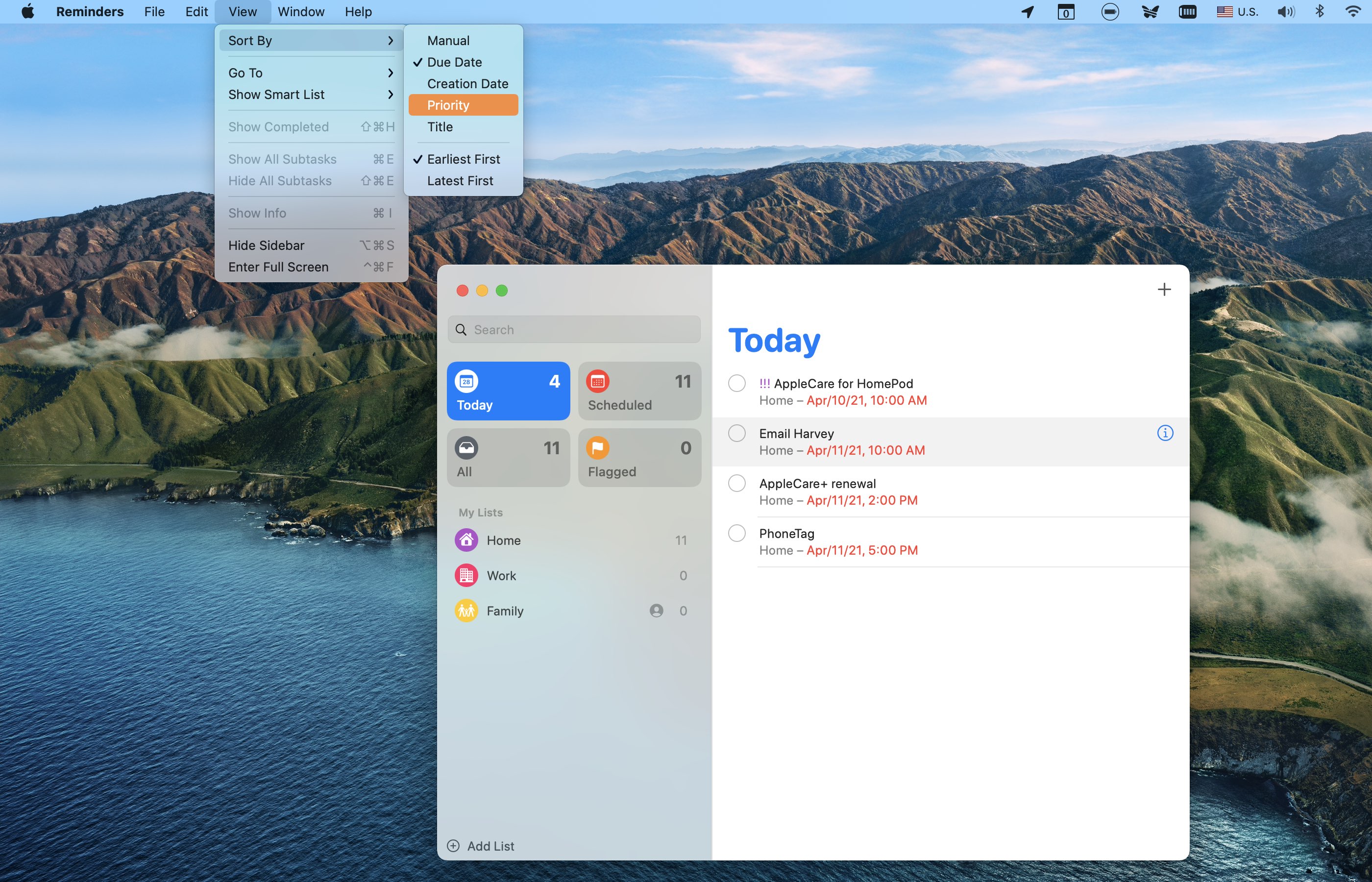
To choose your desired sort criteria and sort direction in Apple Reminders on your Mac, select a task list in the sidebar and choose the sort command from the View menu.
1) Open the Reminders app on your Mac.
2) Select a task list in the sidebar.
3) From the top menu bar, click View > Sort By and select your desired sort criteria and direction. The options you see are the same as iPhone, explained above.
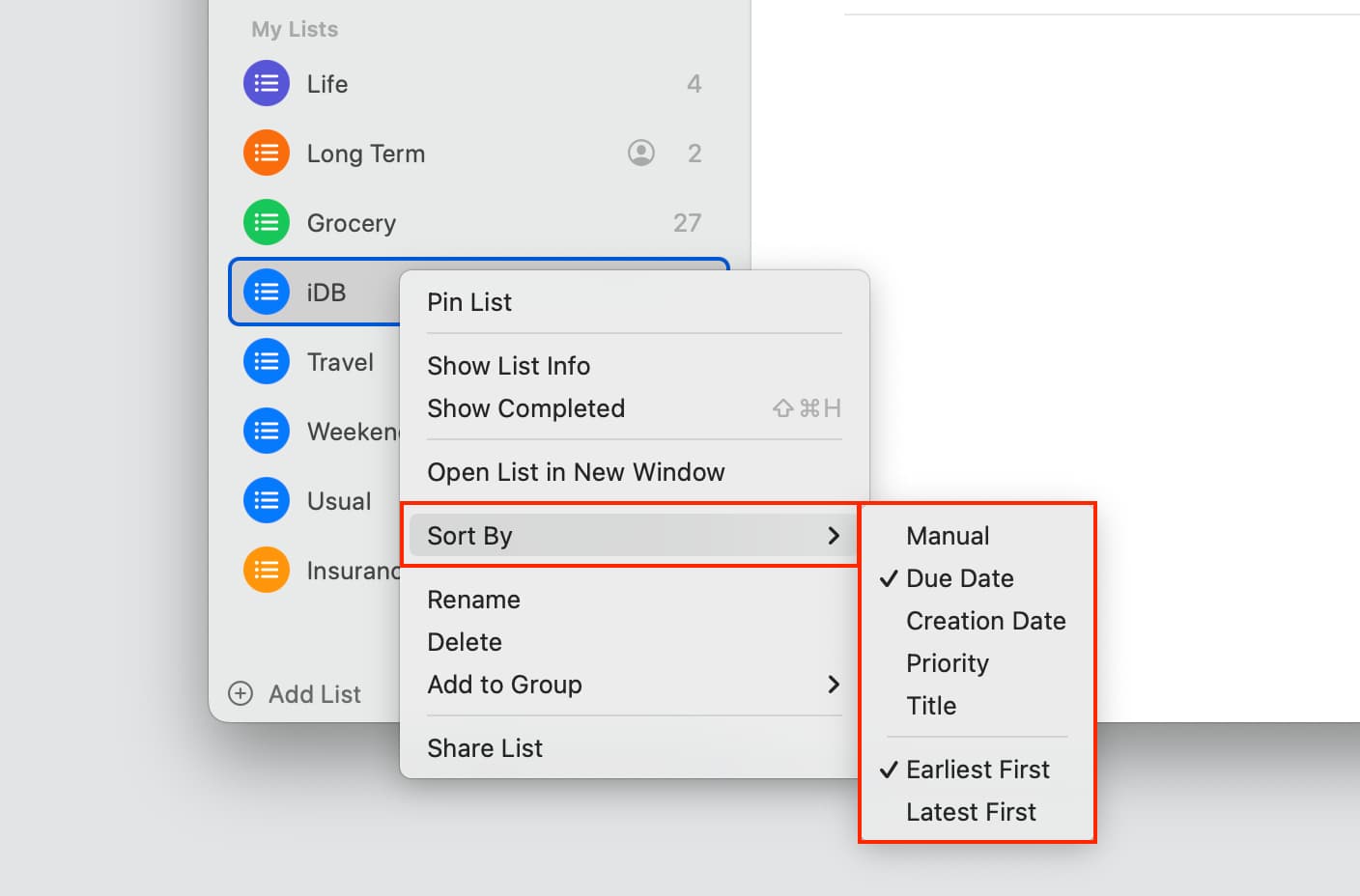
To access the sort options even after, right-click a reminder list title in the sidebar, select “Sort By” from the contextual menu, and choose an option for the sort direction.
Also, check out: