Learn how to always add yourself as BCC (blind carbon copy) in the emails you send from your iPhone, iPad, or Mac so that you get a copy of the message in your inbox just as your recipient does.
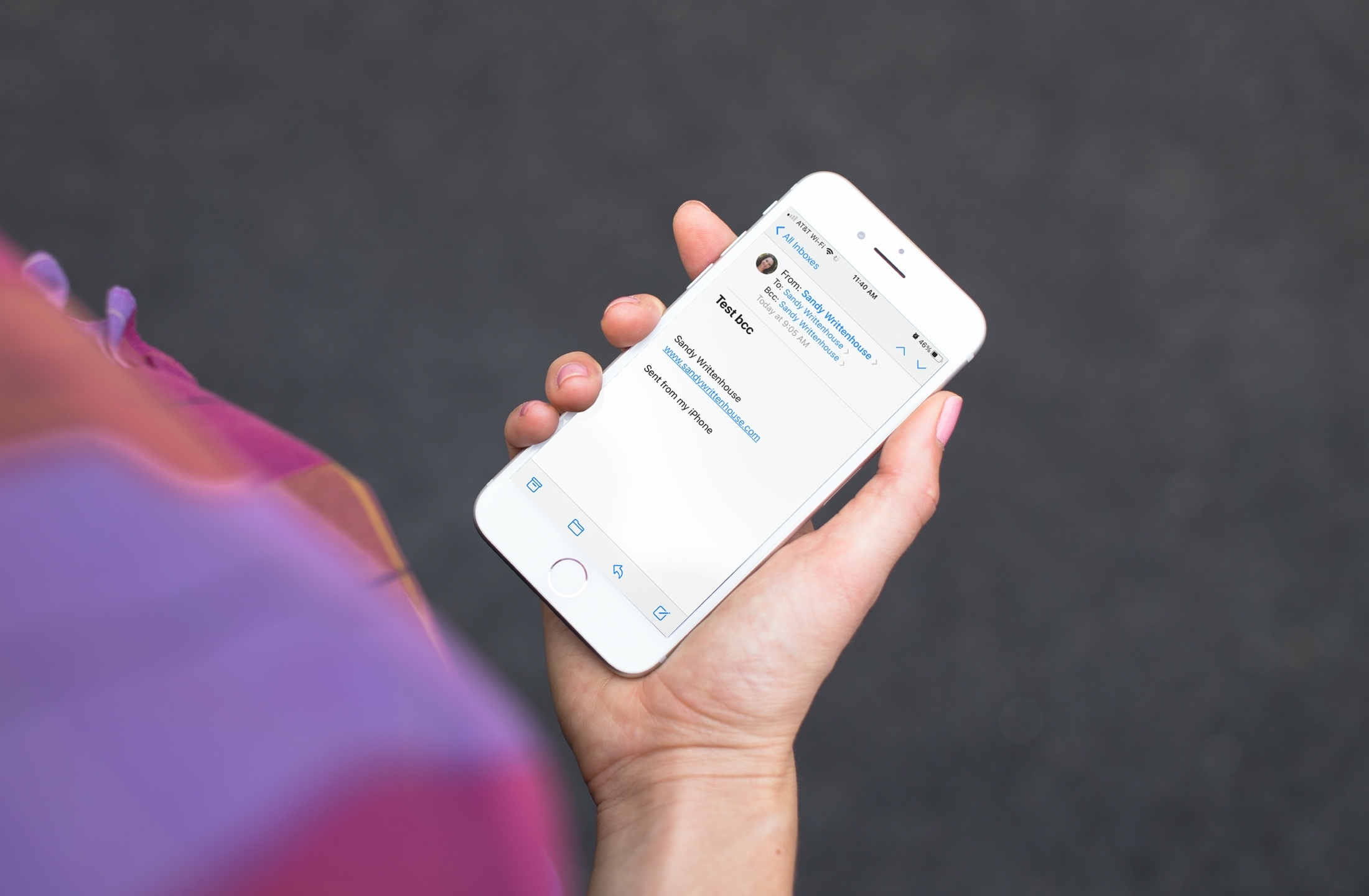
You can add yourself to any email you send in the CC (carbon copy) or BCC (blind carbon copy) field. This lets you get a copy of the message to your inbox. But if you prefer to use the BCC feature to keep your address hidden and would like to use it on all of your outgoing emails, you can enable a simple setting. With this setting, you’ll be blind copied automatically whenever you send an email in the Mail app.
Why use BCC for yourself?
You might be wondering why you’d want to blind-copy yourself on emails. After all, you normally see a BCC used if you want to email several people without disclosing their email addresses to others. Here are a few useful reasons to BCC yourself:
- You want a handy way to follow up. With the email in your Inbox, you can flag it for a time you choose or mark it as unread so it stands out.
- You want easy access to emails you send rather than searching through your Sent folder.
- You want to see how the emails are formatted when they’re received. Maybe you’re using a new template or trying out some different formats. This lets you see the emails as any other recipient would.
Since you can disable the automatic BCC setting when you finish with it, using it for situations like the above or others you may have in mind makes it a convenient tool.
Here are the steps to switch on automatic BCC in the Apple Mail app for iOS and macOS.
On iPhone and iPad
1) Open the iOS Settings app, tap Apps from the bottom of the screen, and select Mail.
2) Scroll down to the Composing section and turn on the toggle for Always Bcc myself.

Now, whenever you compose and send an email in Mail, you’ll be blind copied using the account you send the email from, if you have more than one.
On Mac
The setting is similar if you use Mail on Mac, but it resides in the Mail app itself. So open the Mail app and follow these steps.
1) Click Mail > Settings or Preferences from the top menu bar.
2) Go to the Composing tab.
3) Check the box for Automatically [Cc] myself and pick Bcc in the drop-down box. Note that on Mac, you can also choose to Cc yourself if you prefer.
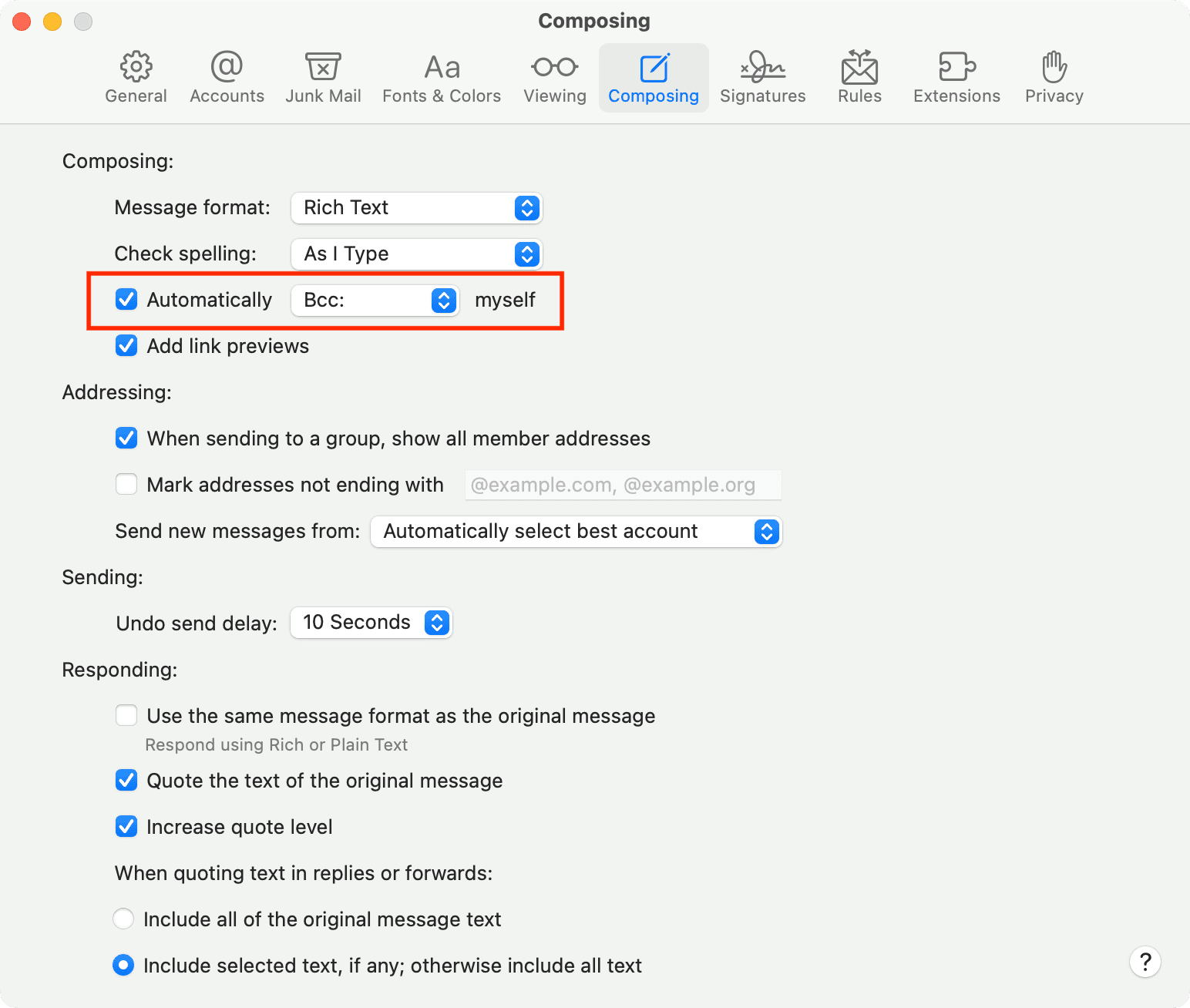
Close the Mail Settings and then send yourself a test email if you want to make sure it works. Like on iOS, the copy will be sent from the email account you use to send the email if you have more than one.
The ability to always and automatically BCC yourself on emails you send in Mail is one of those simple settings that takes a few seconds to enable, but you might not realize it exists. Do you find it useful to blind copy yourself on emails you send?
Do more with the Mail app: