Learn how to get reminded to wash your hands at the right time and for the correct amount of time with the automatic Handwashing Detection feature on Apple Watch.
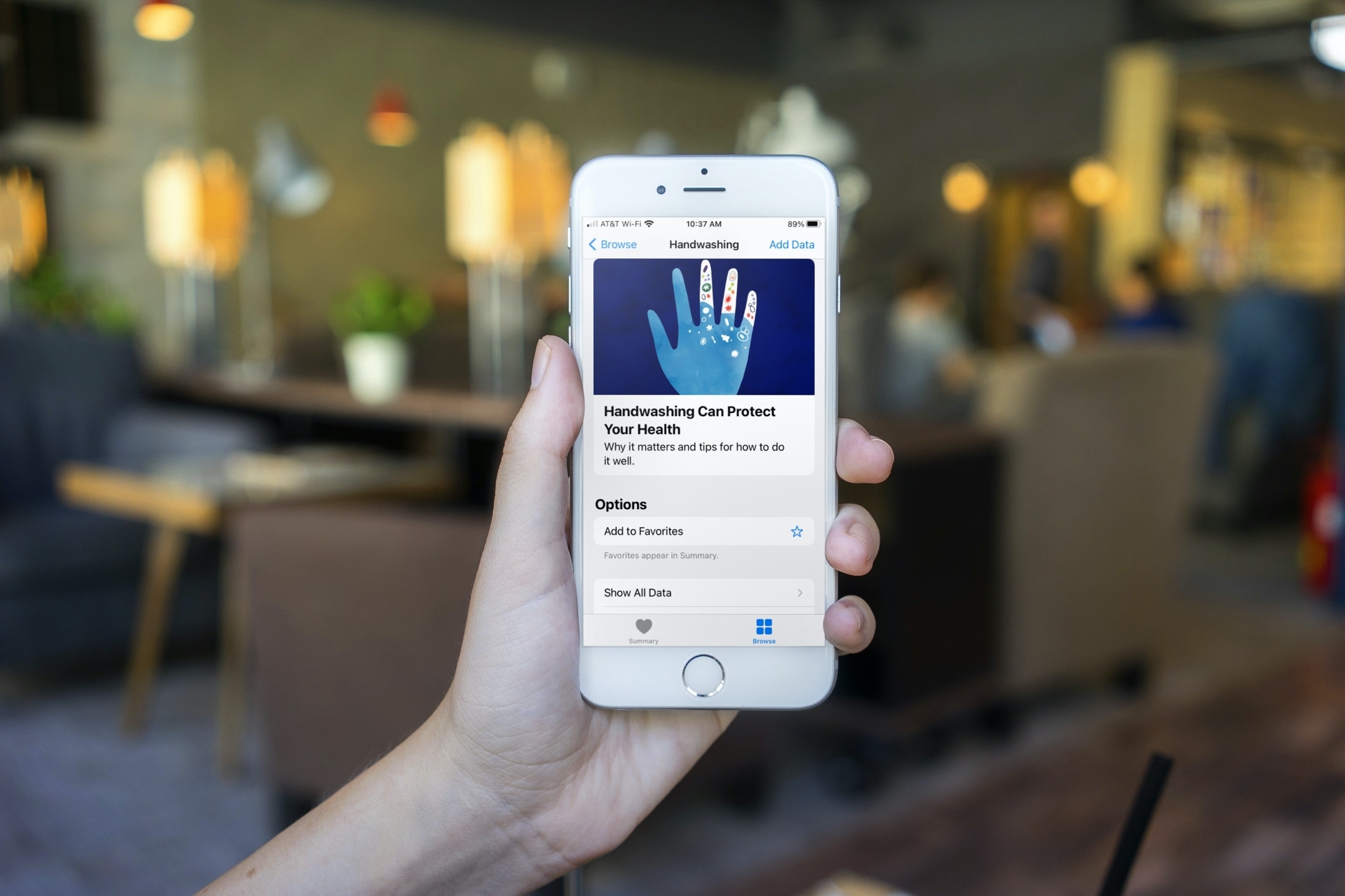
Even before the global pandemic, people knew that washing their hands was important. To reduce the risk of spreading disease, washing your hands for at least 20 seconds is the key. With that in mind, Apple Watch has a feature to help.
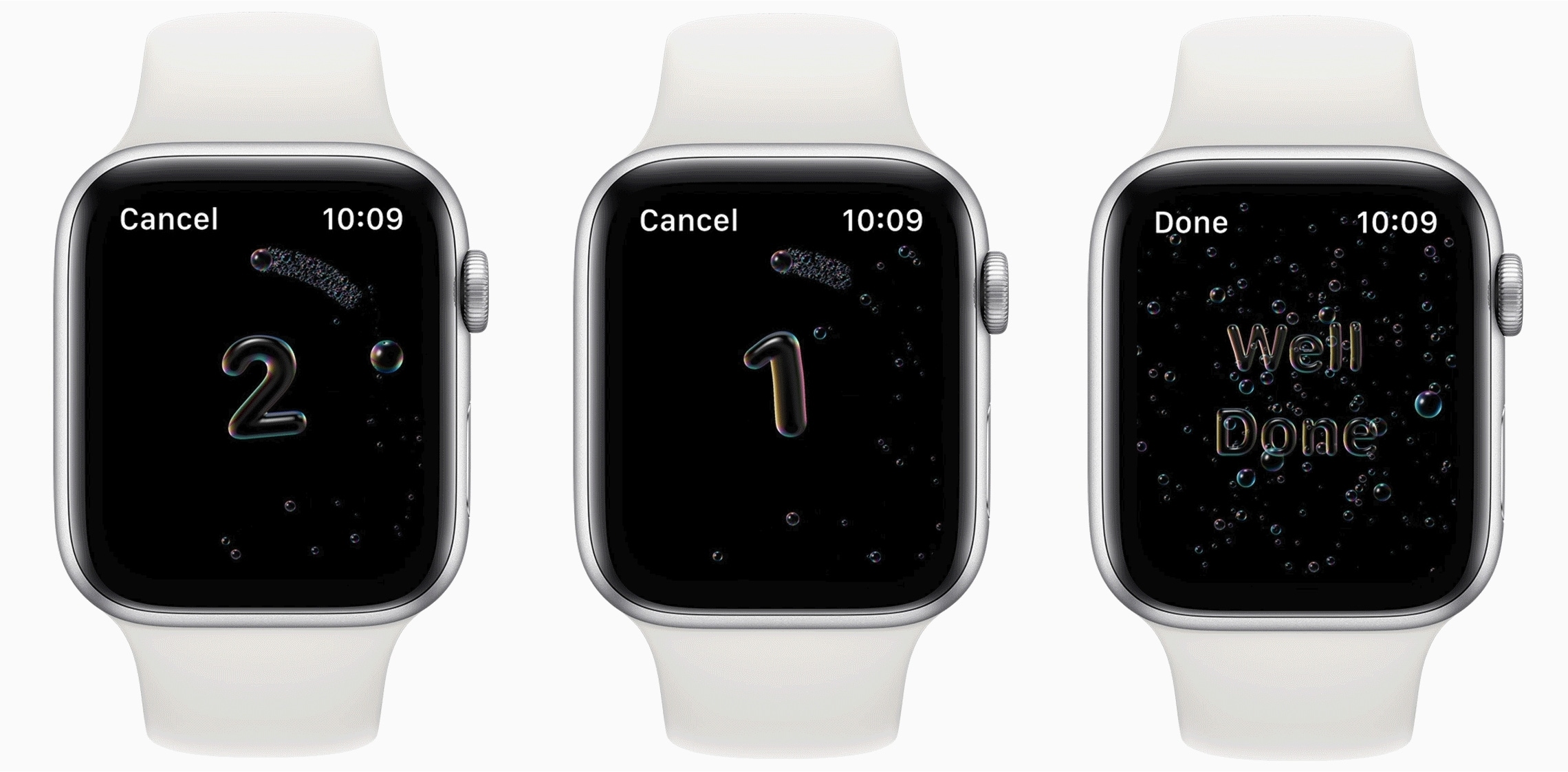
With Automatic Handwashing Detection, your Apple Watch can sense when you begin washing your hands. And with that, a 20-second timer begins. This lets you know when the time is up, and you’re good to go. There is also a setting to remind you to wash your hands when you return home.
Turn on the Handwashing Timer
- Open the Settings app on your Apple Watch.
- Scroll down under the list of apps and select Handwashing.
- Turn on the toggle for Handwashing Timer.

Now, when you wash your hands, your Apple Watch uses a combination of motion sensors, microphone, and on-device machine learning to automatically detect handwashing motions and sounds. A 20-second timer will begin and count down for you, letting you know when you’re done.
Get a notification to wash hands when returning home
If you’d like a reminder to wash your hands within minutes of arriving at home, turn on the toggle for Handwashing Reminders in Apple Watch Settings or the iPhone Watch app.
- Return to Apple Watch Settings > Handwashing and turn on the switch for Handwashing Reminders.
- Allow location access so it can remind you when you arrive home.

You can also go to the iOS Watch app > Handwashing and turn it on.
If the Handwashing Reminders option is grayed out, you’ll need to enable Significant Locations in your iPhone settings with these steps.
- Open your iPhone Settings and tap Privacy & Security.
- Select Location Services (which must be enabled).
- Scroll to the bottom and pick System Services.
- Choose Significant Locations & Routes and enable the toggle on the next screen. If Home is not set, you can add it to your My Card info.
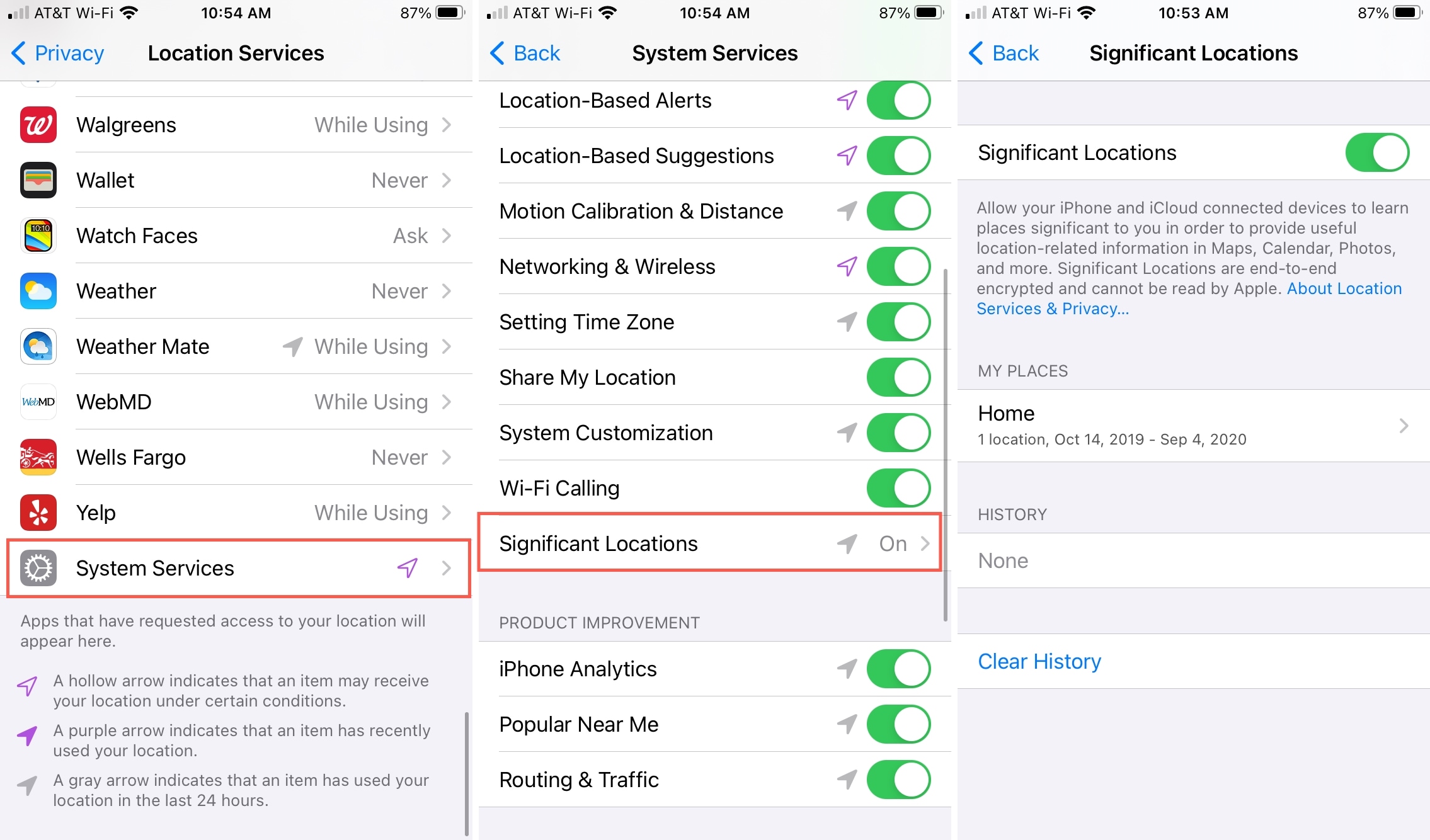
Once you enable Significant Locations, the Handwashing Reminders setting will be available for you to enable back in the Watch app as described above. And the next time you venture out and return home, you should receive a reminder to wash your hands.
For more on Location Services and Significant Locations, check out understanding iOS Location Services and what they do, and how to keep your iPhone from knowing where you are going next.
Check your handwashing stats
After you enable the Automatic Handwashing Detection feature, you might want to see how well you’re doing with it. Are you remembering to wash often? Are you washing for at least 20 seconds? You can find out all these in the Health app.
- Open the Health app on your iPhone and tap the Search icon or the Browse tab at the bottom.
- Enter “handwashing” into the search bar and then select it from the list.
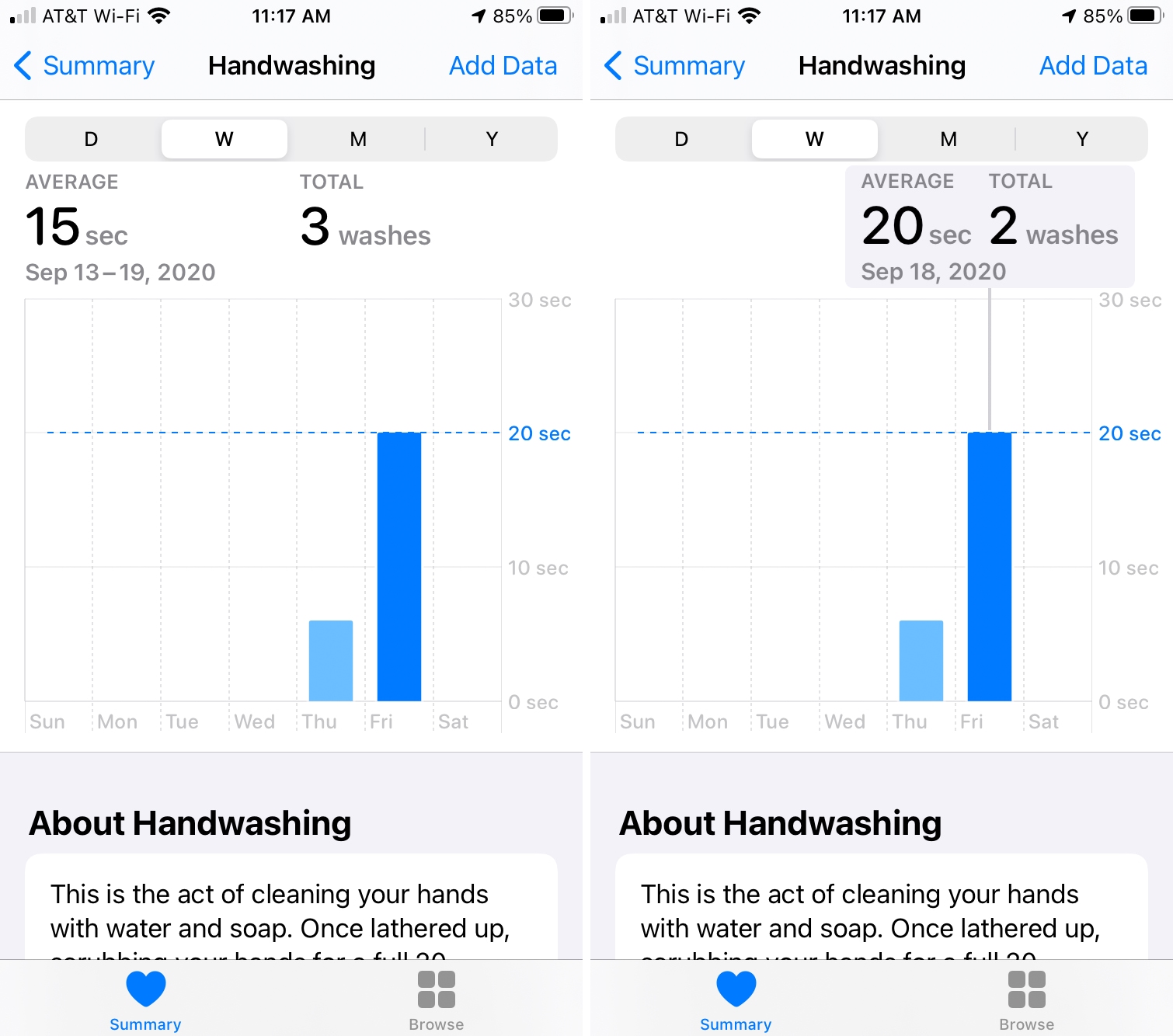
You can then see a helpful graph at the top that shows you your handwashing data. You can view the number of washes detected by day, week, month, or year. You’ll also see the average time overall. Tap a bar on the graph for further details. And if you need to add data manually, for example, maybe you weren’t wearing your Watch at a time you washed your hands, tap Add Data at the top and enter the details.
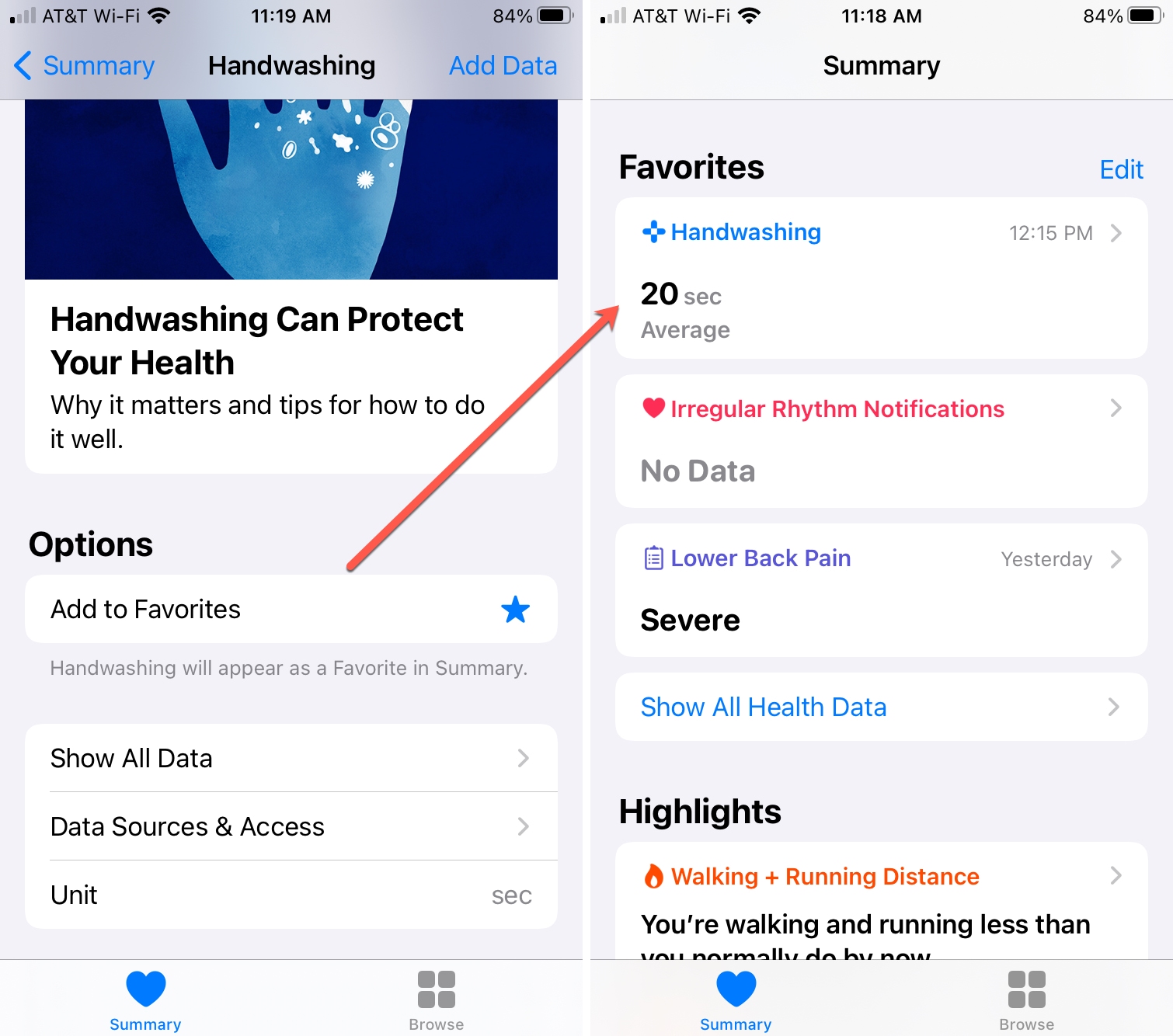
To keep this handy, you can add Handwashing to your Health Summary tab. Just tap the star next to Add to Favorites on the Handwashing detail screen. Then, when you open the Health app, you’ll see Handwashing under Summary and can simply tap from there to see your data.
Keeping your hands clean and free from germs and bacteria is very crucial. So, if you own an Apple Watch or later, be sure to enable and use this handy feature.
What do you think of Automatic Handwashing Detection on the Watch? Will you use it yourself, or maybe set it up on an Apple Watch that one of your loved ones wears?
On a related note: 15 built-in wellness features to keep track of your health on iPhone, iPad, and Apple Watch