You likely already know that you can invoke Siri and ask it to send a message to someone. However, what you may not know is that Siri can even record what you speak (in any language) and send that as a voice note on iMessage.
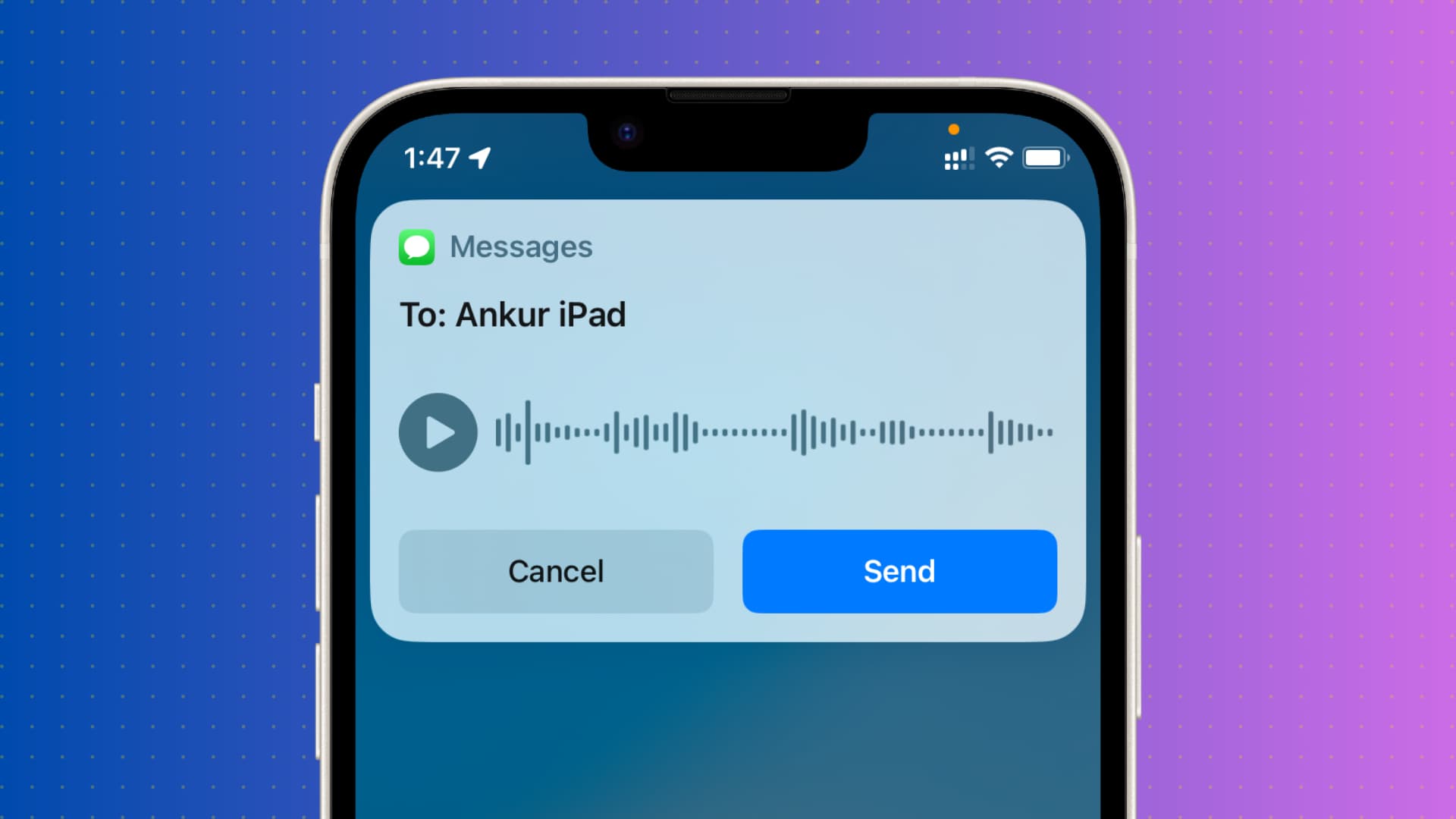
Here’s how to send an audio message to someone from your iPhone or iPad using Siri without even touching the screen.
Send an audio message using Siri
- Summon Siri on your iPhone or iPad as you normally do by saying “Siri,” “Hey Siri,” or by pressing the physical button.
- Say, “Send audio message to [contact’s name].”
- Siri will now ask you to go ahead and speak your voice message.
- After you stop speaking, Siri may ask if you would like to play it or send it. You can say play it or send it. Alternatively, you can also use the triangle play button and the Send button that you see on the screen. And if you change your mind or want to rerecord it, hit the Cancel button.

Siri will send the audio message:

Note: Siri responses while sending the audio message may differ depending on what speech and captions settings you have chosen for it. For instance, I noticed that Siri does not say the “play it” part if Siri Speech and Captions are turned off.
Bonus tip: Decide when your audio messages expire
As a reminder, you can set your audio messages to expire and be removed from your conversation history after two minutes or not at all. This applies to audio messages you send as well as those you receive. To adjust this setting: Go to Settings > Apps > Messages > Expire, and select either After 2 Minutes or Never.
Also, check out: How to select WhatsApp, Telegram, or other app when sending a message with Siri on iPhone