Learn how to view a transcription of the voice commands you give Siri on your iPhone, iPad, Mac, Apple Watch, and Vision Pro so you can verify that the device is interpreting spoken commands accurately.

By default, your Apple device does not show a real-time Siri transcription of your speech. Thankfully, you can change that and have Siri type what you speak.
Thanks to these live Siri transcriptions of your requests, you can see whether the voice assistant is correctly picking up what you are saying.
On iPhone, iPad, and Apple Vision Pro
- Open the Settings app.
- Tap Apple Intelligence & Siri or just Siri. On older versions of iOS, it’s Siri & Search.
- Select Siri Responses.
- Toggle on the option for “Always Show Request” or “Always Show Speech” to enable live transcripts of your voice requests.

Turning this on will show a transcription of your speech on screen for all requests. Now, everything you say to Siri is shown as a real-time transcription on the screen. I find it easier to use Siri with a live transcription of my speech because I can clearly see whether the assistant has heard my request correctly or if I need to start over.
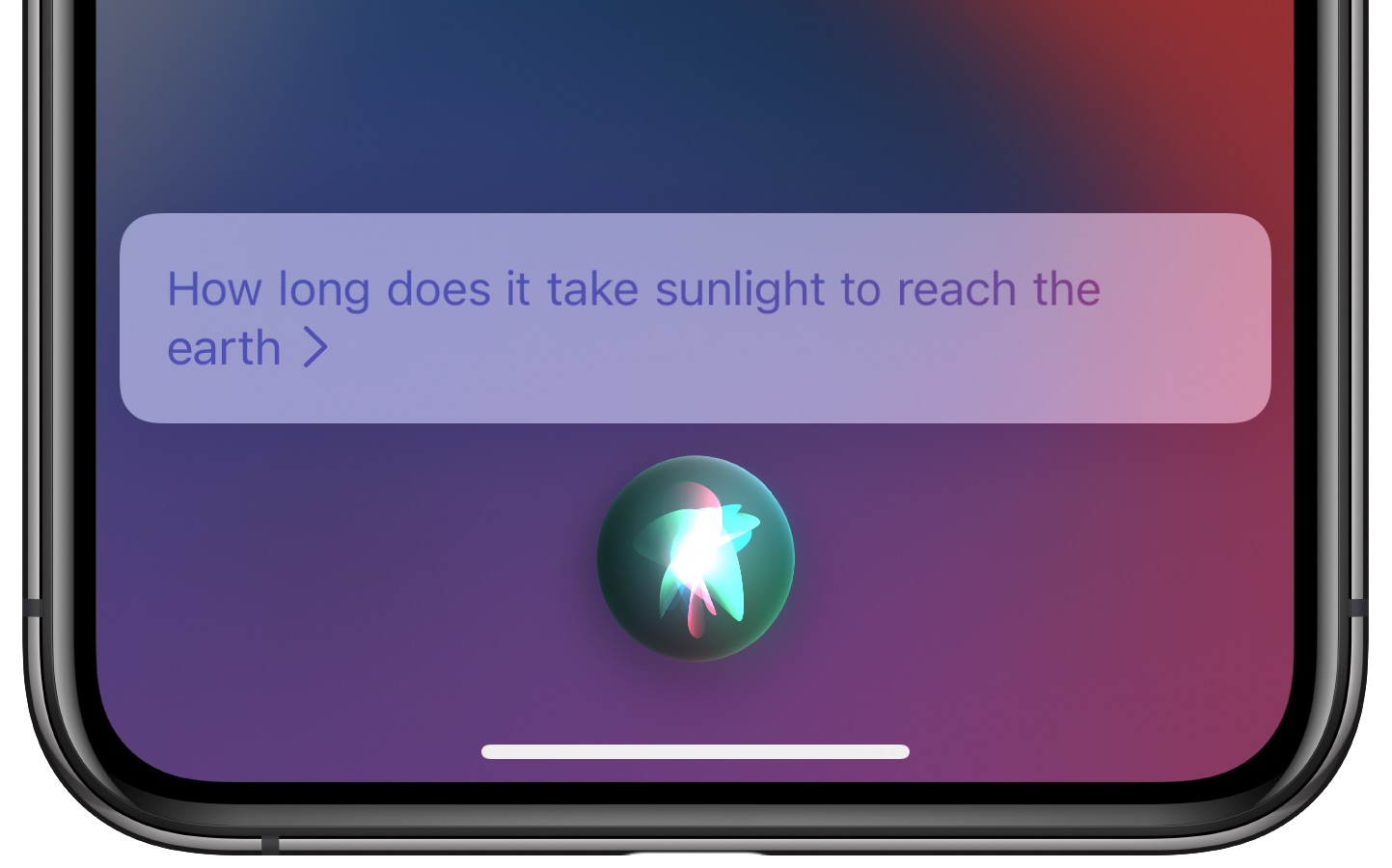
You can also enable Always Show Siri Captions, which will show captions for all spoken text in a pop-up alongside a transcription of your request. While Siri displays most results in a banner at the top of the screen, enabling captions makes it easier to see both your request and Siri’s response as raw text at the bottom of the screen.
On Apple Watch
- Open the Watch app and tap Siri from the My Watch section.
- Tap Siri Responses and enable Always Show Speech.

On Mac
If your Mac is running the latest version of macOS, experiment with the three Siri Responses options in System Settings > Apple Intelligence & Siri and check whether you see a transcription.
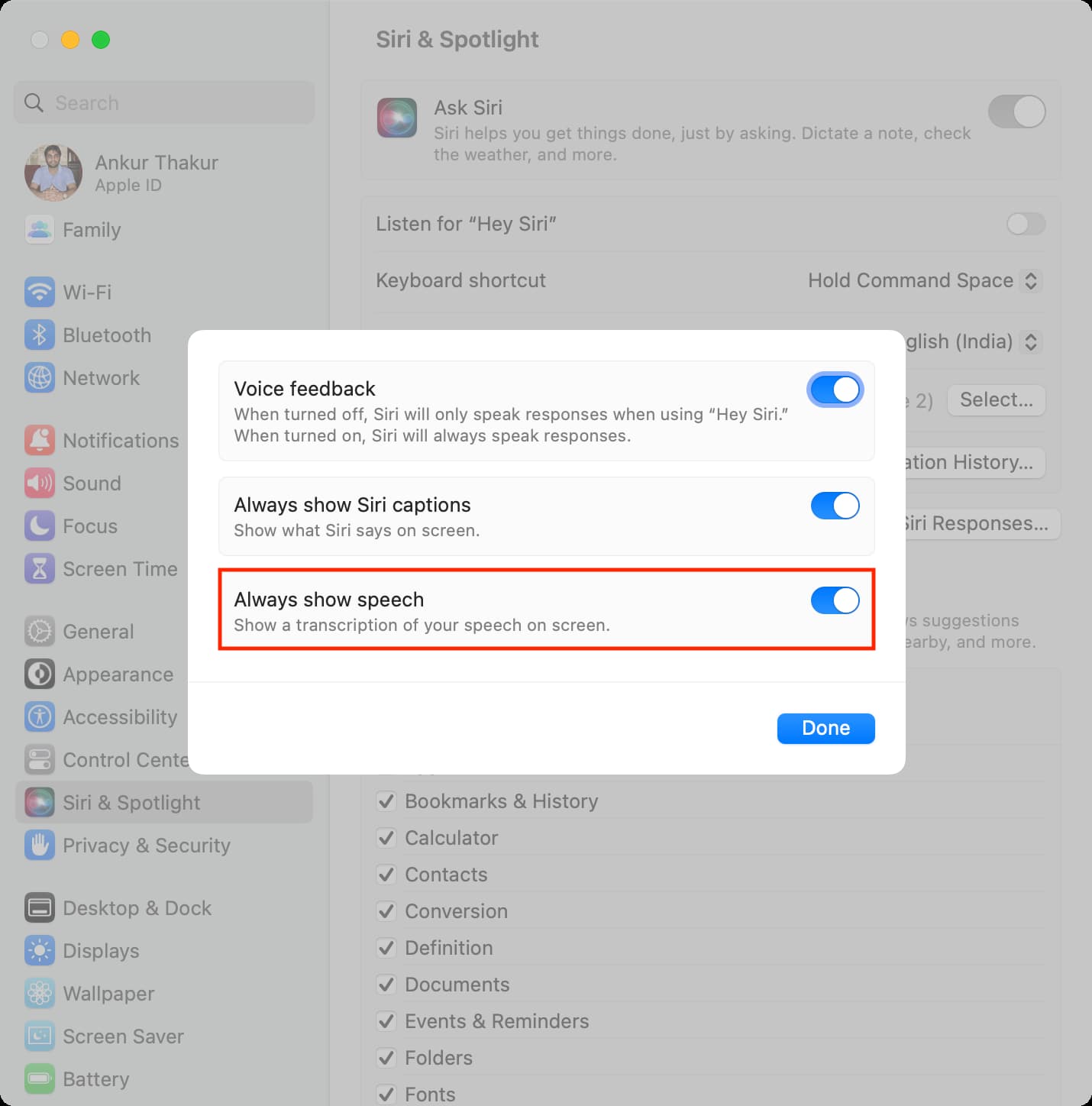
On older versions of macOS, go to System Settings > Siri & Spotlight > Siri Responses. Then, enable ‘Always show speech’ and click Done.
On a related note: