Learn how to restrict apps on your iPhone or iPad from accessing all your images and videos in your photo library, thus enhancing your privacy and security.
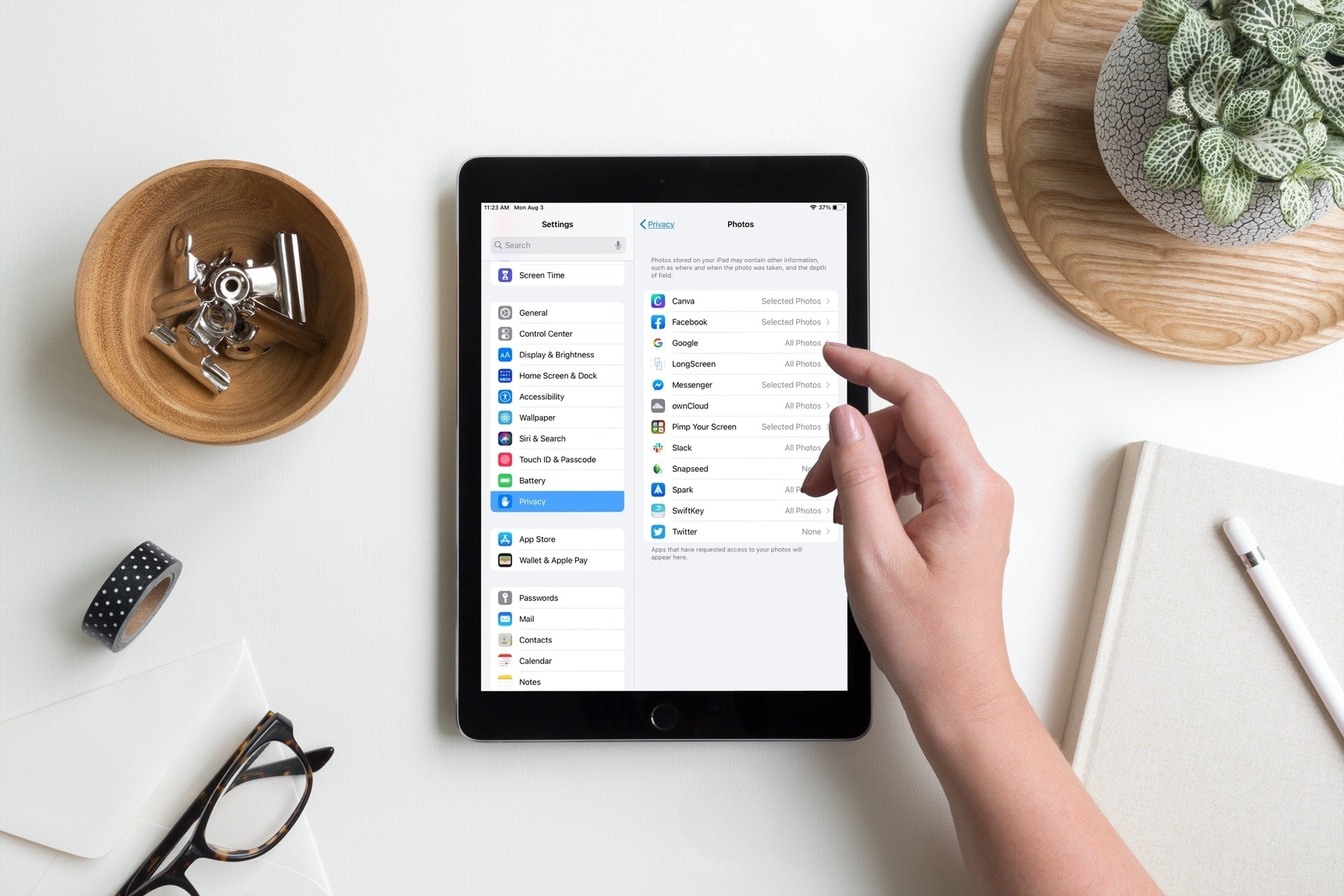
Your iPhone photos and videos embed metadata you may not want shared, such as the location, date, and time of snapping. Permitting unrestricted photo access poses a privacy risk because a misbehaving app could extract personally identifiable information from the metadata.
Thankfully, iOS and iPadOS provide privacy controls that restrict access to images and videos in the Photos library for any third-party app you install and for some Apple apps (like iMovie). Here’s how to use them.
Restrict iOS apps from accessing your full photo library
1) Open the Settings app on your iPhone or iPad and choose Privacy & Security.
2) Select Photos.

3) You’ll see a list of apps that have access to your Photos app library. Tap an app and select one of the following. Note that not all apps will show all these options.

- None: The app can’t access your photo library
- Add Photos Only: The app can only add to your photo library, but not access its contents.
- Limited Access: This brings up the photo picker to manually select the photos or videos this app is allowed to access. You can also change these permissions later from Settings > Privacy & Security > Photos, selecting an app, and choosing Edit Selected Photos. Plus, many applications allow you to edit selected photos from inside the app itself.
- Full Access: The app can access all media in your photo library.
- Private Access: This is a new option that lets the app show your photo library inside it, but the app can access only those images and videos that you tap to select. You can use the Options button here to prevent the app from accessing photo location and captions. You can also choose a preferred format.
Set the photos library permission at run time
After you open an app for the first time, you’ll see a Photos permission pop-up with the Don’t Allow, Limit Access, and Allow Full Access options. Going with “Limit Access” displays a photo picker to select the items from your Photos library you’d like to permit this app to access.

Restricting access to specific images and videos in your Photos library is always good from a privacy standpoint. It would be even better with more granularity, such as restricting access to specific albums, for example.
What do you think of this feature?
Also, check out: 41 tips to make the most of the Photos app on your iPhone