Learn how to add the Smart Stack widget to your iPhone or iPad Home Screen so Siri intelligence surfaces the right widget at the right time, showing you relevant information throughout the day.
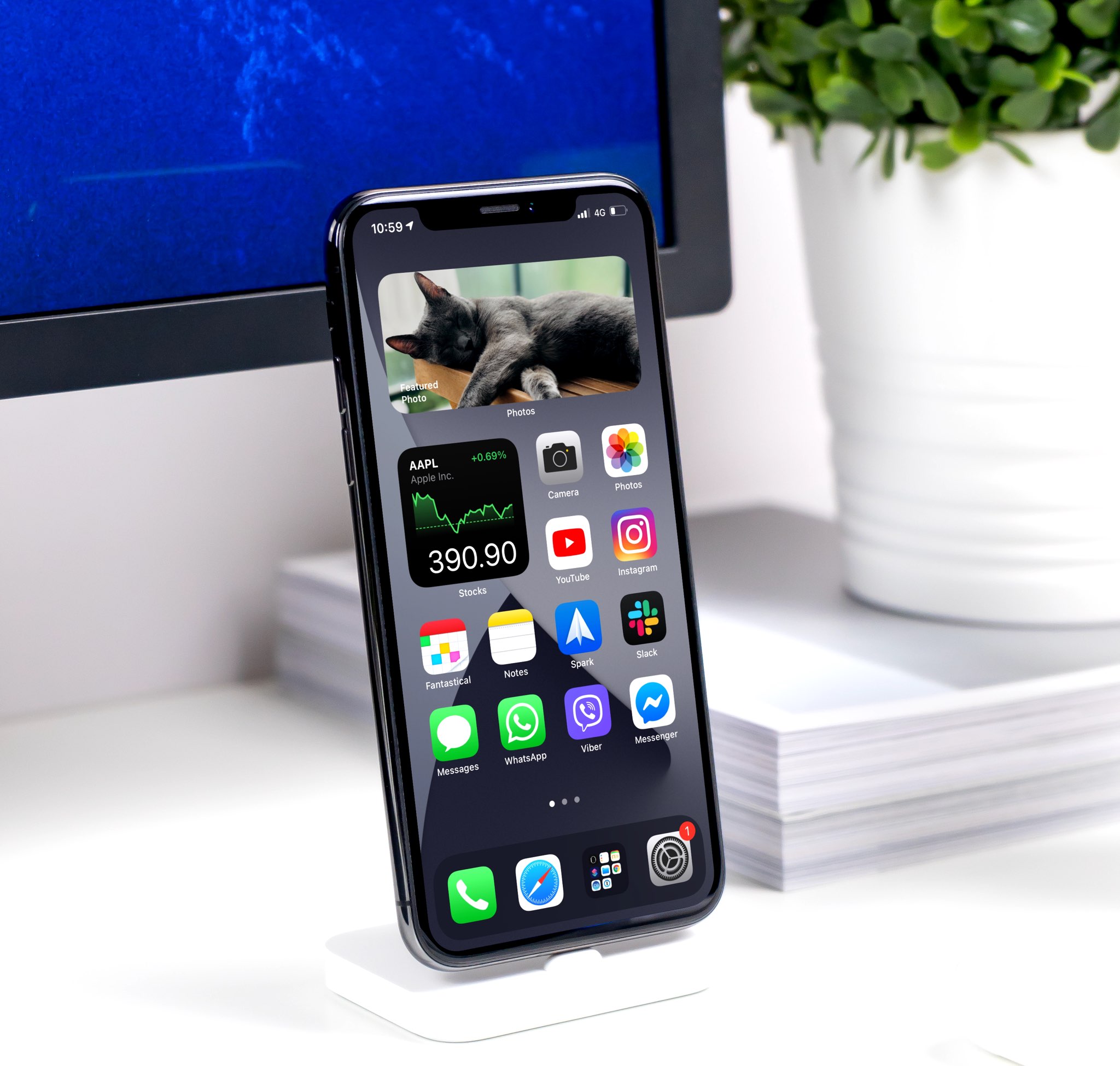
The Smart Stack is quite similar to the regular stack of widgets, but without you having to create the stack manually.
The Smart Stack feature takes advantage of on-device Siri intelligence to surface the right widget at the right time. The system determines which widget in your Smart Stack to surface based on factors such as time, location, device activity, and more.
As an example, depending on your daily routine, you might see the Apple News widget in the morning, Calendar events during the day, and commute time from Apple Maps in the evening.
Add Smart Stack to iOS Home Screen
1) Touch and hold an empty area on your iPhone or iPad Home Screen to enter jiggle mode. Then, tap the Edit button in the top-left corner and select Add Widget.

2) Tap Smart Stack.
3) Swipe left or right to choose one of the three stack sizes and then tap Add Widget to add it to the Home Screen.

4) Tap Done to exit jiggle mode and return to Home Screen with Smart Stack widget added to it.

That’s how you add a Smart Stack of widgets on your iPhone. You can add as many Smart Stacks to the Home Screens as you want in any supported size. However, note that without customization, each may show the same information.
Customize the Smart Stack widgets
You don’t have to manually pick the widgets for the Smart Stack, as Siri has already done that on your behalf the moment you created the stack based on your device usage patterns. The beauty of this feature is that you don’t need to leave the widget stacking to Apple. But if you’d like to curate the included widgets to your liking, you can easily do that.
Add
You can add a widget by dragging an existing widget from the Home Screen onto the Smart Stack.

Remove
Touch and hold a Smart Stack and choose Edit Stack. Now, tap the minus button for a widget to remove it.

Adjust per-widget options
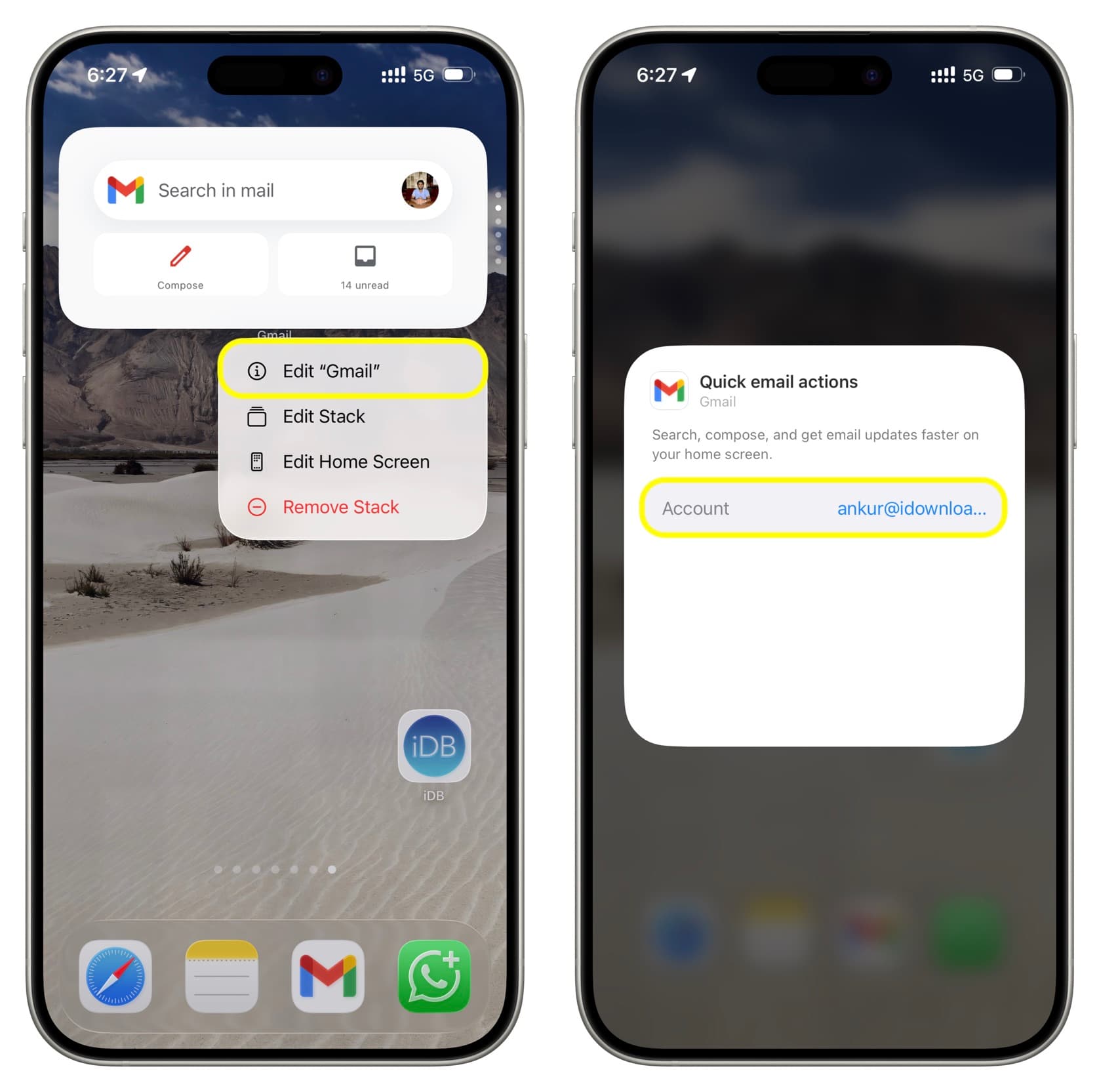
Touch and hold the Smart Stack, and if the widget on the screen allows editing, you’ll see the Edit “app name” option. Tap it to make the necessary changes. For example, you can pick a city for the Weather widget, select a desired reminder list to display in the Reminders widget, or cherry-pick your favorite stocks for the Stock widget. You can also swipe manually on the Smart Stack to have the widget on the screen so you can edit it.
Note that going to the Smart Stack editing screen and turning off Smart Rotate and Widget Suggestions will significantly remove the “smartness” of the widget stack. You can learn more about it here.
Remove the whole Smart Stack
Touch and hold a Smart Stack and tap Remove Stack.
On a related note: