Learn how to use the Skip and Unskip Slides feature in the Keynote app on iPhone, iPad, and Mac if you have different versions of the same slide but only want to show one during your presentation.

When creating slides for a presentation in Keynote, you likely spend a lot of time perfecting them. As part of that process, you might create different versions of the same slide to see which works best. Alternatively, you may want to use one version of a slide for one audience and another version for a different audience.
Keynote makes it easy to hide slides during a presentation, which is helpful in these situations. This tutorial will show you how to quickly skip and unskip slides in Keynote on both iOS and macOS.
Skip slides in Keynote on iPhone or iPad
1) Open your slideshow presentation in the Keynote app and tap to select the slide you want to skip in the navigator.
2) With the slide selected, tap it again to display the thin shortcut menu strip. Tap the arrow (>) and then tap the Skip Slide option. Slides you skip will display as thin lines/horizontal bars in the Slide View navigator on the left.
3) To unskip a slide in Slide View, follow the same steps and select Unskip Slide in the shortcut menu.

Additionally, there is a second method to skip and unskip slides in Keynote. This method is ideal if you have to select multiple slides and skip them all.
1) Tap the three dots menu icon at the top right of the slide screen and select View Options, followed by Light Table.

2) Tap the [A] icon and then tap multiple slides to select them. After that, tap the skip slide icon in the toolbar at the bottom, as shown in the screenshot below. Skipped slides will appear dimmed, with a line showing their slide number.
3) You can follow the same steps in Light Table View and tap the unskip slide icon at the bottom of the screen to unskip them.

Skip slides in a Keynote presentation on Mac
1) Open your slideshow in Keynote on your Mac. Now, either in Navigator, Light Table, or Outline view, select one or more slides you want to skip.
2) Control-click or right-click on the selected slides and choose Skip Slide. You can also select one or more slides and click Slide > Skip Slide from the top menu bar.
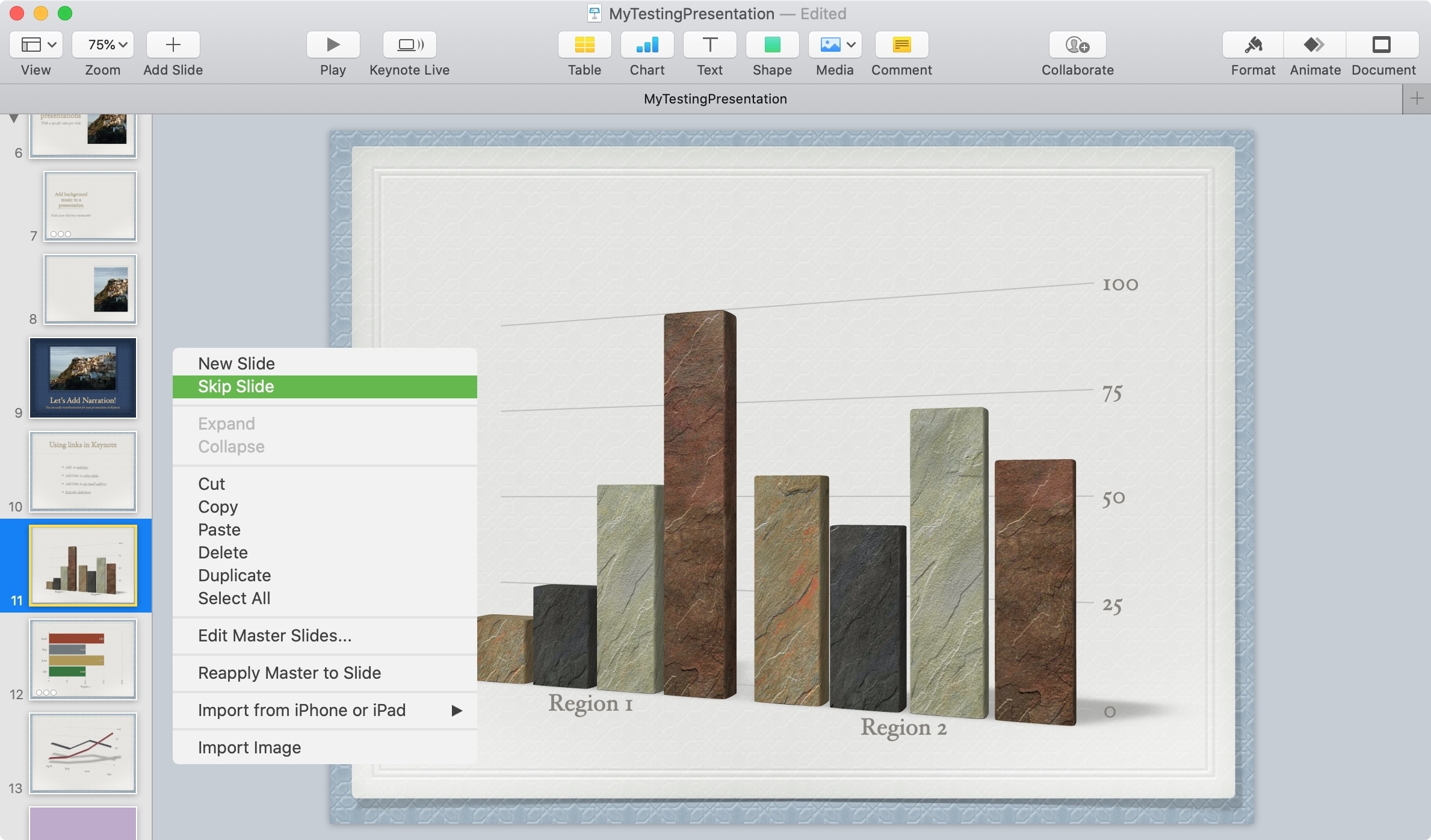
Depending on the view you use next (View > Navigator/Outline/Light Table), you’ll see your skipped slide differently:
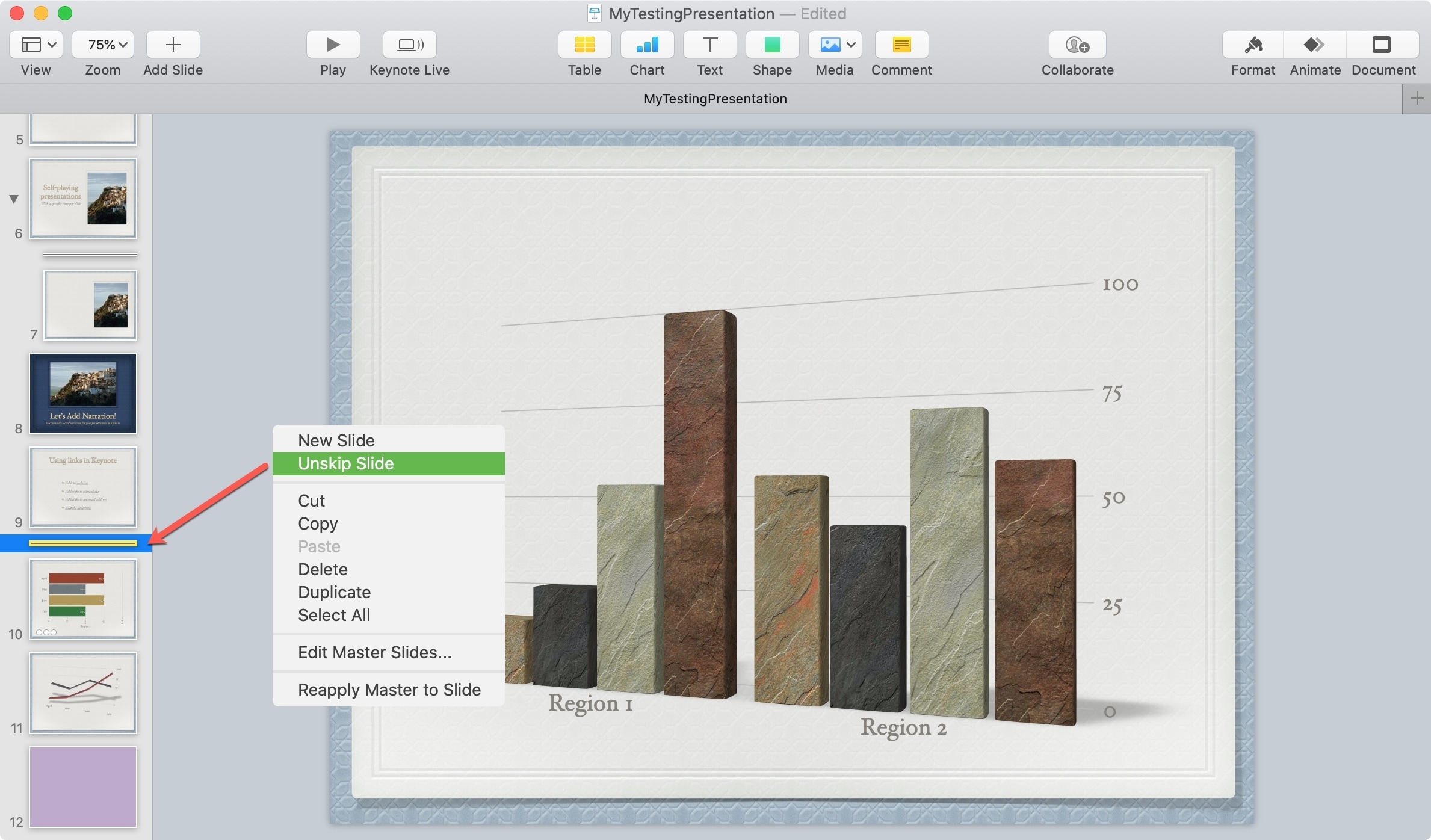
- Navigator and Outline view: Skipped slides appear as a thin line.
- Light Table view: Skipped slides appear as dimmed thumbnails with a line as their slide number. Also, in this view, you can check the box at the bottom to hide skipped slides if you like.
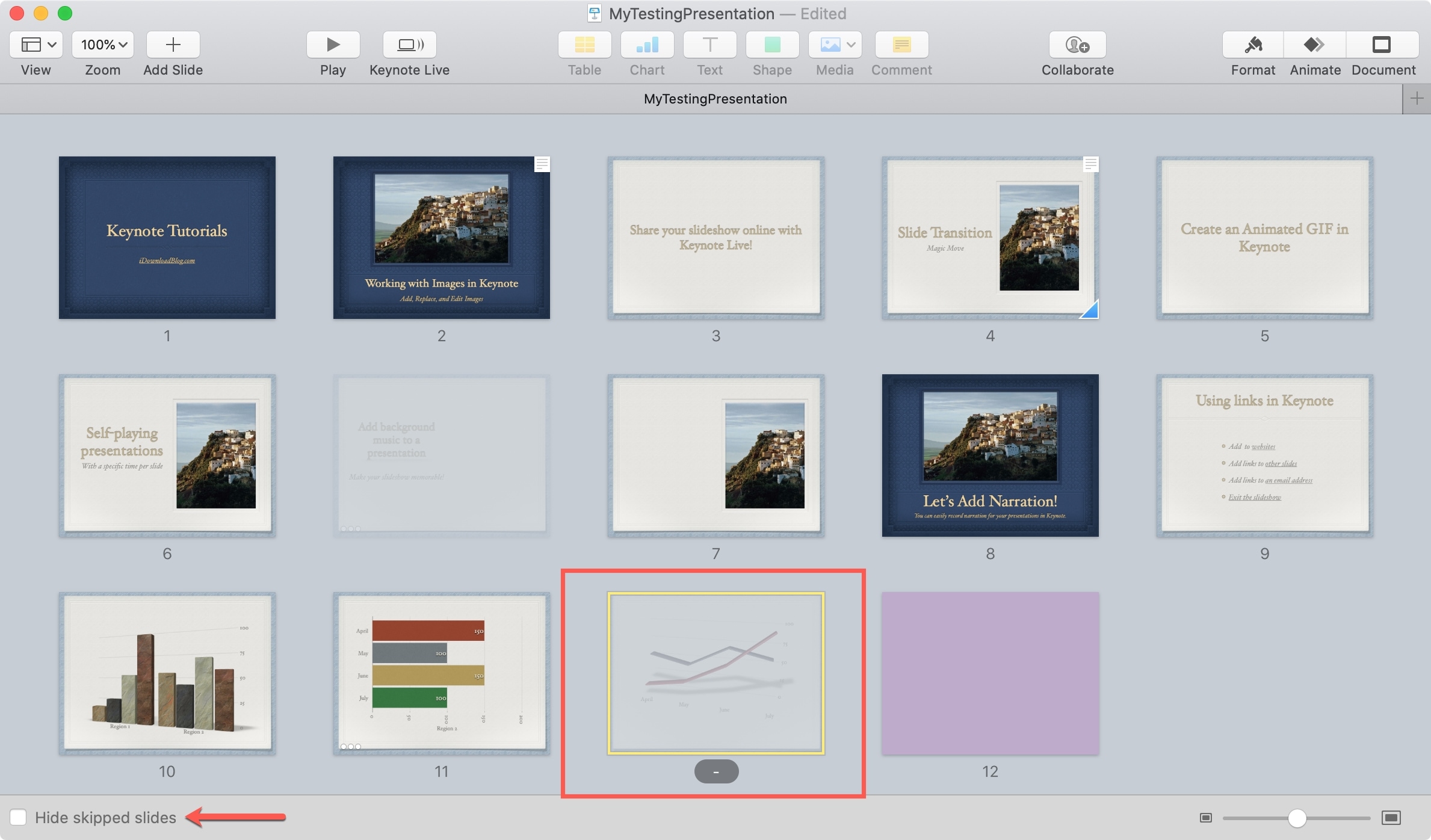
To unskip a slide, follow the same steps as above and choose Unskip Slide. If you’re in Navigator or Outline view, you’ll be selecting that thin line that represents the slide. In Light Table view, make sure to uncheck the box to hide skipped slides, and then you can select and unskip.
Skipping a slide group
If you make a slide group, collapse it by clicking the arrow button, and skip the first slide, then the entire group (i.e., all the grouped slides underneath it) is skipped.
If you don’t want to skip the entire group, uncollapse the group and right-click on the individual slide to skip it.

The ability to skip slides in your Keynote presentations is convenient for a variety of situations, so be sure to keep it in mind the next time you are putting together a Keynote slideshow.
Other Keynote tips for you: