Learn how to use the widow and orphan control to stop paragraphs from breaking in the wrong spot in Apple Pages and Microsoft Word apps on Mac.

When you’re composing a document, the formatting of it can be very important, especially if you’re sharing it. It might be a requirements document for your tech team, an essay for school, or a company profile for your business.
So, when the first line of a paragraph is alone at the bottom of a page (widow line), it can lessen the impact of the message. At the same time, if the last line of a paragraph is alone at the top of the next page (orphan line), it can be easily missed.
You can control these widow and orphan lines with a simple setting in both Apple Pages and Microsoft Word on your Mac. Here’s how.
Widow and orphan control in Pages
- Open thePages app, head to your document, and click the Format button on the top right to open the Format sidebar.
- Move your cursor to the paragraph in your document that is split with widow or orphan lines.
- In the sidebar, click the More button.
- Under Pagination & Breaks, check the box for Prevent widow & orphan lines.
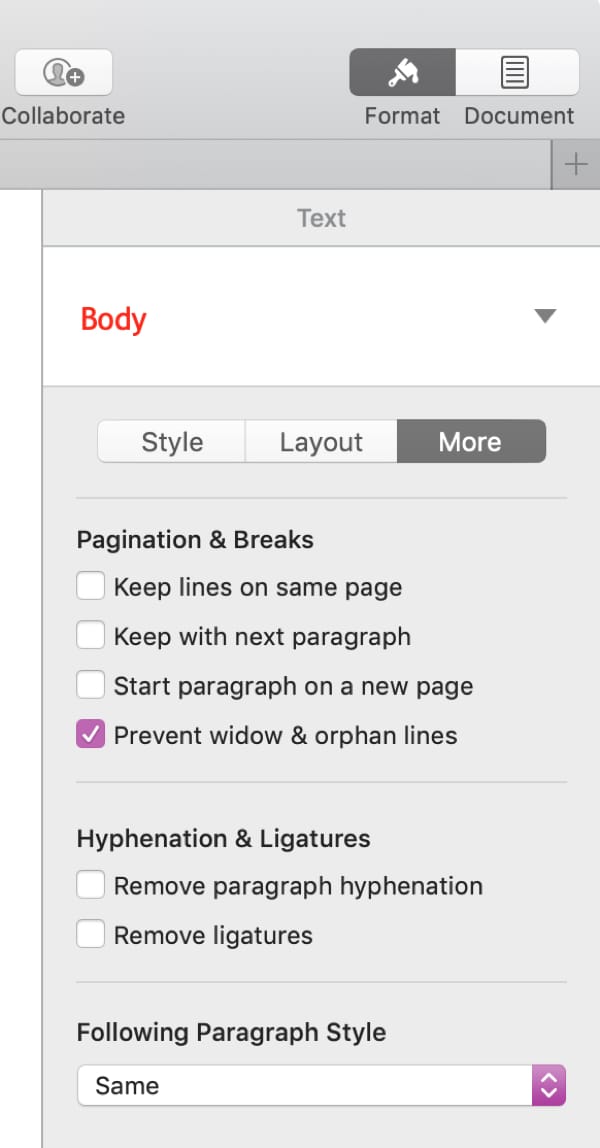
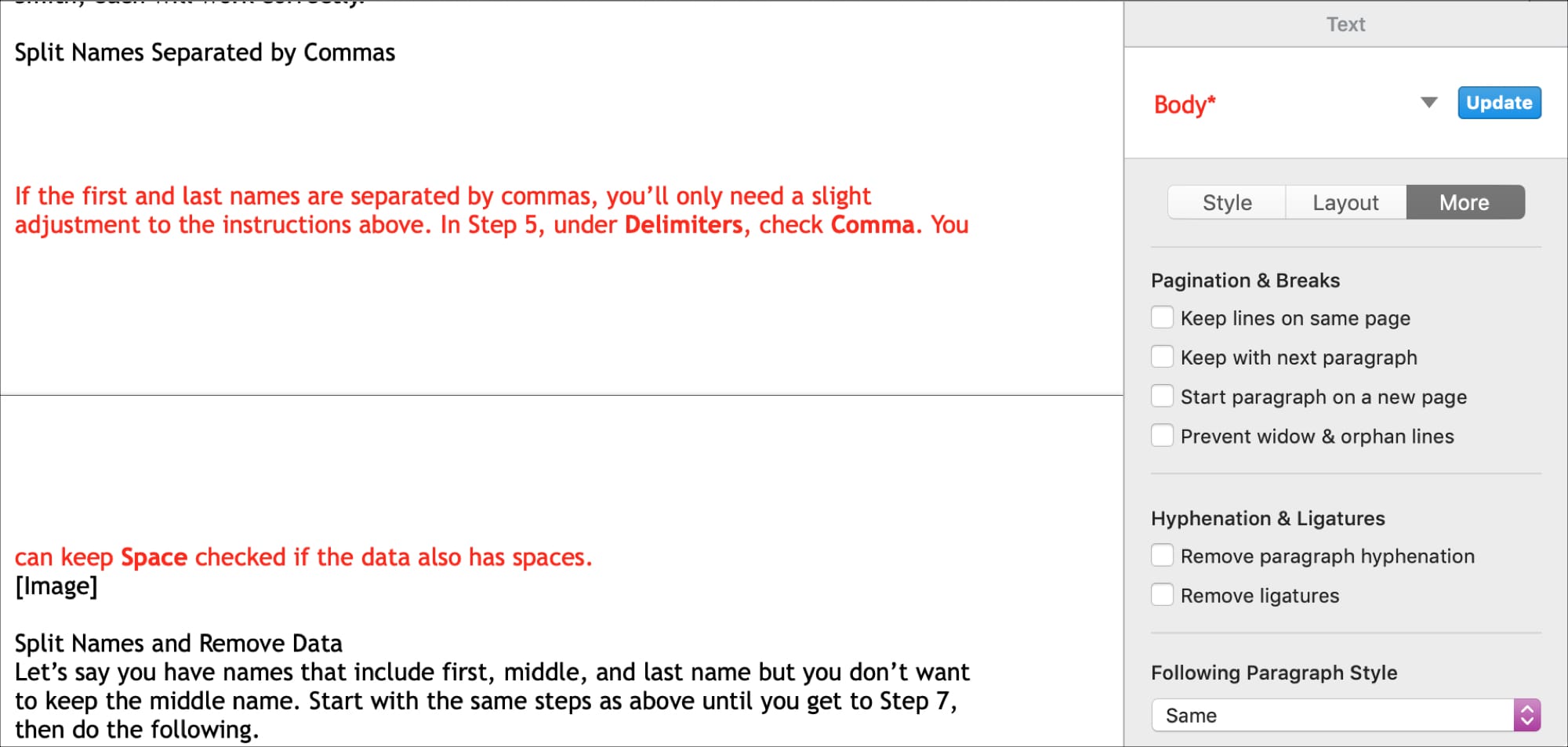
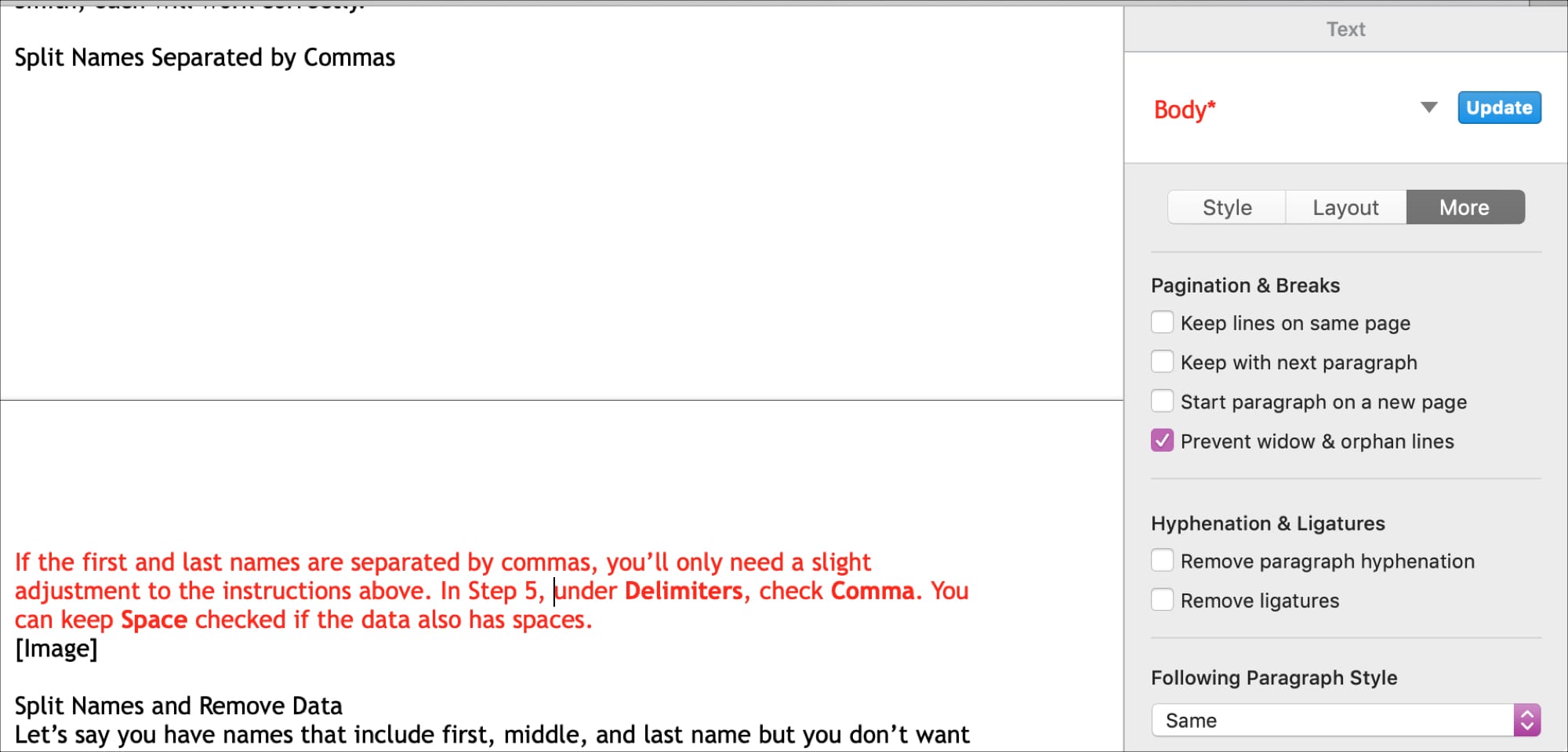
You should see the unwanted break in your paragraph adjust immediately. Here’s a “before and after” of an example paragraph (in red).
- Broken paragraph before using widow and orphan control in Pages:
- Paragraph after using widow and orphan control in Pages:
Widow and orphan control in Word
- Open your document in Microsoft Word and move your cursor to the paragraph in your document that is split with widow or orphan lines.
- Click Format > Paragraph from the menu bar.
- Click Line and Page Breaks at the top.
- Directly below that, under Pagination, check the box for Widow/Orphan control, and click OK.
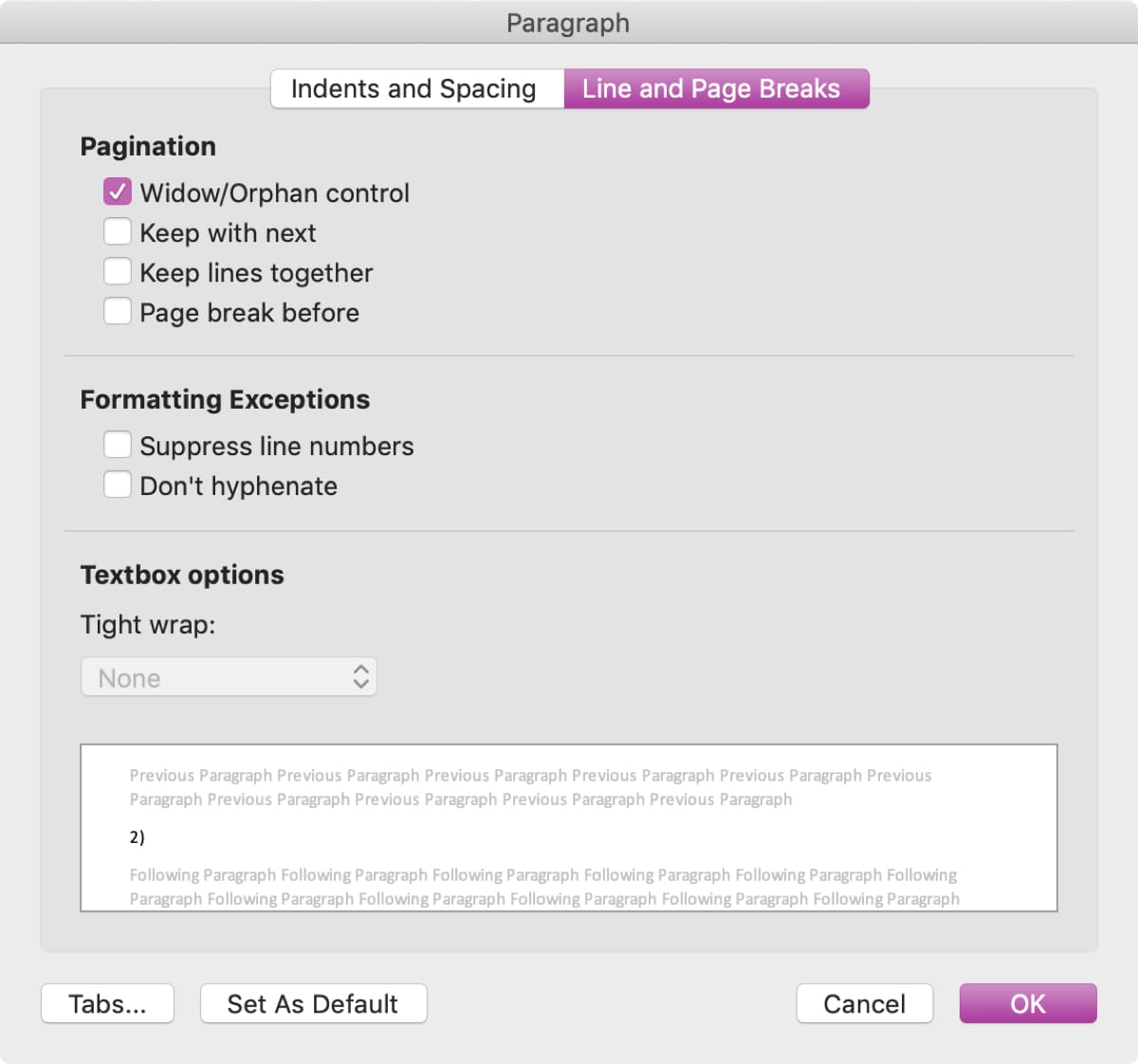
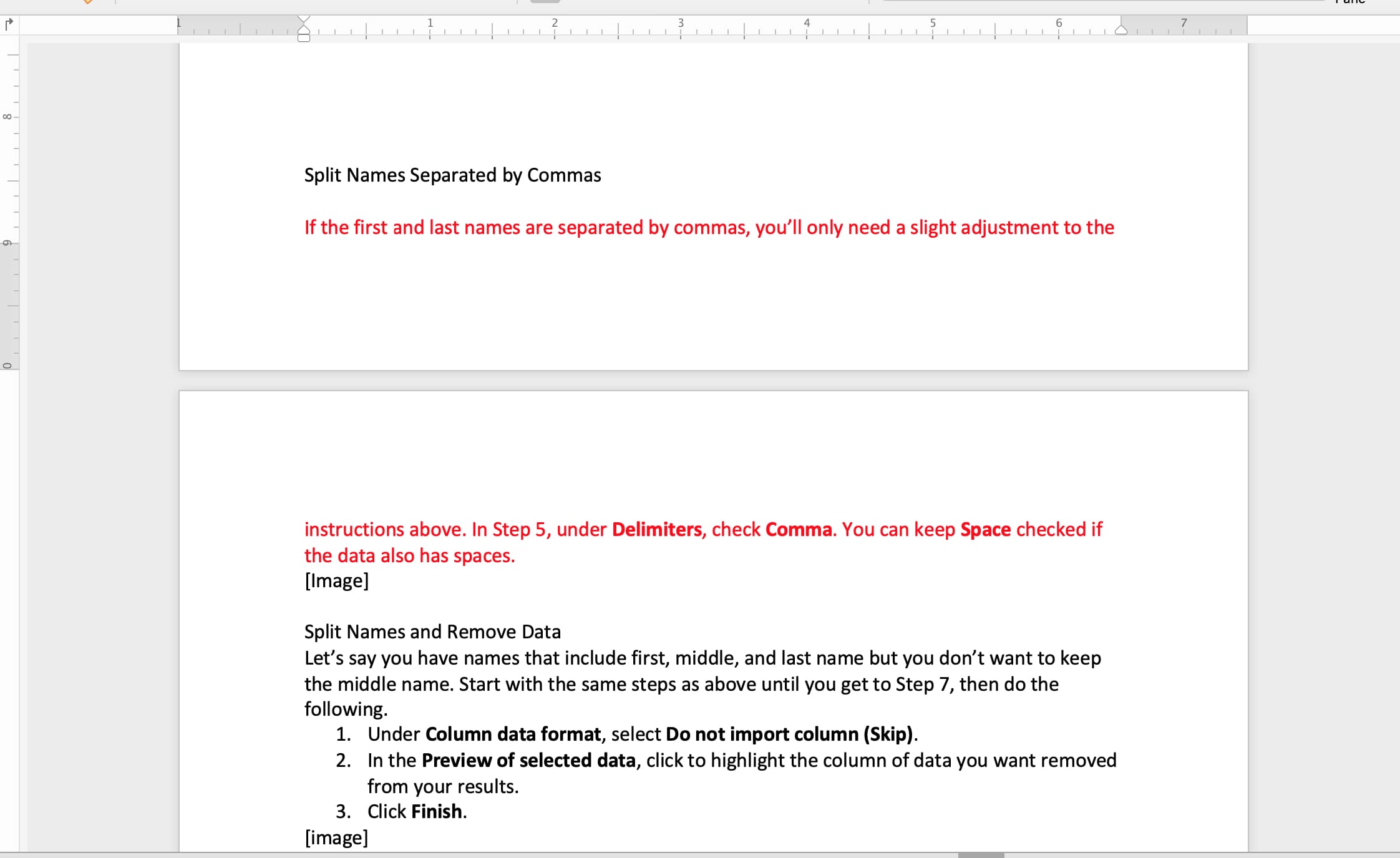
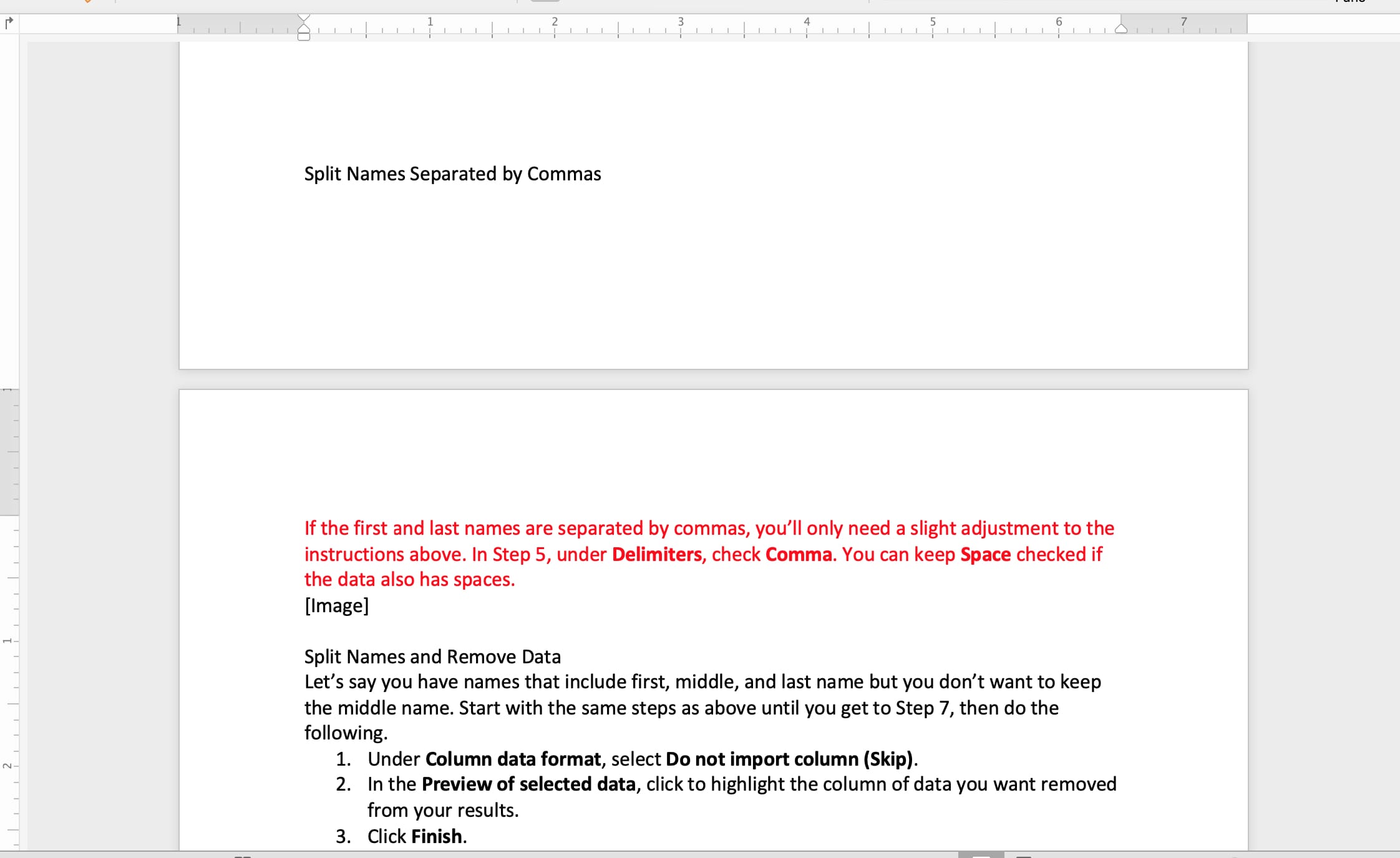
Just like in Pages, you will see the unwanted break in your paragraph change. Here’s another “before and after” of an example paragraph (in red).
- Broken paragraph before using widow and orphan control in Word:
- Paragraph after using widow and orphan control in Word:
Check out next: How to change text and formatting AutoCorrect settings in Word for Mac