Learn how to redownload previously purchased free or paid apps on iPhone, iPad, and Mac without having to pay again.
Have you ever purchased an app or downloaded one for free, deleted it, and then realized you needed it back?
If you remember the name, you can search for it in the App Store and download it again. But if you don’t, you can access your downloaded app history and browse from there instead.
Redownload apps purchased on iPhone and iPad
- Open the iOS App Store and tap your profile icon in the top-right corner.
- Tap Apps & Purchase History (called Apps or Purchased in older versions of iOS).
- Tap Your Apps (formerly My Apps or My Purchases).
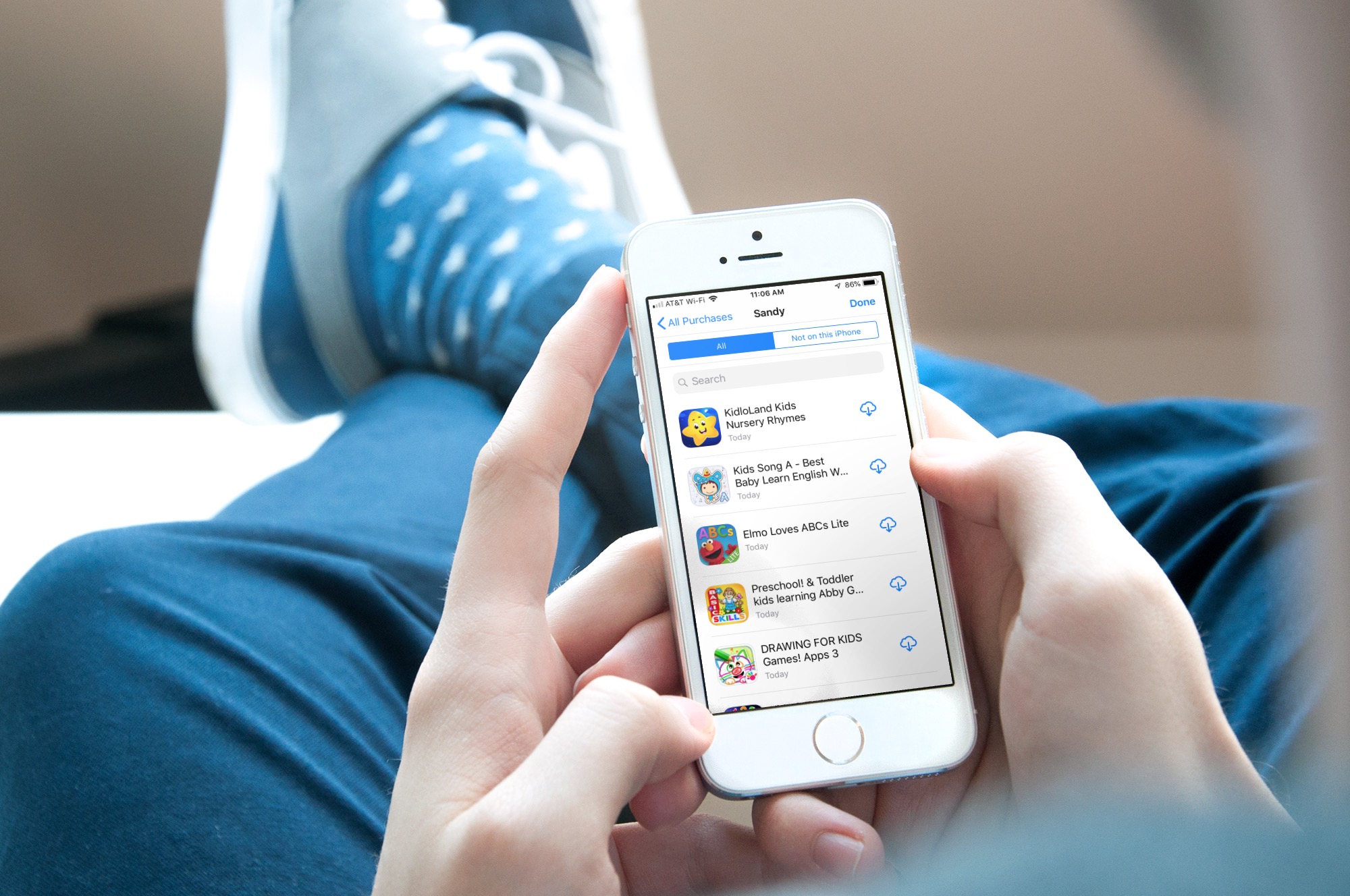
- Stay in the All tab to see a list of all apps, or switch to the ‘Not on this iPhone’ tab to see downloaded apps that aren’t installed on this device. Tap the cloud arrow symbol to redownload the app.

Here’s how it looks on older versions of iOS.

Redownload apps purchased on Mac
1) Open the App Store on your Apple computer.
2) Click your name in the bottom-left corner of the App Store window. Or click Store > Account in the top menu bar or press the Command + 0 (zero) keys.
3) Now:
- On macOS 27 Golden Gate: Click Apps & Purchase History > Your Apps and re-download Mac or iPhone & iPad apps.

- On older versions of macOS: Click the “Purchased by” selector and select your name or a family member’s if needed. You’ll also see tabs to access your Mac and iPhone/iPad apps. Click the cloud arrow symbol to redownload that app.

Note that if you purchased a Mac app outside the Apple Mac App Store, you should visit the app’s website and log in with your old credentials to redownload the purchased app.
Also, check out: How to download free apps on iPhone and iPad without Apple ID password, Face ID, or Touch ID authentication