In this tutorial, we’ll show you how to turn off Siri suggestions for a specific app or all apps, and prevent them from showing up on the Lock Screen, Spotlight Search, and elsewhere on your iPhone or iPad.
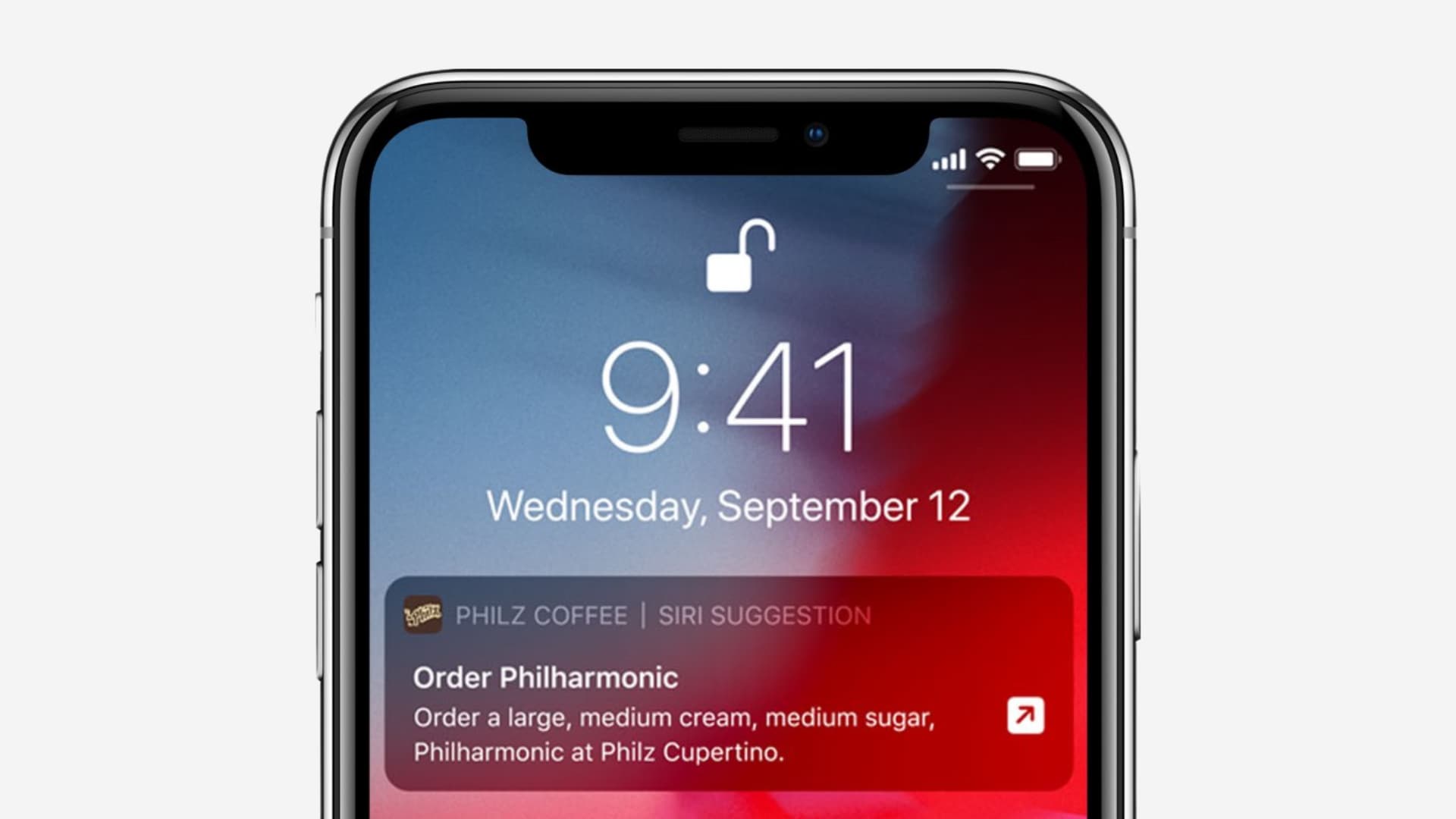
iOS uses its proactive Siri assistant to learn your routines across apps in order to, among other things, provide suggested shortcuts from your favorite apps right on the iPhone Lock Screen, search, widgets, and other places in the operating system. Shortcuts deliver a faster way to get things done with the ability for any app to work with Siri.
For instance, if you order coffee every day via the Starbucks app, Siri might suggest a shortcut to order your favorite beverage with a tap. Another example worth mentioning: if you missed a call from a friend, the Phone app may put a shortcut on your iPhone Lock Screen to call back or message that person. Or, Siri may suggest turning on Do Not Disturb before a meeting on your calendar.
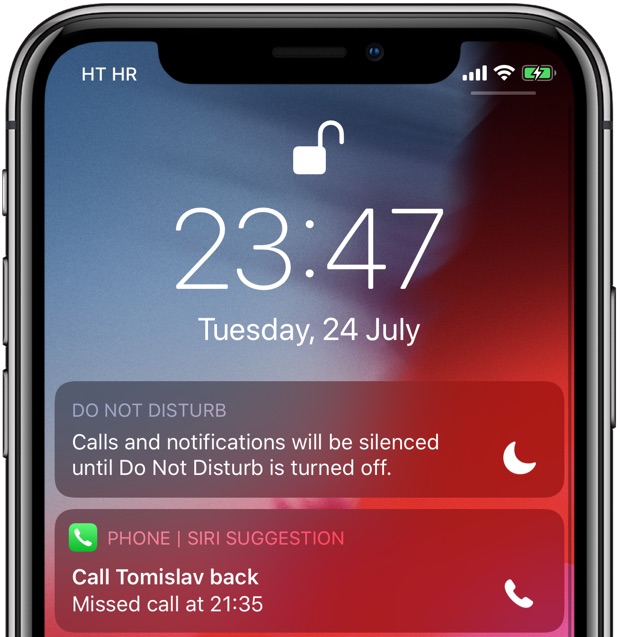
These Lock Screen suggestions can quickly spiral out of control. To help with that, Apple gives you the option to tame and curate the apps whose suggestions Siri may display on the iPhone Lock Screen.
So, if you find that these Siri suggestions are not useful or can breach your privacy by showing something sensitive, you can turn them off for a specific app or all apps.
Turn off Siri app suggestion notifications
Follow these steps to prevent Siri suggestions from appearing on your Lock Screen or Notification Center as regular alerts:
- Open the Settings app and tap Notifications.
- Tap Siri Suggestions.
- Turn off the switch for apps from which you don’t want to get Siri suggestions. If you want to disable this feature entirely, turn off Allow Notifications from the top.

Turn off Siri suggestions in other places
1) Open the Settings app on your iPhone or iPad.
2) Tap Apple Intelligence & Siri or just Siri.
3) Scroll to the Suggestions heading and turn off the following options:
- Suggest Apps Before Searching: Turn it off if you don’t want to see app suggestions when you open Spotlight Search.
- Allow Notifications: This disables all Siri app suggestion notifications. This switch is the same as that found in Settings > Notifications > Siri Suggestions.
- Show in App Library: Turning it off removes the Suggestions folder from the App Library.
- Show When Sharing: Turn it off if you don’t want to see suggestions from Messages, WhatsApp, AirDrop, and such on the iOS Share Sheet.
- Show Listening Suggestions: Disabling this removes the Music suggestions from the iPhone Lock Screen.

4) Then, tap Apps under the Apple Intelligence and Siri App Access heading, and you’ll see a list of apps installed on your iOS device. Tap one, and then you can customize smart Siri suggestions for this app only.
You can choose to prevent Siri from learning from that app. Additionally, you can also prevent this app or its content from showing in Spotlight Search. Next, you can choose to turn off this app’s Siri suggestions to show on your Home Screen, in places like Siri widgets, and send suggested notifications to the Lock Screen and Notification Center.

Check out next: How to use the Siri Suggestions widget to change Home Screen apps on iPhone