Learn how to create text replacement shortcuts on your iPhone, iPad, and Mac to speed up typing and save time while reducing typos.
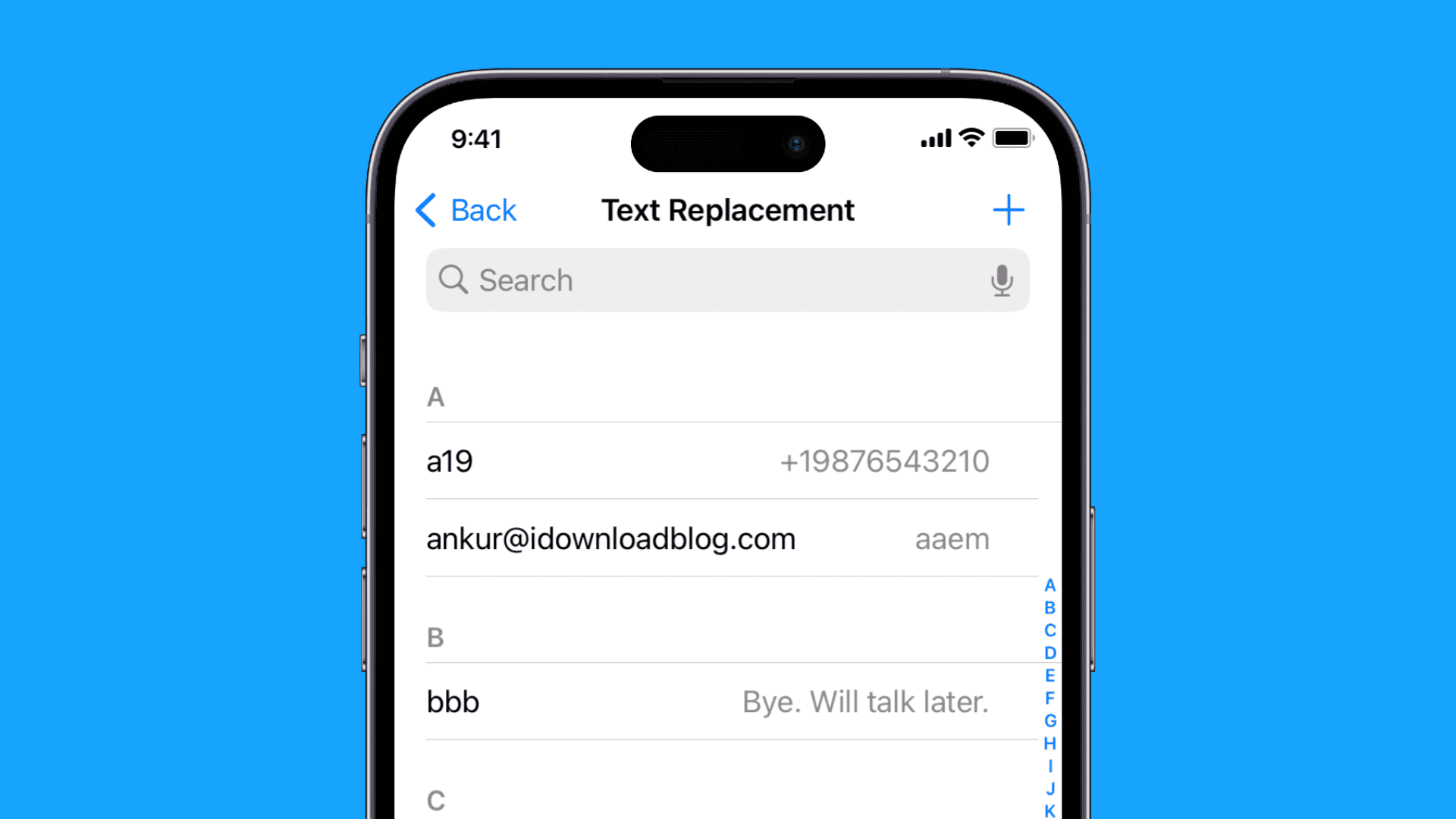
This useful feature lets you type long phrases or sentences quickly by using custom triggers. Text replacements save time when you type frequently used terms in text messages, emails, and elsewhere.
For instance, I’ve set up a text replacement that turns “aaem” into my full email address (ankur@idownloadblog.com), so I don’t have to type it out fully every time.
Similarly, if you frequently share your business phone number with clients, you may want to use a text replacement shortcut for that.
Note: Text Replacements doesn’t keep line breaks. To address that, you can use a free app called Paste Snippets, which we developed in-house. It sits as a keyboard and lets you enter text snippets in just a couple of taps.
iPhone and iPad
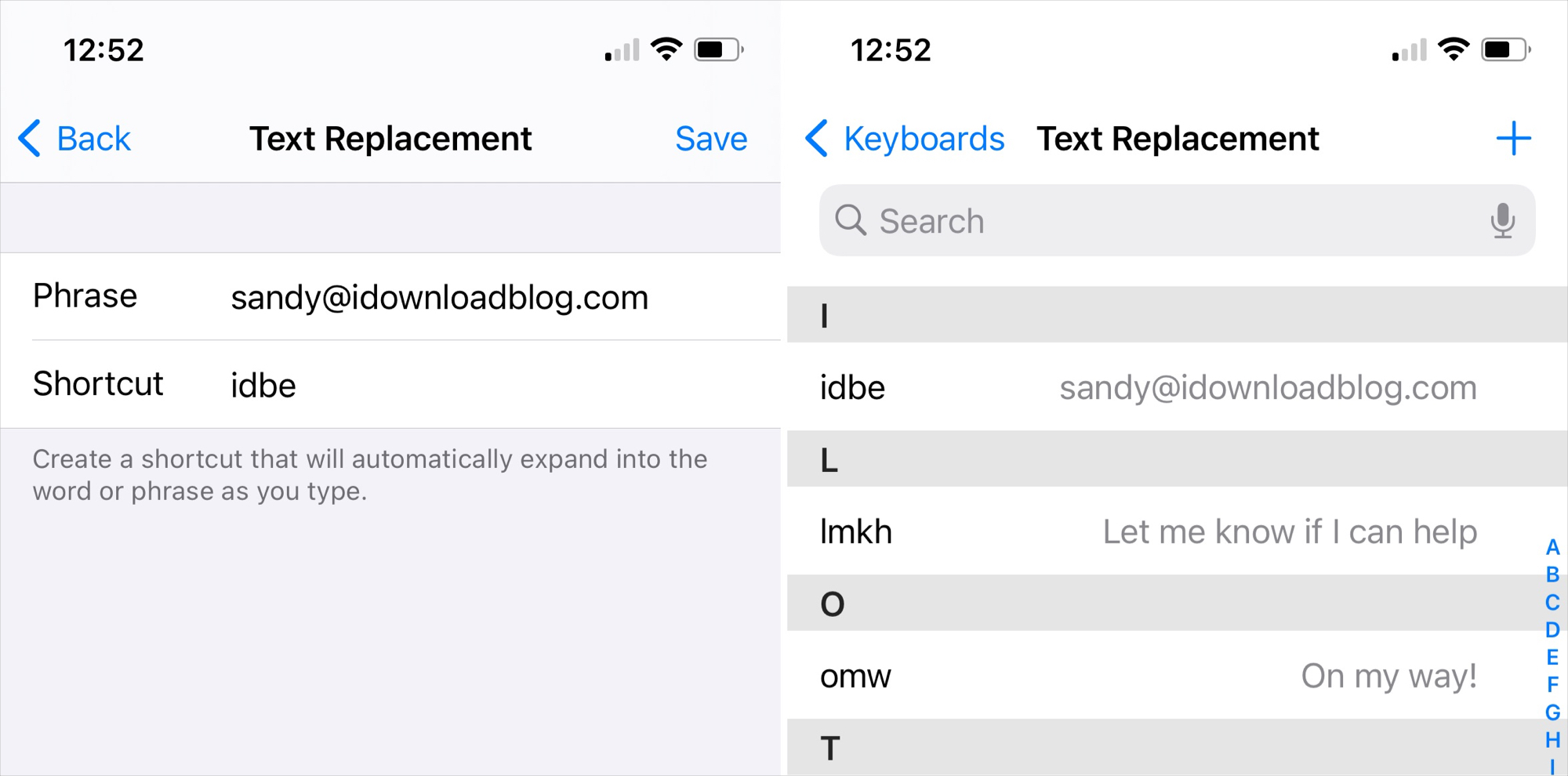
1) Open the Settings app and navigate to General > Keyboard.
2) Tap Text Replacement.
3) Tap the plus sign in the top-right corner.
4) Type anything you’d like to shorten, like your email address, a phone number, or a specific phrase or sentence.
5) Type in the trigger for this shortcut. For instance, you may want to use “myem” for your email address.
6) Tap Save in the top-right corner to save this text replacement and return to the previous screen, where you should see the shortcut you just added. To edit a text replacement, tap it, then make your changes and hit Save.
Mac
All text replacements sync automatically to all your other devices that use the same Apple account, including your Mac. Follow the steps below if you’d like to set up text replacements directly on your Mac.
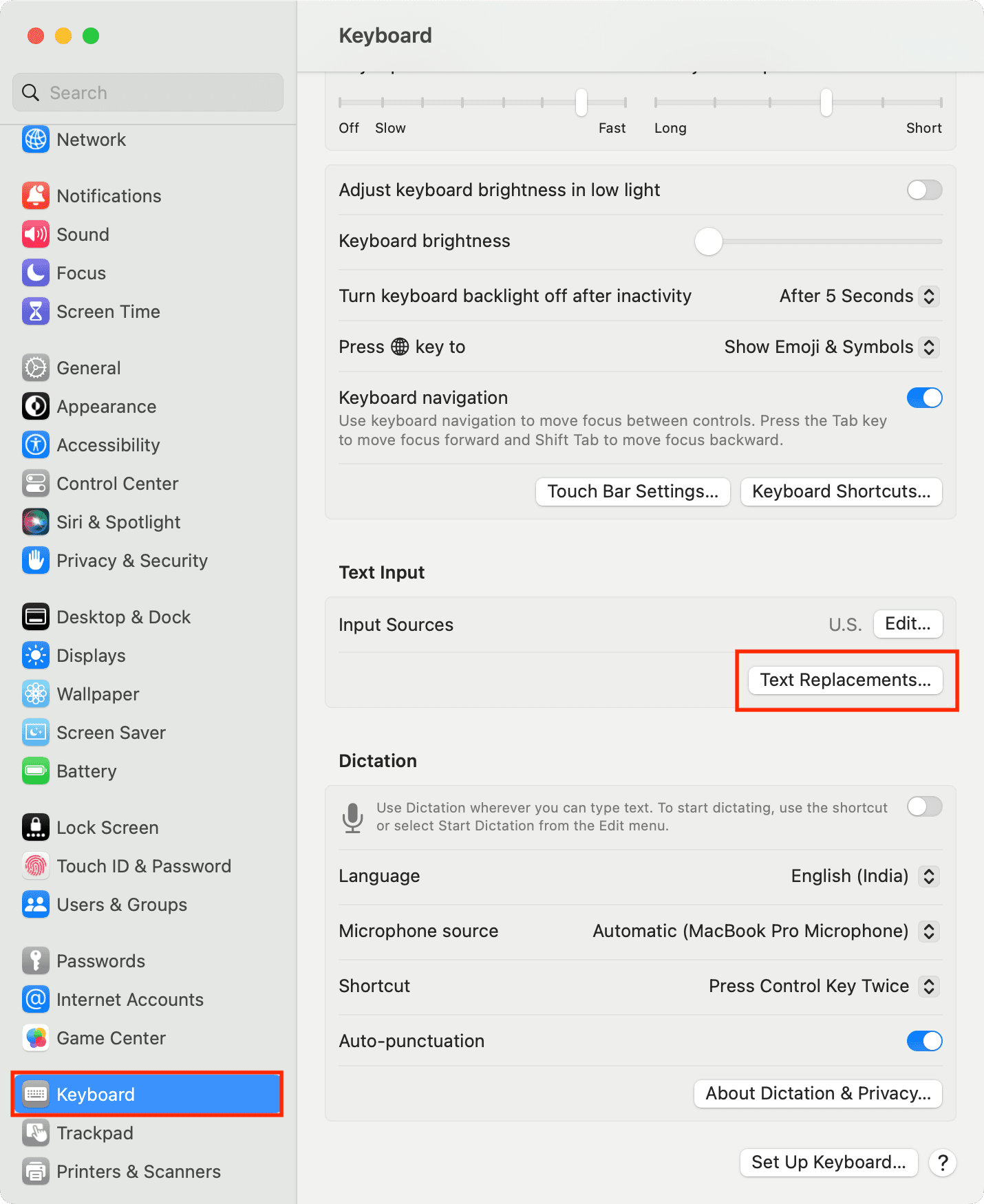
1) Open System Settings, then select Keyboard in the sidebar and click the Text Replacements button on the right.
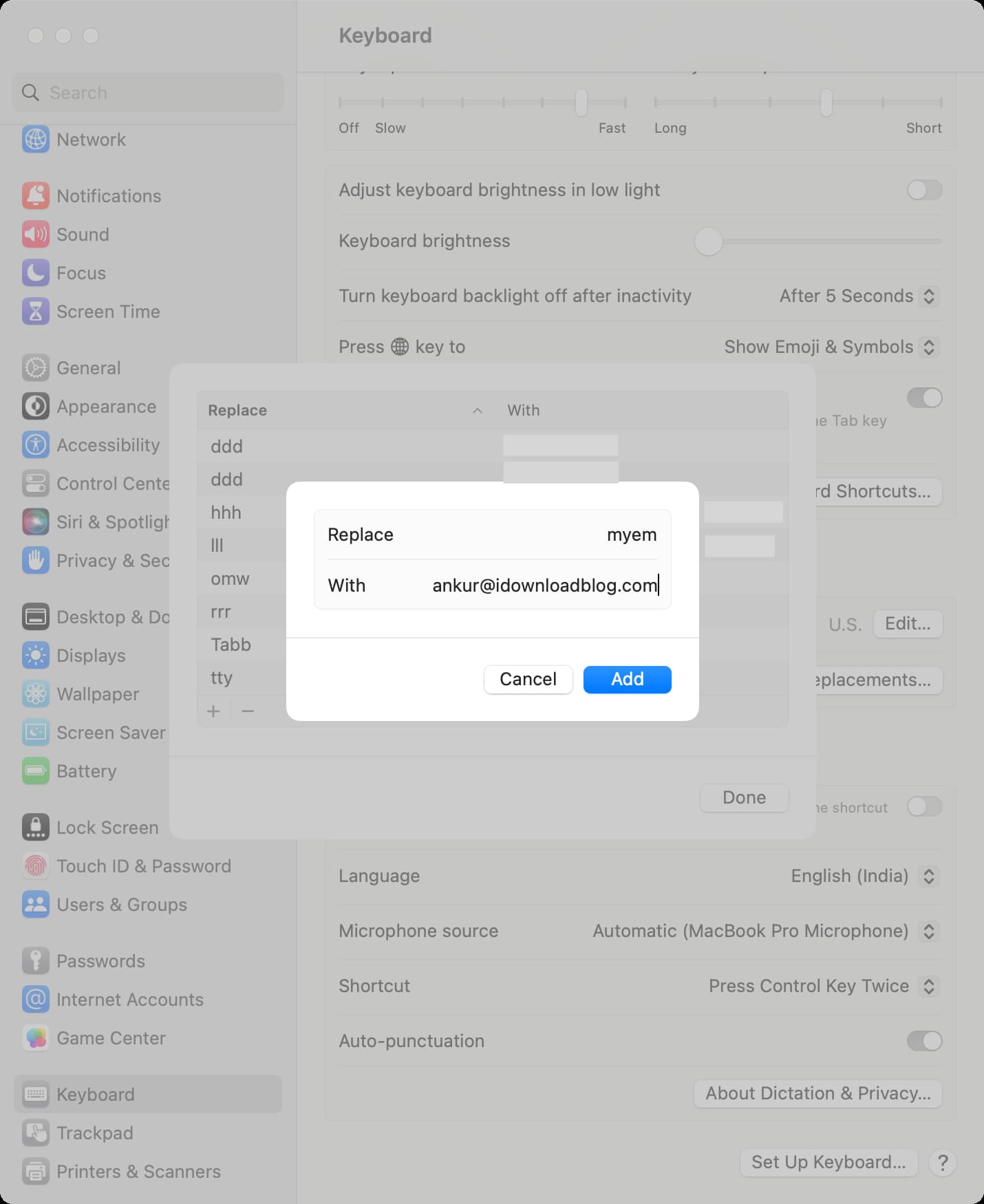
2) Click the tiny plus button (+).
3) Create a trigger in the Replace section and type the actual phrase in the With field.
4) Click Add, followed by Done to save this text replacement.
How to use text replacement shortcuts
Whenever typing something, simply type out the trigger phrase, and the appropriate replacement appears above the onscreen keyboard; then press the Space Bar or tap the replacement above the keyboard to replace the trigger with the text you’ve assigned to it.
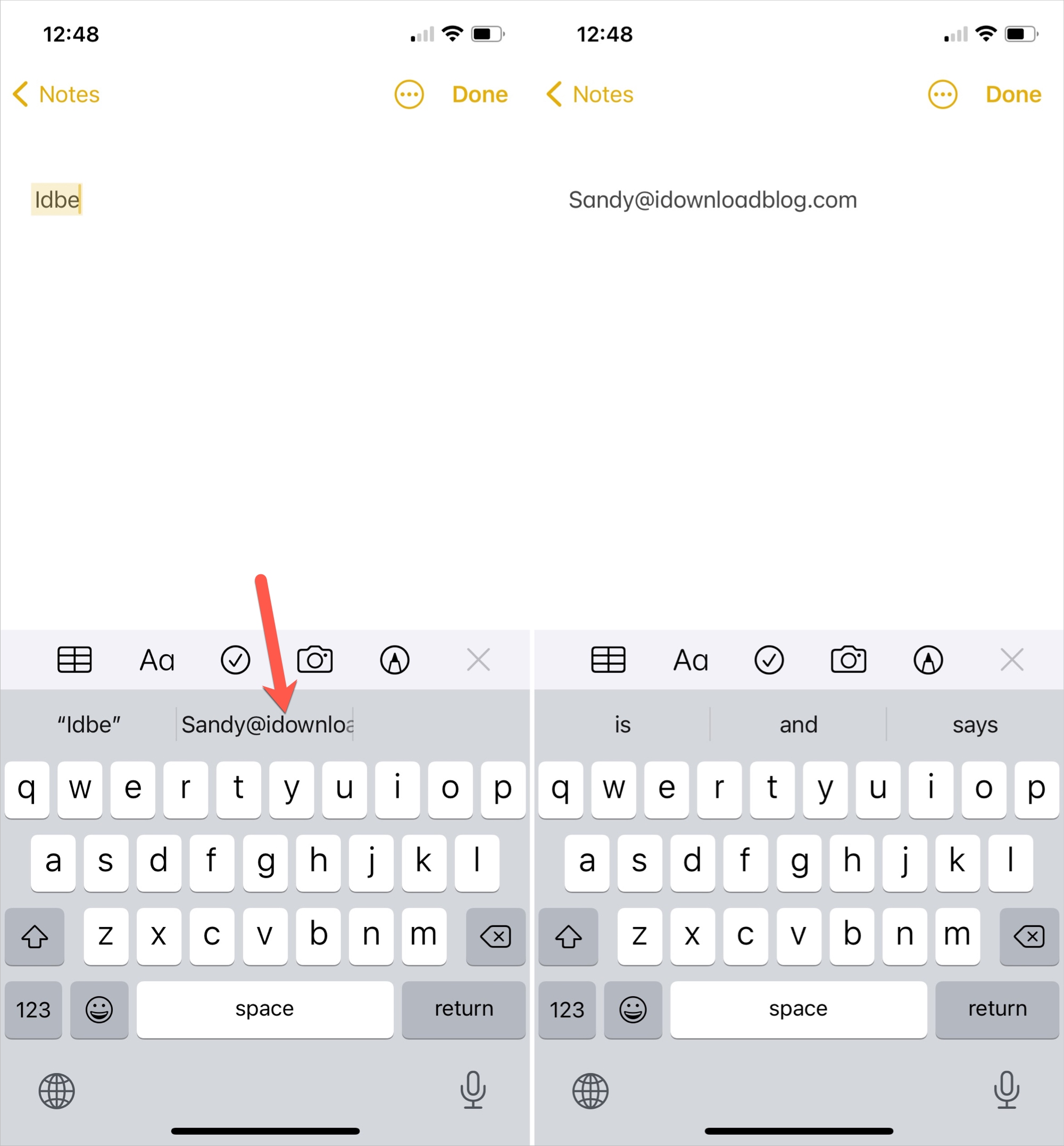
Text replacements also work with most third-party iOS keyboards. In certain apps, however, text replacements may not function. For instance, text replacements work throughout Google Chrome but not in the URL bar.
Other typing tips: