Here’s how to quickly convert a colorful PDF to black & white or gray tone using the built-in Apple Preview app on your Mac.
Apple’s preinstalled Preview app is a versatile little tool with some pretty compelling editing features. It’s also a great PDF viewer with full support for macOS’s built-in Markup annotation features, but did you know that you can easily add effects to any PDF document opened in Preview?
That’s the magic of the Quartz filters built into macOS. For example, a Quartz filter can be used to convert a color PDF document to a beautiful black-and-white version or apply a sepia tone. Aside from changing colors, the Quartz filters let you add other effects to documents and images, create a bespoke compression filter for reducing file size when exporting images, etc.
Turn a color PDF into black and white on Mac
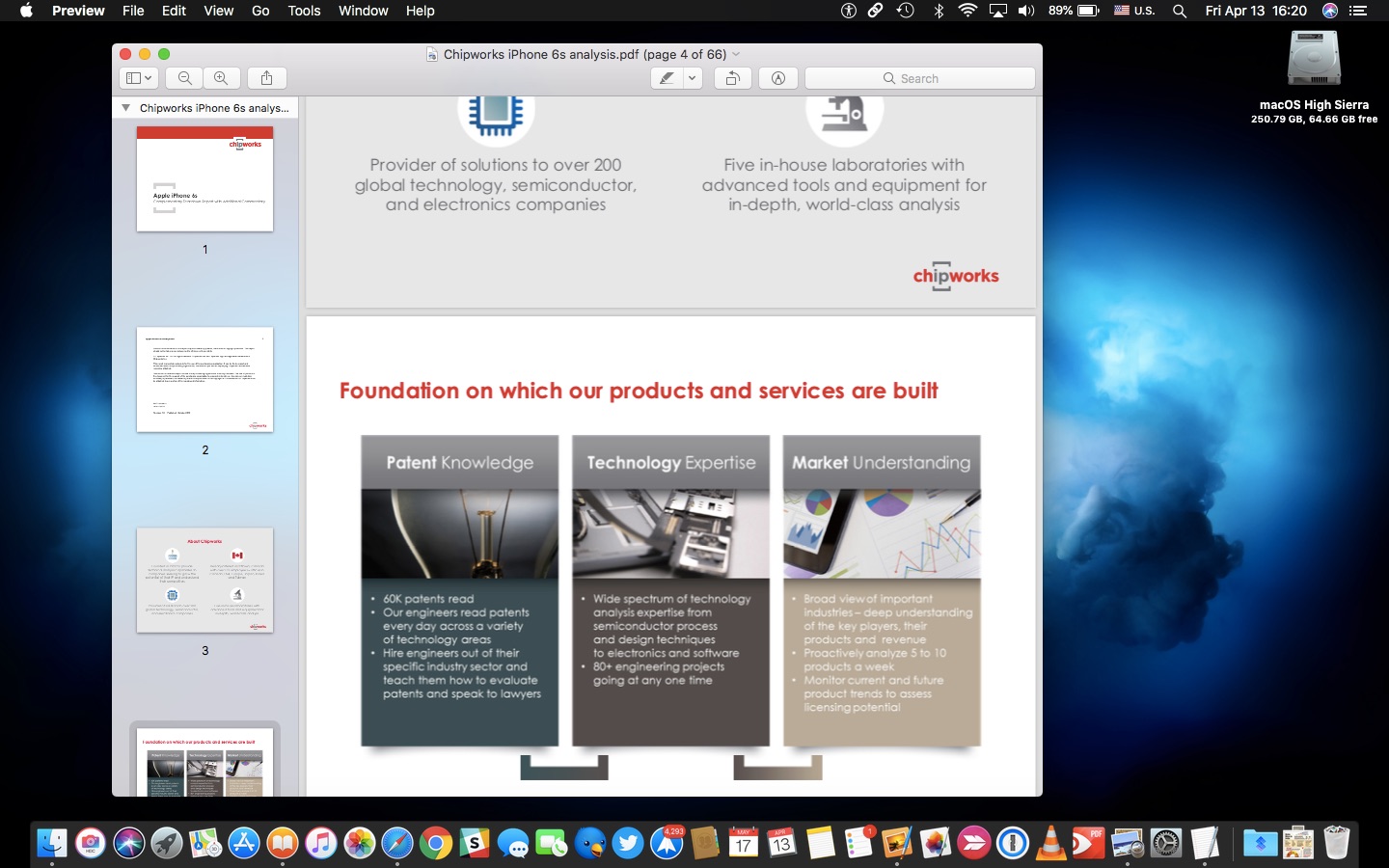
1) Double-click a PDF to open it in the Preview app. Learn what to do if it opens in some other app.
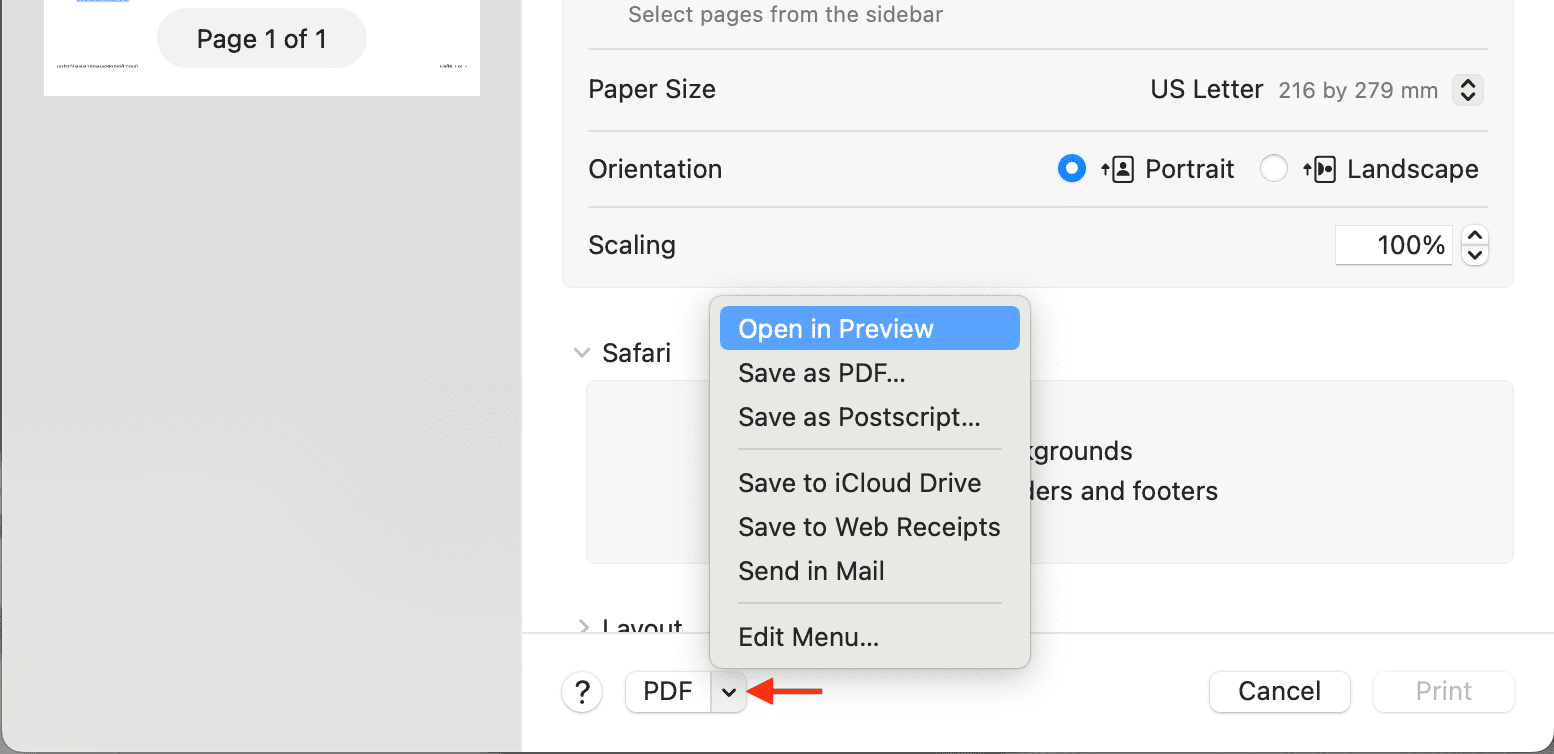
Tip: Use the Print dialog box in any app and then click the arrow next to the PDF button to open the current document as a PDF file in the Preview app.
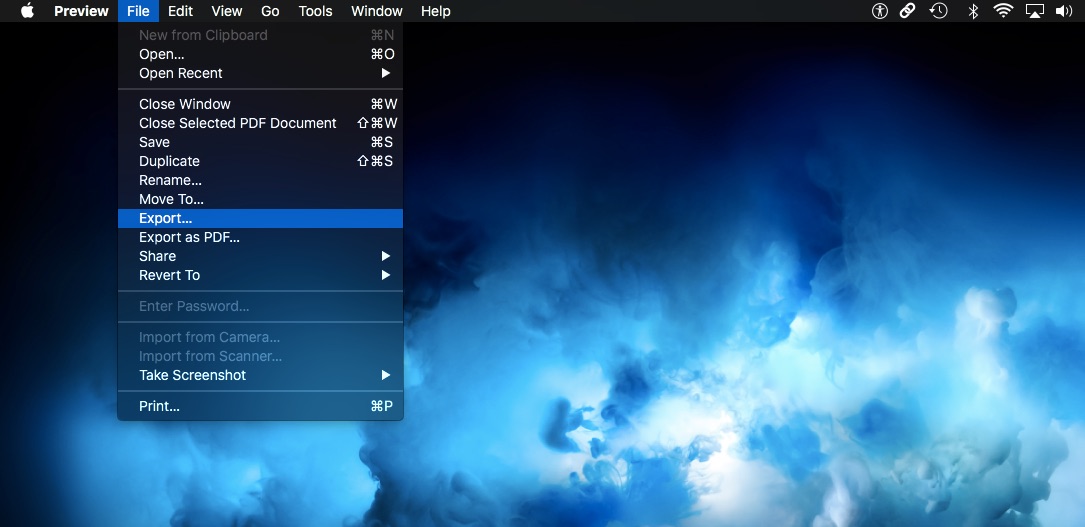
2) Once the PDF is open in Preview, click File from the top menu bar and choose Export.
3) Click the dropdown menu next to Quartz Filter and choose Black & White. If you don’t see the Quartz Filter option, click the little arrow next to the Export As option.
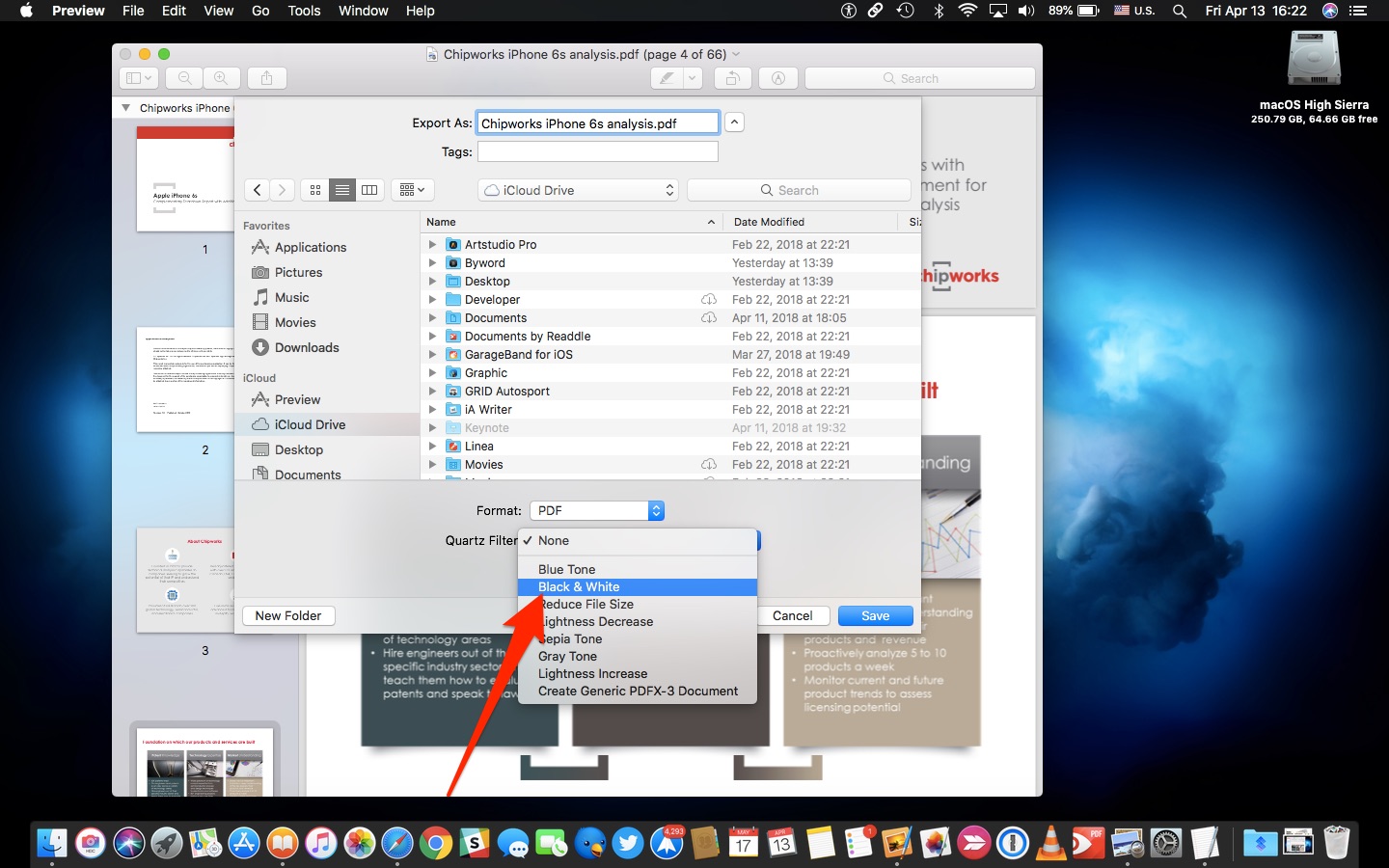
4) Click the Save button to export the file to a target location as a black & white PDF.
The newly saved file is completely stripped of color.
Any rasterized images, vector graphics, embedded fonts, and other content in your PDF are converted to black and white. Depending on the layout, the number of images and their sizes, and other factors, the resulting PDF may have a smaller or greater file size than the original.
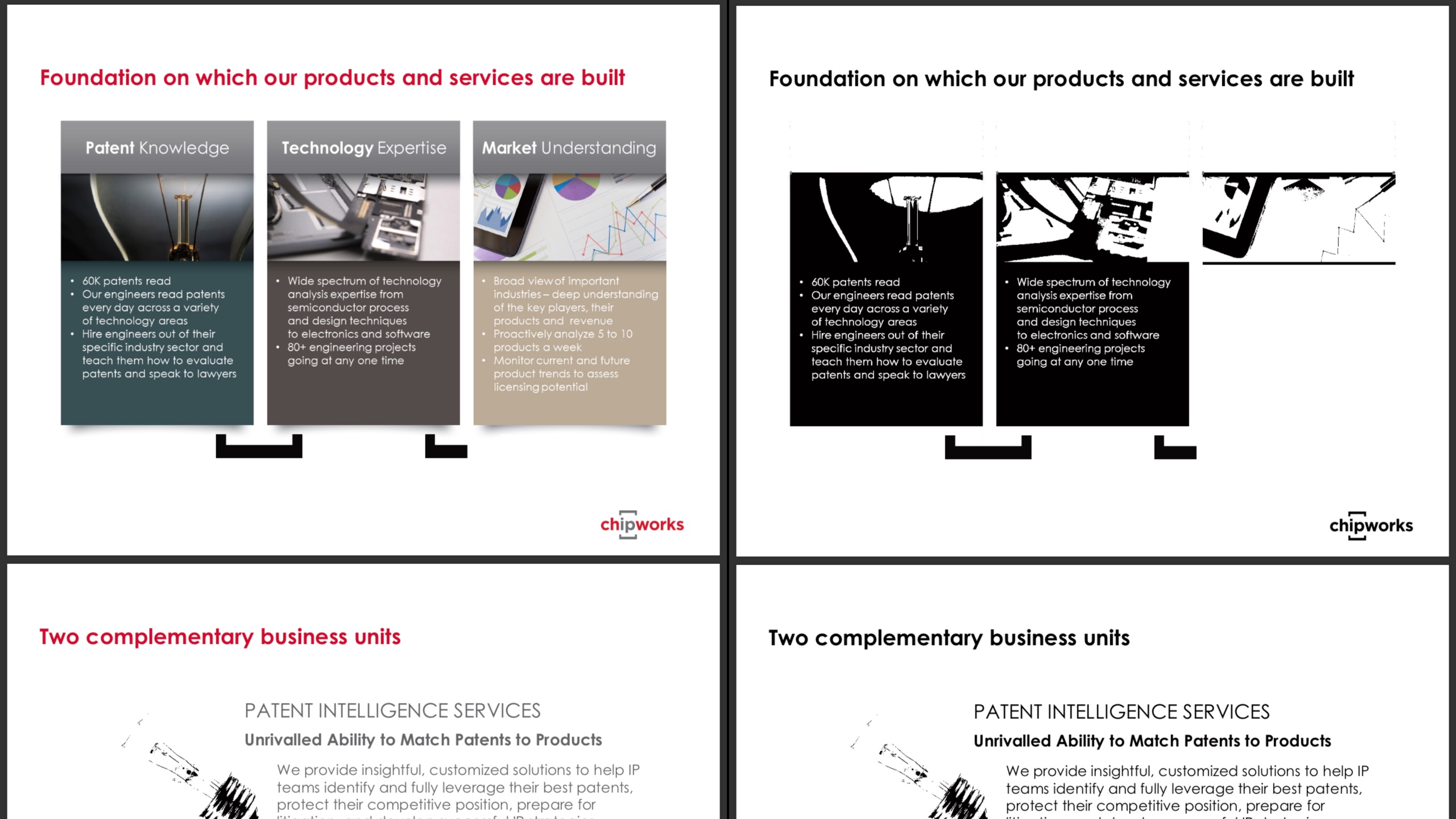
If the original PDF is just a rasterized image, such as a JPEG file, then applying the black and white filter may significantly reduce its file size. The black-and-white filter does not use dithering techniques to simulate shades of grey on monochromatic images, meaning your resulting document will look like an old photocopy of the original.
To give your PDF smooth gradients, use the Gray Tone Quartz Filter instead.
The monochromatic filter is handy when printing school projects, newsletters, and other colorful designs via a black-and-white laser printer without trusting the printer to do the conversion.
However, you’ll still want to select a specific black-and-white option in your printer driver to avoid using color inks for printing a monochromatic PDF.
Do more with PDFs: