Learn all the ways you can select stuff on your Mac, including contiguous groups of Finder files, multiple non-adjacent items, and more.
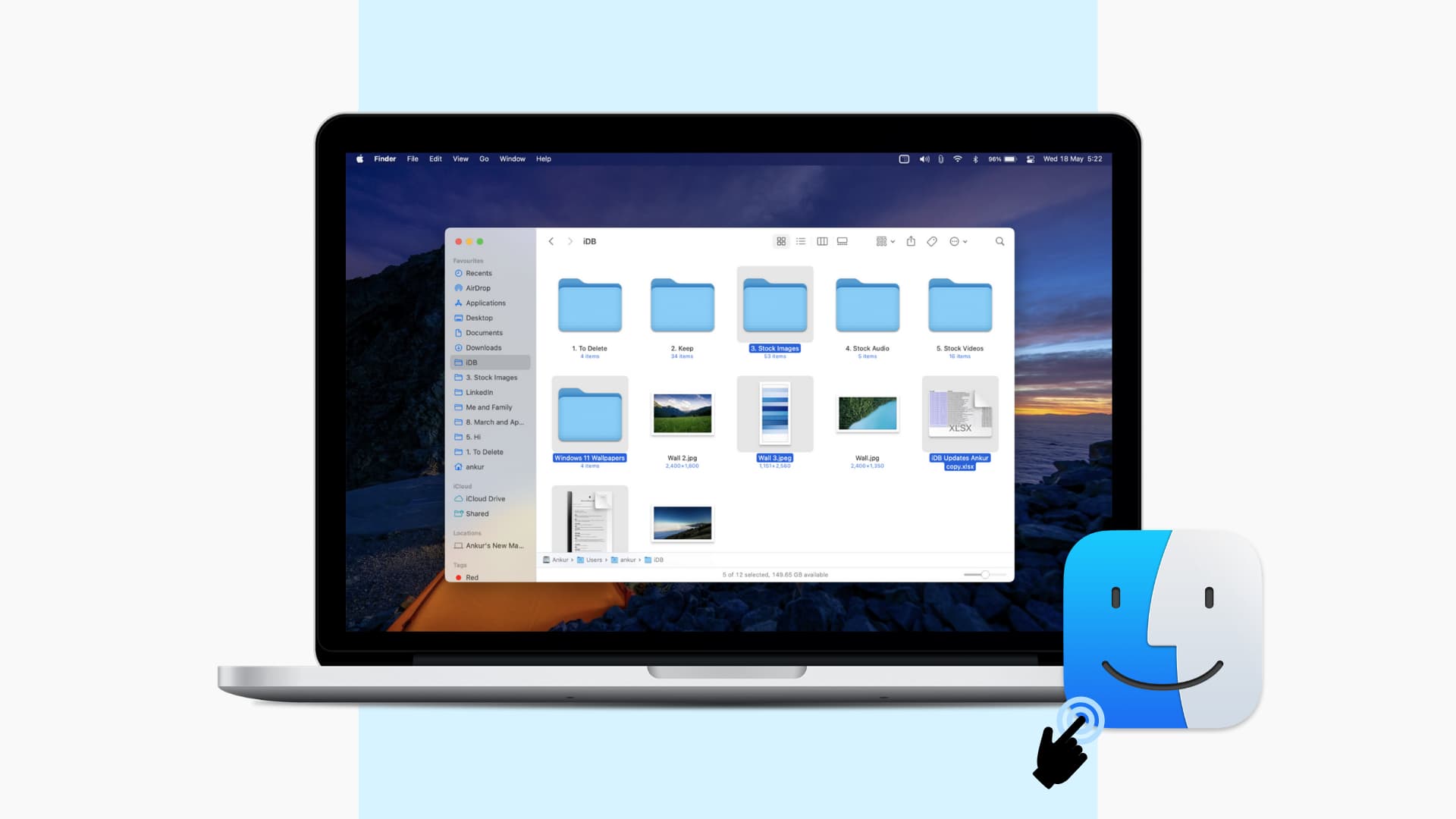
The Mac’s default file manager, called Finder, provides a graphical user interface shell that lets you move, copy, and perform other common operations.
Every file interaction starts with a selection. And macOS supports a few different ways to select items to make you more productive, so grab your MacBook and follow along with us.
macOS supports the following file selection methods:
- Click: Select a single file
- Shift–click or click-and-drag: Select a group of contiguous files
- Command–click: Select multiple non-adjacent items
- Select All: Quickly select all files in a folder
- Drag to select: Quickly select adjacent files (hold the Command key for non-continuous selections)
These methods work in all Finder views (Icon, List, Columns, Cover Flow), on all macOS versions, and anywhere there’s stuff to select like the Contacts app.
Select a single file
Just click to select a single item like a Finder disk, folder, document, or more.

Select all files in a folder
To select everything in a folder, click its window to make it active, then press the Command and A keys together. Or, click Edit in Finder’s menu and choose Select All.

Select non-contiguous files
To select non-contiguous files, click each file separately while holding the Command key. Don’t forget you can scroll through the window to select additional items. I also use this method to subtract files from a selection; Command-click the items you want to exclude.

Select a contiguous group of files
To select a range of adjacent items, click the first file and then hold the Shift key while clicking the last item to define a range; all files in between are automatically included in your selection.
This technique doesn’t work in Finder’s Icon view: what you can do instead is select files in the List view and switch to the Icon view to find your files have remained selected there.

Drag to select files
Click and hold an empty space next to a file in the Finder, then drag in any direction to select adjacent files. To add items to your selection, hold the Command key while selecting other files in that folder. For ultimate efficiency, turn on three-finger drag for your MacBook’s trackpad.

Tip: To show helpful information like a live count of the selected items in the window’s bottom bar, click View > Show Status Bar in the top menu.

Other Finder tips: