Manage your Apple Music up next list by adding, rearranging, or deleting songs in the queue on your iPhone or iPad.
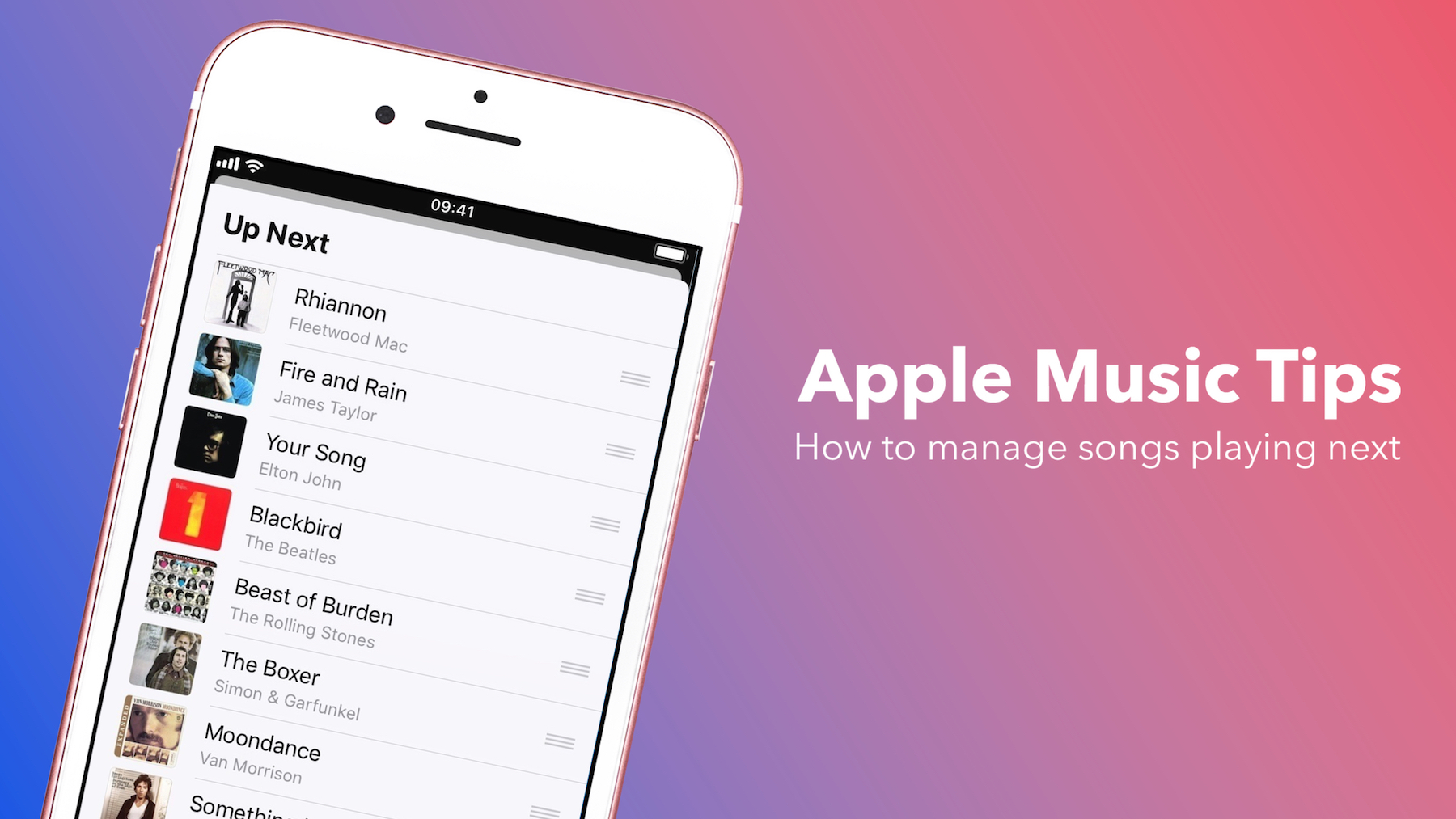
When listening to an album or playlist in Apple Music, the app will automatically play the next song in that album or playlist queue.
But what if you want to rearrange the order in which the songs are being played to your liking? Or what if you want to add other songs in between the upcoming songs in the queue? We’ll help you do all this.
View songs playing next in the queue
First things first, we need to learn how to view the songs playing next in the queue. Most Apple Music users probably already know this, but others might learn something new here.
- Go to the Now Playing screen when playing an album or playlist.
- Tap the bullet list icon to see the songs that will play next. Unless you select to play songs in shuffle, the queue will follow the same order as set in the album or playlist.
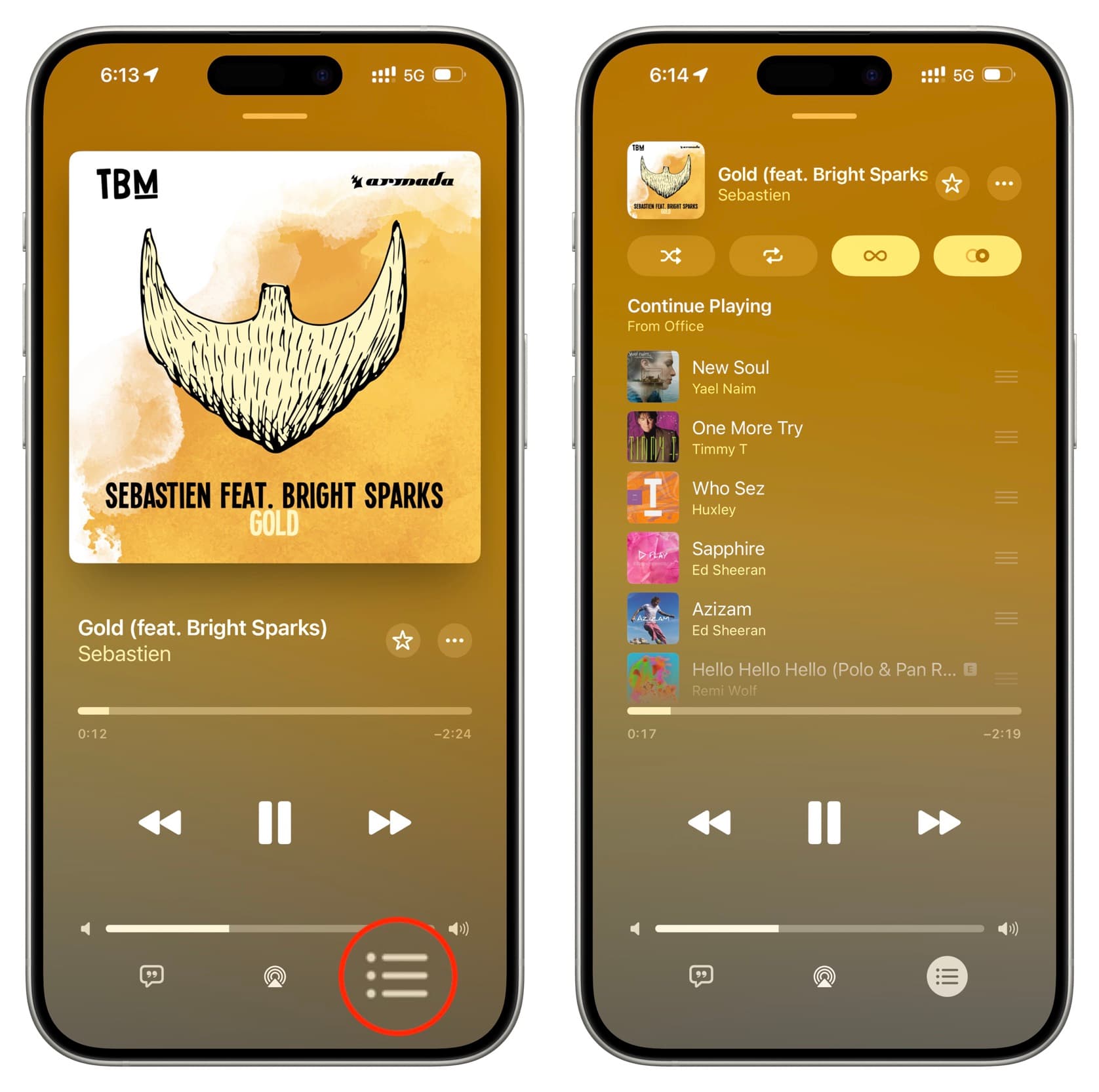
Note: If you turn on AutoPlay, Apple Music will automatically play related songs after your queue ends.
Rearrange songs playing next in the queue
Now that you’ve seen how to view the upcoming songs, you can easily rearrange them to play in the order you want.
- Access your playing queue in the Apple Music app.
- Touch and hold the hamburger icon to the right of the song title, then drag your finger up or down to drop the song wherever you want it in the queue.

Add songs to play next in the queue
You’re not limited to only moving songs around the queue. You can also add songs to the queue. As a matter of fact, you can add individual songs, full albums, or entire playlists to play next in the queue. You even get to choose whether you want to add these songs to play next directly after the currently playing song or if you want to add them to the bottom of the queue.
First, identify which song, album, or playlist you want to add to the queue. Once you have figured out what song/album/playlist you want to add, tap the three dots icon, then select Play Next or Play After (or Play Last).
- Play Next will play the song or songs added directly after what’s currently being played.
- Play Last will add the songs to the bottom of the queue.
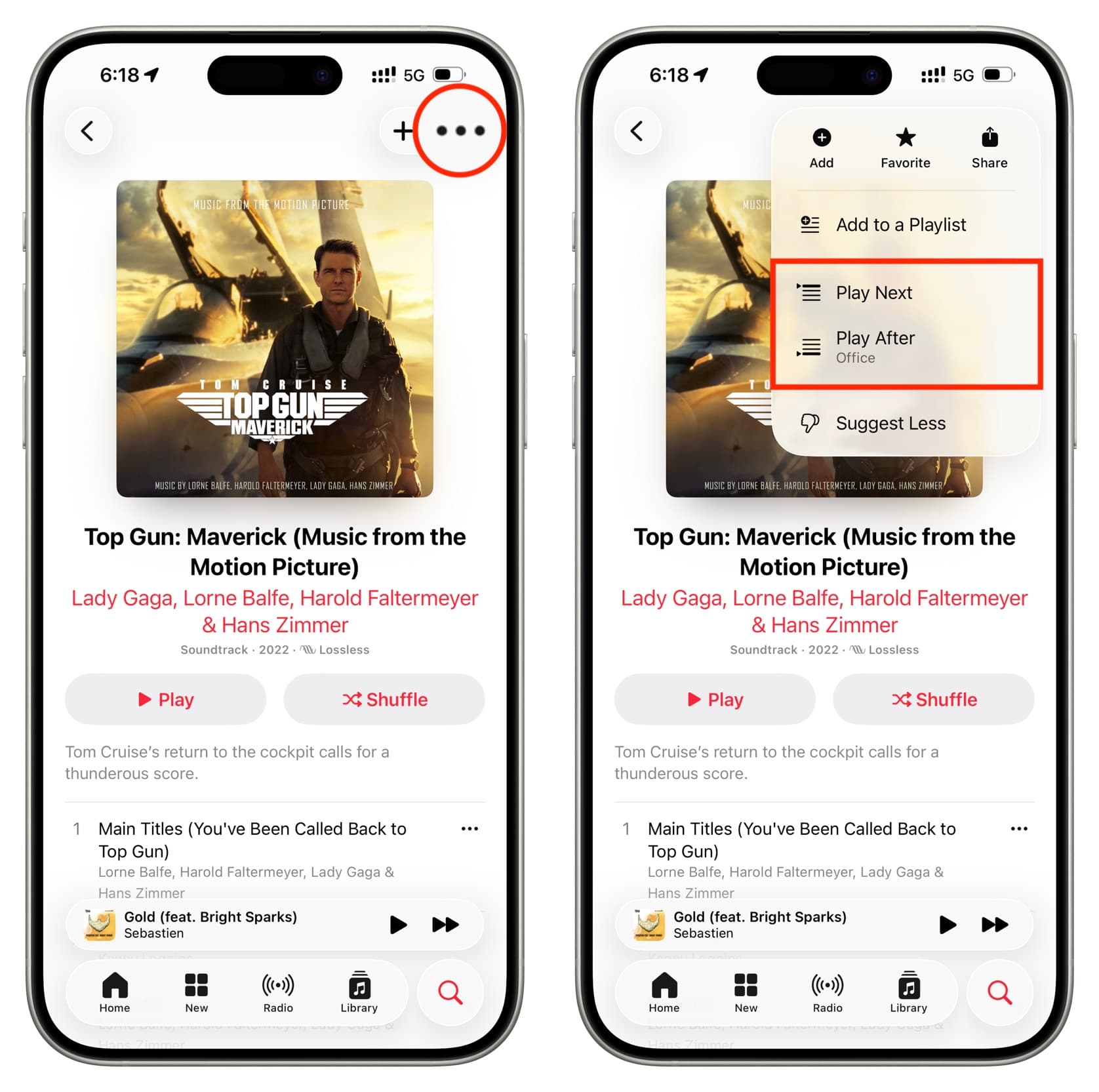
Note that the order of the songs on the album or playlist will be preserved when adding them to the queue.
You can also add songs, albums, or playlists even faster by touching and holding an item and using the Play Next or Play Last options there.

Remove songs from the queue in Apple Music
Now that we’ve seen how to view, add, and rearrange songs in your Apple Music queue, let’s see how to remove songs from it.
- Access your up next queue in the Music app.
- Swipe right to left on a song and tap the red minus or Remove button. You can also drag all the way to the left to remove it directly from the queue.

Unfortunately, you can only remove songs one by one, so you’ll have to repeat the process as many times as the number of songs you want to remove from the queue.
This should cover all possible options for managing the queue of songs in the Apple Music app. If you have questions about this, please leave us a comment below.
Also, check out: