Learn how to instantly turn off your Mac display and lock your computer without waiting for the screen saver to activate.

Maybe you need a quick solution to stop bystanders or colleagues peering over your shoulder from seeing what’s on your Mac’s screen. Or perhaps you’d like to temporarily turn off the display to save battery. Either way, macOS offers two ways to do it: a dedicated keyboard shortcut and the Hot Corners feature.
Lock the screen using Hot Corners
I use Hot Corners on all my Mac desktops and MacBooks, as it’s faster and easier than pressing a key combination. This has been among my favorite macOS features for over a decade, and I turn it on immediately after setting up a Mac from scratch.
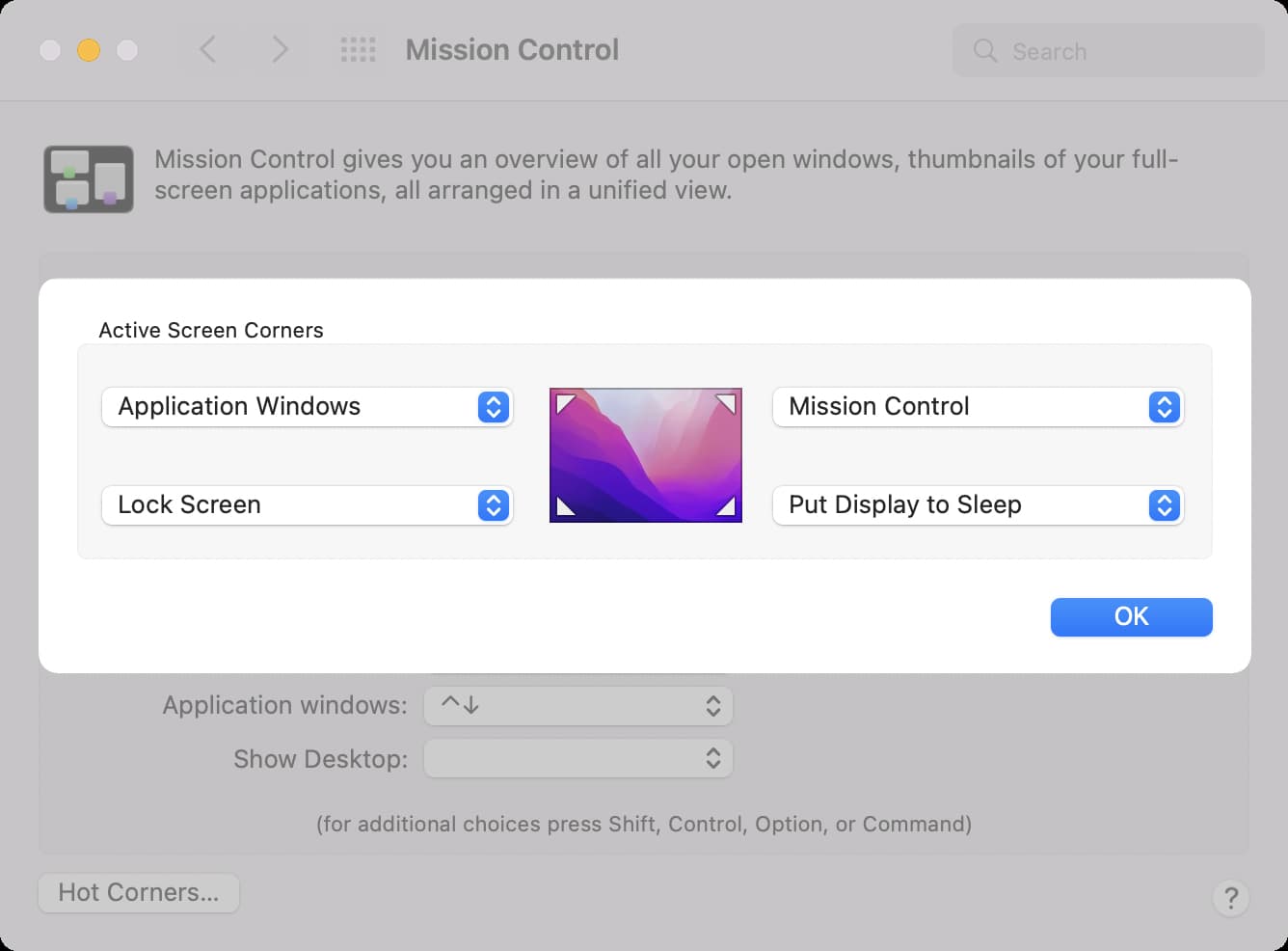
While the display is off, your Mac keeps running normally, as if nothing happened. You’ll still receive emails and notifications, and running tasks won’t pause.
Use keyboard shortcuts to turn off your Mac screen
- Press Shift + Control + Power on newer Mac models
- Or Shift + Control + Eject on older Macs with a built-in DVD drive
This will fade the main display and any connected external monitors to black and shut off their backlights. If the screen doesn’t turn off and you see the login prompt, press the Esc key (you may have to press twice).
You can also press the Control + Command + Q keys, followed by Esc to lock and turn off the screen in one fell swoop. If your MacBook has Touch ID, pressing any of the key combinations listed below will also lock the machine, and then you can press the Esc key to turn off the screen:
- Control + Power
- Option + Power
- Command + Power
- Fn + Power
On older macOS versions:
- Go to System Preferences > Security & Privacy.
- Click the lock icon and enter your macOS administrator password to unlock the settings.
- Tick the box next to “Require password after sleep or screen saver begins” and choose Immediately.
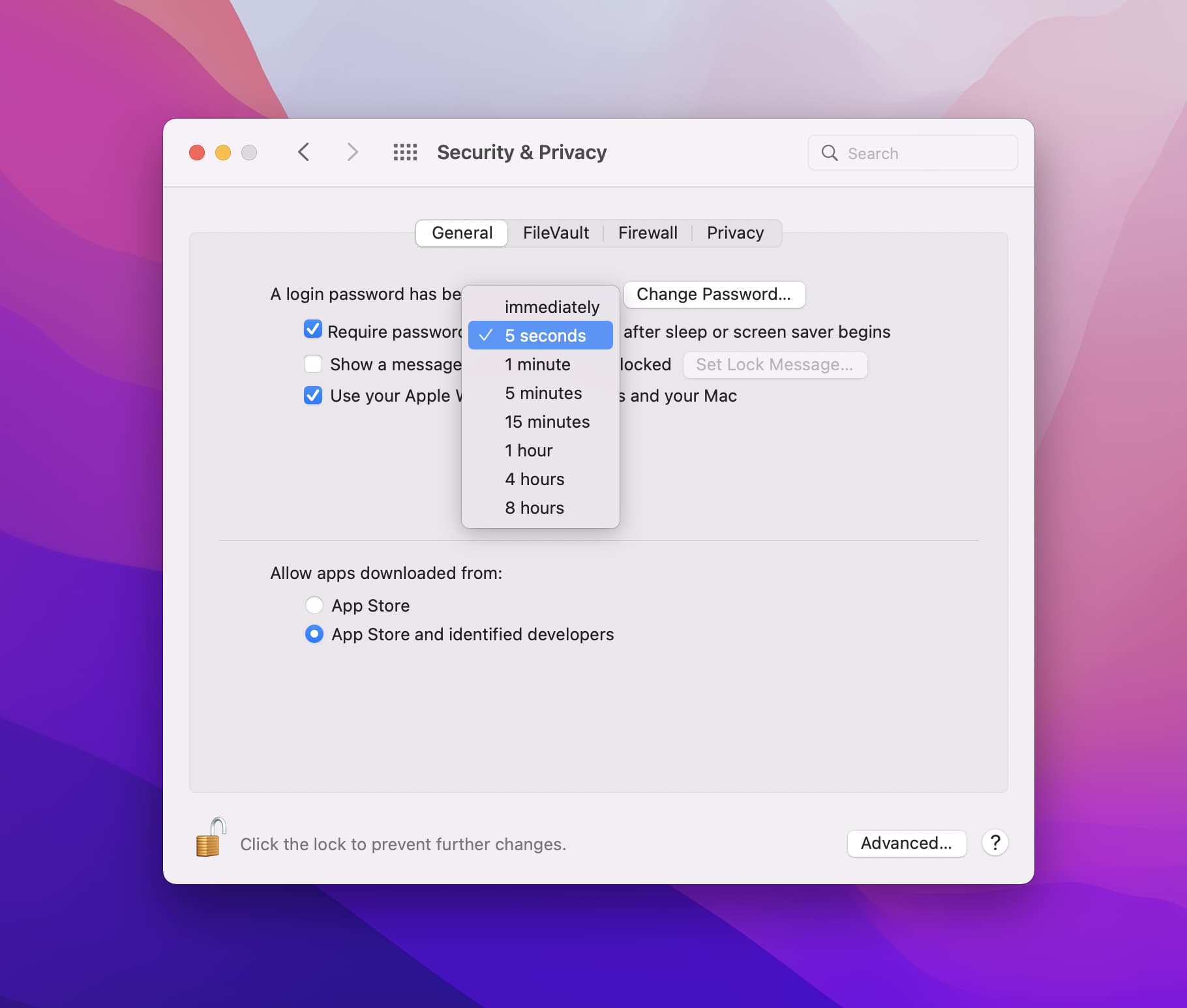
Set macOS to ask for the password when you wake the display from sleep
Configure macOS to require your user account’s password when the screen goes blank as a precaution to prevent others from sitting in front of your unattended machine, waking the display, and boom, getting into your account. To turn this setting on:
- Open System Settings.
- Select Lock Screen.
- Click the menu next to “Require password after screen saver begins or display is turned off,” and choose “Immediately.”

You can also set macOS to ask for the password 5 seconds after entering sleep or playing the screen saver; doing so will let you quickly resume work without entering your password, which is handy if you accidentally press the keyboard shortcut.
Note: The ‘Immediately’ option will be grayed out, and you can’t change it if you have set iPhone Mirroring to authenticate automatically.
On a related note: The ultimate list of Mac keyboard shortcuts