Your iPhone comes equipped with government notifications, such as AMBER, Emergency, Public Safety, and Test alerts. These time-sensitive notifications are pushed out to individuals by their carriers based on their location and can be useful for a variety of reasons. On the other hand, if you don’t think you’ll be using them anytime soon or you get sick of seeing them on your device, you can always disable them.
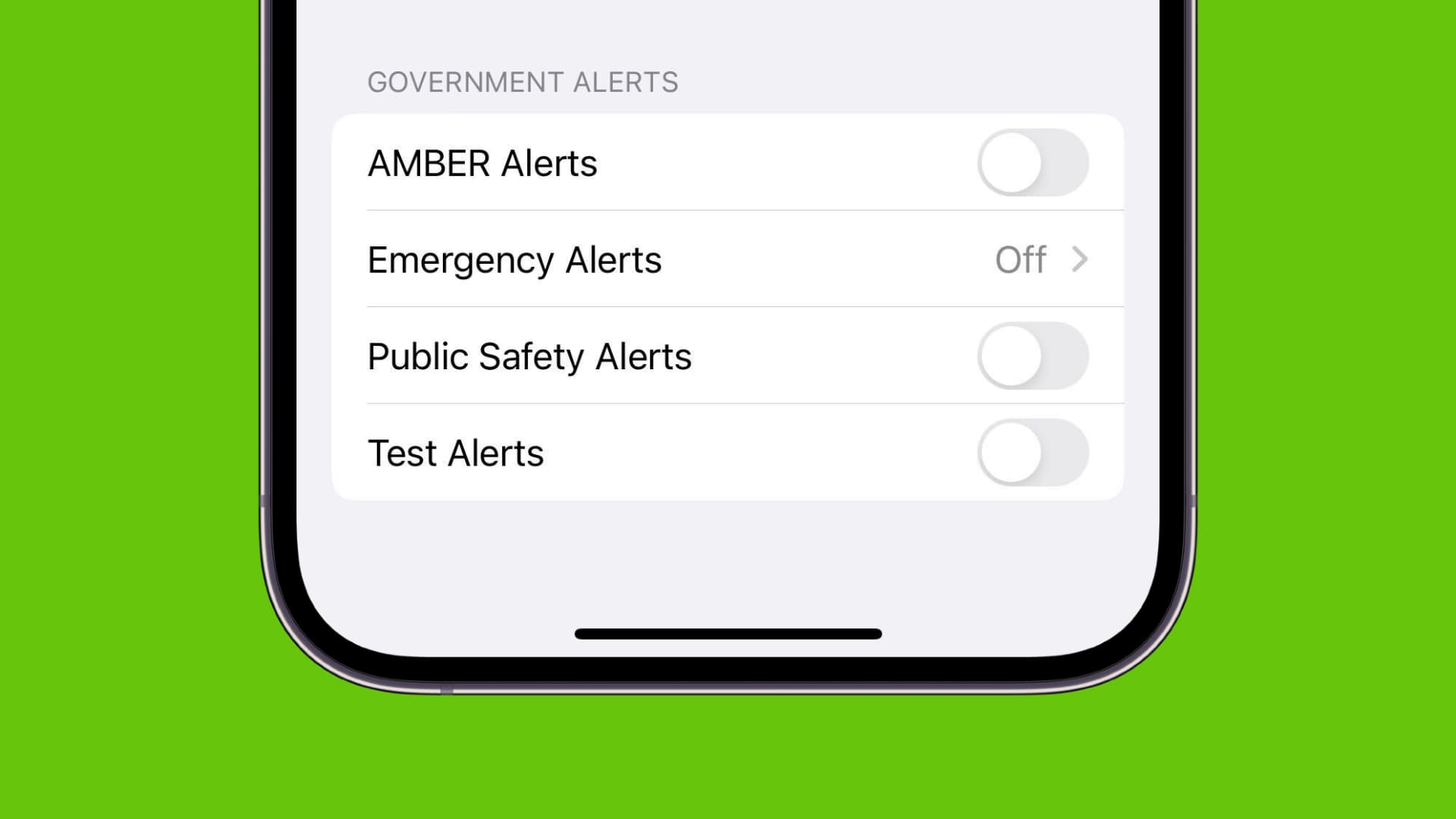
What are AMBER, Emergency, and Public Safety alerts?

AMBER, Emergency, and Public Safety alerts are notifications that the government deems important enough for its citizens to know about.
For example, if a child is abducted near you, you may receive an AMBER alert that gives you a description of the vehicle known to belong to the abductor so that if you see it, you can call and tip off the police.
If you have a tornado warning in your area, and tornadoes are making touch-downs near you, you might receive an Emergency alert that tells you to take shelter in a safe location.
Overall, this is the gist of what these alerts are used for. They’re intended to help with public safety, but they’re also an unnecessary feature to have enabled on each and every one of your iPhones. Instead, you may want to limit the feature to only one of your iPhones or none of them at all.

Note: Your carrier or country/region may or may not support the feature, but these alerts are strictly for iPhone users, and they don’t appear on your iPad or iPod touch.
Related: What you need to know about your AirPods and Amber emergency alerts
Turn off AMBER, Emergency, or Public Safety alerts on your iPhone
- Open the iOS Settings app.
- Tap Notifications.
- Scroll all the way down to where you see the Government Alerts header. From here, toggle off AMBER Alerts, Emergency Alerts, Public Safety Alerts, and Test Alerts.
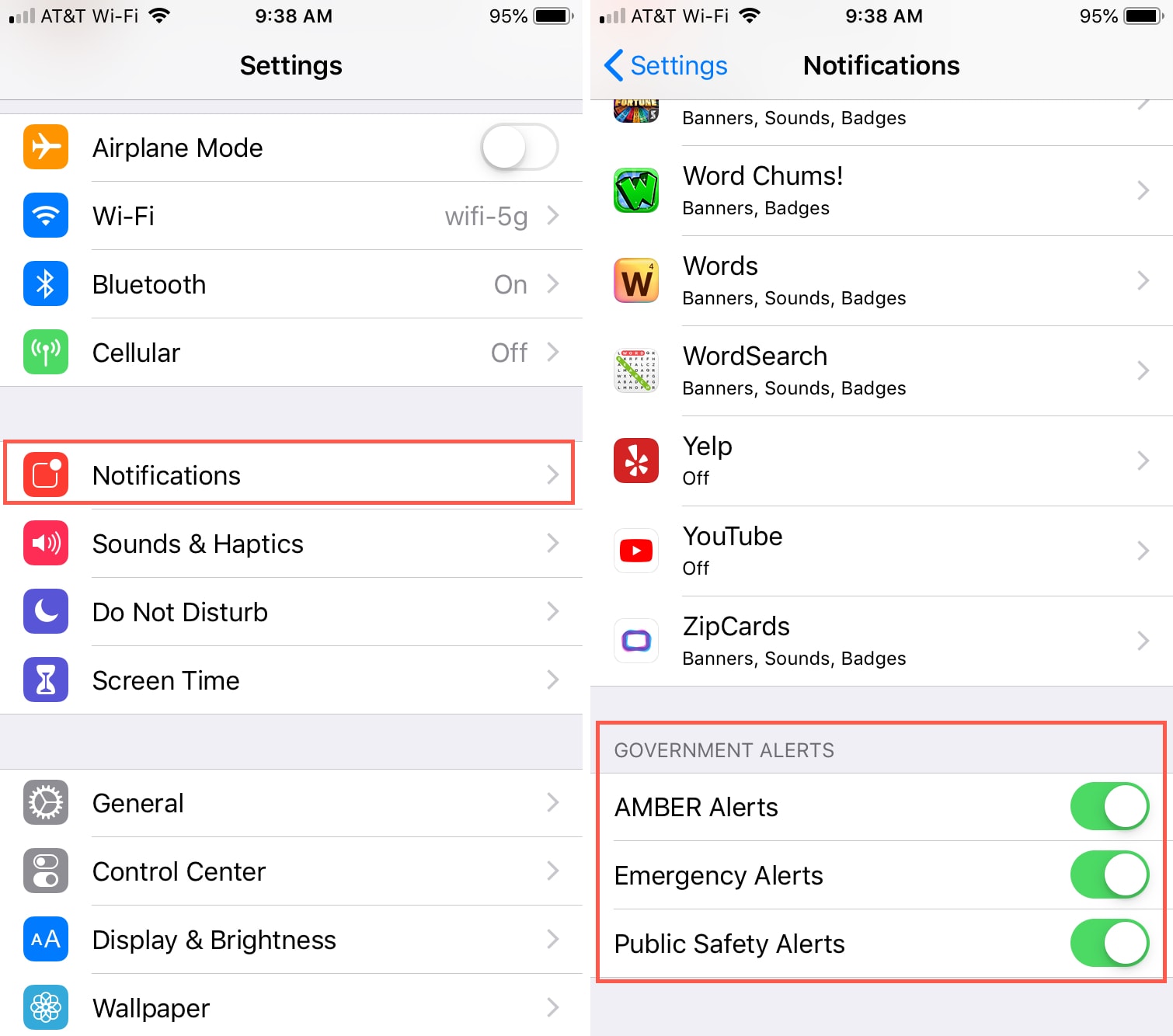
Now, you’ll no longer be alerted to government alerts when they come up. You can always reverse these settings if you change your mind about seeing them on your iPhone later on.
Overall, these alerts can be helpful and have good intent, but when you have more than one iPhone or you just don’t think you’ll ever make use of the notifications, you can always disable them easily with just a couple of toggle switches in your Settings app.
Do you like to leave your government alerts on or off?
Also, check out: