Learn how to add, change, or delete your Apple account/iCloud profile picture using your iPhone, iPad, Mac, or web browser.
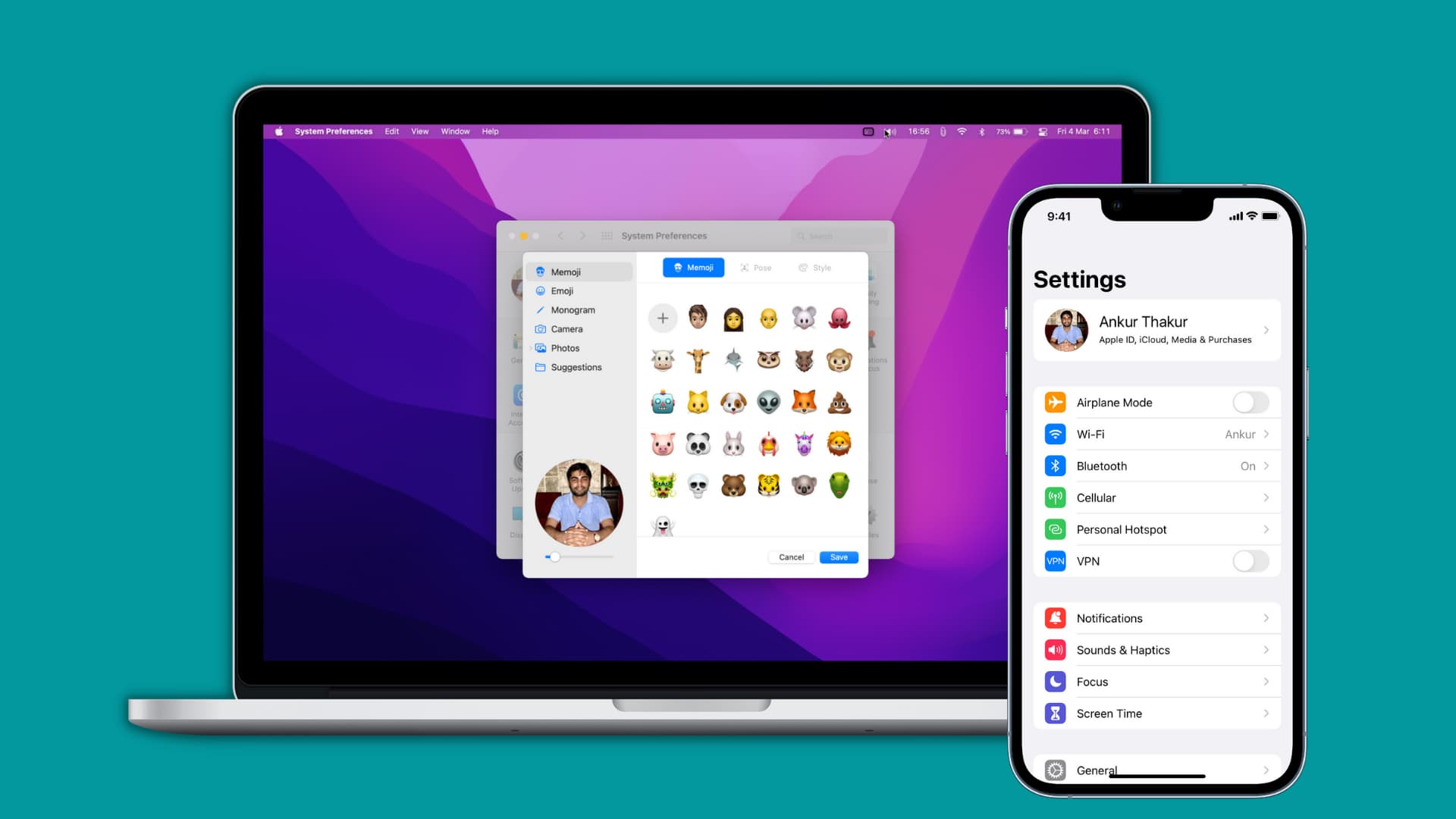
If you haven’t customized your Apple account or iCloud profile picture yet, consider doing so to make your account stand out.
Your profile picture is displayed in multiple places, including the iOS Settings app and macOS System Settings, Messages, Mail, AirDrop menus, the iCloud website, the iCloud for Windows app, and your contact card in the Contacts app. Your profile image may also show up in other places, like the Family Sharing list, visually distinguishing your account from others.
Note that:
- This is an account-level setting, meaning all your devices and the iCloud website will use the same profile image in your Apple account.
- You may need to wait a few minutes or restart your device to see your new profile image.
- Keep in mind you cannot update the profile image on your contact card or your macOS user account separately from your iCloud photo.
Change your iCloud profile photo on iPhone and iPad
- Open the Settings app on your iPhone or iPad.
- Select your Apple account at the top.
- Tap the current profile picture or the mugshot icon.
- Make sure you’re in the Avatar section.
- Tap Customize to edit your current profile picture. Or, set a new photo, Memoji, monogram, or emoji as your profile icon. You can also generate an AI photo using Apple’s Image Playground app.
- Tap the checkmark icon to save the new changes.

To set a contact photo in the Contacts app instead, edit your My Card at the top of the Contacts app.
You can also set up your contact poster.
Change your iCloud account photo on Mac
1) Open System Settings.
2) Click Users & Groups in the sidebar.
3) Click the profile icon for your admin account on the right. Or click the info button ⓘ next to the account name, then hover the pointer over the profile icon and click Edit.

4) Now:
- Use the Memoji, Emoji, or Monogram options, or take a new picture or choose one from the Photos library.
- Select Suggestions to choose from stock images.
- If your profile image is saved in a folder, drop it onto this preview screen.
- Next, drag the slider at the bottom to resize and reframe your profile image to achieve that perfect crop.
5) Finally, click Save.

You can also change your iCloud profile picture on a Mac in the Apple account settings, the Photo Booth app, or the Contacts app.
Settings
Open System Settings, click your Apple account at the top, hover over your profile picture on the right, and click edit. Then pick a new profile image and click Save.

If your Mac is running an older macOS version, go to System Preferences instead, hover over your current profile picture in the top-left, and click edit.
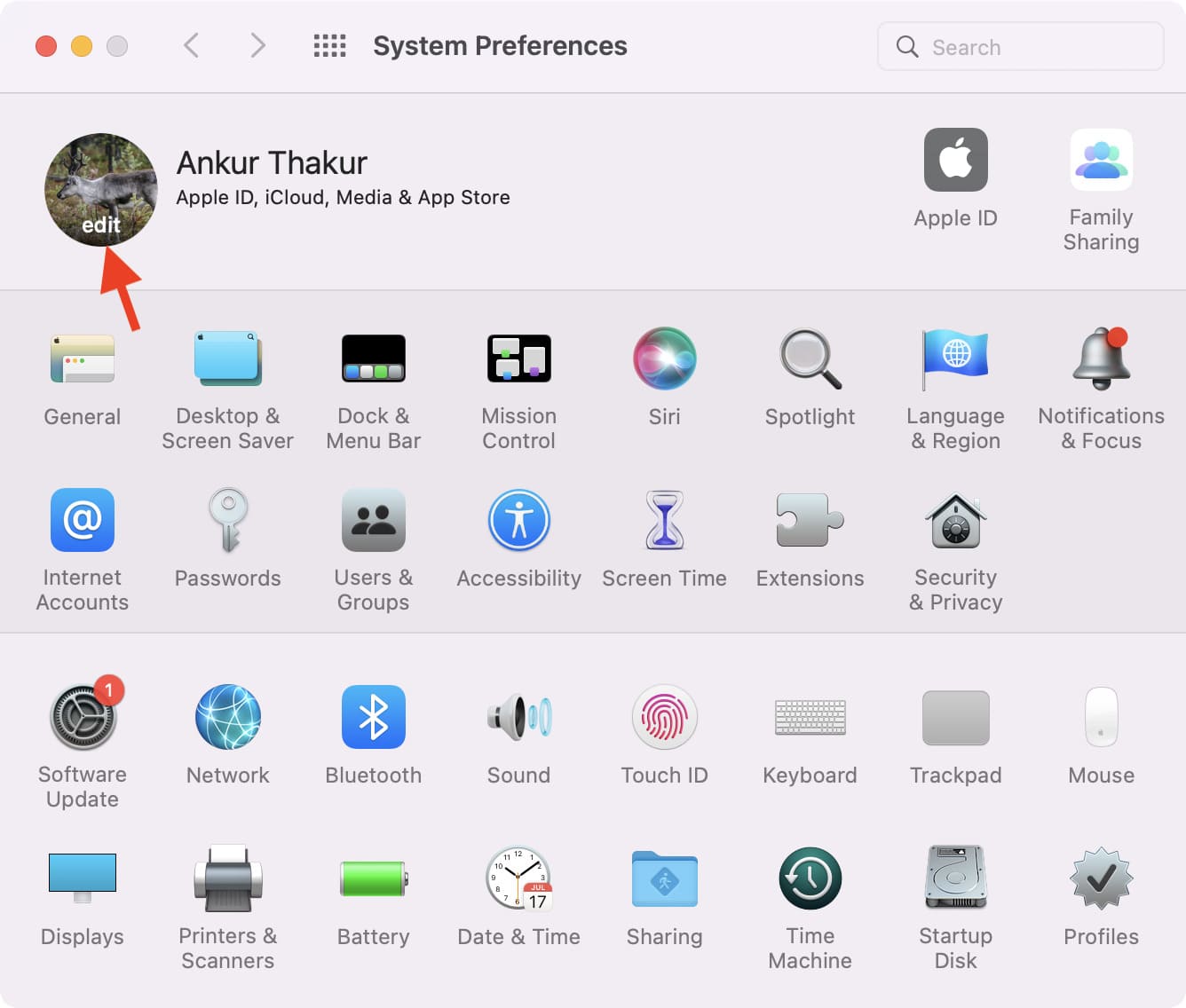
Photo Booth app
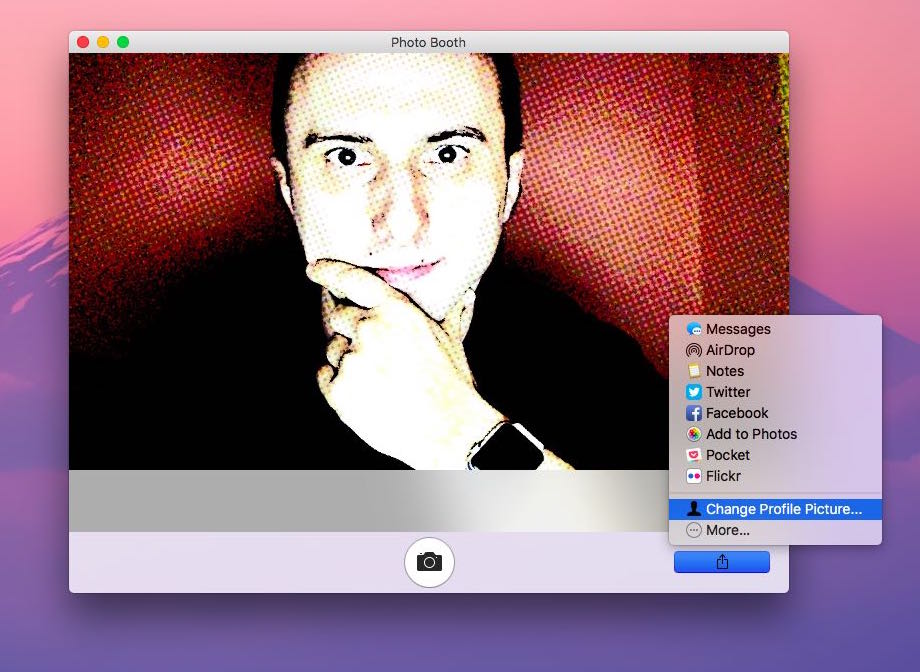
The Photo Booth app has cool effects to make your profile image a bit more interesting.
First, snap a photo of yourself in Photo Booth for Mac, then click the share button and choose Change Contact Picture or Change Profile Picture. Adjust your crop by dragging the slider, then click Set. Photo Booth will refresh your iCloud profile photo and update the picture on your Me card in the Contacts app.
Update your iCloud profile picture on the web
1) Sign in with your Apple account at icloud.com/settings.
2) Click Change Apple Account Photo.

3) Click “Browse your device for a new image” and pick one. Or drag an image from your computer and drop it onto the browser window.
4) Zoom and rotate the image, if needed, then click Save.

The web interface will instantly update to reflect the change. After a few moments, your new iCloud profile photo should be reflected across your Apple devices.
Check out next: