Do you love your current screen saver on Mac and want to use it as the desktop wallpaper? This tutorial shows you how to do that using System Settings and Terminal.
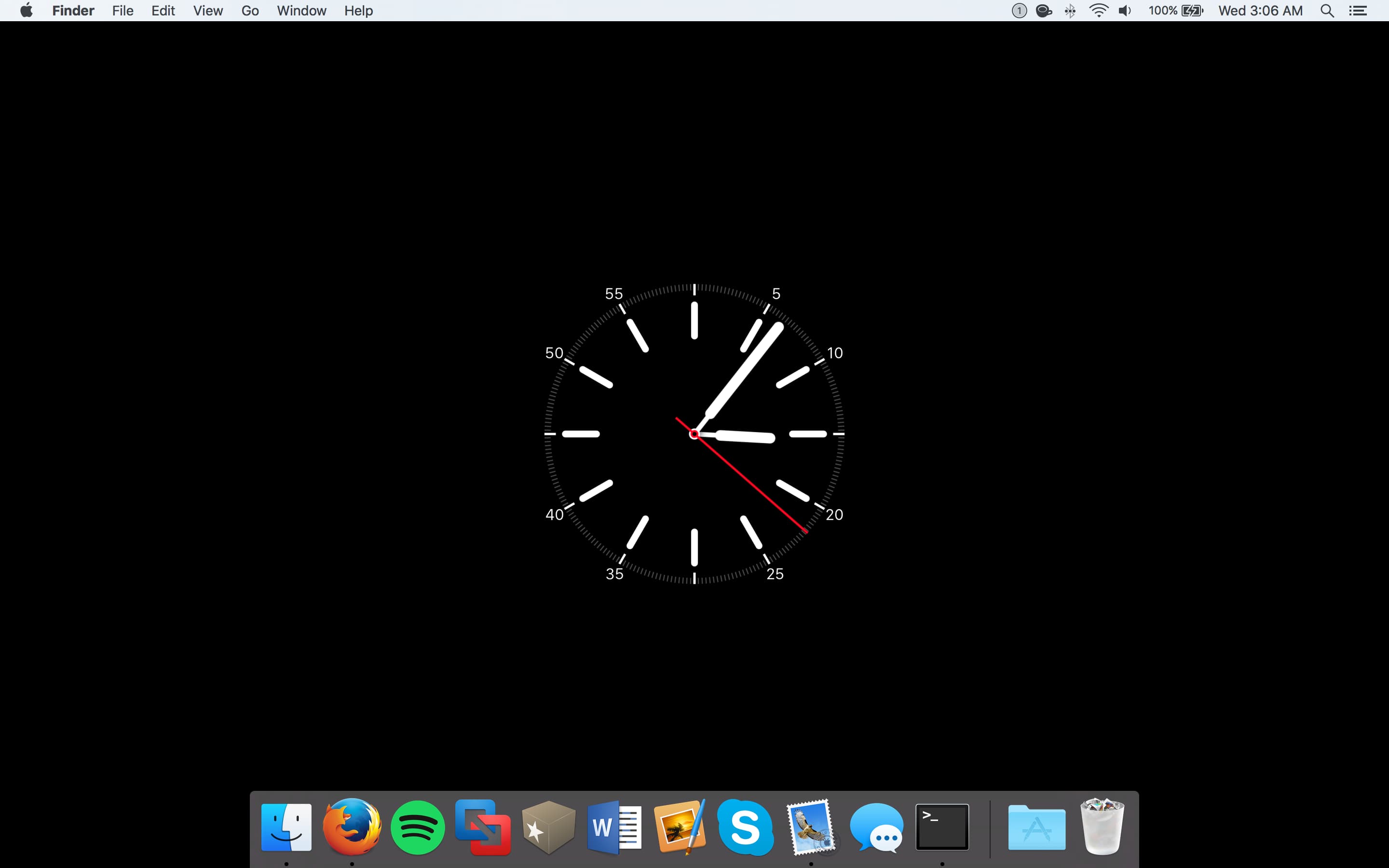
If you’re on macOS Sonoma or macOS Sequoia
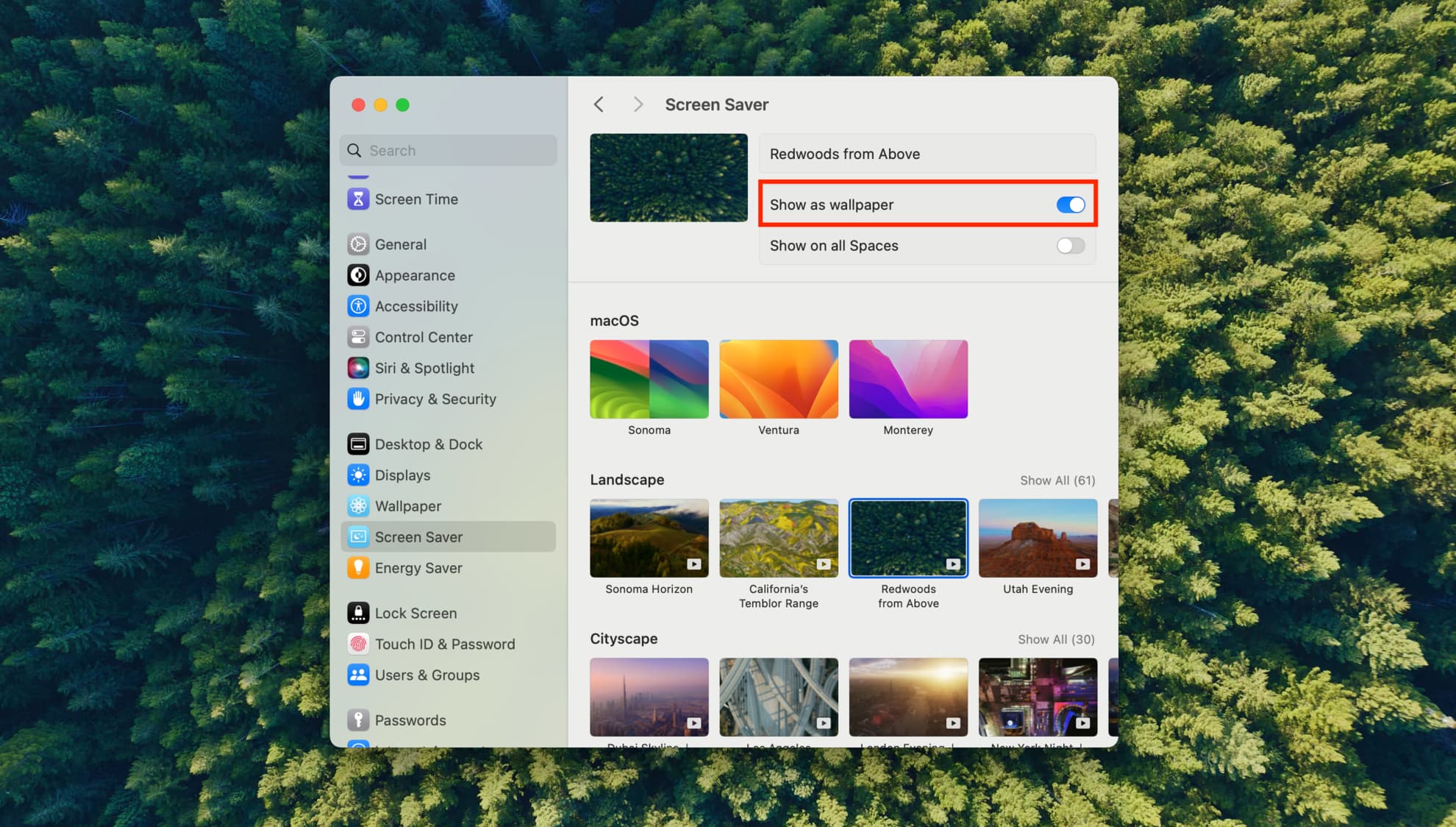
System Settings in newer macOS versions (except macOS Tahoe) allows you to set most built-in screen savers as your desktop background. All you need to do is go to System Settings > Screen Saver, pick a screen saver, and turn on the switch for Show as wallpaper, as shown in the screenshot below.
If you’re on an old version of macOS
Using the Terminal app that comes pre-installed in macOS and a simple command, it’s possible to set your favorite Mac screen saver as your wallpaper for a temporary period of time.
The change isn’t permanent, but it’s still a cool thing to do and can help you keep the screen’s pixels moving for the most part while you’re idle without having your Mac go full-screen with the screen saver instead.
1) Launch the Terminal app on your Mac and enter the following command, then press the return key on your keyboard to activate the command:
/System/Library/Frameworks/ScreenSaver.framework/Resources/ScreenSaverEngine.app/Contents/MacOS/ScreenSaverEngine -background

2) Keep the Terminal app running for as long as you want this screen saver to remain on your Desktop as the wallpaper.
When you quit the Terminal app or use the Control + C keyboard combination, the wallpaper will return to its normal wallpaper image.
Note that the above steps won’t work on macOS Tahoe 26, and I couldn’t find another Terminal command or method that works on this OS version.
On a related note: