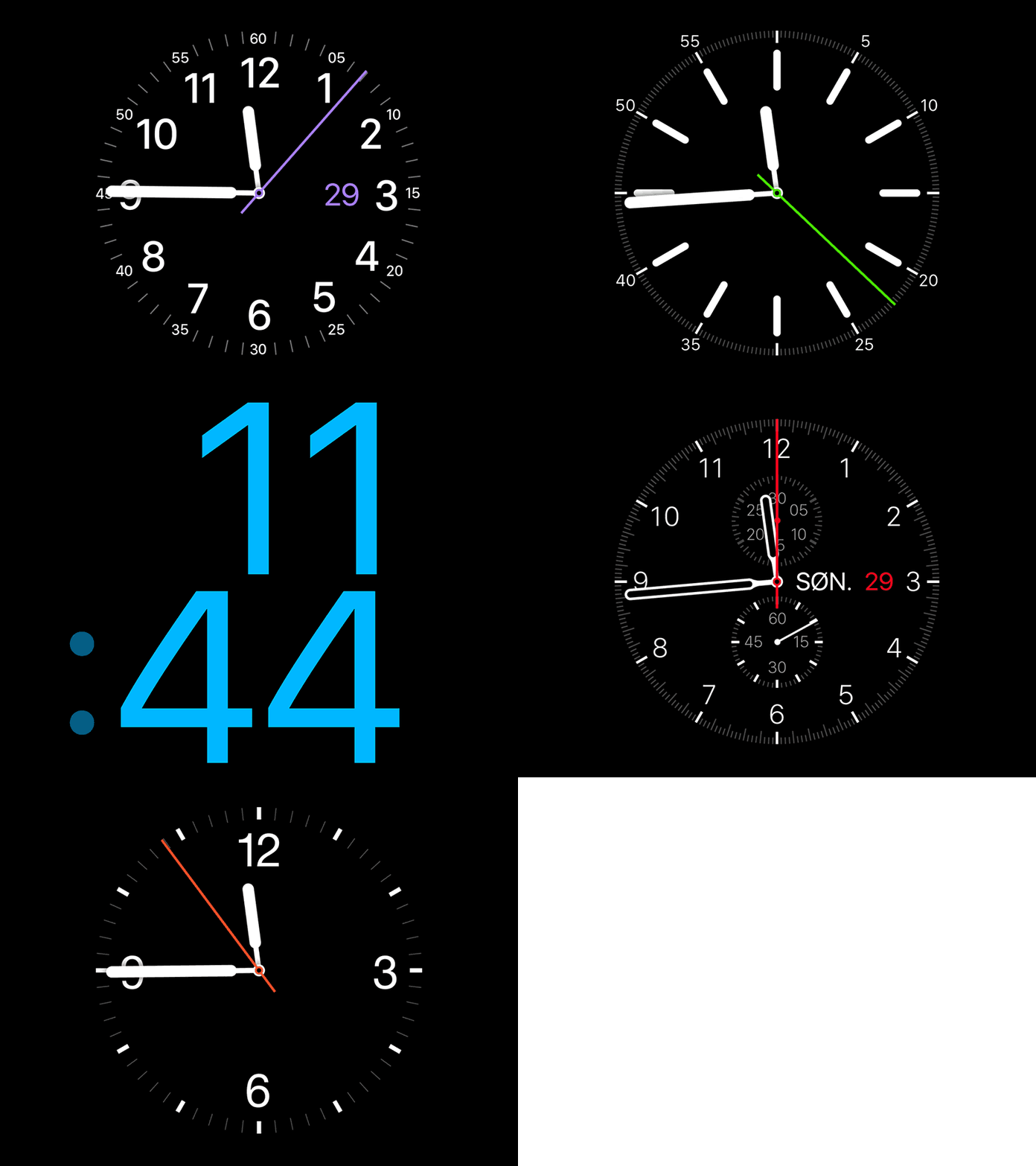
The watch faces on the Apple Watch are somewhat of an art form in themselves, created in collaboration with some of the world’s best timekeeping experts. But with our quick guide, you can also have those wonderful faces as a functional screen saver on your Mac!

Created by digital designer Ramus Nielson, the Apple Watch screensaver for Mac is a free download from the developer’s website. It works with various versions of OS X and macOS, including Yosemite, El Capitan, and Sierra, all the way to macOS Sonoma, Sequoia, and macOS Tahoe.
The Apple Watch screensaver is programmed to show the correct time, and with that in mind, you can accurately read the time from your screensaver when it appears due to inactivity.
It’s also worth noting that the developer took careful time to reproduce these high-resolution mock-ups of Apple’s various watch faces available on the Apple Watch, and they look very much like clones!
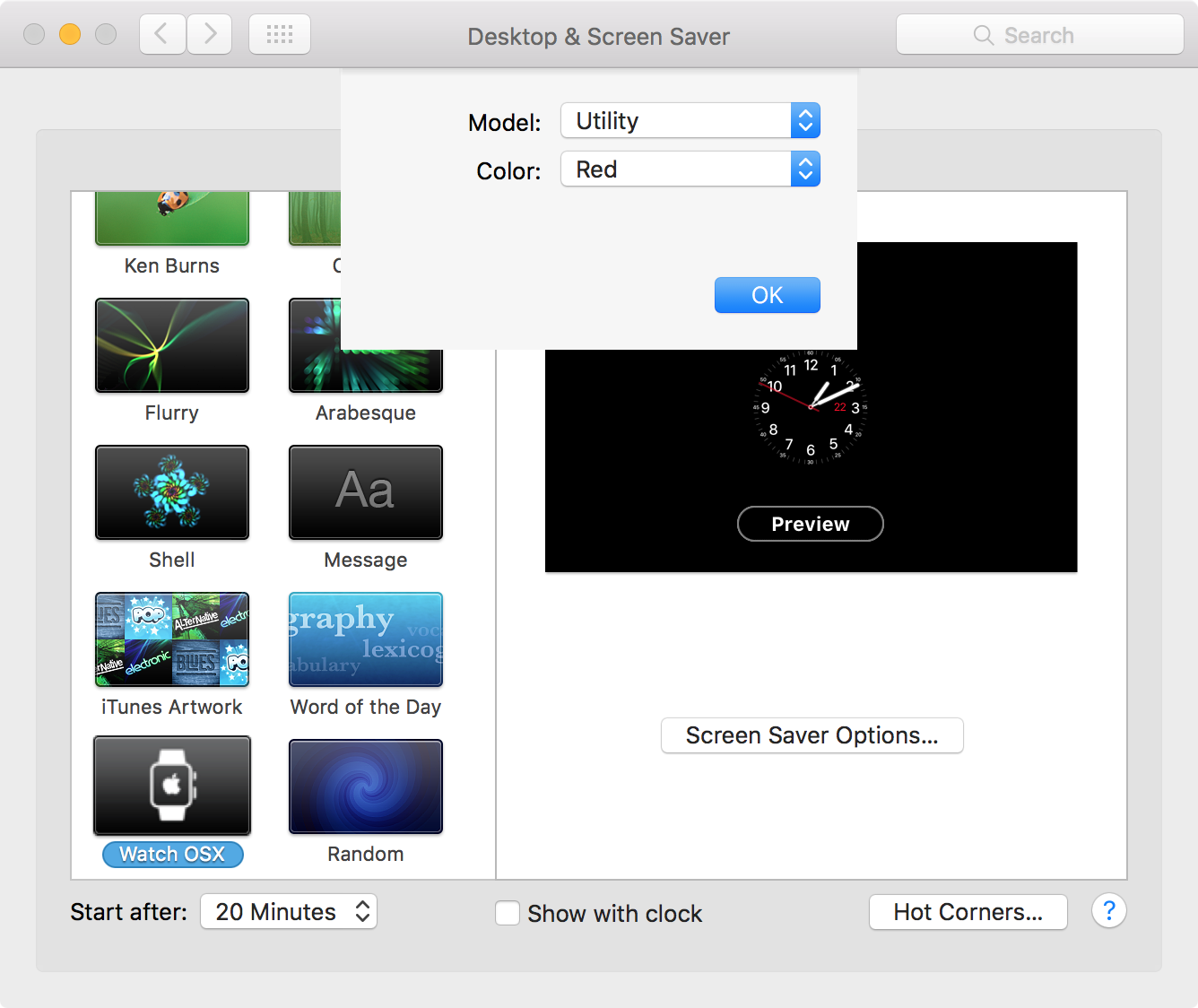
What’s more is that you have several screen saver styles (Simple, Chronograph, Normal, Utility, and X Large) to choose from, just like faces on the actual Apple Watch you might be wearing on your wrist.
Caution: The Gatekeeper technology in macOS Catalina (10.15) and later will block this screen saver because the app doesn’t seem to be notarized by Apple. You can check the developer’s website and contact him on X to get clarity, and then proceed with the installation only if you’re satisfied. Otherwise, macOS has plenty of built-in screen savers that you can use.
Use Apple Watch face screen saver on Mac
The steps and screenshots here are from a Mac running macOS Tahoe.
1) Visit rasmusnielsen.dk/applewatch and download the screen saver zip file.
2) Open the downloaded zip, then double-click the WatchScreensaver.saver file or right-click on it and open it with System Settings or System Preferences.

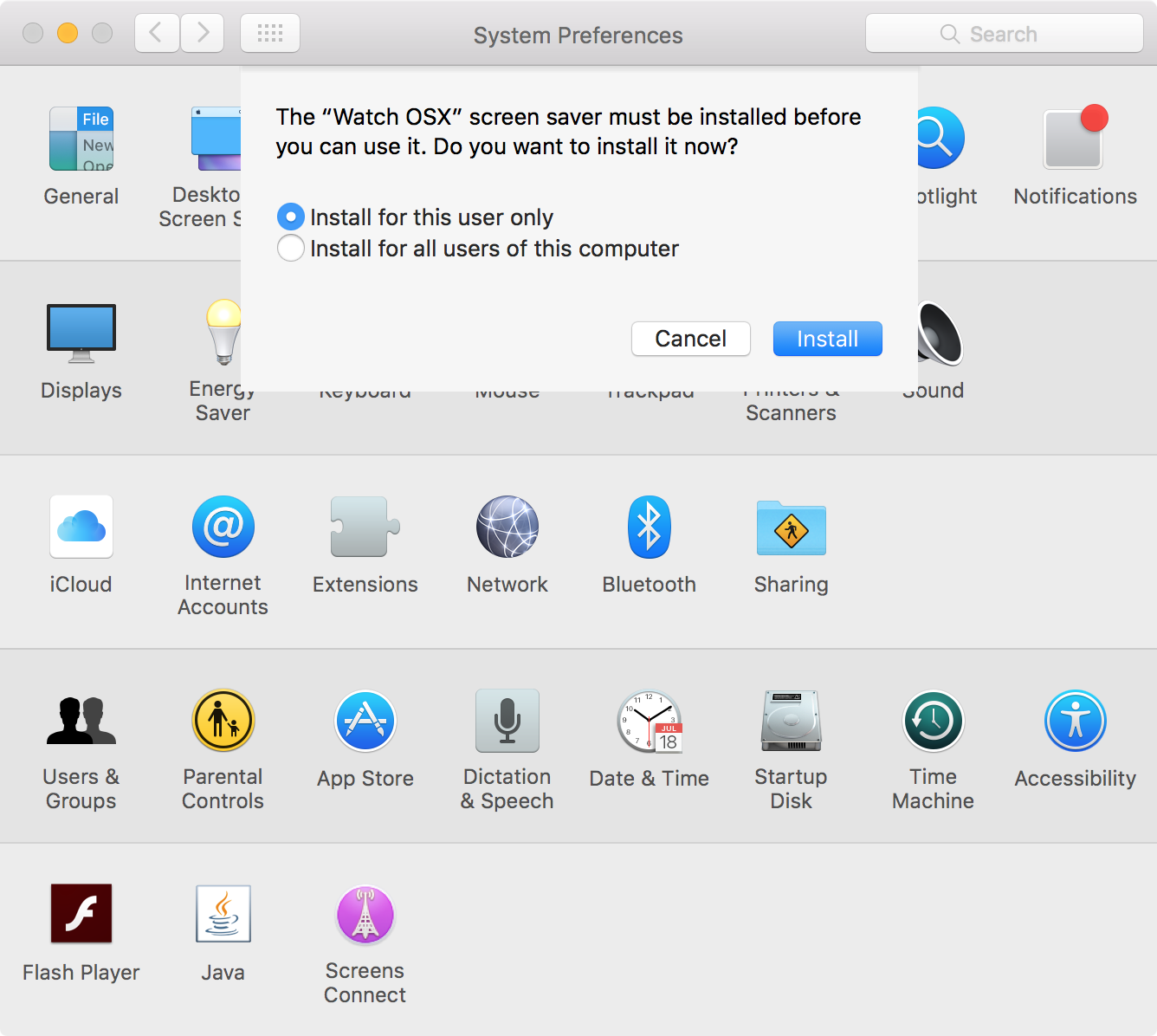
3) Choose to install the screen saver for just the current user or all users.
4) Now, go to Mac’s System Settings > Privacy & Security and click ‘Open Anyway’ from under the Security heading. Once again, read the ‘Caution’ message above and do this only if you’re comfortable.

5) Return to macOS Tahoe System Settings > Wallpaper and click Screen Saver. On previous versions of macOS, click the Screen Saver option in the left sidebar of System Settings.
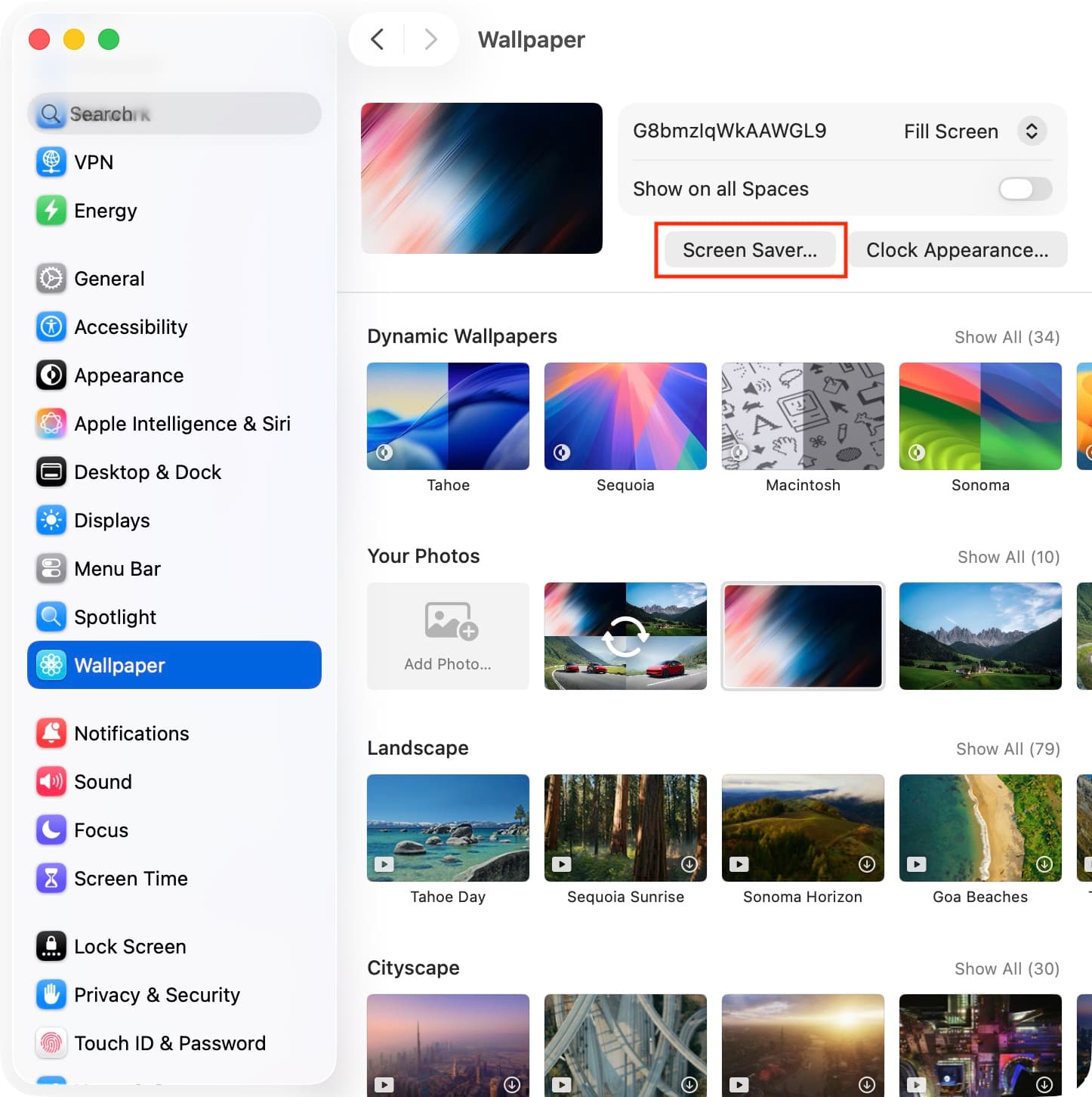
6) Scroll down to the Other heading and then swipe all the way to the end to find and click the Watch OSX screen saver. Click Open Anyway and authenticate with Mac’s Touch ID or password if prompted.

7) You’ll now see the Apple Watch screen saver preview in the little box at the top. Click it to view the screen saver in full screen.

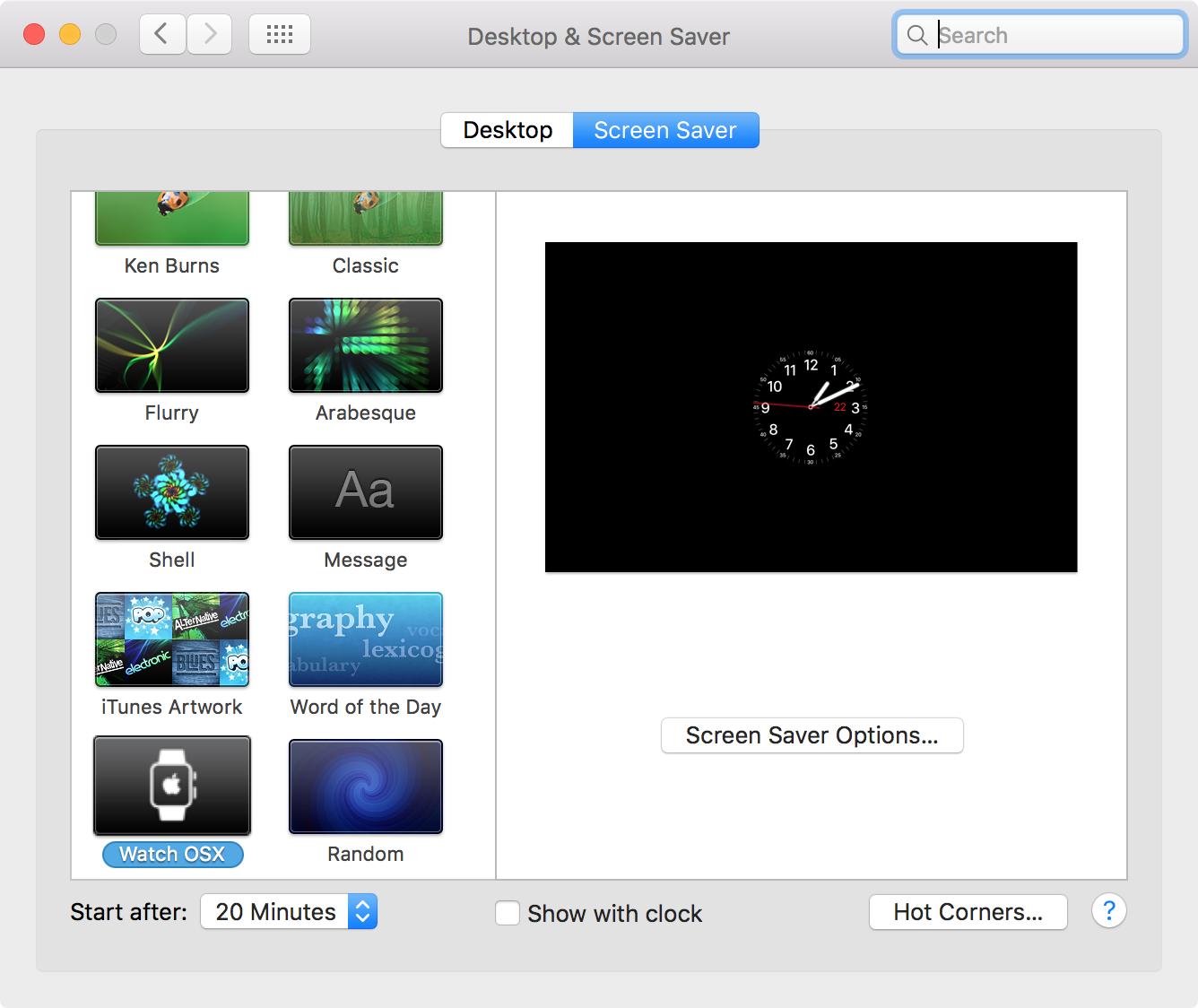
8) You can also click the Options button next to Watch OSX in the upper part of the System Settings window to customize your Apple Watch face screen saver with different clock styles and colors. If the Options button is unclickable, Force Quit and reopen System Settings and retry.

9) Alternatively, you can return to System Settings > Wallpaper > Clock Appearance and choose to show the large clock only on the Lock Screen. This will ensure you have a clean screen saver with just the Apple Watch face clock, instead of two clocks.

Here’s how the Apple Watch face screen saver looks without the digital clock (see the top featured image for one with the built-in clock):

If you no longer want to keep this screen saver, right-click over its name in System Settings and choose the delete option, as shown in the screenshot below.

On older versions of macOS or OS X
The process is fundamentally the same, and here are some screenshots for help:
- Installing Apple Watch face screen saver:
- Configuring the Apple Watch screen saver for Mac:
- Customizing Apple Watch screen saver:
Do you like the idea of an Apple Watch screensaver on your Mac? Share in the comments!
Also, check out: Amazing free animated screen savers for Mac with moving scenes