If you find your Apple Watch screen to be too bright or too dim, you can change the display brightness directly from the watch or from its companion app on the paired iPhone, ensuring a comfortable viewing experience.
There isn’t a huge range of adjustability when it comes to screen brightness, but it’s still worth establishing a screen brightness setting that works for you.
Here are two ways to adjust the brightness of your Apple Watch screen.
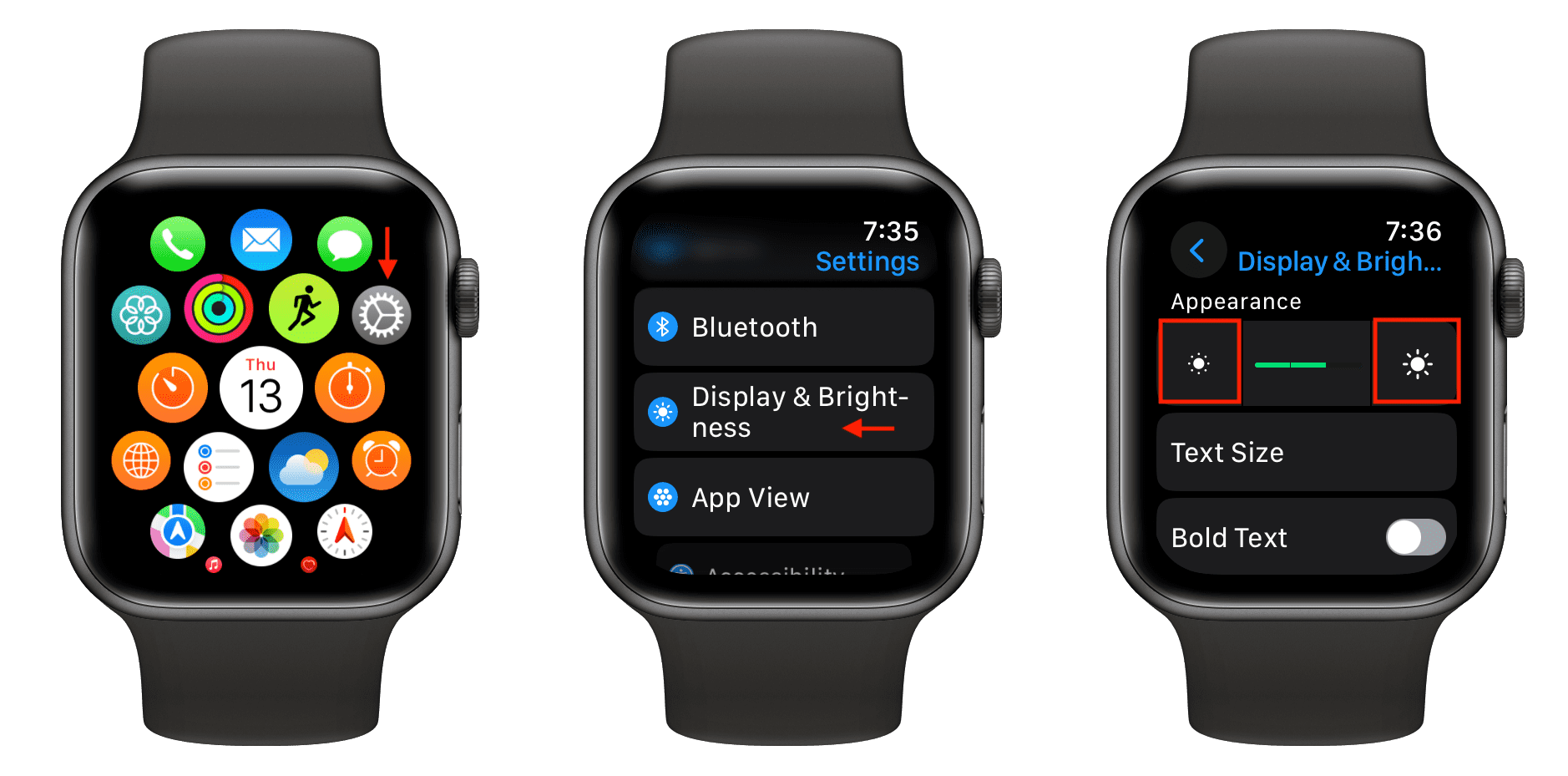
From the watch itself
- Press the Digital Crown to view all your apps, then tap Settings.
- Scroll down and tap Display & Brightness.
- Tap the lower brightness or higher brightness sun icon buttons. You can also tap the brightness field and then rotate the Digital Crown to change the brightness levels.
Change Apple Watch display brightness using your iPhone
- Open the Watch app on your paired iPhone.
- Make sure you’re in the My Watch section and tap Display & Brightness.
- Adjust the brightness slider to left, center, or right.

By default, the Apple Watch comes with the middle brightness option set. Sadly, regardless of the setting adjustment, there are only three brightness levels available.
Important: I’ve noticed that even if your Apple Watch is set to its maximum brightness, its screen brightness can go higher when you view it under strong light (like iPhone flashlight) or in sunlight. I’ve discussed this further in my article titled Apple Watch screen too dim? Here’s how to make it brighter. It’s important you have a look at it.