In this troubleshooting guide, we go over all the solutions to fix Spotlight Search not opening on your Mac, not working correctly, or failing to show relevant results.

To ensure we all, including new Mac users, are on the same page, here’s a refresher:
- Spotlight is a central search feature in macOS that lets you find files and apps, check the weather and flight status, run actions, see past clipboards, and more.
- You launch Spotlight Search by pressing the Command + Space Bar keys or clicking the little magnifying glass icon in the menu bar.
If Spotlight isn’t working, follow these tips to fix it on macOS Tahoe 26 or earlier.
Don’t use the Terminal to restore old Launchpad
First off, if Spotlight fails to launch when pressing the Command + Space Bar keys or clicking its menu bar icon, it could be because you used a Terminal command to try to restore the old Launchpad in macOS Tahoe. If this is indeed true, use the Terminal command below to revert this change and then restart your Mac. After that, try opening the new Spotlight Search, and it will work as expected.
sudo rm /Library/Preferences/FeatureFlags/Domain/SpotlightUI.plist
On the bright side, if you really miss the good old Launchpad, we have a different tutorial that talks about 7 alternatives to it.
Restart your Mac
More often than not, temporary system glitches may be the reason why things don’t work as intended on your computer. Simply turn it off and back on to resolve the issue.
Update to the latest version of macOS Tahoe 26
I faced Spotlight Search issues on initial builds of macOS 26, where the new clipboard feature didn’t work for several weeks. And secondly, Spotlight would often fail to open. A macOS Tahoe update (I don’t remember which one exactly) fixed it, and things have been working fine since then. So, if your Mac is running an older version of macOS, update it to the latest version available for it.
Make sure you haven’t excluded some folders or disks unknowingly
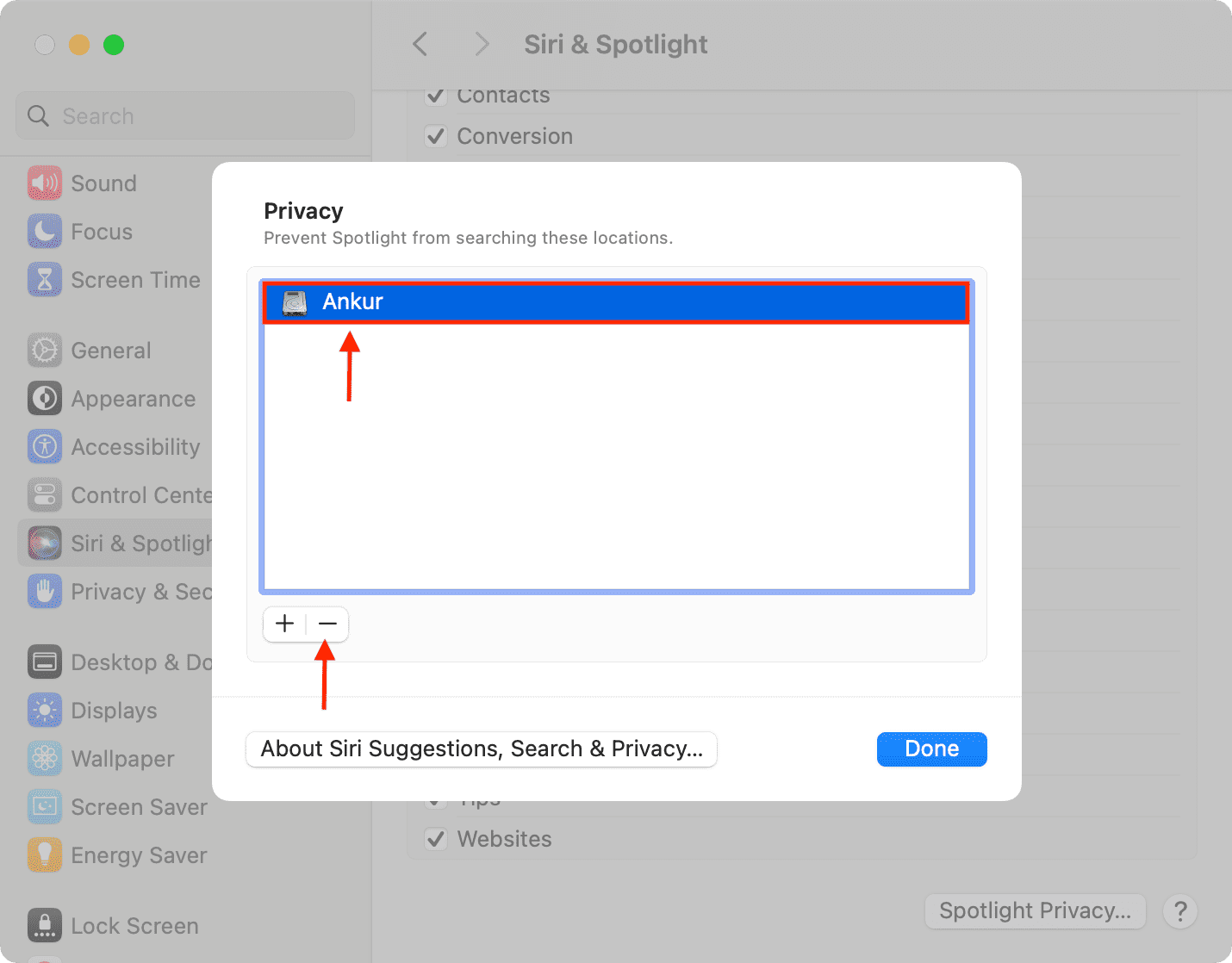
macOS lets you add specific folders or disks to the excluded lists so sensitive files from them don’t populate Spotlight Search. If you mistakenly added some important folders like Documents to that excluded list, remove it so its files are indexed and shown in Spotlight Search again:
- Go to System Settings > Spotlight > Search Privacy.
- Select the folder or disk and click the minus (-) button.
- Now, restart your Mac and wait for it to reindex the files.
Rebuild Spotlight index from System Settings
If Spotlight Search isn’t working as it should, then chances are it has some indexing issues. Check out the easy steps to force your Mac to rebuild its indexing data, and it should then work flawlessly. If not, try the next two related tips.
Delete Spotlight system files manually
If Spotlight still fails to work properly, consider deleting a few of its system files and then restarting your Mac so those files can be rebuilt automatically without the issues.
- Open Finder and click Go > Go to Folder from the top menu bar.
- Go to
/Users/YourAccountUsername/Library/Spotlightand delete the files inside the Spotlight folder. - Restart your Mac and try using Spotlight again.

Note that the above Spotlight folder doesn’t show all the Spotlight-related files. To see all of them, use the following command in Terminal to search your system for files or directories with names ending in ‘.spotlight’ (it could take a lot of time):
sudo find / -name "*.spotlight"
One thing to note is that the command above won’t modify or delete anything; it only searches and displays results in the Terminal window.
Use Terminal to refresh Mac’s Spotlight
You can use three short Terminal commands to disable and re-enable Spotlight Search on Mac. Doing so will also erase existing Spotlight index data and start over, thus fixing old issues.
Open Terminal and use the following commands in order:
- The following command erases the current Spotlight index/database from all volumes and turns off Spotlight indexing:
sudo mdutil -Eia off
- This next command turns Spotlight indexing back on and rebuilds the index:
sudo mdutil -Eia on
- Finally, you can use this command to check the Spotlight indexing status of all the disks/volumes on your Mac. It should say ‘Indexing enabled’ for your disks:
mdutil -as

Don’t use the Hot Corner to access the Apps section of Spotlight Search
Hot Corners are one of my favorite macOS features of all time, and I use them every day to trigger Mission Control, see application windows, and lock the computer. After Launchpad was removed in macOS Tahoe 26, I assigned one of the corners to show all apps (part of the new Spotlight in macOS 26). But I have noticed that this often fails to work. So, I recommend using the keyboard shortcut instead.
If you’re annoyed by app icons loading each time you open Spotlight
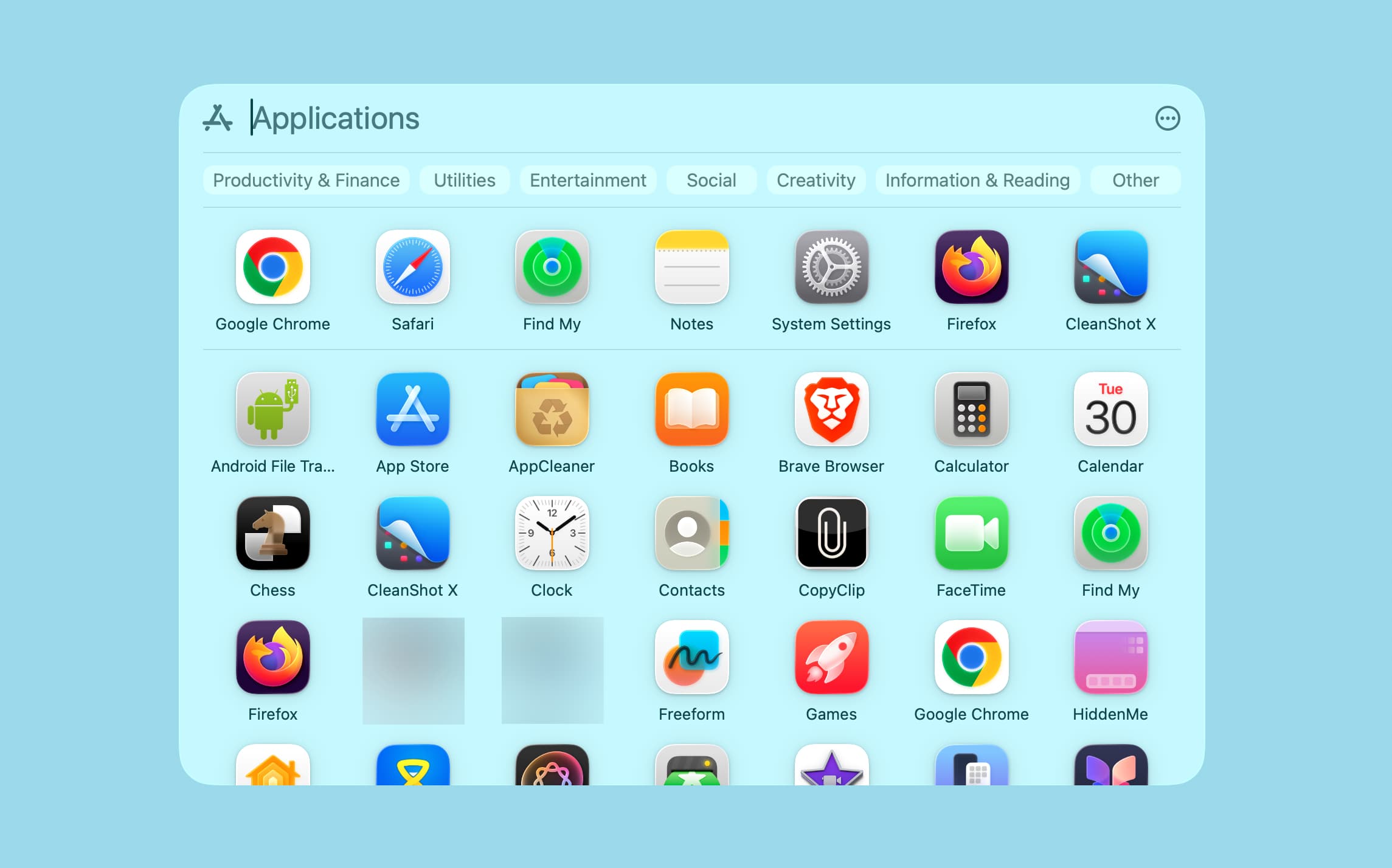
While this shouldn’t happen on any Mac capable of running macOS Tahoe, I have noticed that app icons in Spotlight Search load (or should I say reload) each time on my M2 Mac mini (base model). At the same time, I haven’t noticed this problem on my M4 MacBook Air or even my M1 MacBook Pro. Make what you will of this information. But I have not yet found a way to address this, except hopefully wait for a future macOS update.
Tips to follow as a last resort
In case the Spotlight issues remain unsolved, consider reinstalling macOS, which will keep your personal data intact.
If that fails to work, and you have a couple of hours of free time, back up all your important data to an external drive or to the cloud, and then factory reset your Mac. You’ll then have to set up your erased computer as if it were new, move back all the data, and it should not have the old problems.
Were you able to fix Spotlight problems on your Mac? If yes, which tips worked for you?