In this brief tutorial, we show you how to use the new Apple HomeView smart home device as a mirror for quick makeup or to check yourself before you head out or join a call.
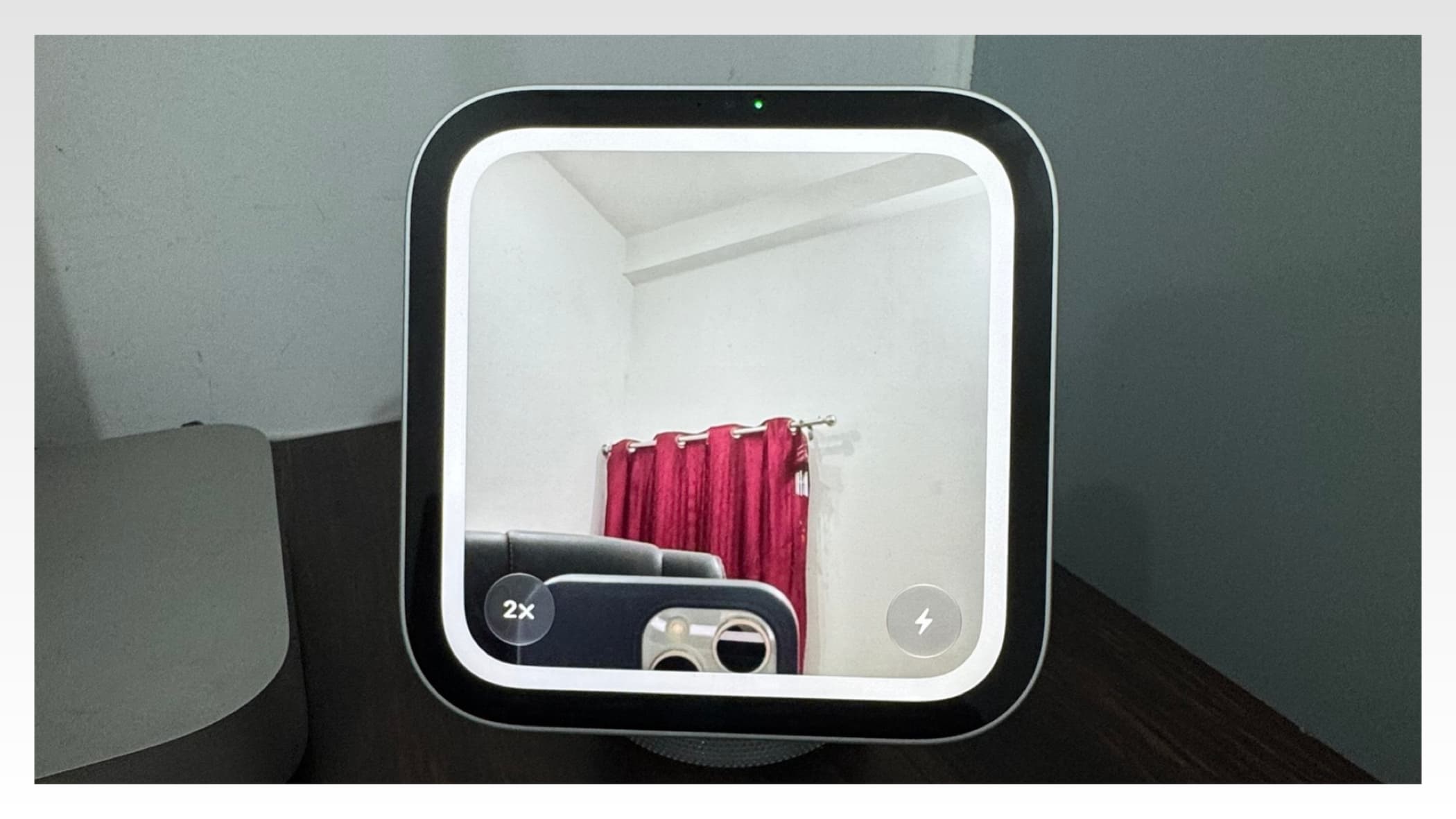
iPhone has a Camera app, iPad has both the Camera and Photo Booth apps, and MacBook also has a Photo Booth app to check and fix yourself before you join a FaceTime, Zoom, or other video call.
HomeView has a FaceTime app to make calls but no camera app (even though it has a front camera that it uses for face recognition and video calls). To make sure you don’t join a call with your hair messed up, or to take a quick look at yourself before you head out, HomeView has a mirror feature tucked away in its Control Center. Here’s how to activate and use it.
Use the mirror feature on your HomeView
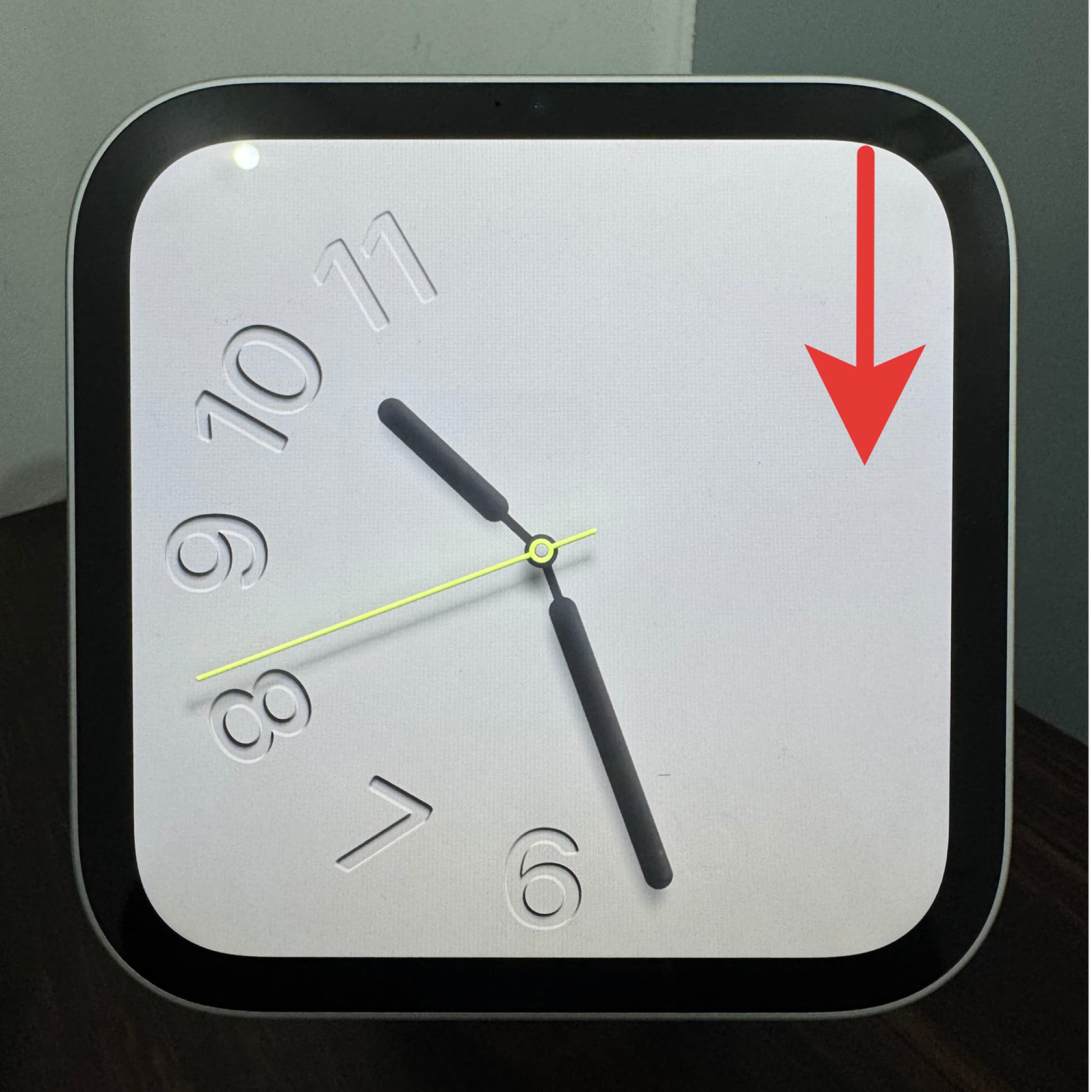
1) Open Control Center on your HomeView by swiping down from the top right corner of the screen.
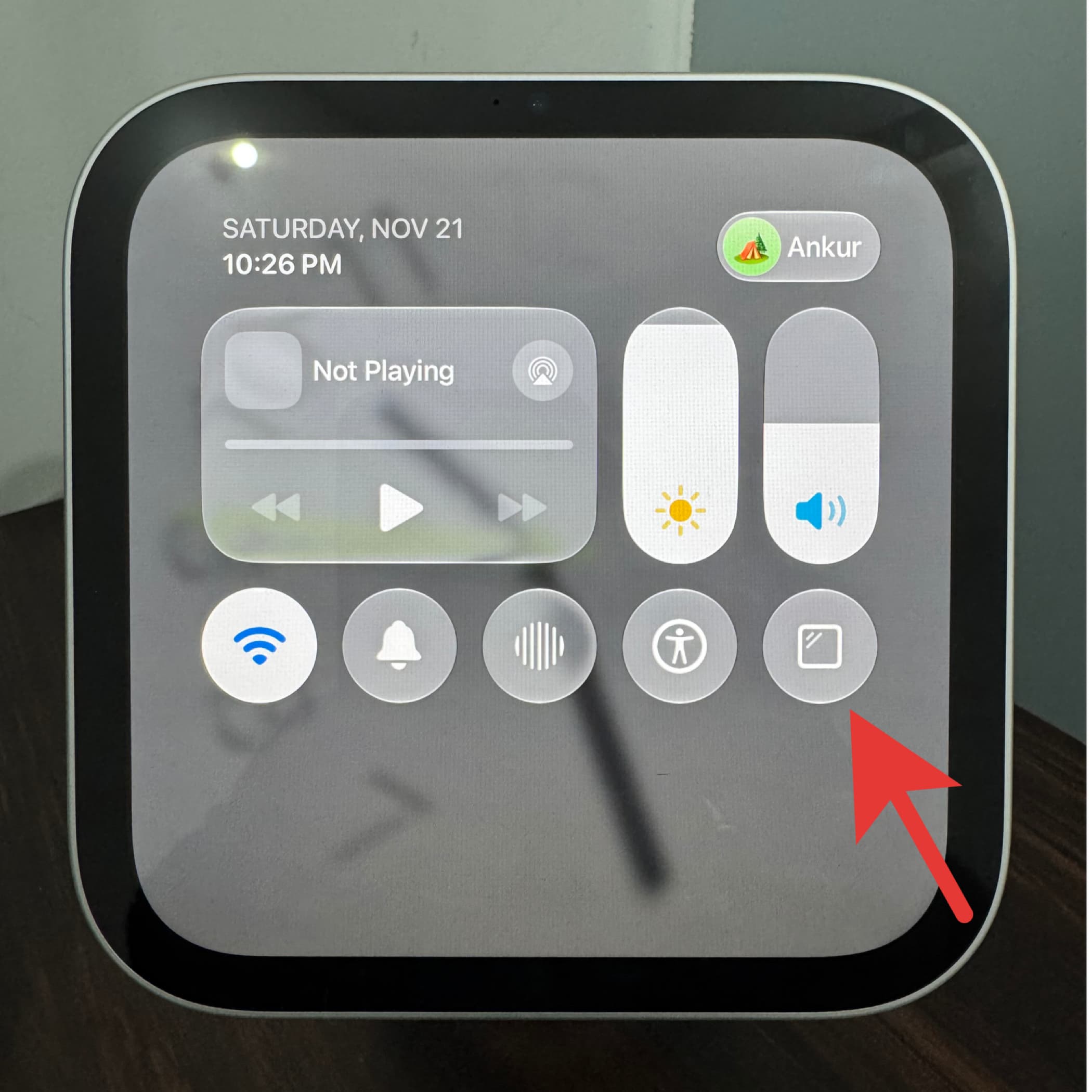
2) Tap the mirror icon to bring up the front camera view, as shown in the image below.
3) Tap the 1x or 2x button to zoom in and out. You cannot use pinch-to-zoom, so use these buttons or move closer or farther as needed.
4) If the room isn’t lit properly, tap the Edge Light flash icon to add a ring light around the HomeView screen.
5) Once you’re done, swipe up to exit the camera view.
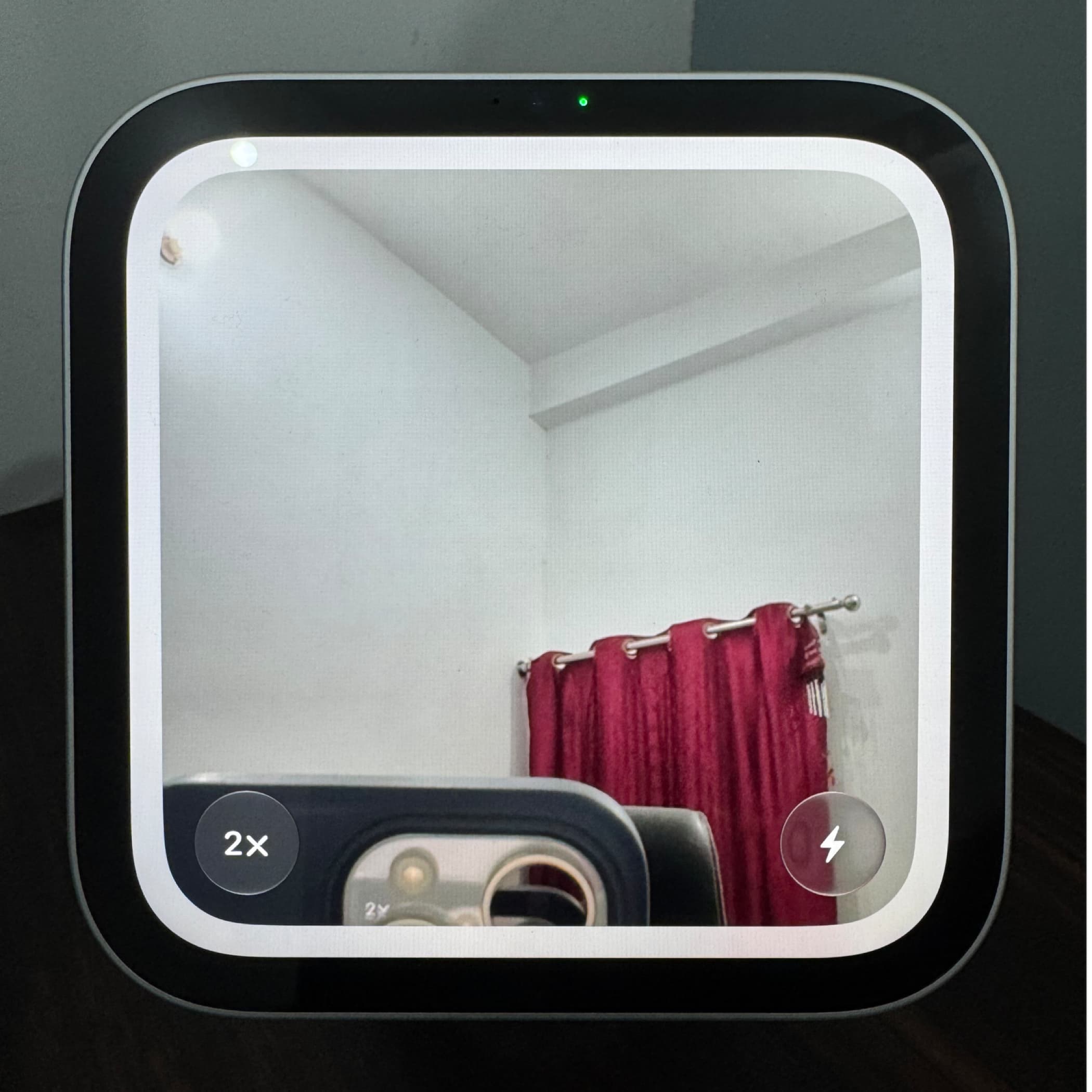
This is a small but thoughtful feature which I like. In future updates, I would like Apple to add Photo Booth-like effects so kids can have some fun; after all, HomeView is a family device.
Unlike FaceTime, Messages, and some other features, opening and using the HomeView mirror doesn’t require Personal Content or face recognition; anyone with access to your HomeView can see themselves on the screen.
Secondly, the HomeView Edge Light feature isn’t unique to it. It’s also available on Apple silicon Macs and the inner screen of the foldable iPhone Duo during video calls.
More on HomeView: