Find out how to enable crossfade for Apple Music so you don’t get an abrupt silence during track changes on iPhone, iPad, Mac, and Android phone.
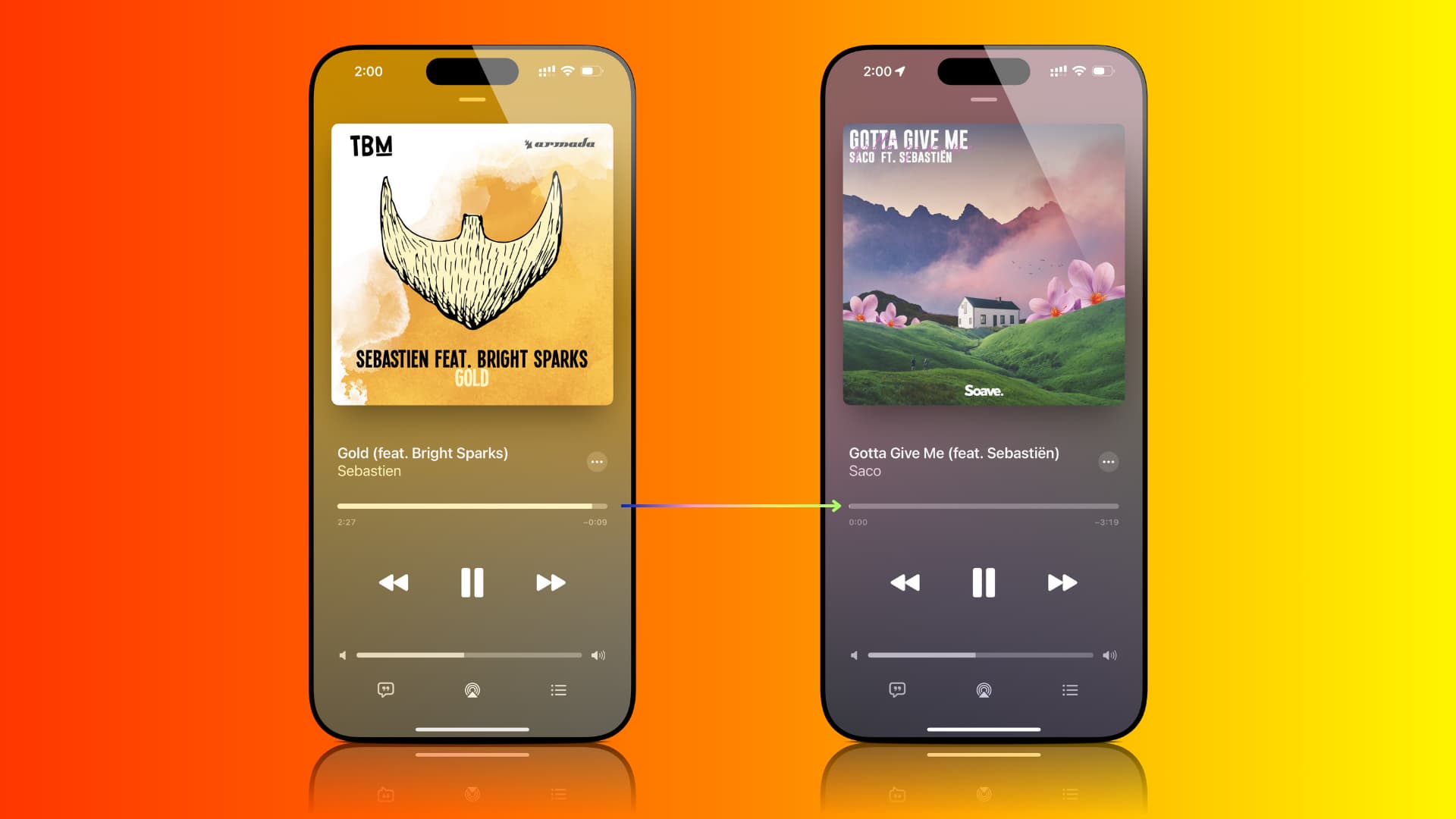
When you’re listening to songs in the Music app on your Apple device, there is a brief silence when one track ends. After this silence, the next song starts playing.
However, if you allow crossfading between songs, the currently playing track starts to fade out when it nears the end of playback, and the next song in the queue starts playing and gradually increases its volume, leading to a smooth transition between songs, with no gaps of silence in between.
This is called crossfading, and it’s a small feature but something that can elevate your music-listening experience on iOS, iPadOS, macOS, and Android.
iPhone and iPad
- Open the Settings app and tap Apps at the bottom.
- Select Music from the list of apps.
- Tap Song Transitions and turn it on from the next screen.
- Select Crossfade. And then adjust the crossfade slider between 1 and 12 seconds. This is the amount of time or the length of the fade-out and fade-in transition between two songs. You’ll also see AutoMix here, which, in my opinion, is even better than Crossfade.
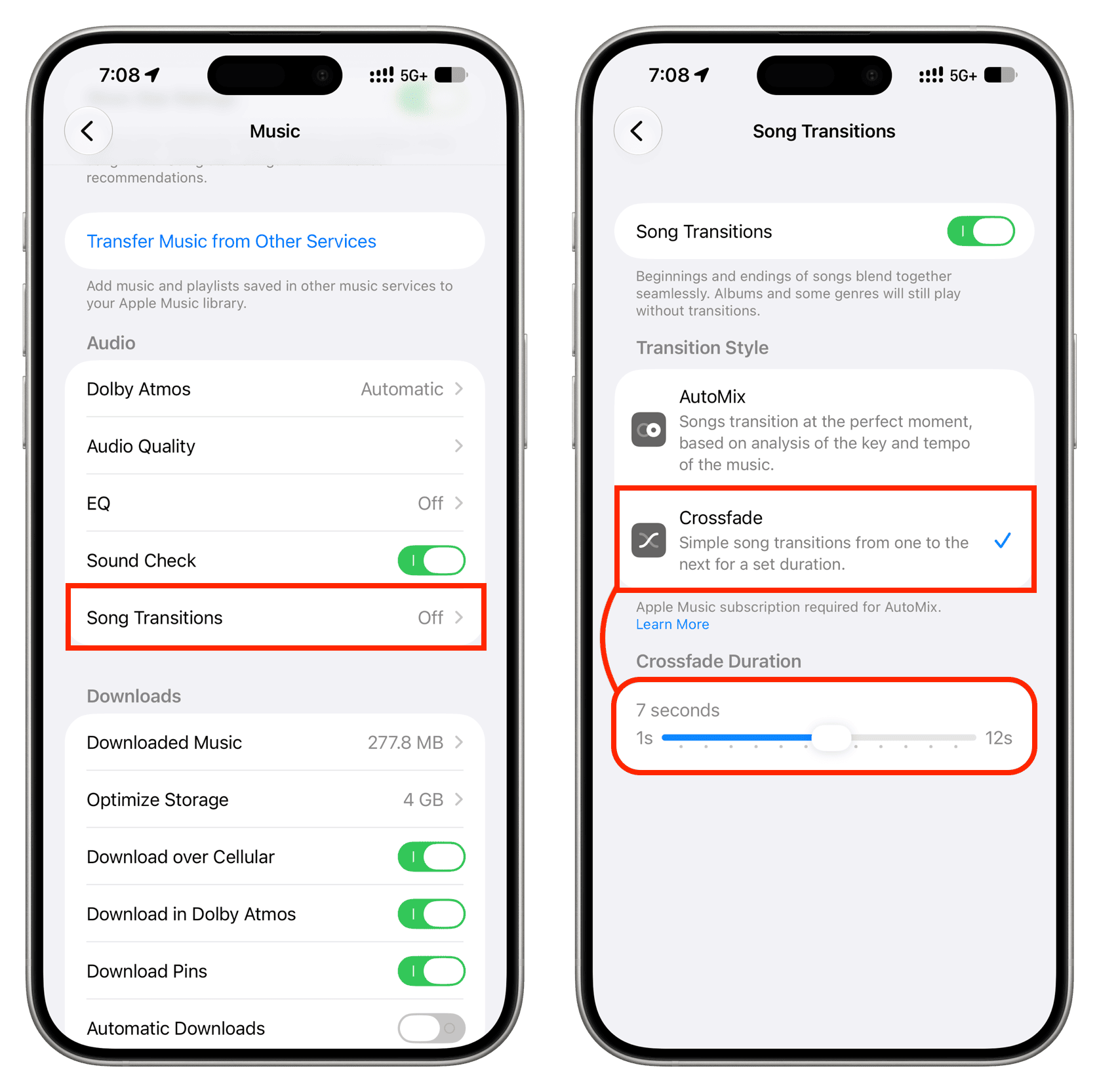
We’ll talk more about the crossfade Apple Music transition time below.
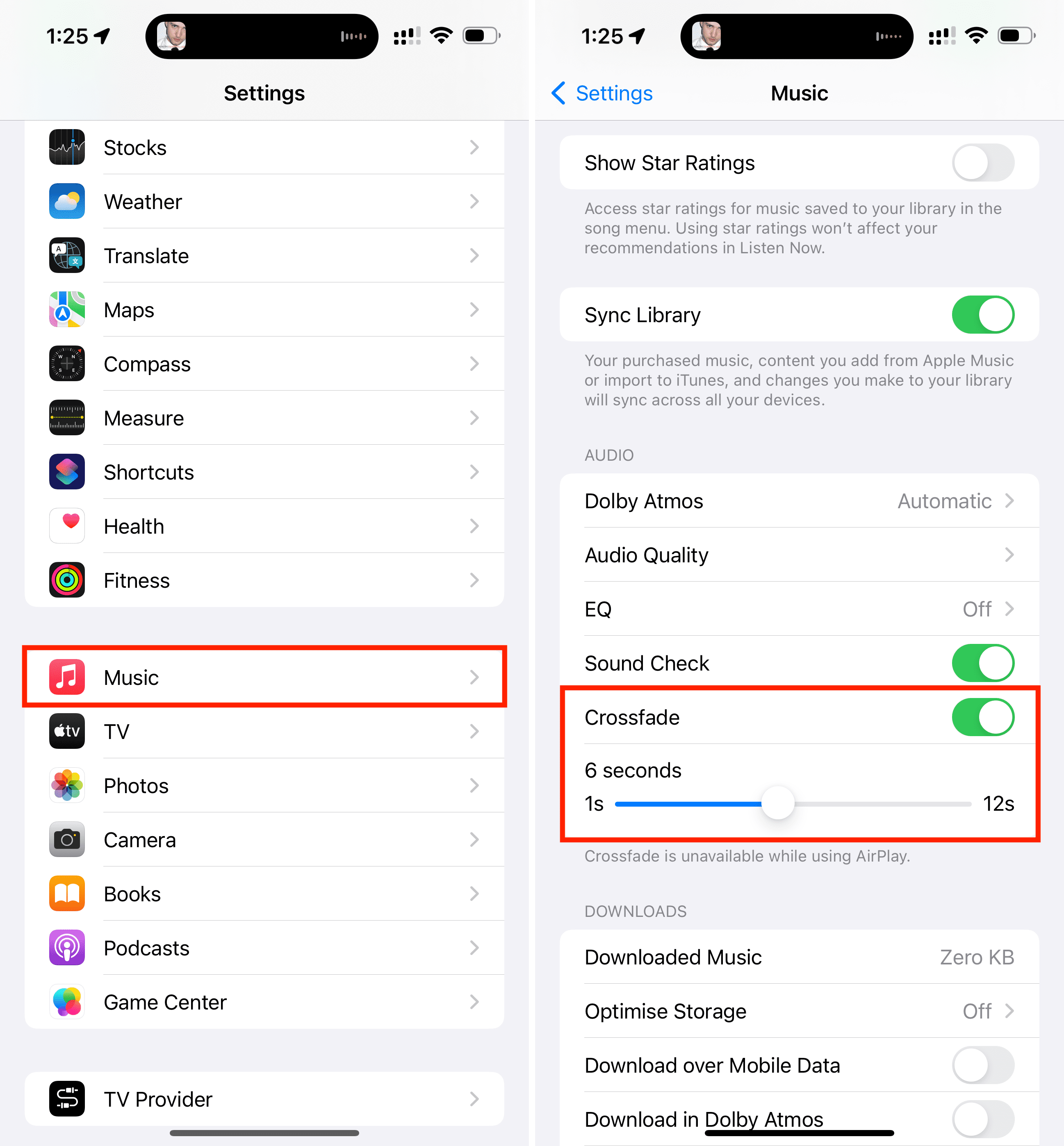
If your iPhone is running an older version of iOS, go to Settings > Apps > Music, turn on Crossfade, and adjust it as needed.
Mac
- Open the Music app on your computer.
- Select Music from the top menu bar and then Settings.
- Go to the Playback section.
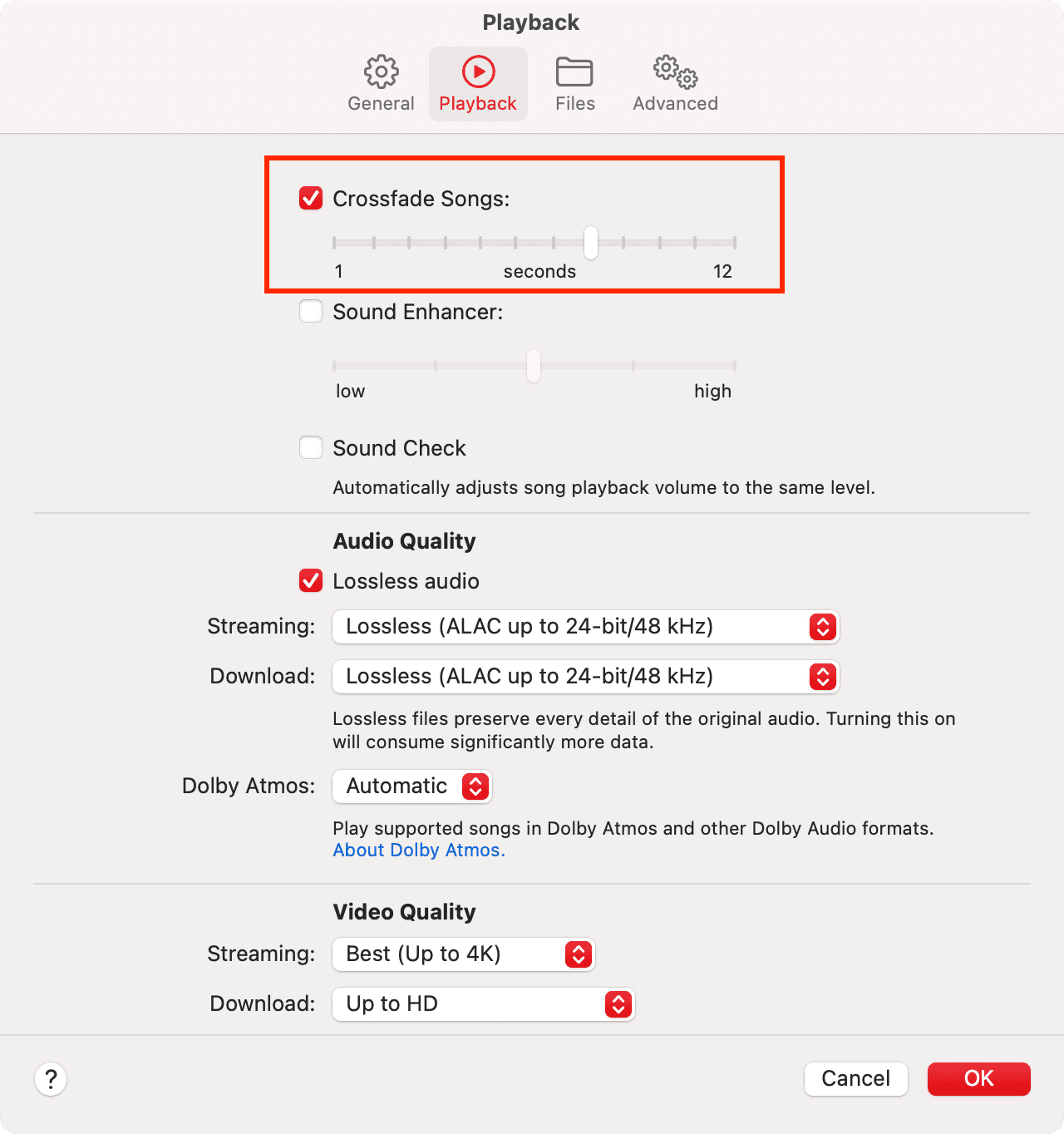
- Check the box for Song Transitions and select Crossfade as the transition style. Then, adjust the gradual fade-out and fade-in time between two songs to somewhere between 1 second and 12 seconds.
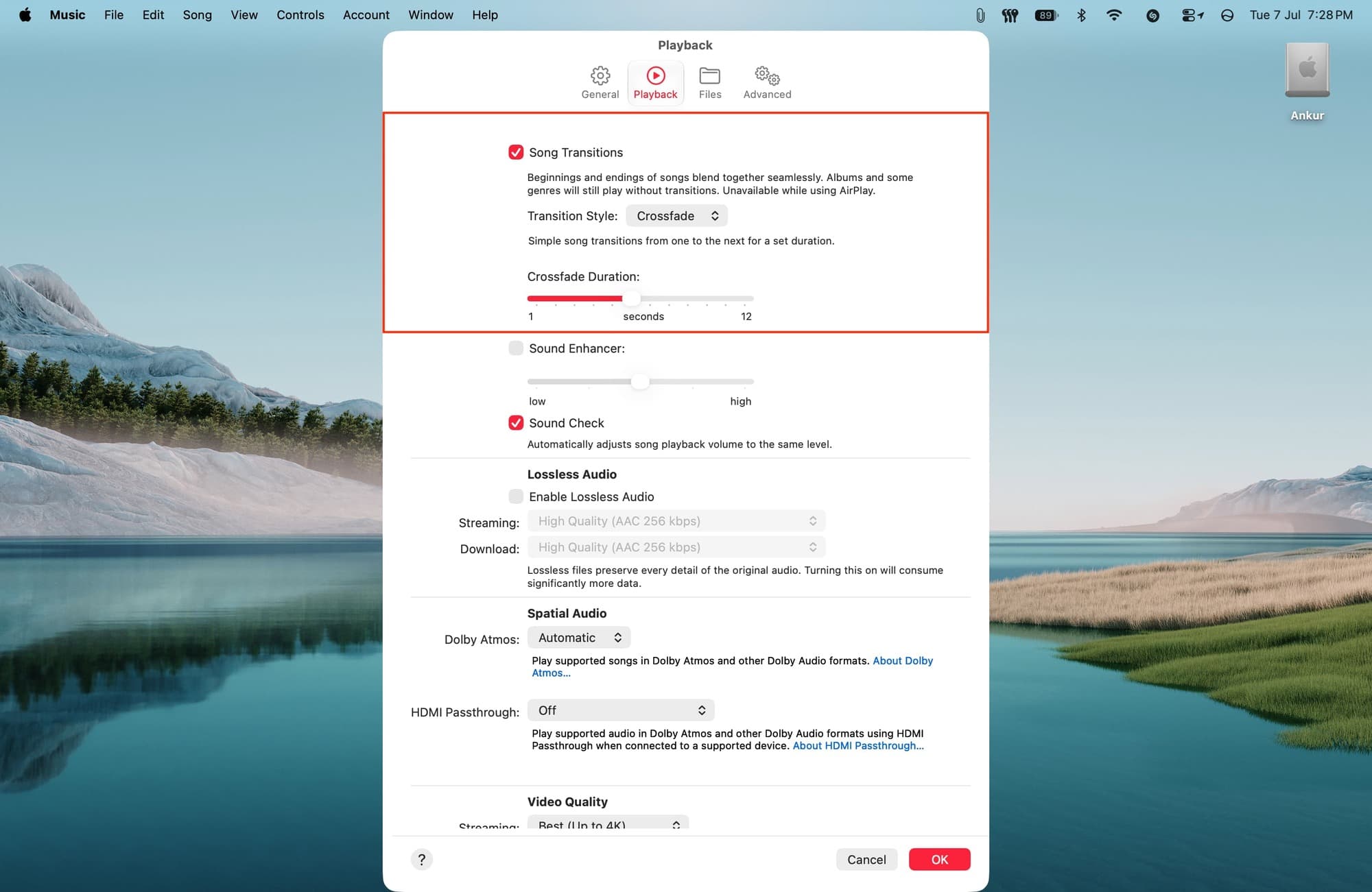
On older versions of macOS, just check the Crossfade Songs box and adjust the crossfade duration.
Android phone
- Open the Apple Music app.
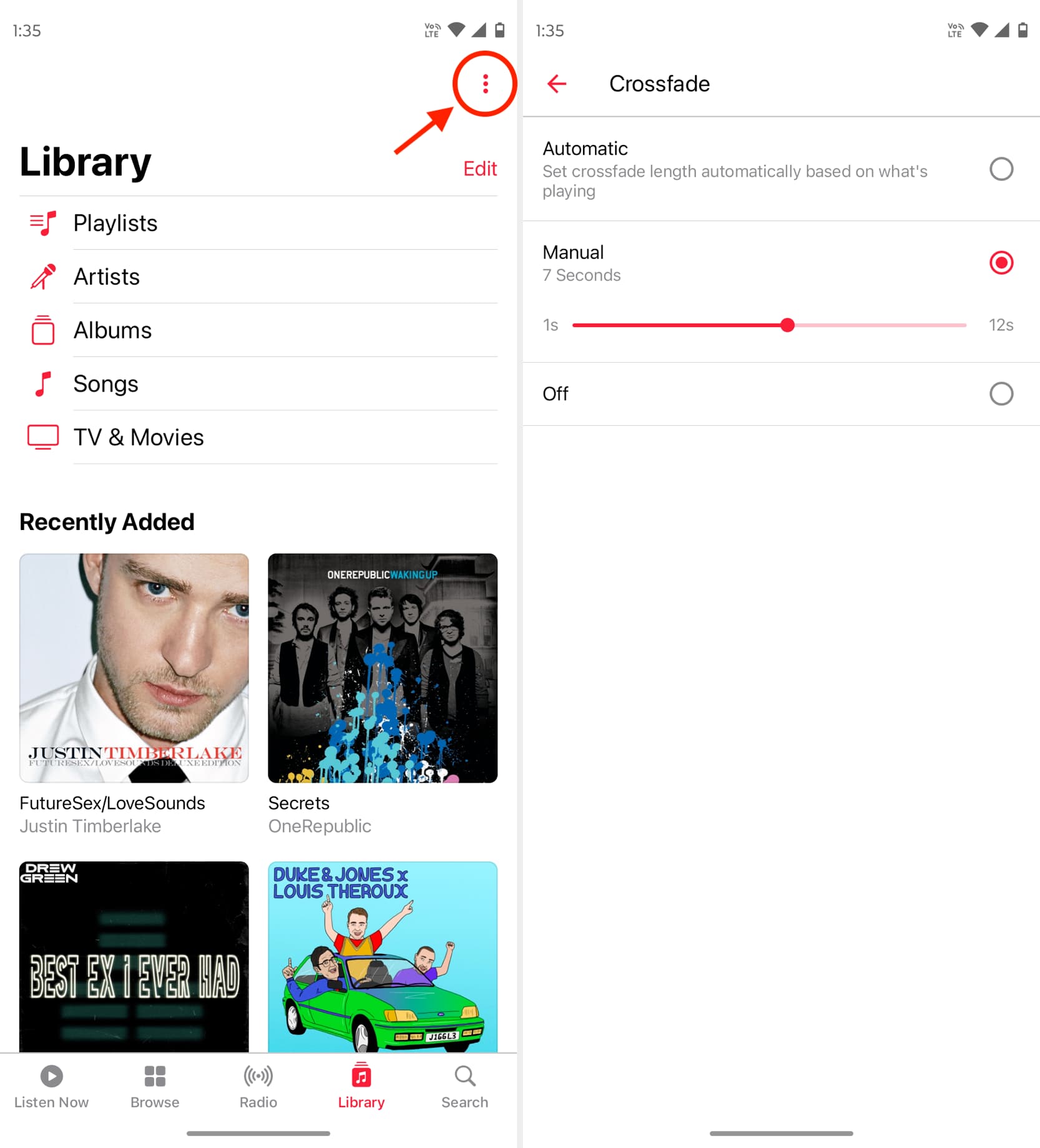
- Tap the three-dot button in the top right and choose Settings.
- Tap Crossfade.
- Now, you can leave it at Automatic, and the Apple Music app will intelligently set the crossfade length according to the song. Or, you can pick Manual and set the length from 1 second to 12 seconds.
Testing and seeing crossfade in action
1) Start by enabling crossfade and setting the duration to a higher number so you can really hear the crossfade in action between songs.
2) Next, go to the Music app and play a playlist of your downloaded songs (to avoid streaming delays because of slow internet).
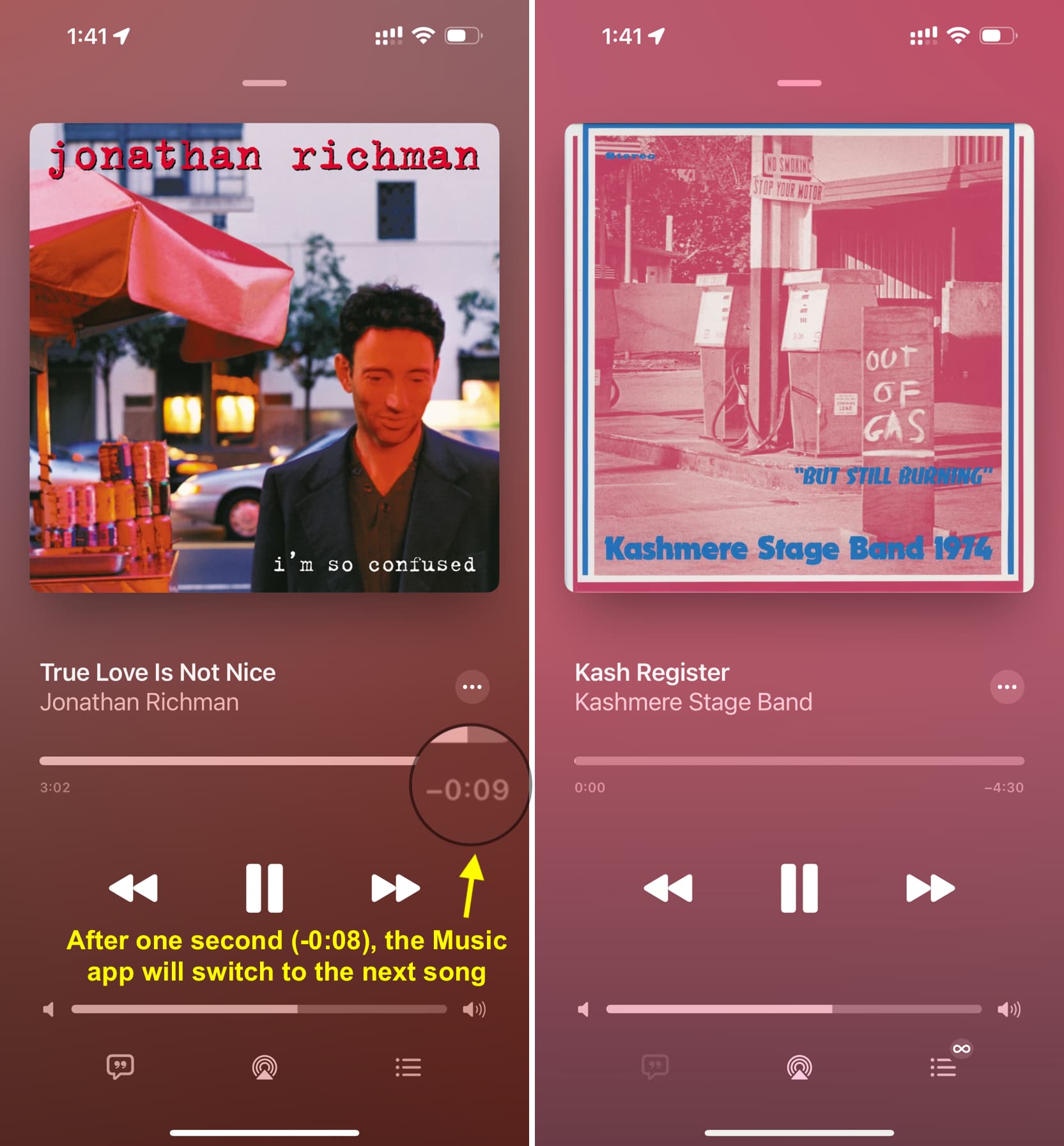
3) Since we want to test this setting, there is no need to wait 3-4 minutes for the song to finish. Just drag the playback progress bar to the last 20 seconds or so (it must be more than the crossfade time, which is 8 seconds in our case) and wait.

4) You’ll notice that when the current song has about eight seconds left, the Music app switches to the next song in the queue. The previous song’s volume gradually fades out while the new song’s playback fades in and slowly goes to standard volume.
You can take the above experience into account and set the crossfade length slider accordingly. I like having it between 4 and 6 seconds.
When crossfade won’t work
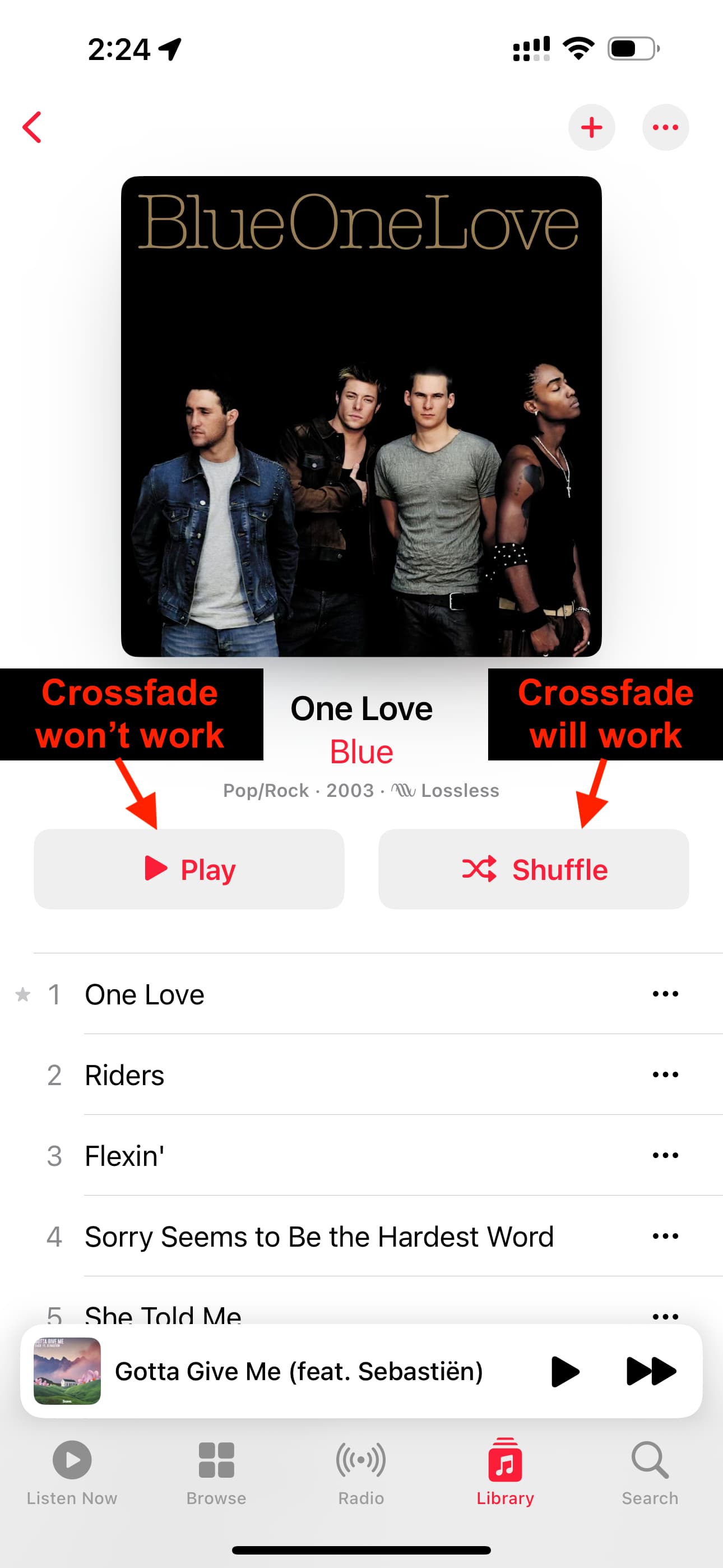
Crossfade won’t work when you play an entire album of songs in order or while using AirPlay. However, crossfade will work if you shuffle-play an album.
Extra info: You can also turn on crossfade in other music apps by going to their in-app settings. For instance, open Spotify, tap your profile icon, followed by Settings and privacy > Playback. Now, set the crossfade length between 0s (off) and 12 seconds.
You’ll also love: