Whether you want to create backups, share multiple copies, or organize your media files, the Apple Photos app makes it easy to duplicate your photos and videos.
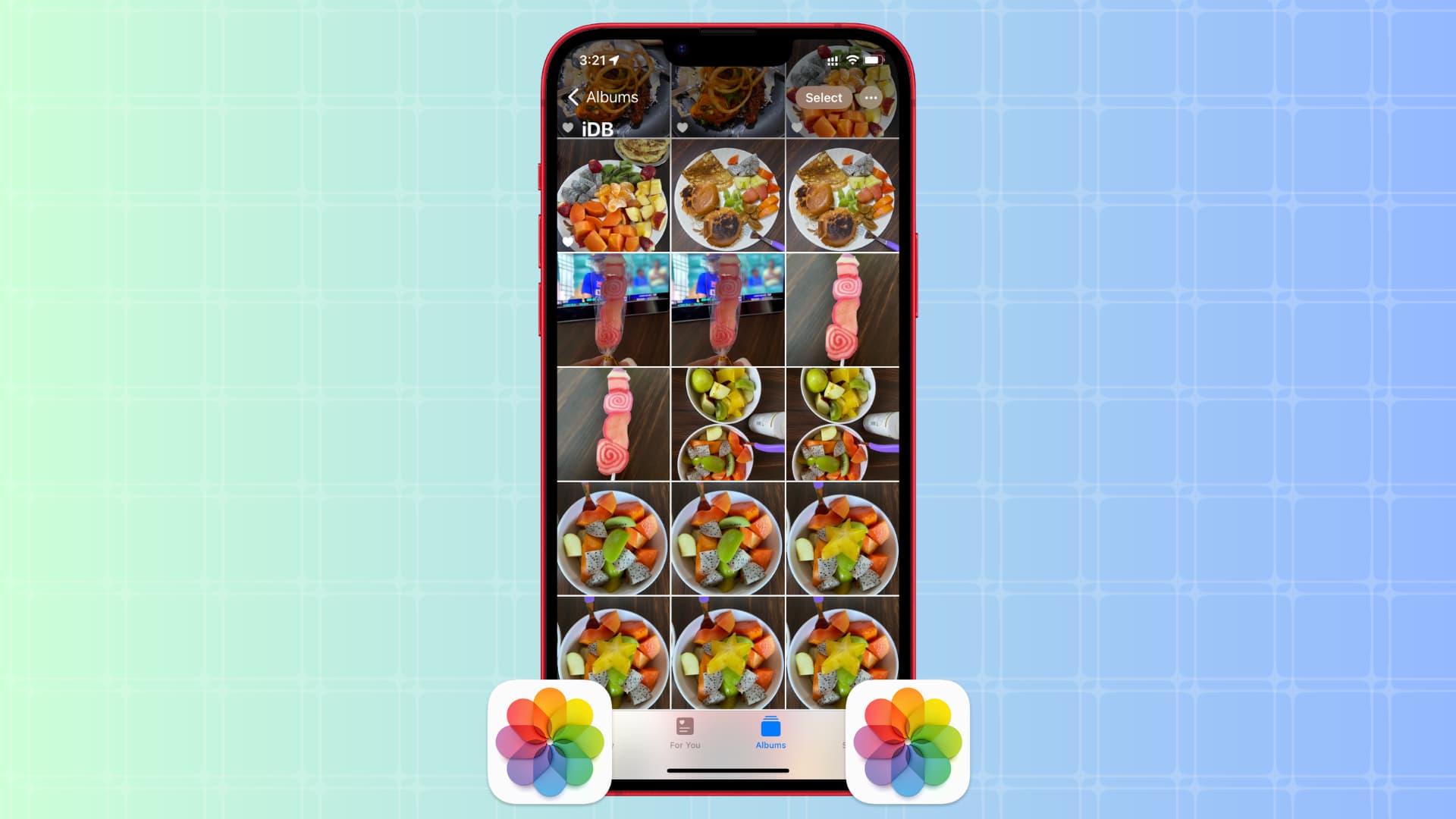
In this tutorial, we will show you how to do that for one or multiple files at once, directly from your iPhone, iPad, or Mac.
iPhone and iPad
Make a copy of one image or video
- Open the iOS Photos app.
- Touch and hold a photo or video and choose Duplicate from the menu.

The app will make a copy of this file in its original quality and save it as the most recent image or video in your photo library.
You can make as many copies of an image or video as you want.
Note: Copying images in the Photos app and pasting them into a photo album doesn’t duplicate them. Rather, it adds those copied images to that photo album.
Duplicate two or more photos and videos
- Go to the Photos app on your iPhone or iPad.
- Tap Select and pick the photos or videos you want to make copies of. You can also tap Select > Select All if you’re in an album.
- After selection, tap the three-dot menu icon and select Duplicate. The iOS Photos app will create copies and save them as recent files.

See all duplicate photos and videos in one place
- Open the Photos app and go to the Collections tab.
- Scroll down to the Utilities heading and tap Duplicates to see your duplicate images. The duplicate images show up here only after your iPhone or iPad has finished indexing any new images (which usually happens overnight when the device is plugged into a charger).

Related: How to fix the Duplicates album not showing up in the Photos app on iPhone
Duplicate media in the Files app
If there are images and videos in the Apple Files app, you can duplicate them by touching & holding an image and selecting Duplicate.

Mac
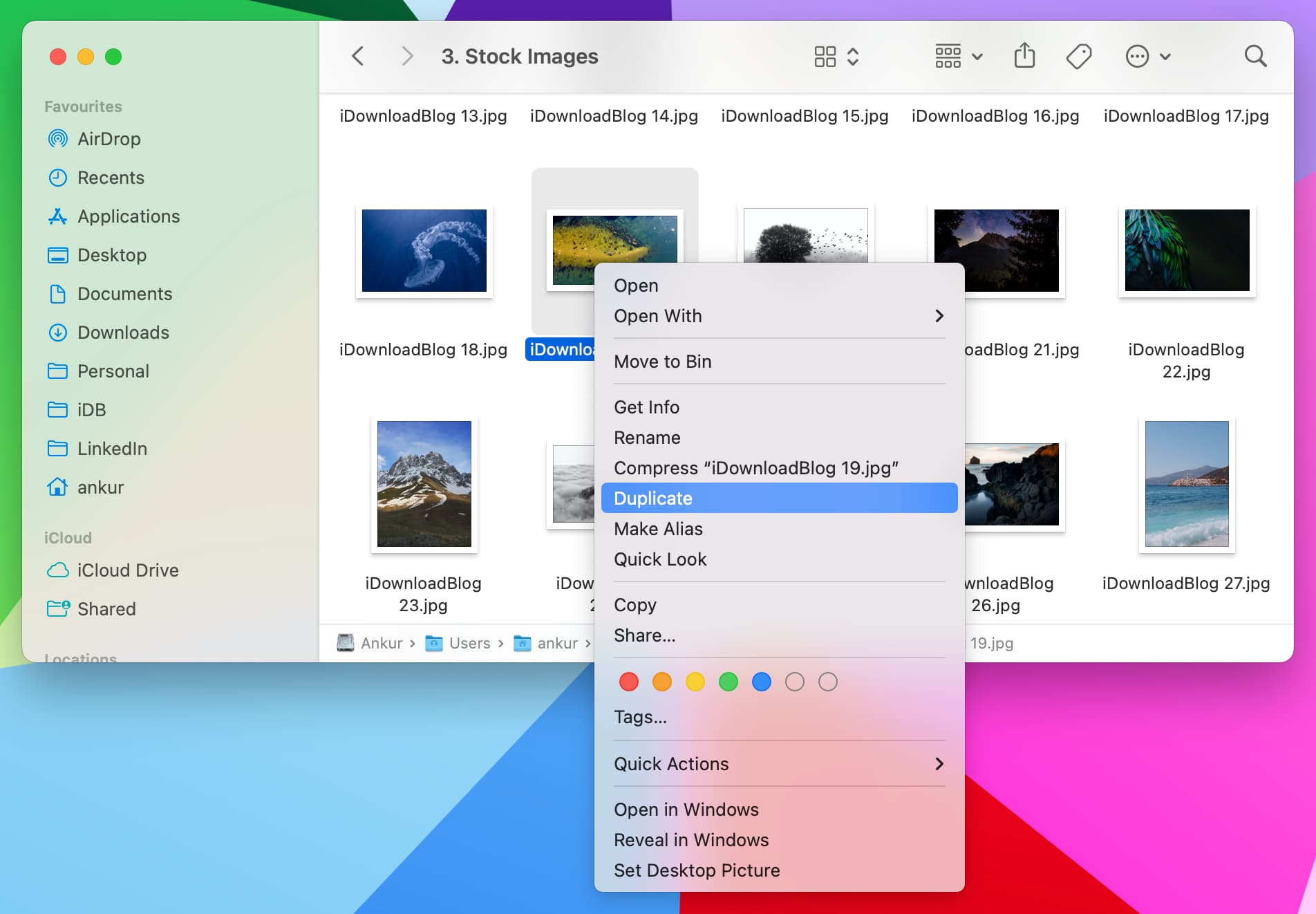
Select a photo or video in a Finder folder or the Photos app and press Command + D to duplicate it. You can also right-click and choose Duplicate.
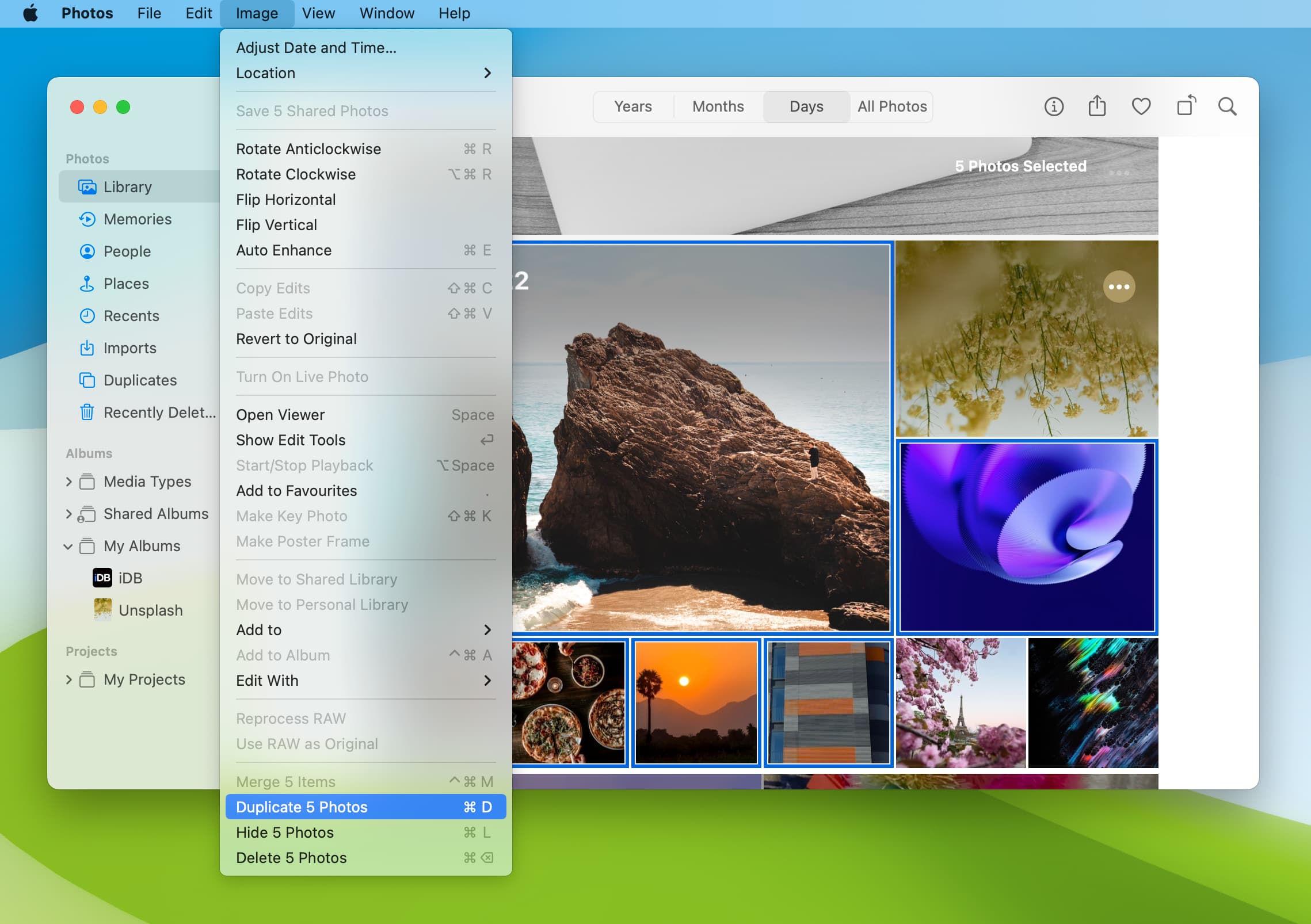
If you are in the Photos app, you can also select the photo and click Image > Duplicate N Photos from the top menu bar.
Why duplicate photos and videos
People are more likely to look for ways to delete duplicate photos from their iPhone to free up storage space. However, there are times you may want to duplicate an image, and here are a few reasons why:
- Although Photos app edits are reversible, you may want to make heavy edits to a duplicate copy and leave the original as it is. This is especially true if you’re marking up an important screenshot.
- You can duplicate an image in Mac’s Finder before editing, as edits made with the default Preview app are not always reversible.
- You can create a duplicate, edit it, and compare it conveniently with the original. Tip: You can also tap the image while editing in iOS Photos to see the original and edited versions.