In this tutorial, we tell you about some of the best free ways to convert a Word document (.doc or .docx) into a PDF file on your Mac, iPhone, and iPad.
Word files can be easily edited, while PDF files require special apps to make edits. So, if you plan to send a document like a resumé, a rent agreement, a bill, or a research paper that you don’t want to be edited, a PDF is an ideal choice.
Secondly, if you use a fancy font in Word files, it may look different when someone opens that file in another Word app on a mobile device or computer. However, PDF is great for preserving style, format, and looks.
In addition to these, certain websites, like those related to tax and such, might only allow you to upload PDF files. If you try to upload a Word file, it will show an error.
So, if you want to change a Word document to PDF because of a specific reason or one mentioned above, go through these safe, free, and swift ways to do that.
Convert a Word file to PDF on Mac
Use one of these three ways to export a Word document as a PDF file on your Apple computer.
1. Use the Pages app
Pages is a free app from Apple, and you can download it from the macOS App Store. Once you have the app, follow these steps to change a Word file into a PDF.
1) Control-click or right-click on the Word file in the Finder folder and select Open With > Pages.
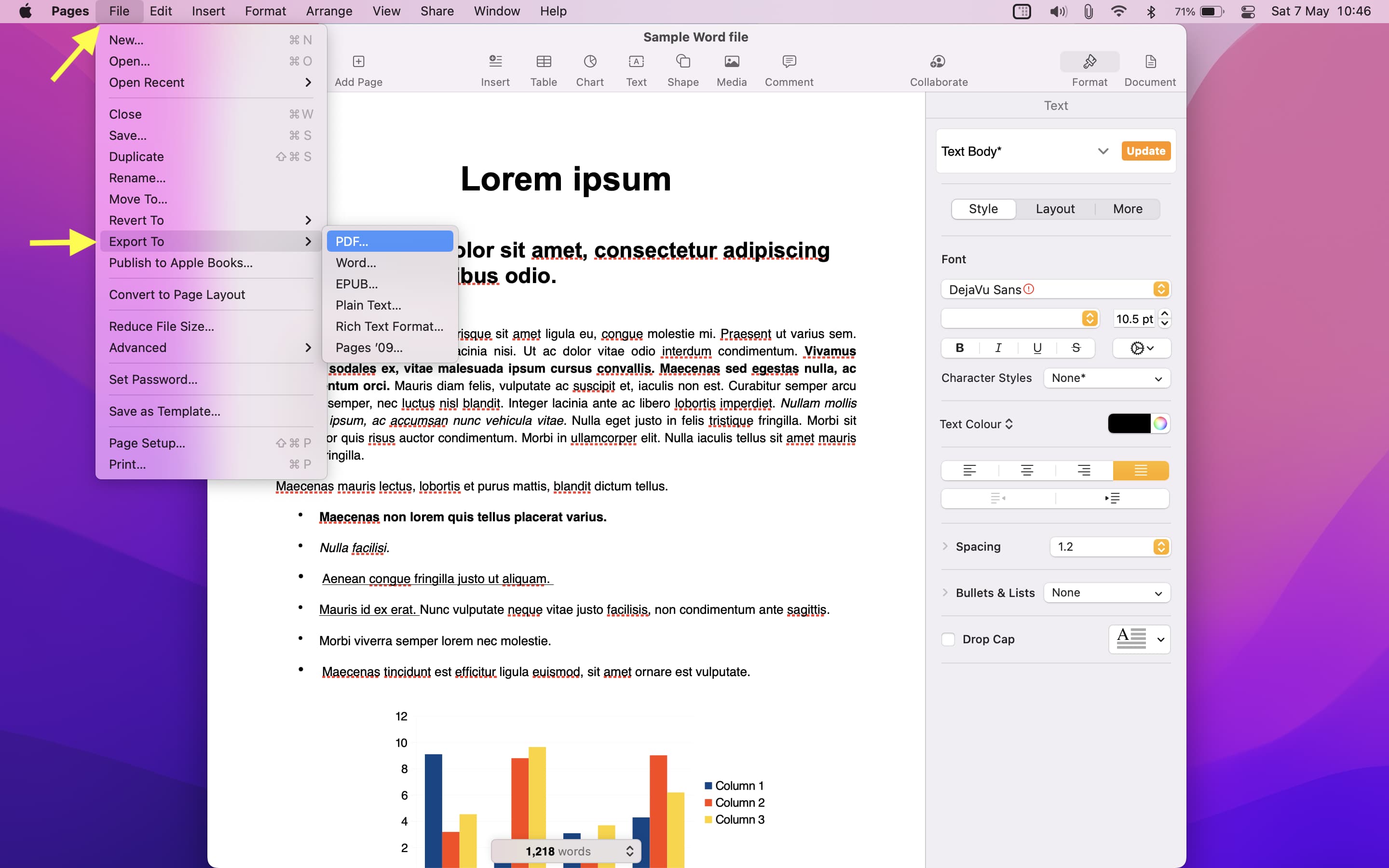
2) Click File from the top menu bar and select Export To > PDF.
3) Optionally, set the image quality and explore other options like adding password protection to the PDF. When done, click Save. Now, choose a location, and hit Export.
2. Use Google Docs
If you don’t have the Pages app, downloading it may take a while in case your internet speed isn’t fast. In these situations, you can use Google Docs in your Mac’s web browser (Chrome, Safari, Firefox, etc.) to convert a Word file to PDF.
1) Visit Google Docs at docs.google.com and make sure you’re signed in to your Google account.
2) Click Blank document to start a new one.
3) Press Command + O or click File > Open.
4) Choose Upload and drag the Word file here or select from the Finder folder.
5) Once the Word file is uploaded, it should open in Google Docs. If not, click Open.
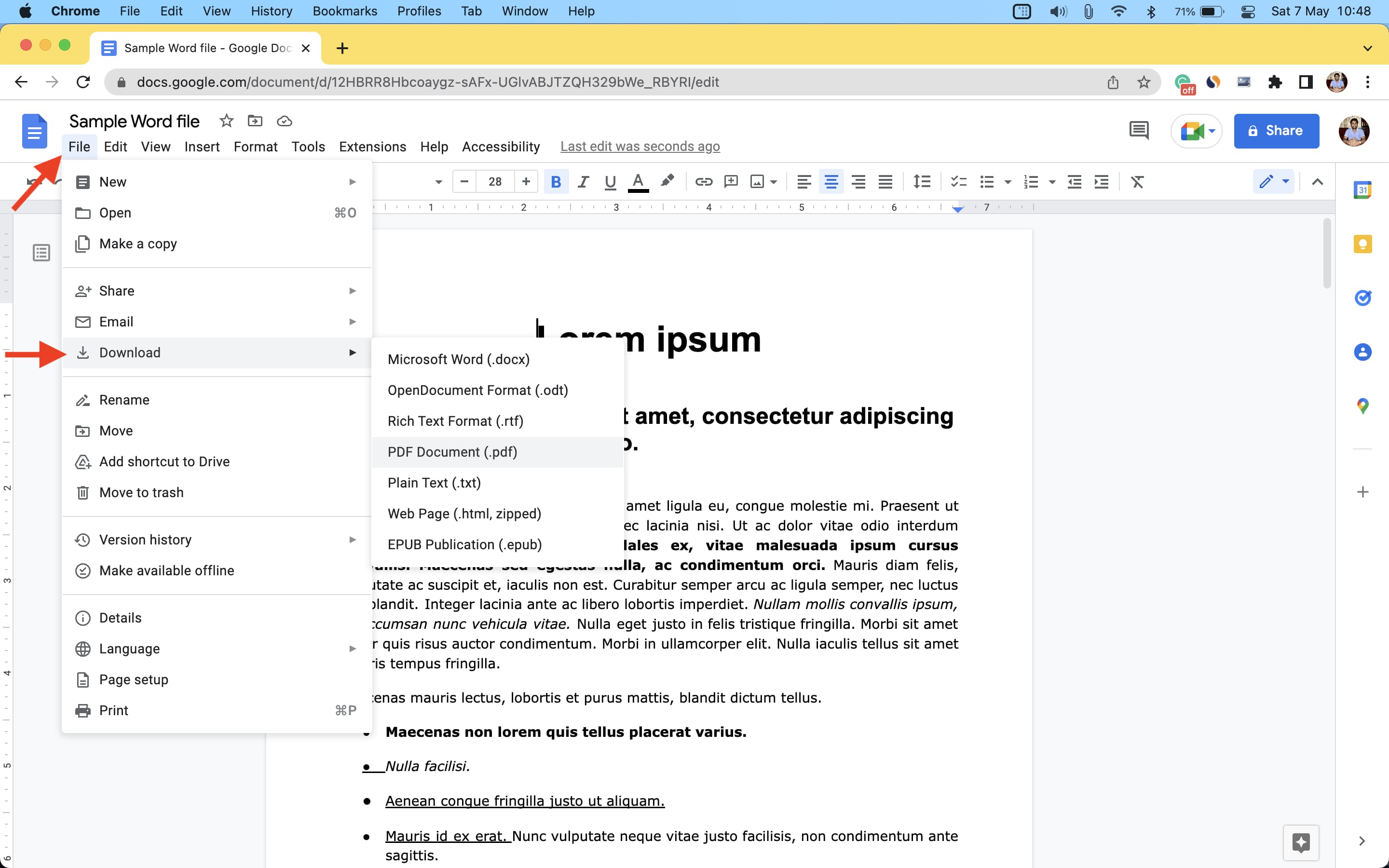
6) Select File > Download > PDF Document. The Word file will convert and save as a PDF to your Mac’s Downloads folder.
3. Use iLovePDF.com
If you have some non-sensitive Word files, you can use this method to convert them instantly to PDF. The best part is that, even in the free version, you can convert up to 3 Word files to PDF at once. And if you subscribe to their premium plan, this number can go up to 10.
1) Visit iLovePDF.com in a web browser and make sure you are on its Convert WORD to PDF page.
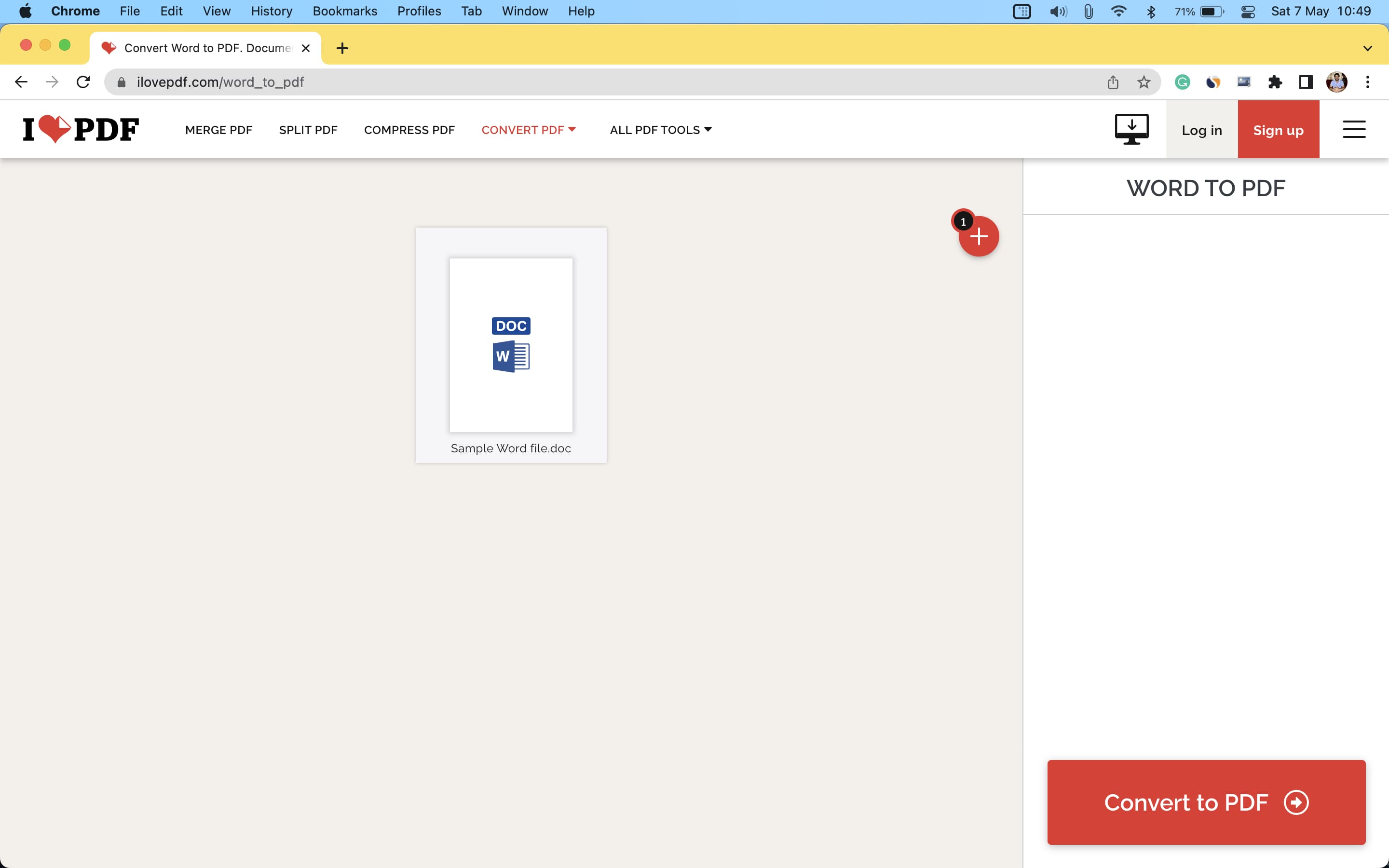
2) Drag the Word files here or click Select WORD files and add from your Finder.
3) Click Convert to PDF.
4) Once done, click Download PDF.
Convert Word file to PDF on iPhone and iPad
Making a Word file into a PDF is effortless on iPhone and iPad. The best part is you don’t even need an additional app!
1. Use the Files app
The Files app is preinstalled on all recent versions of iOS and iPadOS. In case you deleted it, download it from the App Store.
Next, make sure the Word file is saved inside the Files app. If the Word file is in some other app, open it, tap the share icon, and choose Save to Files. In case the Word file is in a third-party cloud storage service like Google Drive, Dropbox, etc., you can simply enable these services in the Files app.
After that, follow these steps to use the iPhone Files app to convert a Word file to PDF:
1) Open the Files app, tap Browse, and go to the folder where the Word file is saved.
2) Tap the Word file to open it in the Files app.
3) Tap the share icon and choose Print on the Share Sheet.
4) Put two fingers on the page thumbnail and pinch out.
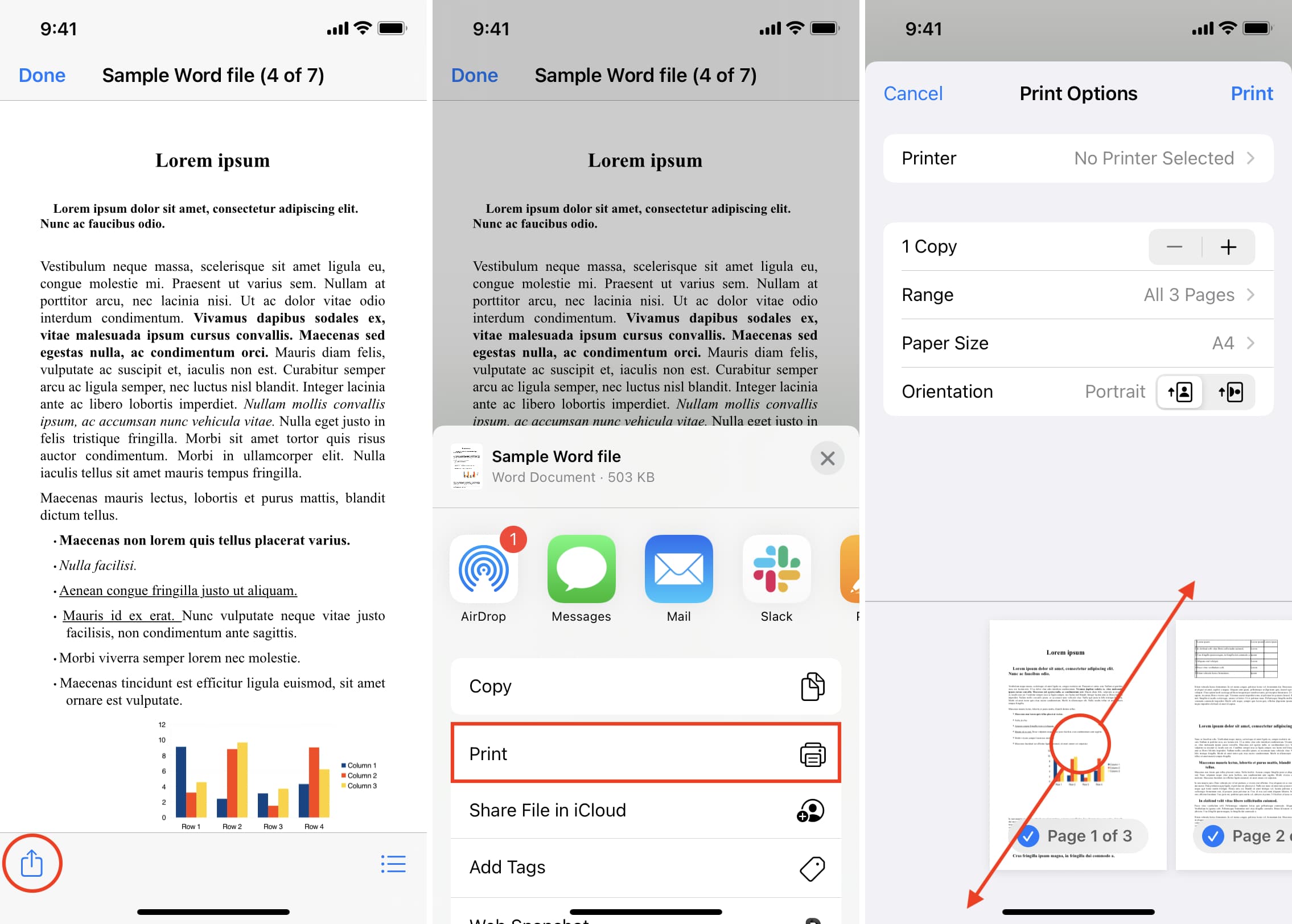
5) Tap the share icon again, select Save to Files, choose a location, and tap Save.
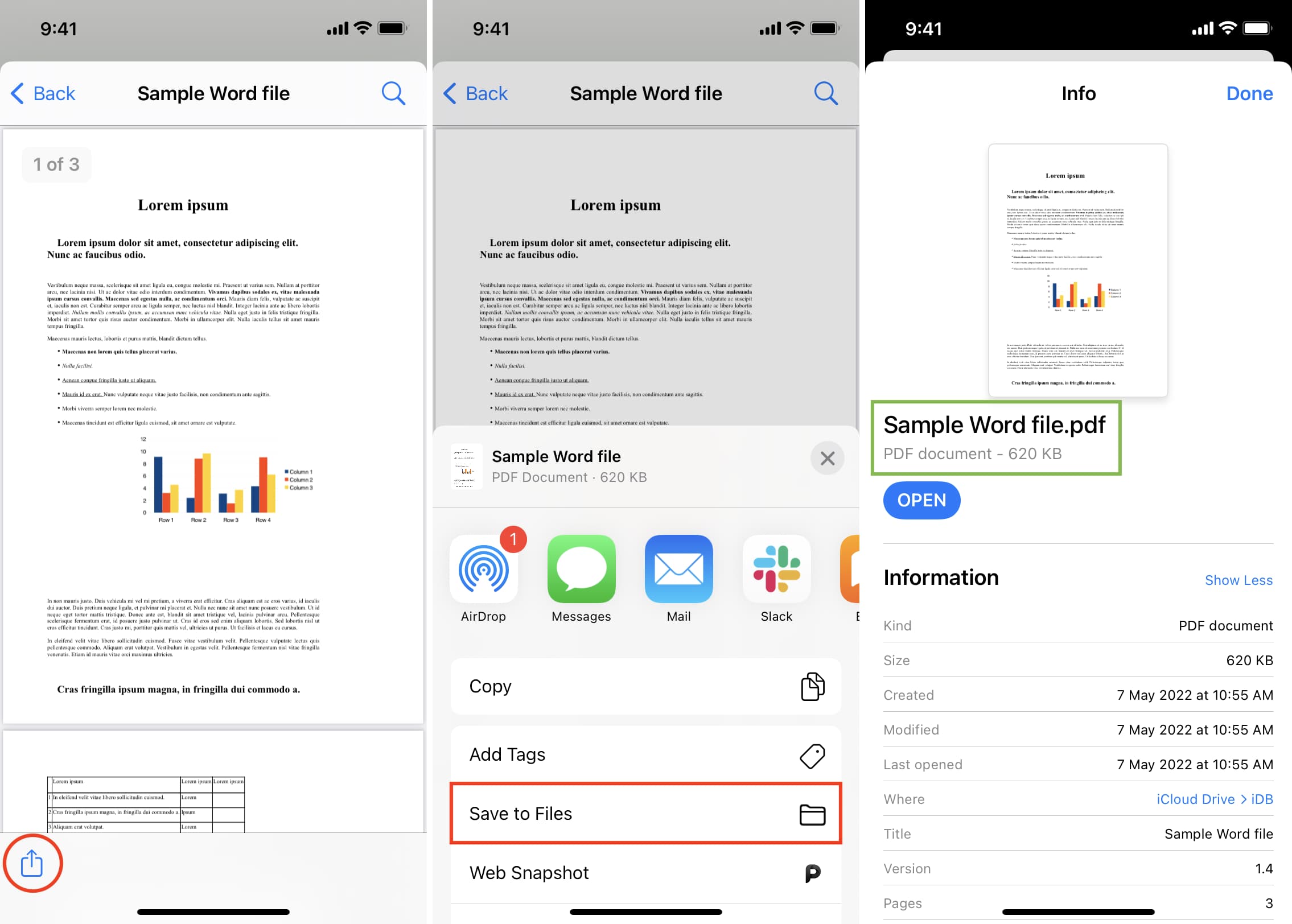
You have successfully converted a Word file into a PDF, all from the iOS Files app. To be sure, touch and hold the newly created document and tap Get Info. You’ll see that it’s a PDF.
2. Use the Pages mobile app
Apple’s Pages app is also available as a free download on the iOS and iPadOS App Store. Get the app and follow these steps to convert a Word document into a PDF file.
1) Open Pages and tap Browse. Now, go to the location where the Word file is saved and tap to open it.
2) Tap the three dots inside a circle icon from the top, and select Export > PDF from the list of formats.

3) Tap Share, and it should show the Share Sheet.
4) From the Share Sheet, tap Save to Files > choose a location and hit Save.

In addition to the above options, you can also use dedicated iOS, iPadOS, or macOS apps that can do this job for you. Simply open the App Store and search for Word to PDF converter. Go through the search results and download an app with good ratings. However, keep in mind that, unlike the above methods, most third-party apps will either require payment or show several ads before you can complete the Word to PDF conversion.
On a related note: