Learn how to use Apple’s built-in translation tool to translate web pages in Safari on iPhone, iPad, and Mac if you come across a website that’s in a language you can’t read or understand.
This method requires no third-party app download or Siri shortcut installation.
Supported devices and languages
You can use Apple’s native web page translation feature inside Safari on an iPhone, iPad, or Mac to translate into the following languages:
- Arabic
- Chinese (Simplified)
- Chinese (Traditional)
- Dutch
- English
- French
- German
- Indonesian
- Italian
- Japanese
- Korean
- Polish
- Portuguese (Brazil)
- Russian
- Spanish
- Thai
- Turkish
- Vietnamese
Translate a webpage to English in Safari
The steps are easy for both iOS and macOS. But you can translate a web page or an on-page image only when you see “Translation Available” in the URL for a brief period after loading the page.
On iPhone or iPad
- Open Safari and visit the website that’s in another language.
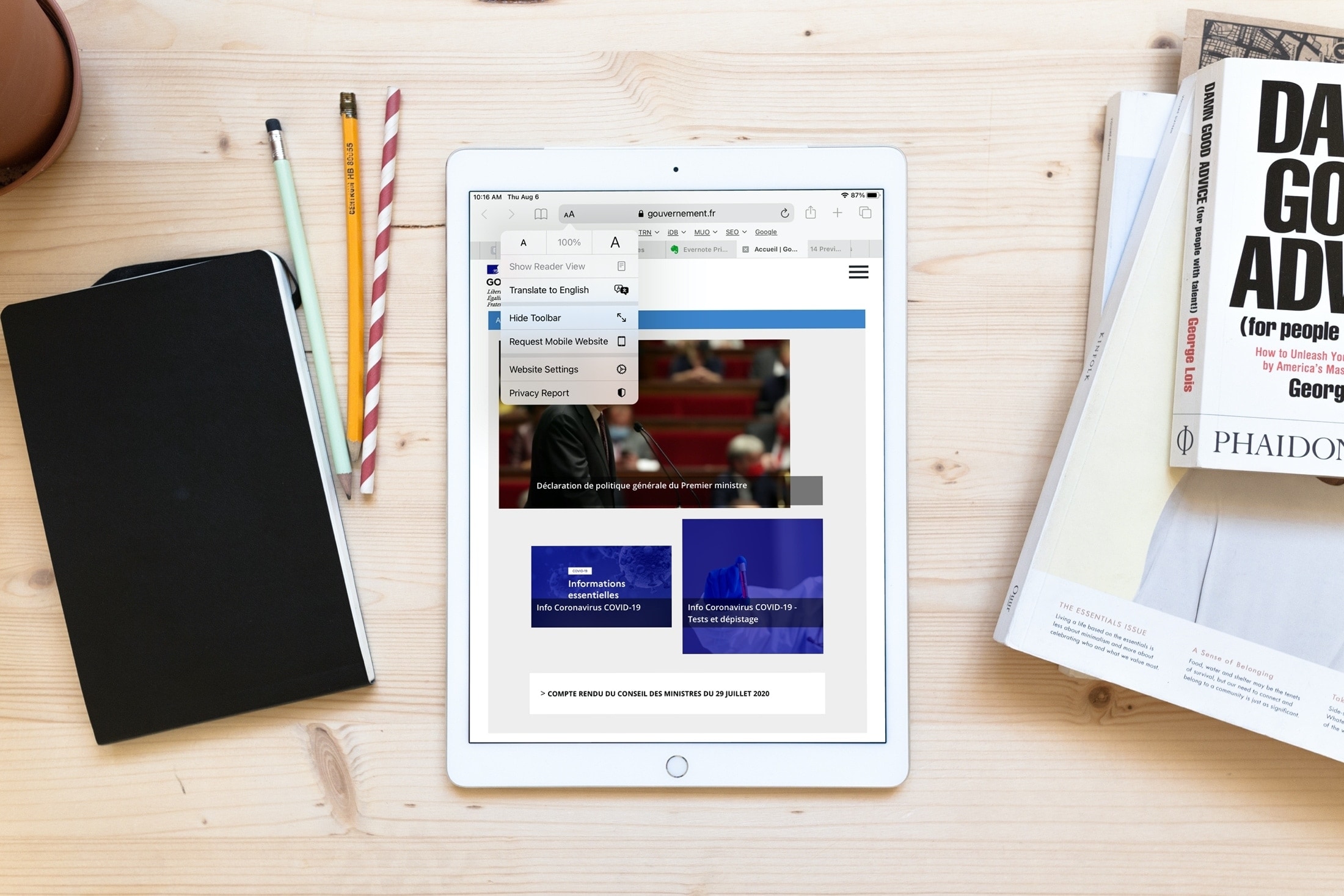
- Tap the menu icon in the address bar.
- Tap Translate to English or another language you see there.
- The first time you do this, Apple will ask your permission to process your request; tap Enable Translation.

On Mac
- View the website in Safari.
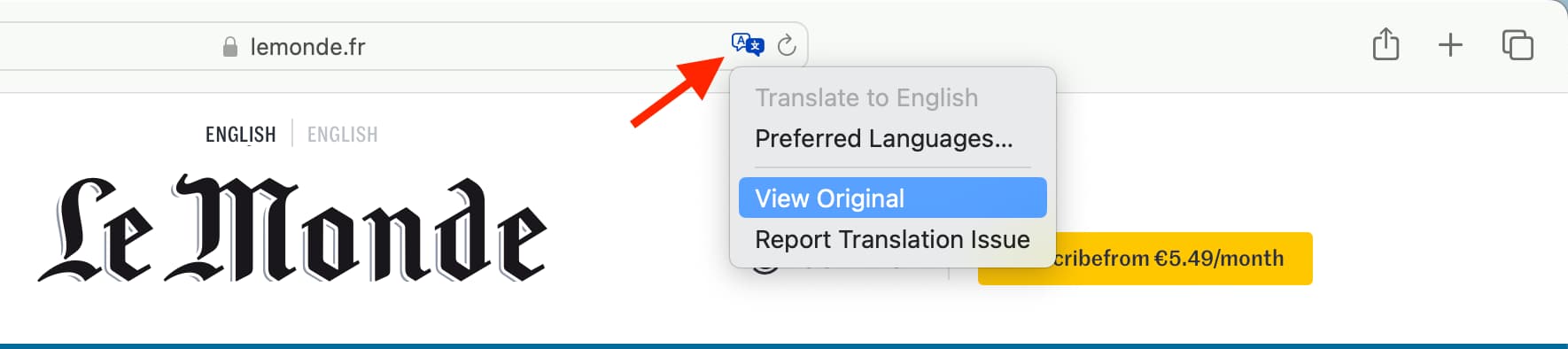
- Click the translate icon, and choose Translate to English or a language visible here.
- Click Enable Translation if this is the first time you’re using this service.

Using Apple’s web page translation
- Automatic translation: After translating one web page on a website, if you tap another link on that same site (domain) in the same original language, Safari should automatically translate it to your chosen language so you don’t have to repeat the translation steps every time you read that website.
- View Original: After you follow the above steps, you can tap the translate icon on Mac and choose View Original to get back to the original language of that web page.
- Inform Apple of issues: If you think the translation provided by Apple in Safari is incorrect, inappropriate, or broken, use the Report Translation Issue button, pick an appropriate reason, and submit your feedback.
Add more language to Safari translation
Apple says that “the availability of translations and the number of languages that can be translated may vary by country or region.” With that in mind, you can have more options for Safari translation by adding that language to your system’s language settings.
On iPhone or iPad
1) Go to Settings > General > Language & Region > Add Language and select a language.
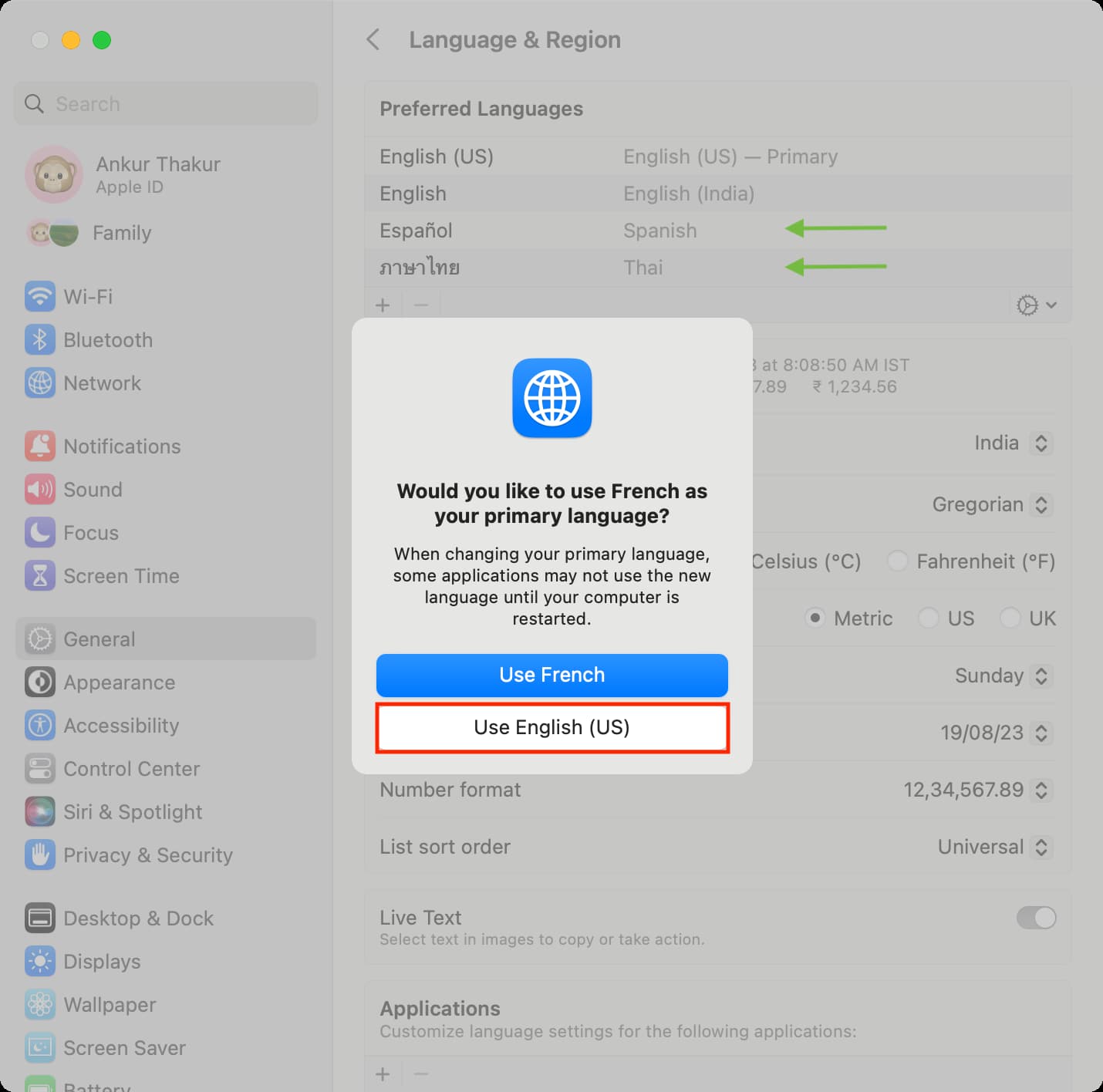
2) Now, you can choose to set this new language as your primary system language for all menus, settings, and everything. However, if you only need to use it for translation, tap Use English (or your current system language). This will add the new language to your iPhone but still keep English as the primary system language.

3) Go to Safari, follow the above steps, and you’ll see Translate Website instead of Translate to English. Tap Translate Website and pick a language.

On Mac
1) Click the translate icon in the Safari address bar and choose Preferred Languages. You can also reach this setting screen by going to System Settings > General > Language & Region.
2) Now, click the plus button (+) under the Preferred Languages heading, choose your language, and click Add. Like iPhone, you can use the new language as your system language or continue to use English. After this, if you’re prompted to add this new language to your Mac’s keyboard, you can hit Cancel.
3) Next, visit Safari, and you should see the option to Translate to the newly added language.

Restart your device if you don’t see the language for translation in Safari even after adding it by following the above steps.
More on translations: