Don’t limit your Home Screen to just app icons! Learn how to add and remove widgets on your iPhone or iPad Home Screen so you can see things at a glance without having to open the app.
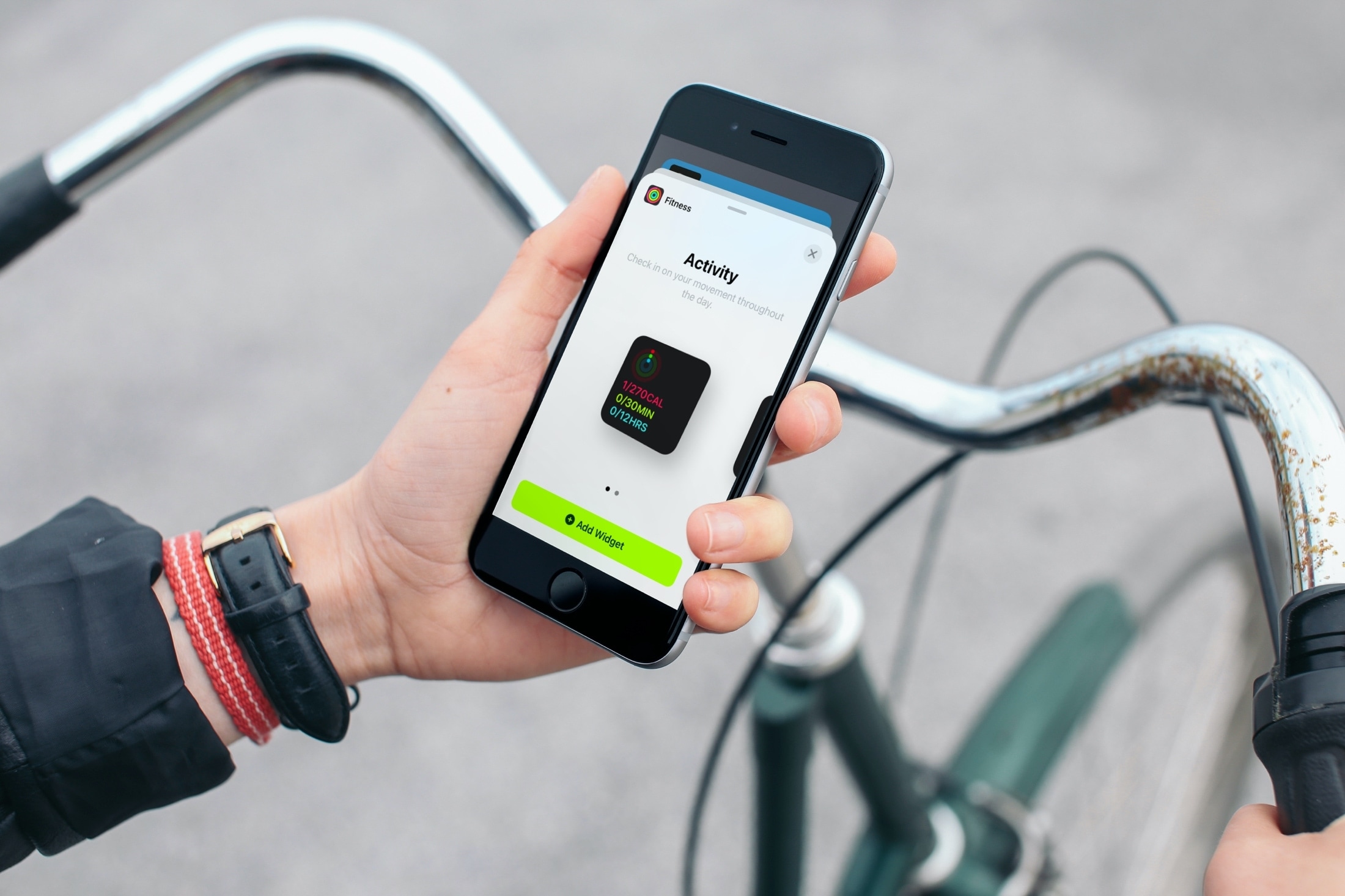
Note that not all apps offer widgets. So, if you’re hoping your favorite app provides a widget but don’t see it in the Widget Gallery, make sure you have the latest version of the app from the App Store and check the App Store details to see if it offers widgets. If it doesn’t, you can contact the app developer requesting a widget.
The steps and screenshots here are updated for iOS 26!
Add a widget to the Home Screen
1) Touch and hold a blank spot on your iOS 26 or iPadOS 26 Home Screen, then tap Edit > Add Widget from the upper left corner of the screen.

2) Scroll through the widgets gallery. You’ll see some suggestions at the top, and scrolling down further lists the installed apps that supports widgets. Tap one, pick a widget based on size or type, and hit Add Widget.

3) That widget will then appear on your iPhone or iPad Home Screen. It will be jiggling, so you can then drag it where you want it. This can be on any of your screens and in almost any location. As you move the widget, you’ll see your app icons, folders, and any other widgets you have move out of the way. You can also touch the pull tab in the lower right corner of some widgets to change their size. Finally, tap Done to finish.

Edit a Home Screen widget
Some widgets allow you to edit them and pick additional options. For example, you can edit the Files app widget and pick a folder to display stuff only from that folder on the widget. Here’s how to edit or customize a widget on iPhone or iPad Home Screen.
1) Tap & hold an existing widget and hit Edit Widget. If you don’t see the edit option, that widget doesn’t support editing.
2) Tap the right side of the option to customize it.
3) Finally, tap outside the widget to exit editing and return to the Home Screen.

Remove a widget
If you decide later that you no longer want a widget you’ve added to your iPhone or iPad Home Screen, removing it is simple, and you have two ways to delete it:
- Touch and hold the Home Screen widget, select Remove Widget, and confirm you want to remove it.
- Touch and hold anywhere on the Home Screen until everything jiggles. Then tap the minus sign in the top left corner and confirm you want to remove the widget.

More on widgets: