Learn how to easily set up call forwarding on your iPhone, and go through the troubleshooting tips in case you’re facing issues turning it on.

Call forwarding is a really simple feature that can come in super handy. Maybe you want your iPhone calls to ring on your home phone, office phone, or any specific line.
It only takes a minute or two to make this happen, but keep in mind that not all cellular carriers support this.
Set up call forwarding on iPhone
1) Open iOS Settings, tap Apps from the bottom, and select Phone.

2) Tap Call Forwarding. If you use two or more SIM cards, select the SIM card you want to set up call forwarding on.
3) Give your iPhone a few seconds to fetch your call forwarding status from the carrier. Next, move the slider to enable Call Forwarding and then tap Forward To.

4) Type in the phone number where you want to forward your incoming calls. Then, tap the back button in the top-left corner. The number you entered will be displayed on the Call Forwarding screen for you to double-check.

From now on, all calls coming to your iPhone will ring on the forwarding number. And you’ll see no indication of a call on your iPhone at all.
Turn off call forwarding
Return to iPhone Settings > Apps > Phone > Call Forwarding, then turn off the switch to deactivate call forwarding. You can also tap Forward To and edit the existing phone number to forward calls to another number.

Is Call Forwarding free?
Imagine you set up call forwarding on your first number (123-456-7890) to go to your second number (198-765-4321). Now, call forwarding will work as per the cellular plan on your first number. So, if its outgoing calls are chargeable, call forwarding will cost you. But if it’s free (as is the case with most carriers), call forwarding should be free as well.
Fix call forwarding not working on the iPhone
Here are some points to consider if you cannot set up call forwarding or get it to work:
- Check with your cellular carrier to make sure they support call forwarding.
- Make sure you have an active outgoing plan for the number you are trying to activate call forwarding on.
- Ensure the number where you are forwarding the calls to has an active plan that allows incoming calls.
- Turn on Airplane mode on your iPhone, turn it off, and retry.
- Restart your iPhone and retry the above steps.
- Try forwarding to another number.
- Check the country or local area code if that’s applicable.
- Retry after a few hours.
Be wary of call forwarding scams
Many carriers also support activating call forwarding using a special code. For instance, you can open the Phone app > Keypad and enter *72 followed by the phone number where the calls should be forwarded.
Secondly, there are services that allow you to verify your identity via text-based OTP as well as phone calls.
Now, enough scams have come to light where a stranger in a public place may ask to borrow your phone to call their family as their phone’s battery has died. When you hand over your phone to them, they may use the special code or the above-mentioned steps to forward your calls to their number.
After that, they can use your number to reset your email or bank account password, authenticate financial transactions, or impersonate you, as calls on your number are now going to theirs.
So, when you want to help someone in need, ask them to spell the phone number and enter it manually.
Secondly, when call forwarding is active, you’ll see its icon in your iPhone’s Control Center or top status bar. Turn it off immediately if you don’t recall activating it.
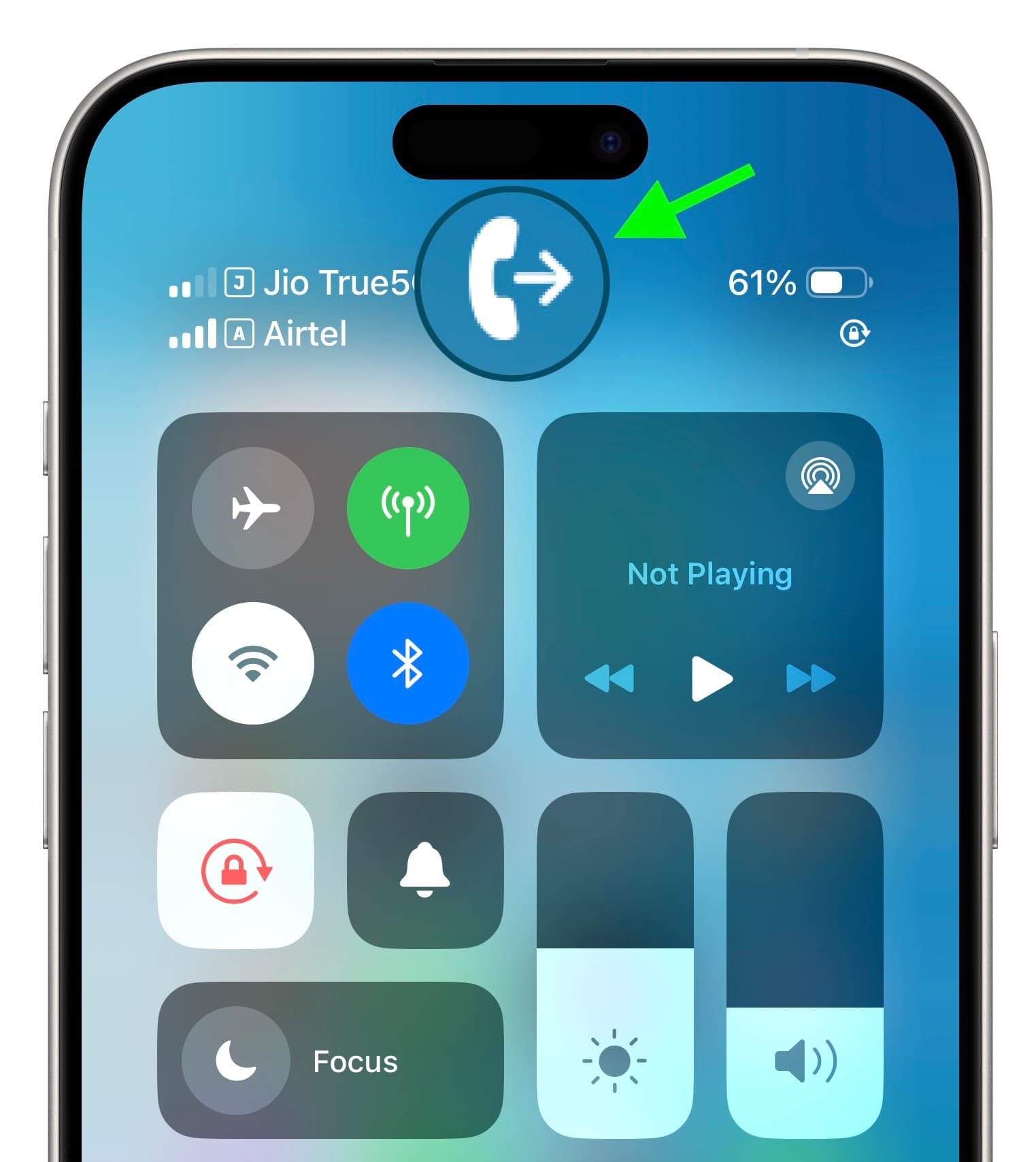
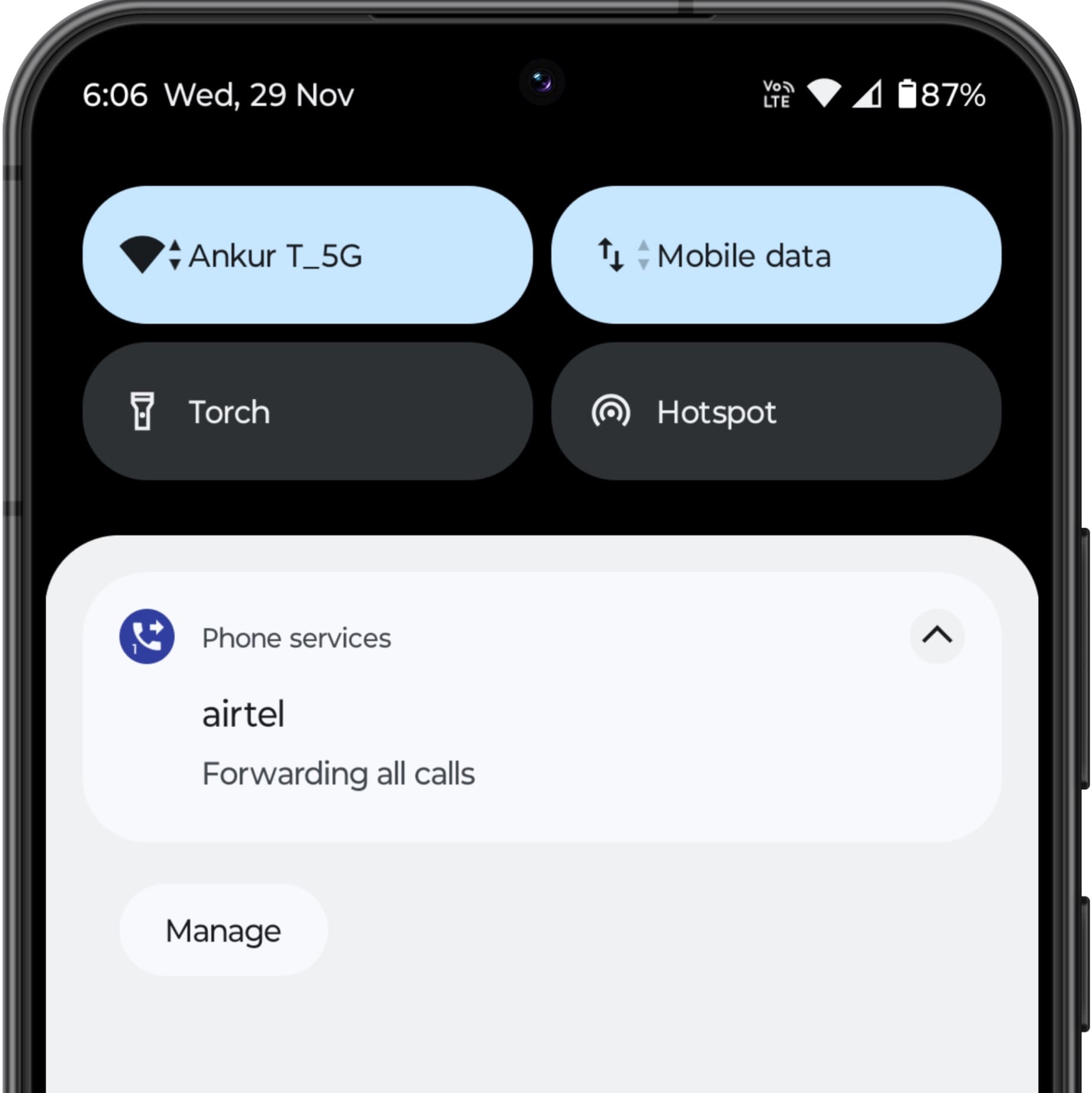
Sadly, unlike Android phones, where the call forwarding banner stays permanently on the Lock Screen and Notification Center (screenshot below), on iPhone, this icon may disappear if you toggle on Airplane mode a few times or restart your device.
On a related note: