Find out how to remove the Finish Setting Up Your iPhone or iPad alert that’s added to the top of the Settings app if you skip a step during device setup.
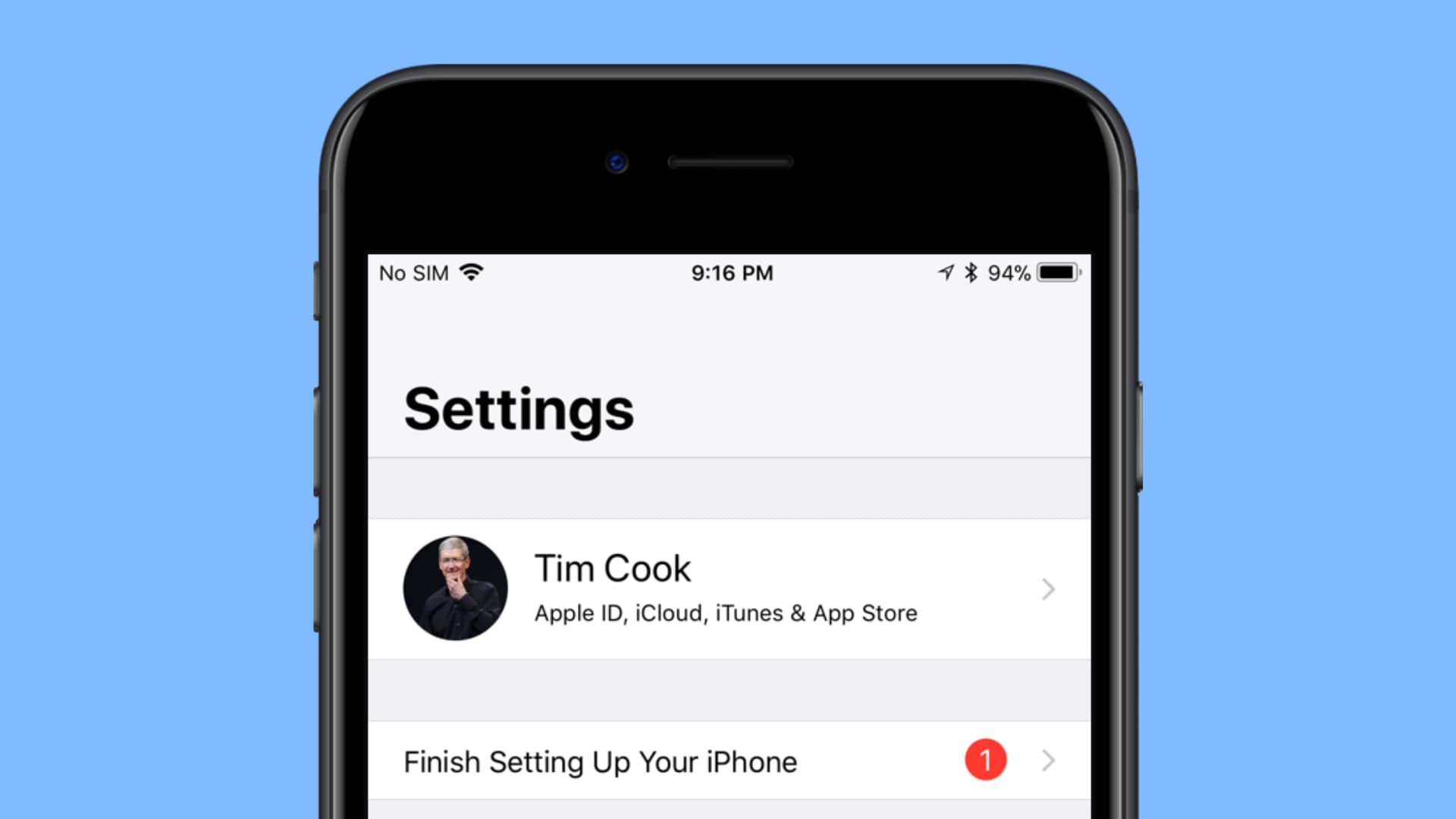
Why are you seeing this
As part of an improved onboarding process, users are reminded to enroll in Apple Pay and finish setting up features like hands-free Siri, iMessage, and so forth. But not everyone needs to activate these features.
Unfortunately, skipping a step during the iOS setup adds a persistent suggestion to the top of the Settings app, reminding you to finish setting up your device.
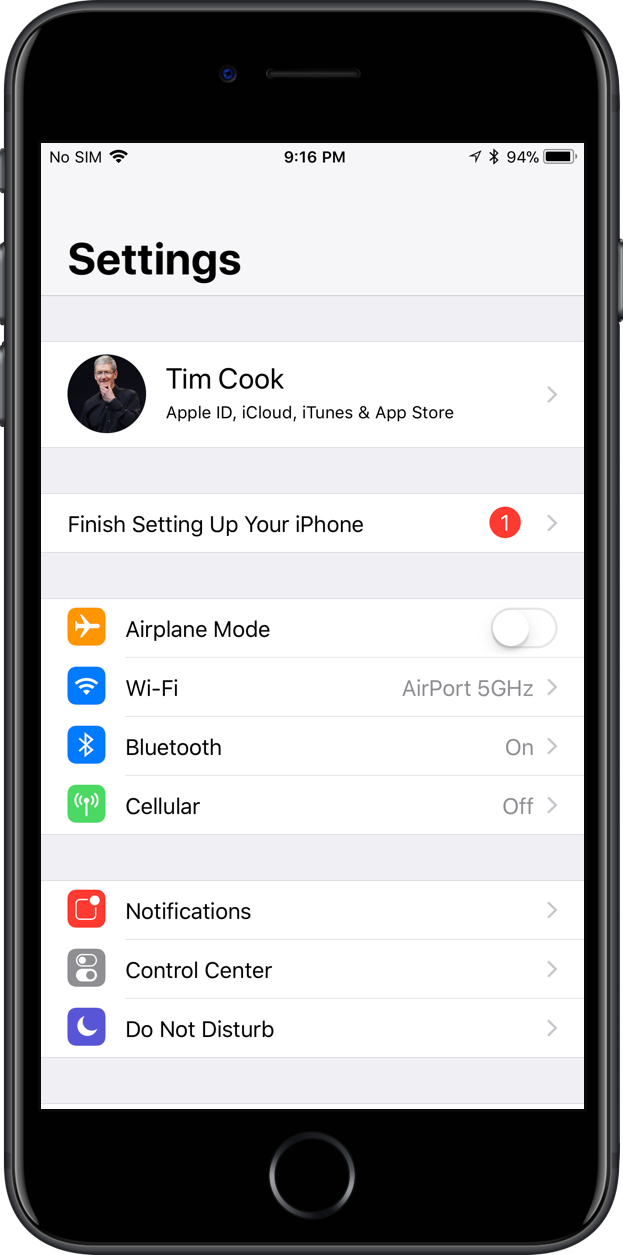
I can’t stand looking at a red exclamation point in my Settings app! I don’t tend to raise petty objections lightly, but those aggressive reminders to finish setting up the features I explicitly skimped on during the initial setup drive me nuts.
Parents may be particularly displeased with kids’ iPhones asking for their credit card details to finish setting up Apple Pay. The prompt doesn’t take away anything from a functional standpoint, but it is incredibly annoying, as you’ll encounter it every time you open Settings.
Here’s how to get rid of it.
Remove the Finish Setting Up Your iPhone or iPad alert
1) Open the Settings app on your iOS device.
2) Tap a message asking that you finish setting up your iPhone, iPad, or iPod touch, displayed at the top of the Settings app right below your Apple Account profile picture.
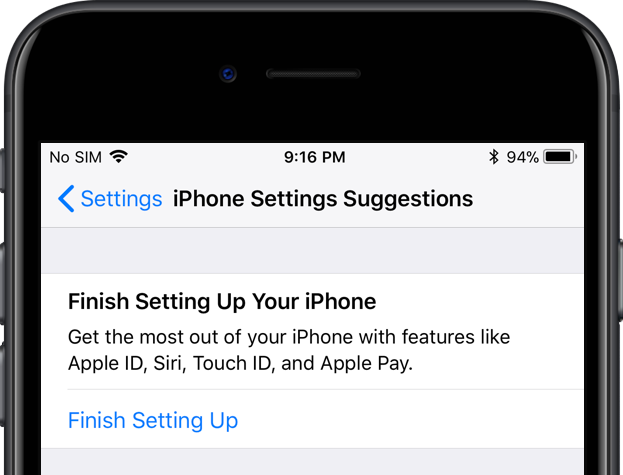
3) You’ll see a new screen with options for managing any features that you have not originally enabled during the initial iOS setup, like setting up Apple Pay on this device, signing into your Apple ID, enabling Siri, turning on iMessage, and so forth.
Tap the option to Set Up Apple Pay, Set Up Siri, Set Up iMessage, or similar to continue. If you’ve skimped on more than one feature during the iOS setup process, this option should be labeled Finish Setting Up.
4) On the next screen, choose the option to set up the feature at a later stage.
Basically, the trick is to choose to set up a feature and then cancel the process. If necessary, do this for a second time for the annoying message to clear.
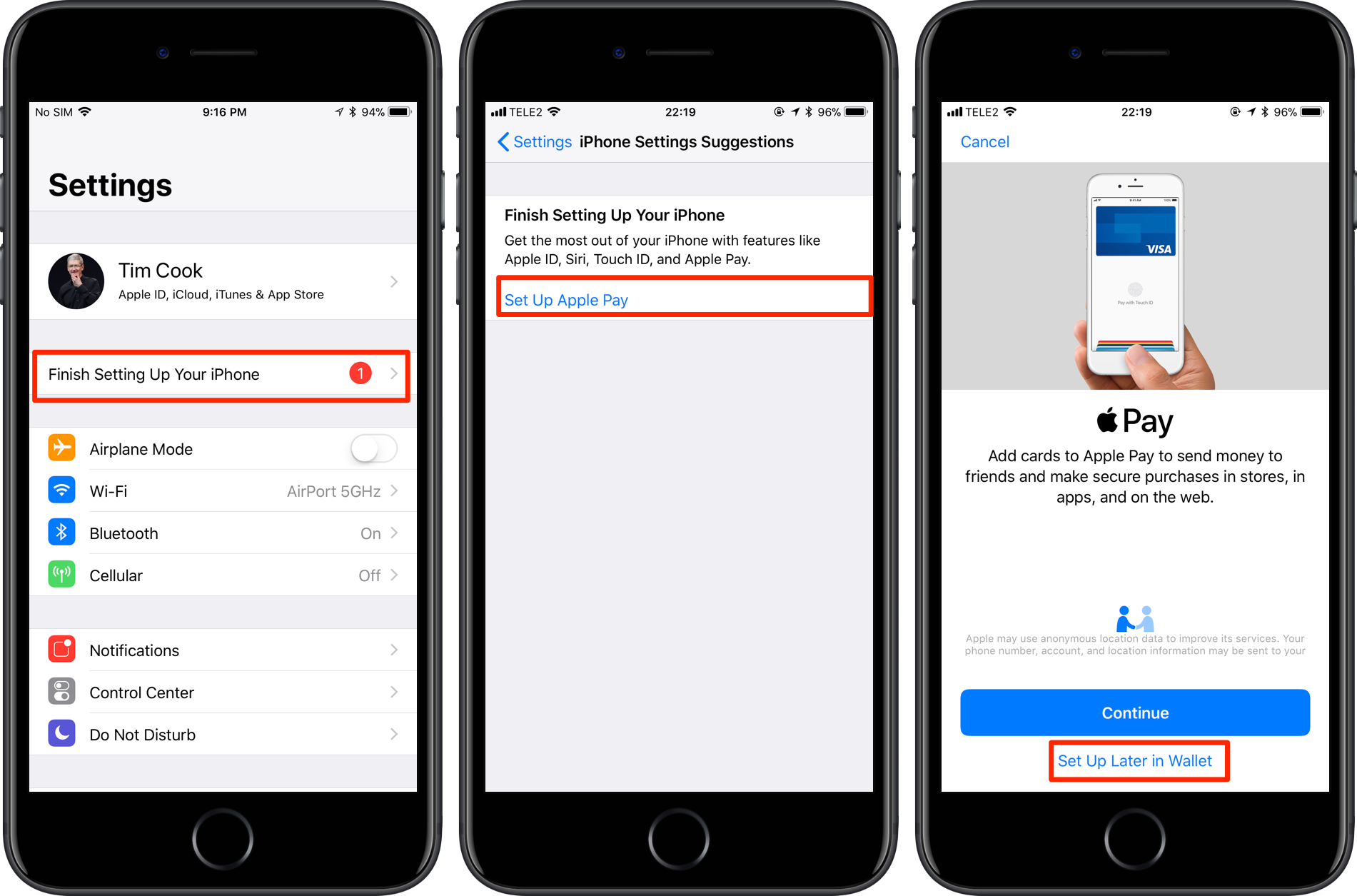
Tip: If you don’t see the option to Set Up Later in Wallet, Set Up Later in Settings, or something similar, swipe from the left edge of the screen to get to the previous screen or force-quit the Settings app. You may need to repeat this for every feature listed in Settings suggestions.
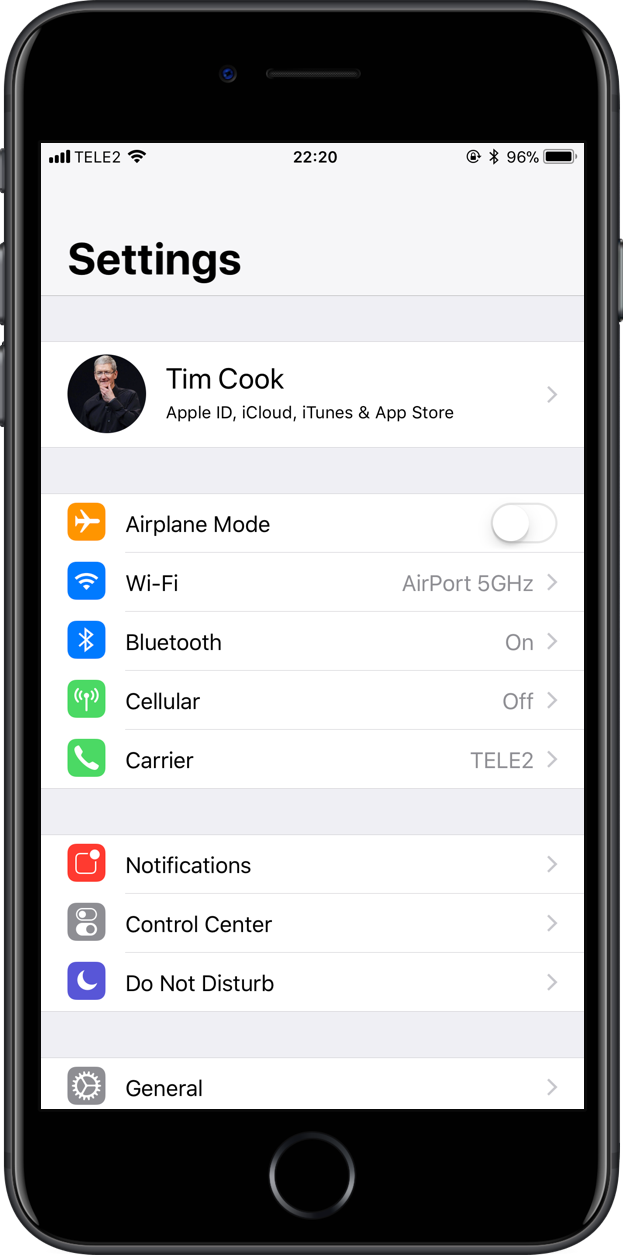
You’ll no longer see a notification from Settings on the Lock Screen, and your iOS device will stop nudging you to use Apple Pay or finish setting up other features you don’t want to use.
If you also happen to see the red dot badge on the Wallet app’s icon on your Home screen, reminding you to set up Apple Pay, get rid of it by disabling the Badges option in Settings > Notifications > Wallet or turn off Wallet notifications altogether.
Yet another solution for the Apple Pay prompts: turn off Apple Cash in Settings > Wallet & Apple Pay to have these relentless notifications stopped.
Check out next: