Learn how to add line breaks in your Instagram photo captions, comments, and profile bio to improve readability and separate your text into sections.
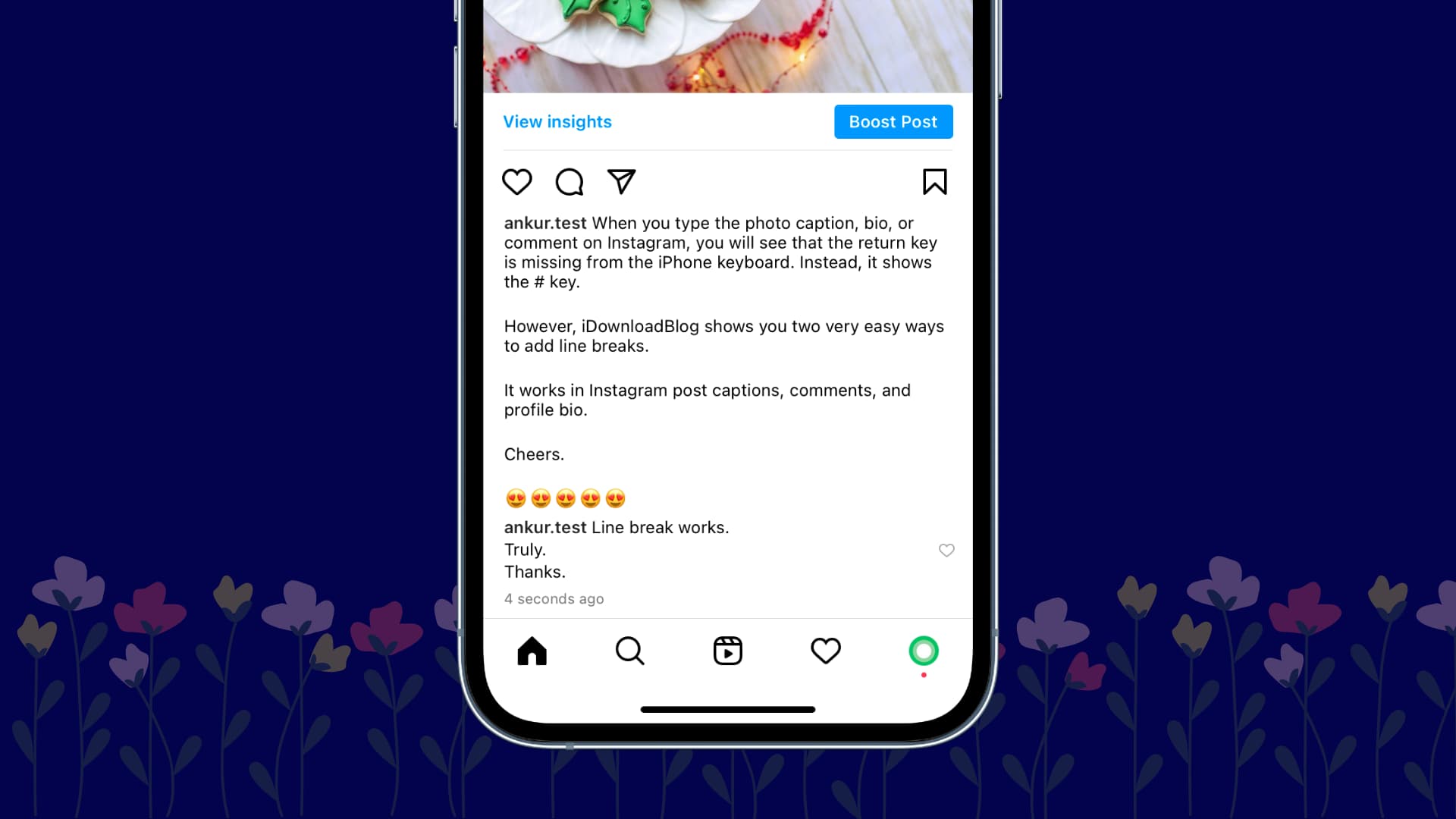
You can spice up your Instagram comments, photo captions, and bio with emojis. But sometimes you feel like going back to the basics and dividing text into sections.
Instagram doesn’t make it obvious, but you can insert line breaks. You just have to know how, and that’s what we’re here for.
Here are four ways to do that.
Tap the 123 key to reveal the return key
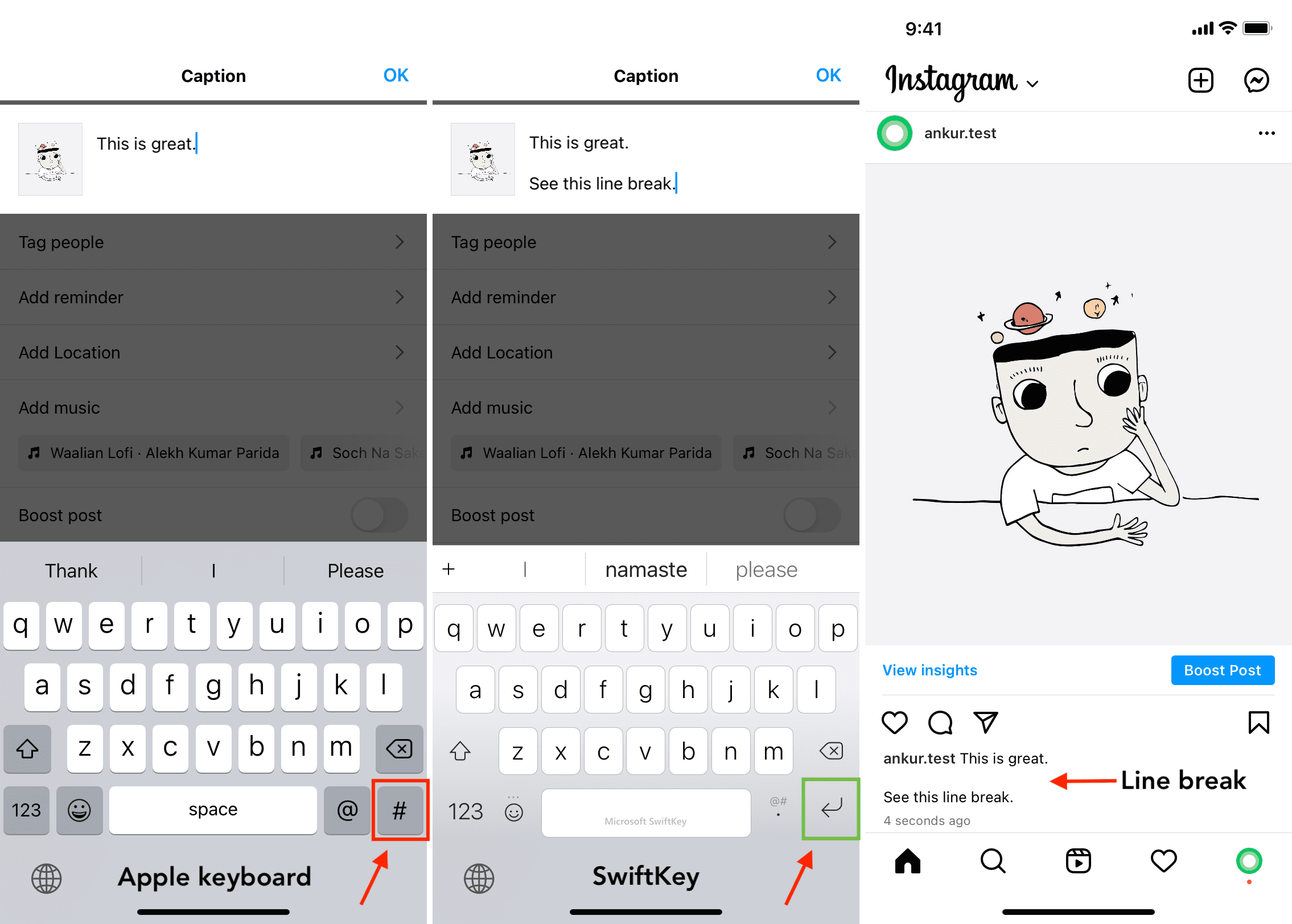
Did you notice the return/line break arrow key is missing from the onscreen keyboard when composing Instagram posts? Instead, the # key is in its place. To add a line break, just tap the 123 key, and you’ll reveal a missing return key. Tap it to add a line break and create a new section. Though not life-changing, this helpful tip will make your Instagram photo descriptions, comments, and bio stand out a little bit.

Use dictation to add a line break
When composing an Instagram post, tap the microphone key on the onscreen keyboard and say “next line.” This will insert a line break. Repeat the step to add one more line break, effectively creating a paragraph. Then tap the microphone key again to turn dictation off and type manually. Of course, you can also use dictation to enter text.

Paste your text from Apple Notes
Draft your Instagram post in the Notes app, including line breaks. Then copy the text and paste it into Instagram’s text field. Copy-pasting from one app to another preserves line breaks.
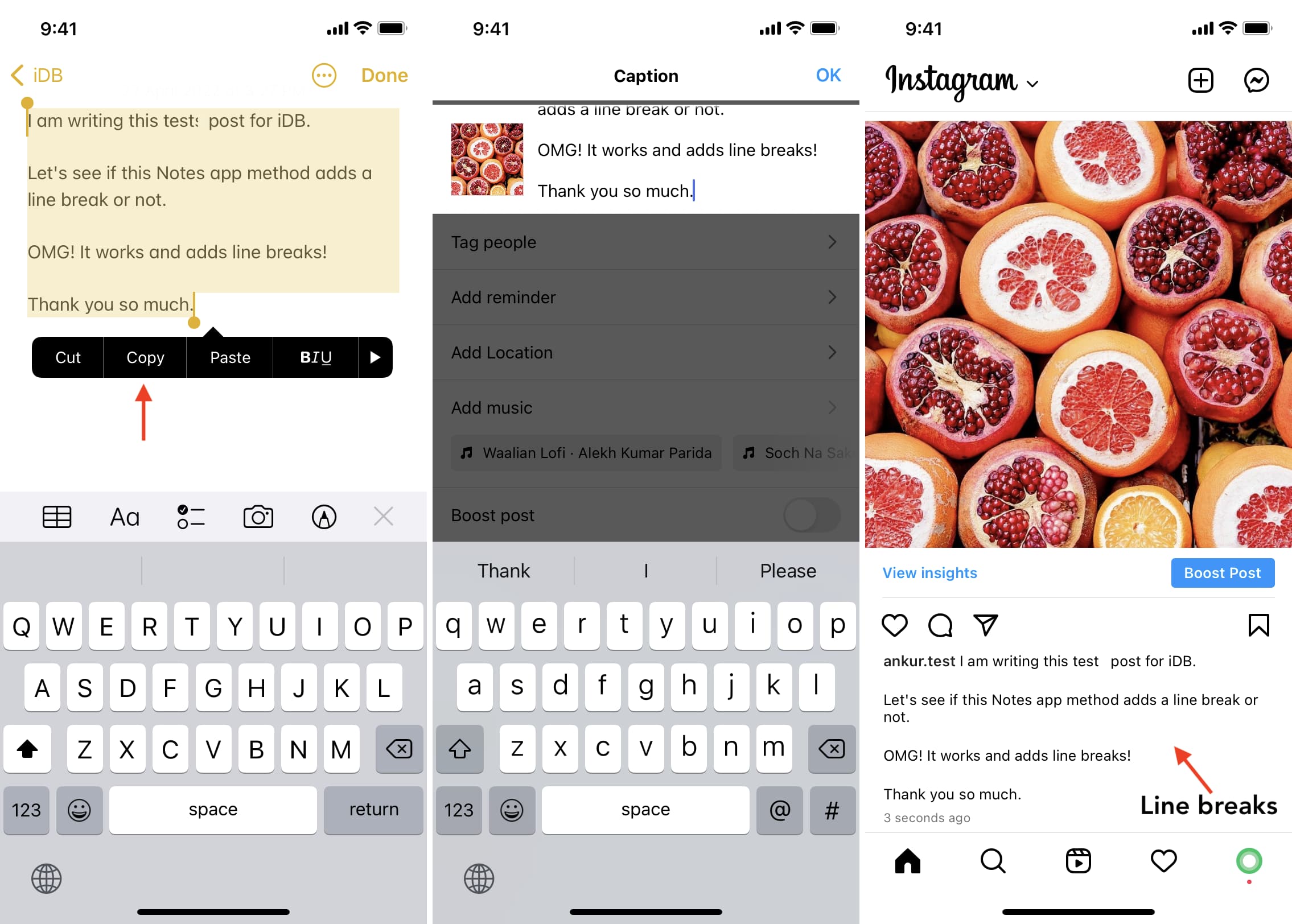
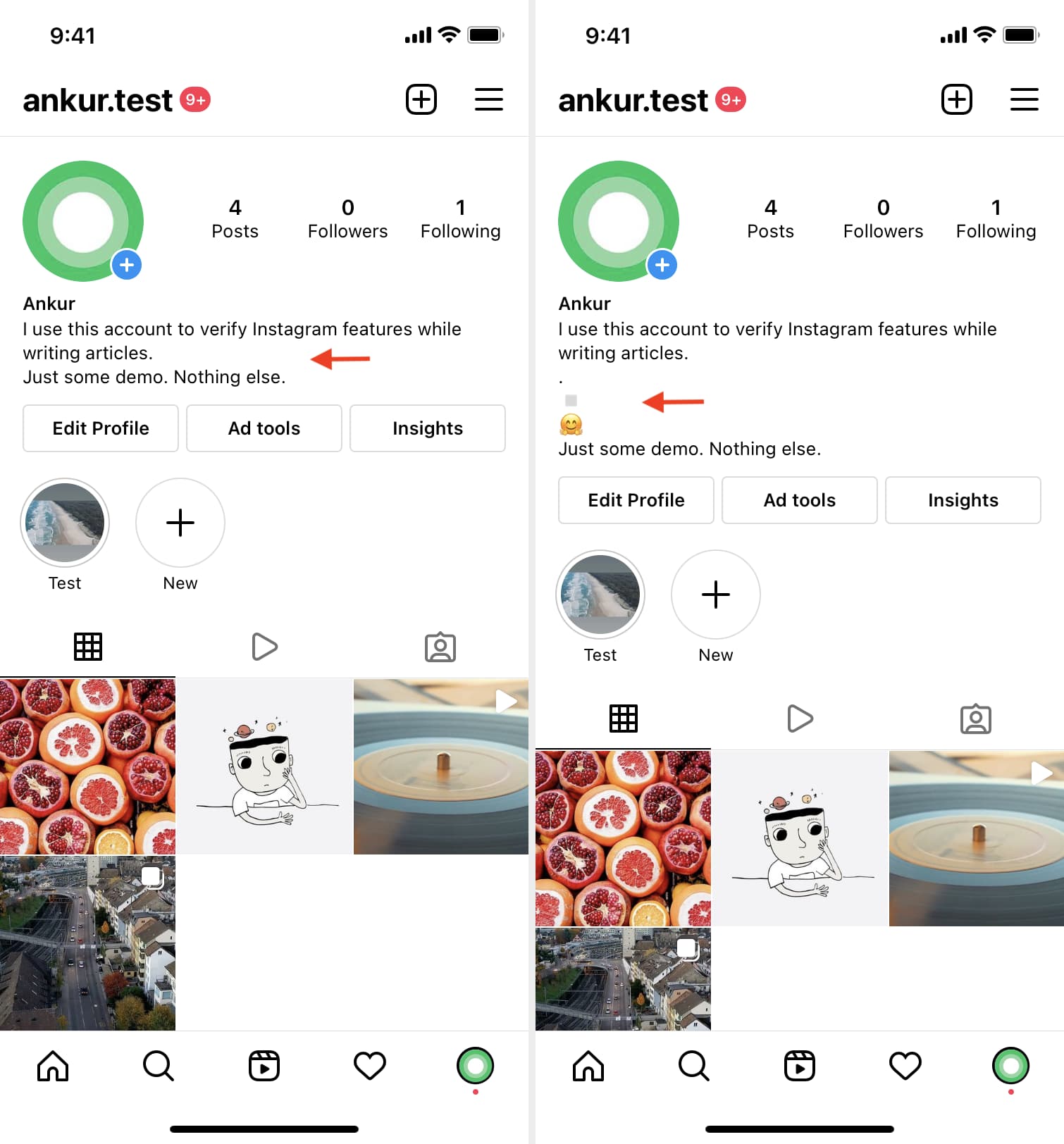
Instagram isn’t happy about line breaks and spaces on bio pages. You can add a line break to your bio, but as you’ll see for yourself, the next sentence starts just below the first line. It looks alright, but you can fix it by adding an emoji character, a dot (.), or a square symbol.
Use a third-party keyboard
Download a third-party keyboard, like Microsoft SwiftKey, that doesn’t hide the return key. You can use third-party keyboards alongside stock ones, and easily switch between them by holding the Globe key.
Other Instagram tips for you: