Learn how to troubleshot your Mac not responding to the force quit command, force-quitting not working, and the Force Quit menu itself freezing.
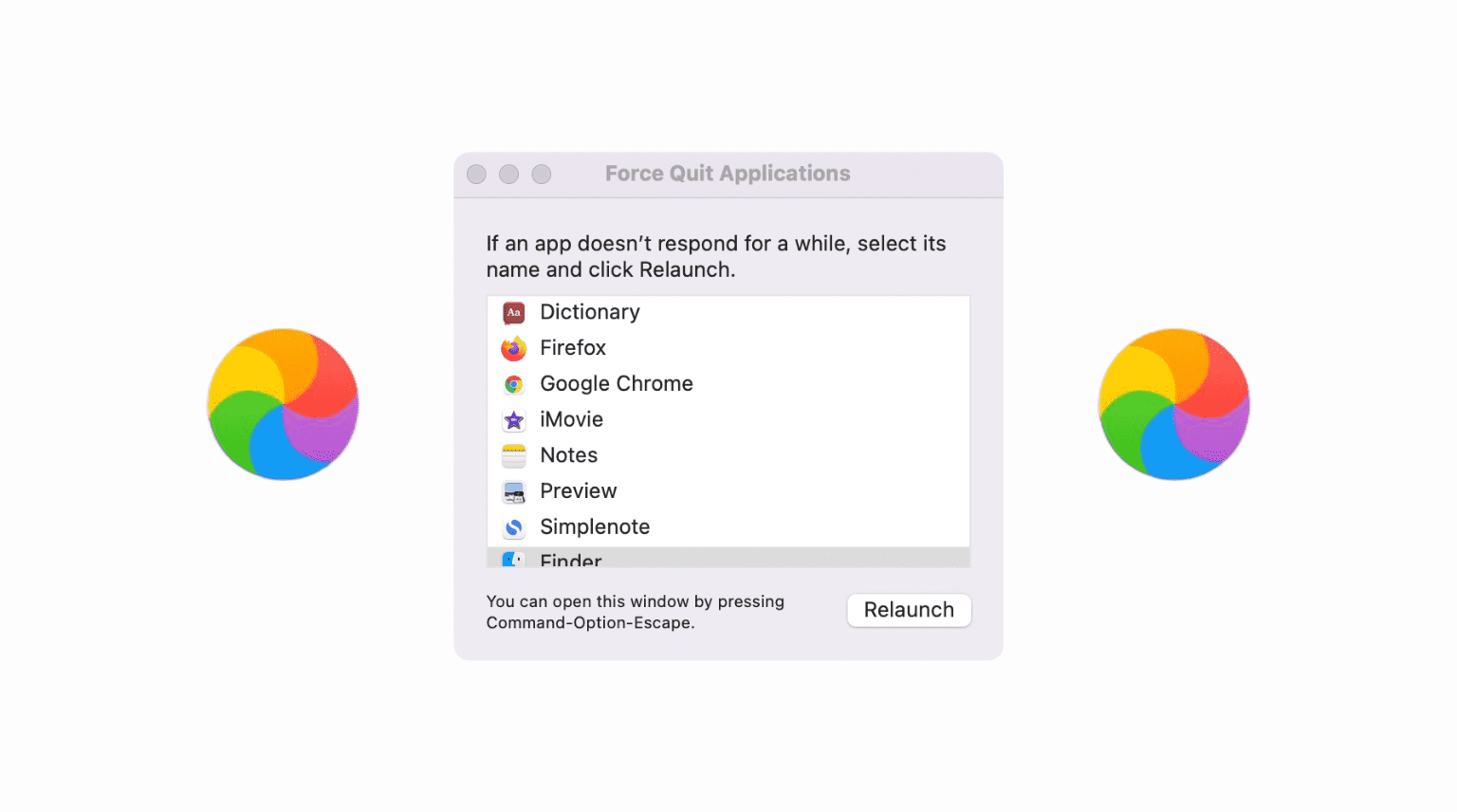
If a Mac app starts dragging its feet or stops responding entirely, force quitting and reopening it usually fixes the issue. But sometimes the very act of trying to force quit an app won’t work. Bummer, right? If you’re having issues force-quitting a particular app on your Mac, follow our troubleshooting tips to fix this.
Why force quitting might not work in the first place
This can happen if an app is poorly built, straining your Mac’s hardware to the point where macOS can’t even force quit it. Memory leaks can be a big source of such problems. This is common in apps which haven’t been properly updated for new operating system versions or are incompatible with other apps running on the system.
Other times, you can chalk up the problem to a temporary glitch you may never see again. Regardless of the reason, if force quitting with the Command + Option + ESC shortcut or via the Dock app icon shortcut won’t work, then you can try one of the following troubleshooting options instead.
Force quit using Activity Monitor
Activity Monitor is a great alternative to the built-in force quit command. Launch Activity Monitor and select the CPU tab, then find the frozen app in the list of processes and click to select it. You can click the Process Name tab at the top of Activity Monitor to sort the list alphabetically, making it easier to find the app. Or, also use the search option in the top-right corner. Next, click the close button (X) at the top.

When asked if you’re sure you want to quit the app, choose Force Quit.

The app should now close on your Mac. If not, try another method below.
Use Force Quit on a different desktop
In rare situations, the entire desktop freezes, and you can’t click the Apple icon to access the Force Quit option. In that case, press the Mission Control key or access Mission Control from the Launchpad, then hit the plus icon in the top-right corner to create a new desktop.
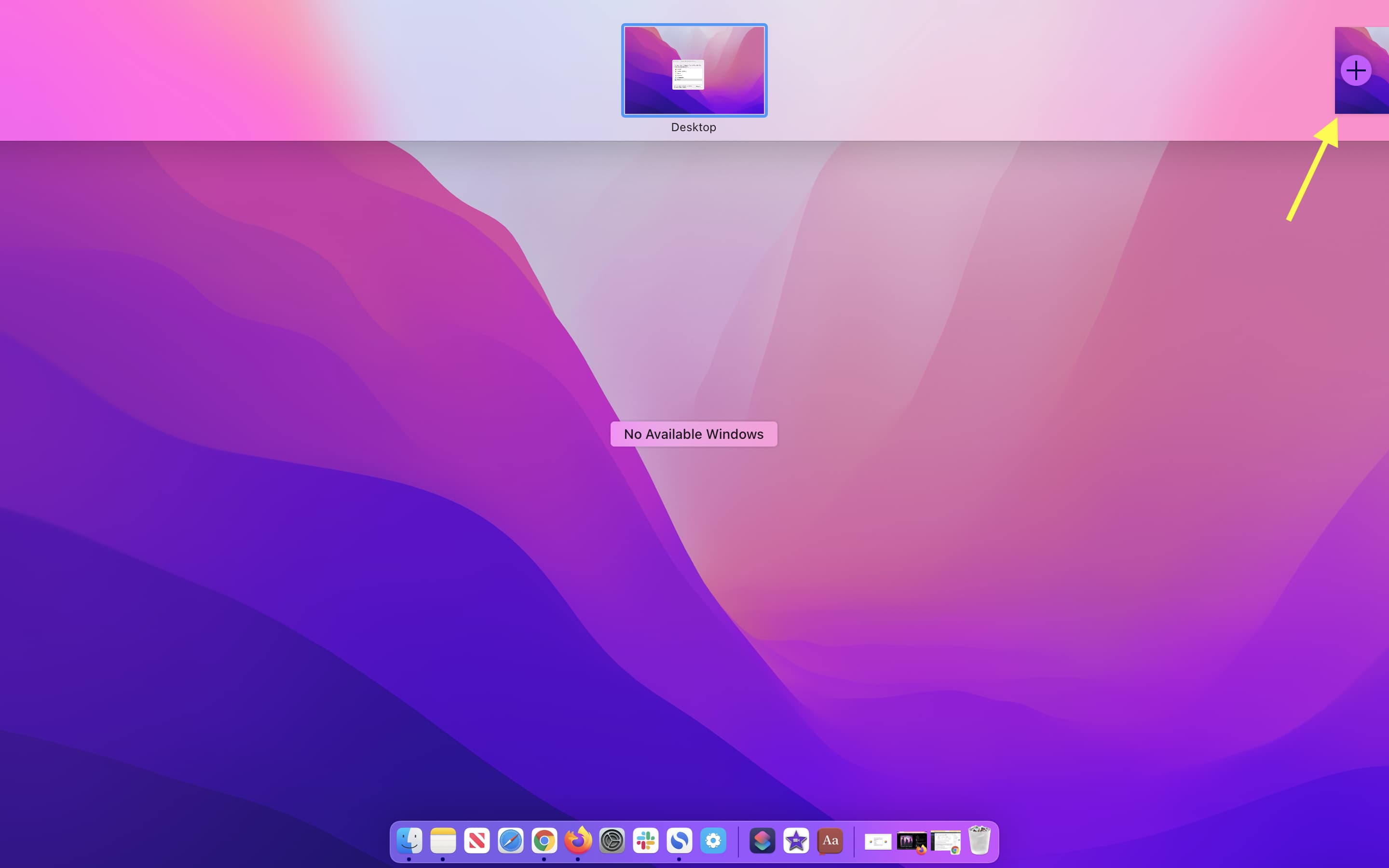
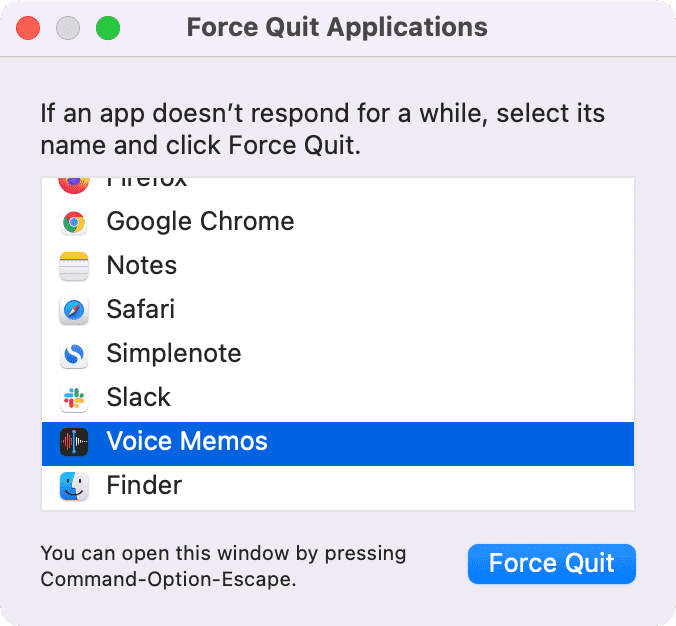
This desktop shouldn’t suffer from this issue, so press the Command + Option + ESC keys. Or, click the Apple icon, choose Force Quit, and select an unresponsive app.
Force quit an app using Terminal
Not everyone is comfortable using a command-line interface, but it can be an effective way to force quit a misbehaving app.
Launch the Terminal app from the Applications/Utilities folder, then paste the following command and hit the Return key:
ps -ax

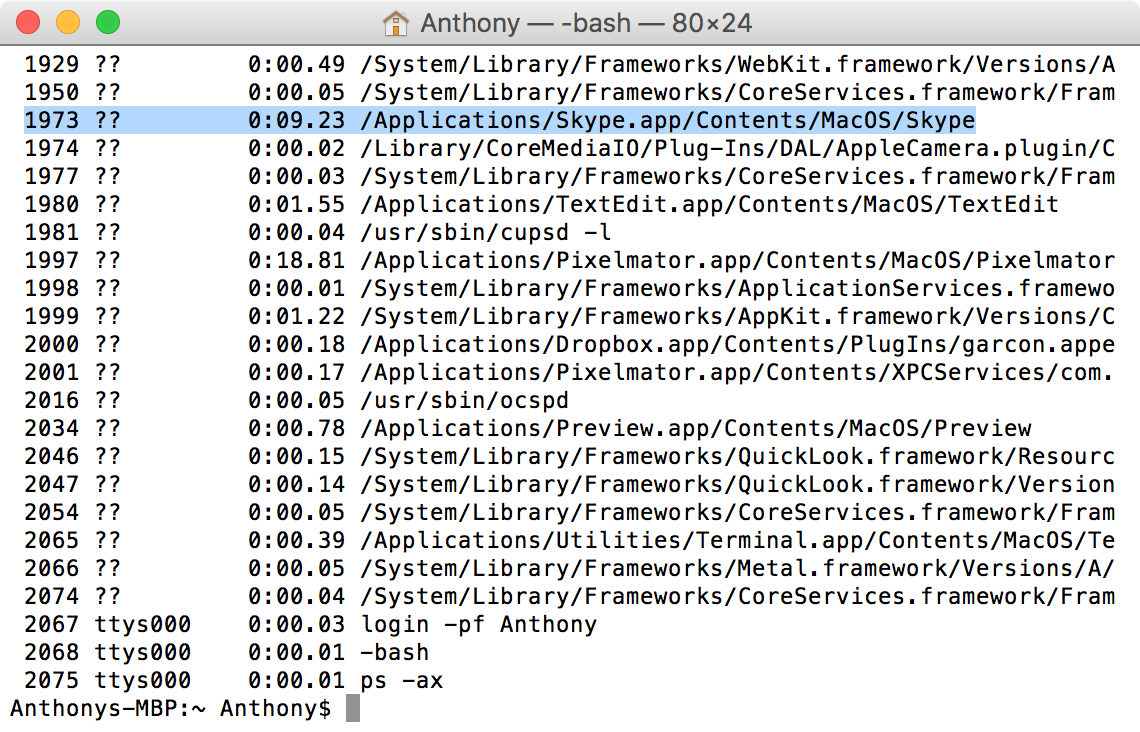
Terminal will display a list of processes running on your Mac. Find a frozen process and take note of the PID number shown to the left of the app.
Paste the following command into Terminal and hit the Return key:
kill <enter PID number here>
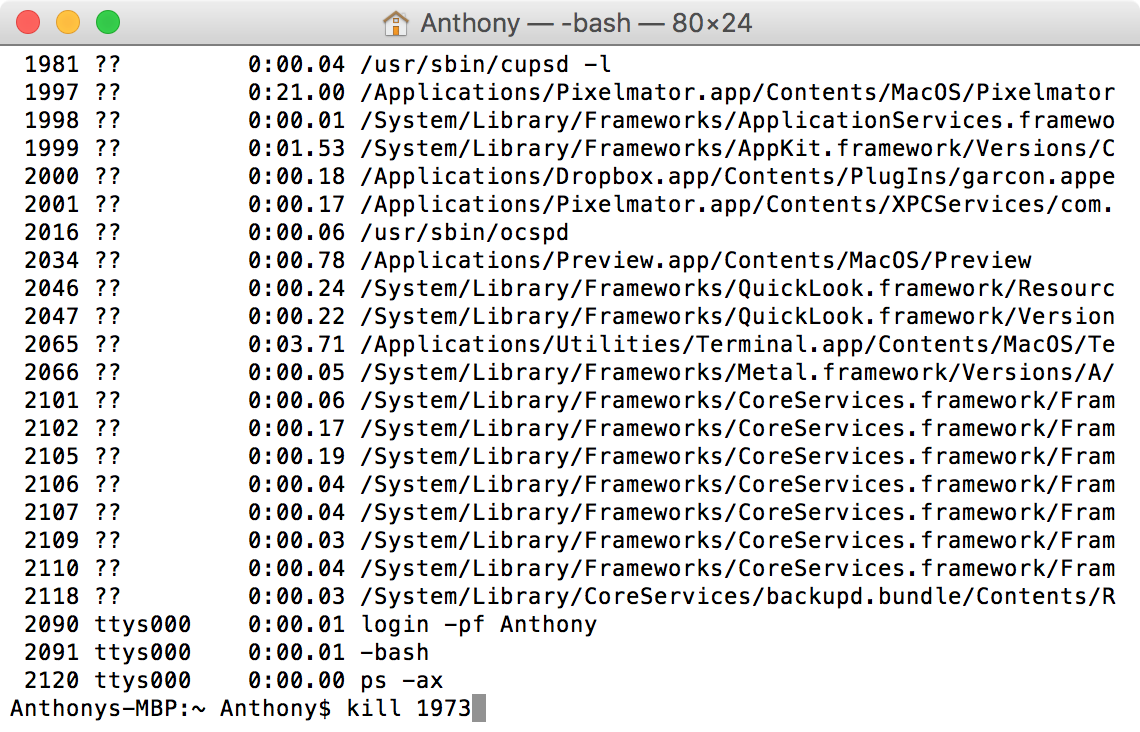
In our case, Skype is running with the PID number 1973, so we would enter “kill 1973” instead of PID. If the app still won’t force quit, try this command instead (replacing PID with actual process number).
kill -9 <enter PID number here>
The app should now force quit. Honestly, I’ve never had an app make it any further than this, so if the Terminal method fails, you may have a bigger problem on your hands so proceed to the next step.
Hard restart your Mac
If nothing works, then there isn’t much you can do apart from rebooting. Because you cannot shut down your Mac like you normally would as macOS is waiting for the frozen app to respond, you must perform a force-restart. Press and hold the power button on the built-in keyboard or unplug your Mac to turn it off. Give it about 10 seconds to clear the memory completely before rebooting.
If the problematic app continues to act up, there ins’t much you can do about it apart from contacting the developer of this is a third-party app or Apple Support if the app in question is from Apple.
Software can sometimes difficult to understand for regular users, which makes troubleshooting on the Mac a bit of pain. Therefore, we hope these troubleshooting tips will help unfreeze the stuck app on your Mac that just won’t force quit.
Also, check out: How to force quit apps on iPhone and iPad