Learn how to download maps for custom areas or specific cities for offline use in the Google Maps app on your iPhone or iPad so you can navigate in those places without cellular coverage and save money on roaming charges when traveling abroad.
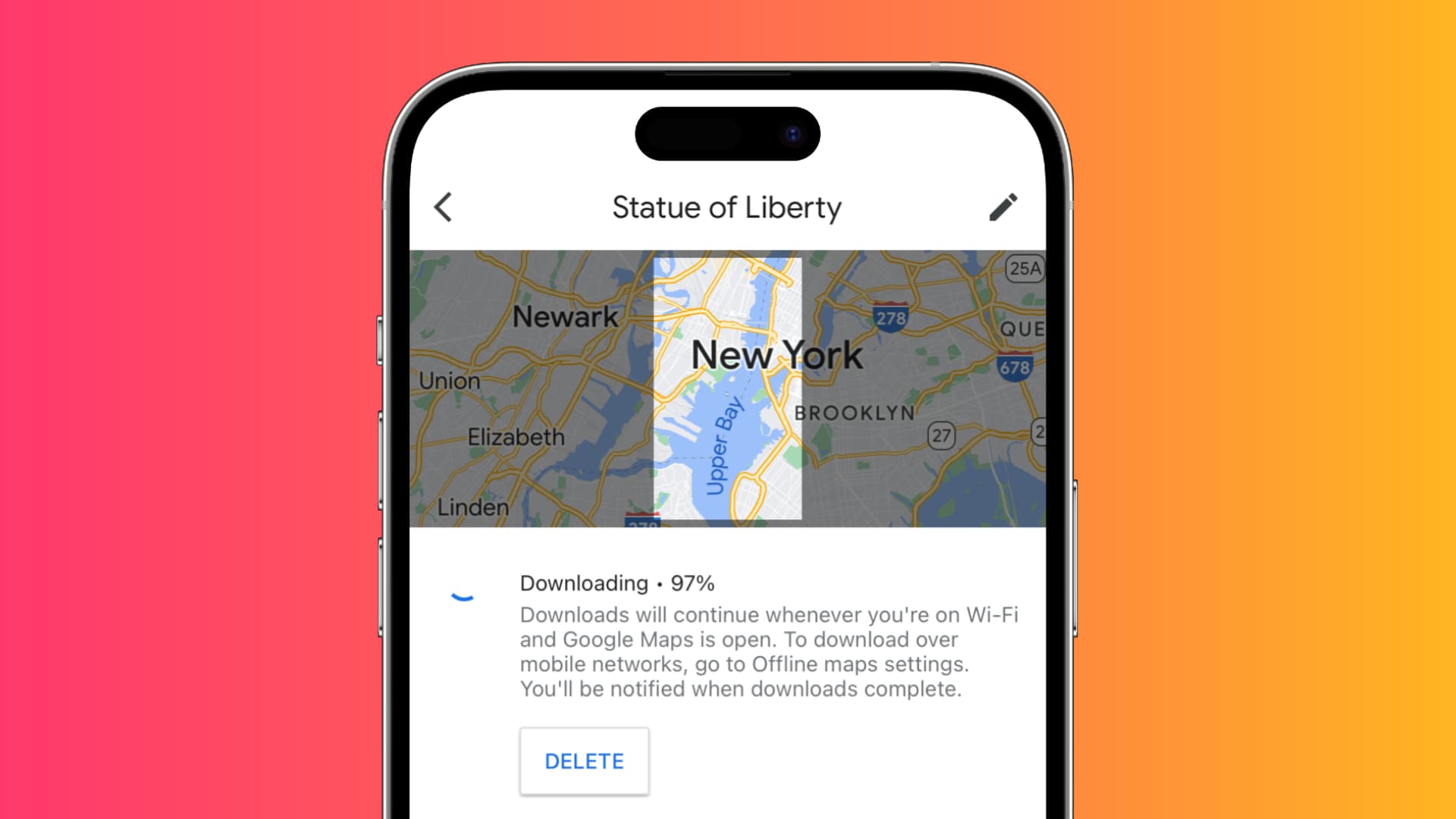
Google Maps has a useful feature to download custom regions for offline navigation without an Internet connection, perfect for visiting remote places without cellular coverage.
It also comes in handy when you don’t want to waste cellular data on navigation when traveling abroad, which may incur roaming charges.
You can download up to 120,000 square kilometers of map space at a time, which is approximately half the area of the United Kingdom (243,610 km²).
Offline maps can weigh several gigabytes, but you can select a custom region to reduce download size. Offline maps expire after one year, but you can re-download them.
Download Google Maps areas for offline use
1) Open the Google Maps app on your iPhone or iPad and search for a location you want to save for offline navigation.
2) Pull up the place card at the bottom to reveal more information, then swipe on the buttons there to find “Download offline map.” If you don’t see this option, tap the “More” button.

3) Adjust the region using two fingers and tap the Download button at the bottom. Once the download is complete, you’ll be able to navigate in that area even without an Internet connection.

Access, update, delete, or re-download your offline maps
1) Launch the Google Maps app and tap your profile picture in the top-right corner.
2) Tap Offline maps to open the maps manager.
3) Select a downloaded area, then tap the map at the top to use it. You can also see the download size and offline map expiration. Tap the three-dotted menu next to a downloaded area to update, rename, delete, or download it again (if it has expired).

Do more with Google Maps…
The mobile Google Maps app lets you label places and locations you visit often so you can find them more easily.
If you prefer Apple’s mapping service over Google, you can also download offline areas in Apple Maps.
And if you use both services concurrently, you may be interested in learning how to switch between miles and kilometers in Apple Maps and Google Maps, or get your house, car, or face blurred out on both services.
Have you ever used the offline feature in Google Maps before? If so, share your experience in the comments below!