Learn how to elevate your iPhone or iPad videography game by shooting stunning 4K footage at 120 or 60 frames per second.
Note: 4K at 120 fps is only available on iPhone 16 Pro, 16 Pro Max, 17 Pro, and 17 Pro Max. If you have another iPhone, you’ll be capped at 4K at 60 fps.
Record 4K video at 120 or 60 frames per second on iPhone
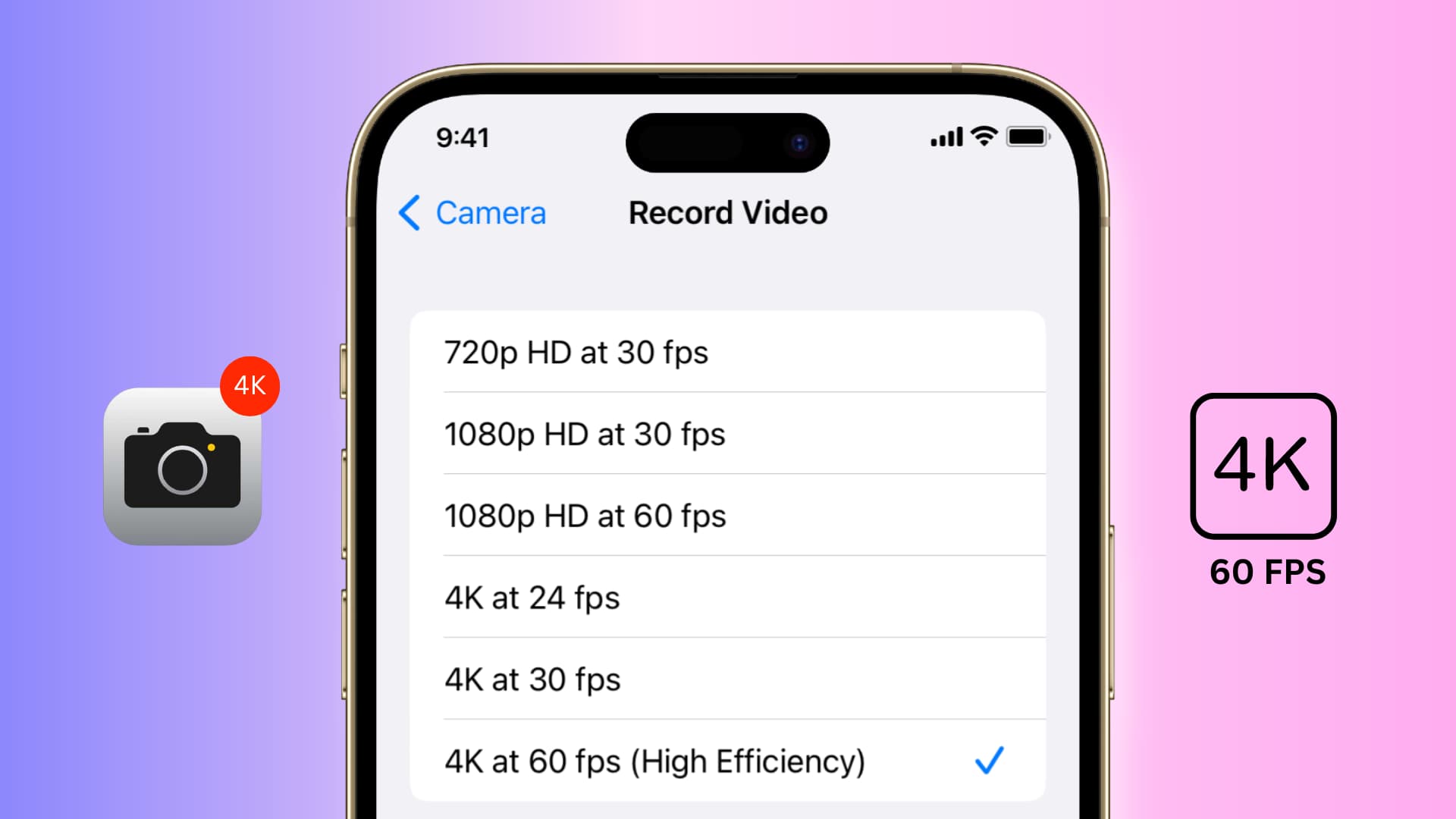
- Open the iPhone or iPad Settings app and tap Camera.
- Tap Record Video.
- Select 4K at 60 fps or 4K at 120 fps from the list.

You have set your iPhone to record videos in 4K resolution at 60 or 120 frames per second by default.
Now, open the Camera app and go to the VIDEO section. You’ll see 4K RES 120FPS or 4KRES 60FPS (or 4K . 60 in older versions of iOS) in the top right corner. Now, all videos you shoot will be in this format. It will be saved as a .MOV file inside the Photos app.
You can easily change the video quality and FPS just by tapping it from inside the Camera app.

The good and bad of shooting in 4K at up to 120 fps
4K resolution provides a higher level of detail and clarity in your videos, making them look more professional and cinematic. And at 120 and 60 frames per second, it allows for smoother motion and better captures fast-moving action, such as sports or action scenes. 4K and 120 or 60 fps can be especially beneficial when filming activities with a lot of movement or when you plan to edit the footage, as it gives you more flexibility in post-production.
The benefits are enticing, but they do come with a few tradeoffs. Shooting videos in 4K at 120 or 60 frames per second on an iPhone can be quite demanding on the device’s resources, which can lead to decreased battery life and increased heat generation.
Additionally, the larger file sizes of 4K videos can take up more storage space on the device, making it harder to keep multiple videos on the phone at once.
Supported iPhone shooting modes
- 1080p HD at 30 FPS: iPhone 4s and later
- 1080p HD at 60 FPS (smoother): iPhone 6 and later
- 1080p HD at 120 FPS (slow motion): iPhone 6s and later
- 1080p HD at 240 FPS (ultra slow motion): iPhone 8, iPhone X, and later
- 4K at 24 FPS (higher resolution, film style): iPhone 8, iPhone X, and later
- 4K at 30 FPS (higher resolution): iPhone 6s and later
- 4K at 60 FPS (higher resolution, smoother): iPhone 8, iPhone X, and all later models
- 4K at 120 FPS (higher resolution, even smoother): iPhone 16 Pro, 16 Pro Max, 17 Pro, and 17 Pro Max
Extra info: At 3,840-by-2,160 pixels, 4K has four times the pixels of 1080p (1,920-by-1,080 pixels).
File size shootout: H.265 vs. H.264
One minute of H.265-encoded 4K/60 FPS video takes up 400 MB of storage on the device. By comparison, a minute of 4K/30 FPS footage (half the frame rate) compressed with the older H.264 codec will cost you about 350 MB of storage.
Bottom line: The more modern H.265 codec needs only 50 extra megabytes per minute for smooth 4K video at twice the frame rate of its H.264 counterpart without any loss of quality.
About watching 4K video on iPhone
There’s no need to shoot in 4K unless you plan on enjoying your high-resolution footage on a 4K/5K iMac, Apple TV 4K, or an external 4K monitor, or uploading to a platform that supports it, like YouTube. No iPhones or iPads can reproduce 4K video pixel by pixel — iOS downscales 4K video clips to the display resolution, which technically results in loss of detail.
Though the 60Hz and 120Hz display refresh rate on iPhone and iPad allows these devices to reproduce the smoothness of 60 and 120 FPS video.
Check out next: