Find out how to attach a PDF, Word file, Keynote presentation, spreadsheet, image, video, or other media and document saved in the Photos app, Files app, or iCloud Drive to an email in the Apple Mail app on your iPhone or iPad.
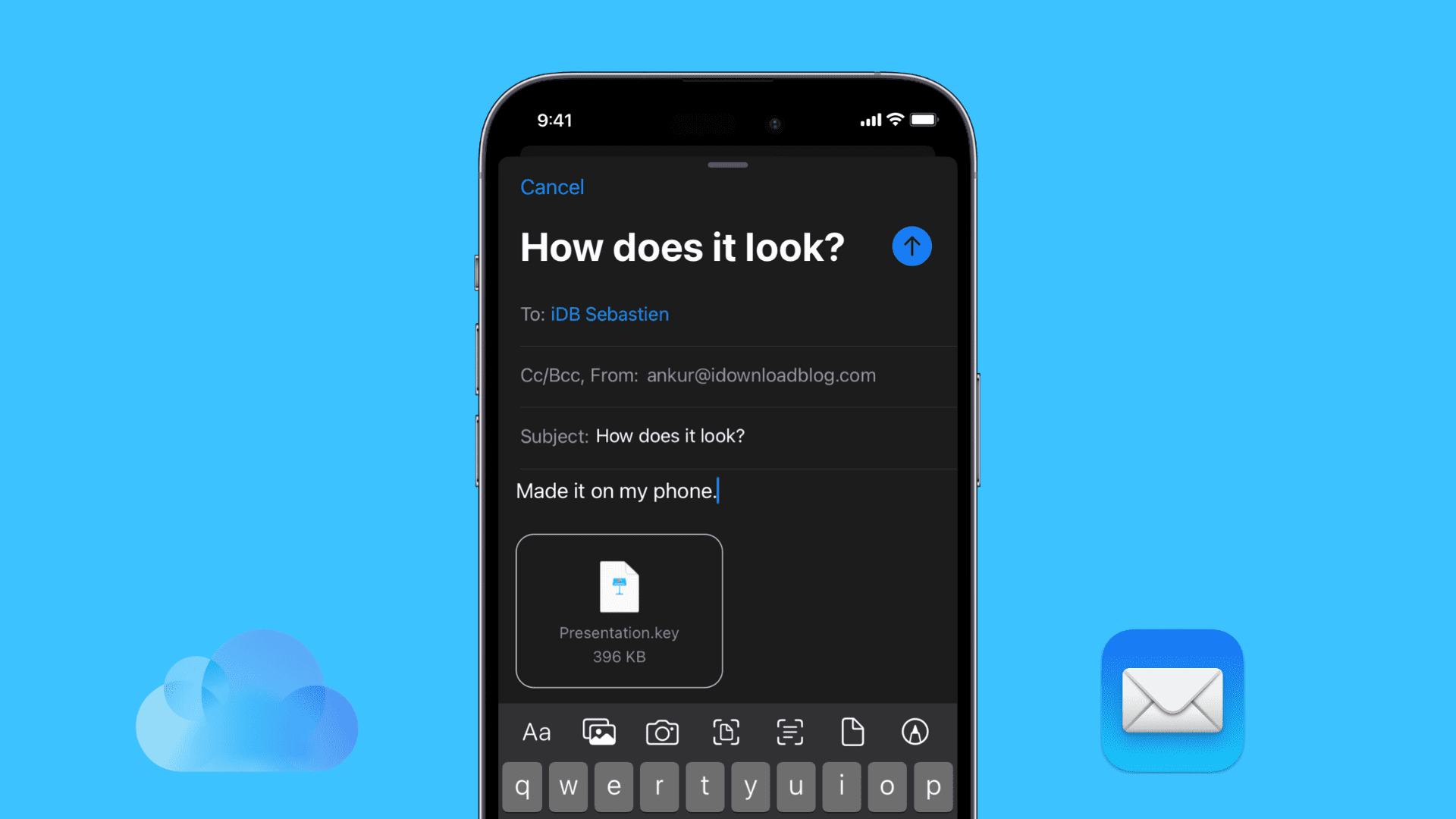
Attach documents from the Files app or iCloud Drive to an email
1) Open the Mail app on your iPhone or iPad and create a new email or reply to one.
2) Now, do one of the following to attach a file:
- Tap the paper clip icon just above the keyboard and select Attach File.

- Or, tap the email body once to bring up the action menu, then tap the right arrow, and select Attach File.

3) Following the previous step will take you directly to the Files app, from where you can select what document you want to attach to your email. Tap Browse from the bottom until you see the Locations screen. From here, select iCloud Drive or On My iPhone.
4) Select the document you want, and it will be attached to your email. If necessary, repeat the process for each document you want to attach.

Note: If the iCloud Drive document is not downloaded locally, you’ll see a download arrow, and tapping it will first download that file before attaching it to the email.
5) Finish up your email and hit the send button. Your document will be sent along with the rest of your email.
Unable to see iCloud Drive when attaching files in Mail?
If you’re facing this problem, all you need to do is enable iCloud Drive in the Files app via these steps:
1) Open the Files app and tap Browse.
2) Tap the three dots menu icon at the top and choose Edit.
3) Turn on iCloud Drive and tap the checkmark.

In case you don’t see iCloud Drive while following the above steps, make sure you’re signed into iCloud on your iPhone and iPad. Additionally, you can go to the Settings app > your name from the top > iCloud > Drive and turn on Sync this iPhone.
Attach photos or videos to your email
The steps for this are similar to what we have discussed above.
1) Tap the paper clip icon and select Photo Library.

2) You’ll now see a small recent photos screen. Select your media from here to add the selected image to your email body. Alternatively, swipe up to open the full-screen photo picker, select one or more photos, and tap the checkmark.

Other tips for the Mail app: