In this tutorial, we’ll let you in on a little iPhone trick to skip past the screenshot-editing screen and jump directly from your screenshot to the iOS Share Sheet.
When you take a screenshot on iOS 26, it opens in full-screen preview mode. From there, just tap the share button to send or save the file.
However, if, like most people, you have turned off full-screen previews from iOS 26 Settings > General > Screen Capture, or if you’re on an older version of iOS, follow the steps below to quickly share the screenshot via Messages, Mail, WhatsApp, Slack, Gmail, and more.
It’s certainly only one small step for your iOS experience, but it is one that, if implemented regularly, will result in a leap in productivity.
Share your iPhone screenshot immediately after taking it
- Take a screenshot on your iPhone or iPad.
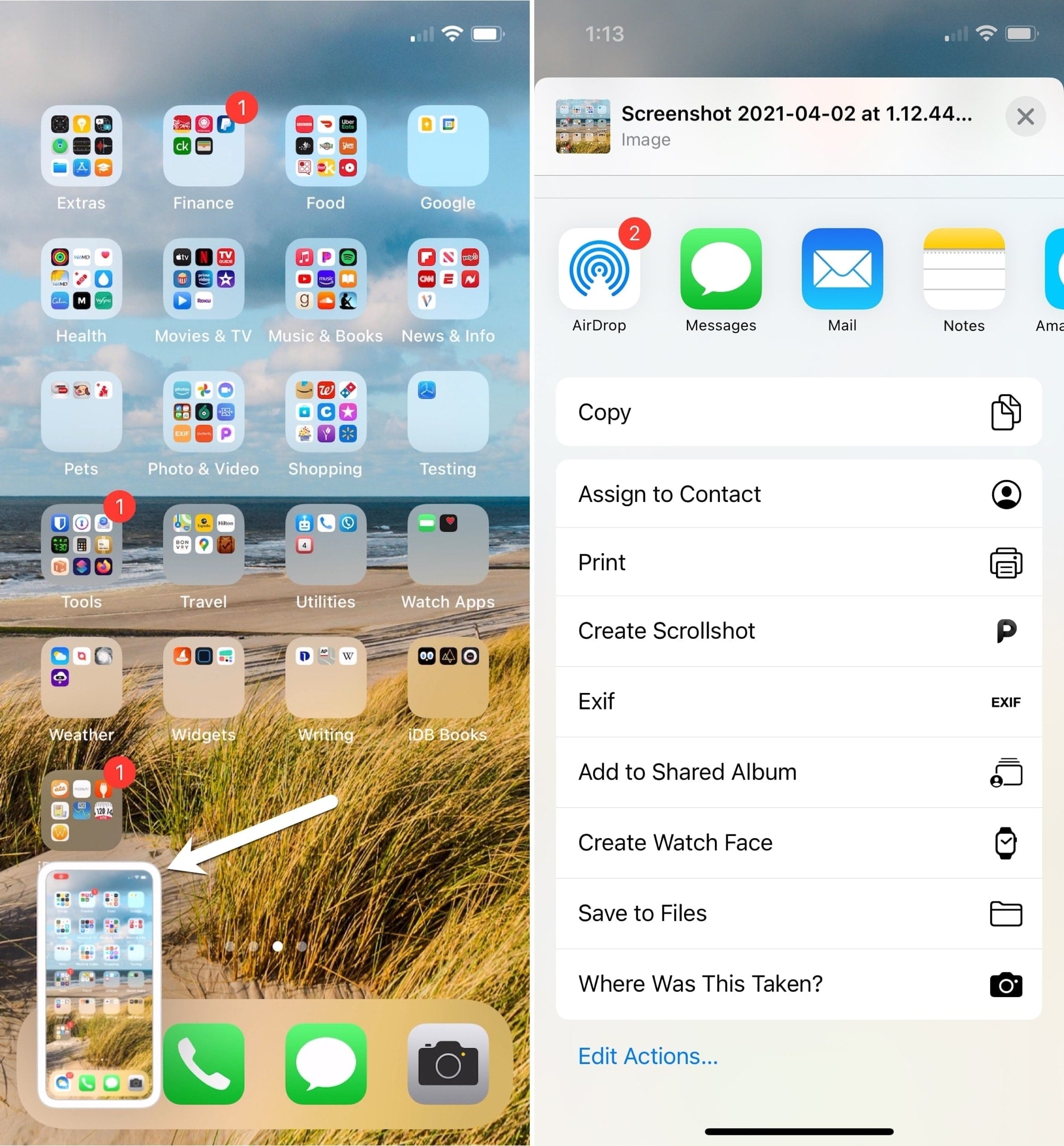
- Wait for the thumbnail of your screenshot to fly in from the bottom left corner, then touch and hold the preview thumbnail. The duration will be similar to the time required to get your Home Screen app icons to start wiggling.
- Your iPhone will directly jump to the share sheet.
- Having bypassed the editing and cropping screen, you can now save or share the screenshot straight away. You can select AirDrop, Messages, Mail, Notes, WhatsApp, or any other app or option visible here.
And that’s it; you have shortened an already short process. Granted, this gesture is a tad gimmicky. However, it will amount to time saved in the long run. That aside, it is tucked away so well that it runs the risk of flying under the radar for most users – something we just don’t condone here at iDB.
The next time you want to share a screenshot on your iPhone, give it a try!
On a related note: