Struggling to view the words to sing along?
Learn how to view song lyrics in full screen in the Apple Music app on iPhone, iPad, Mac, or Android.
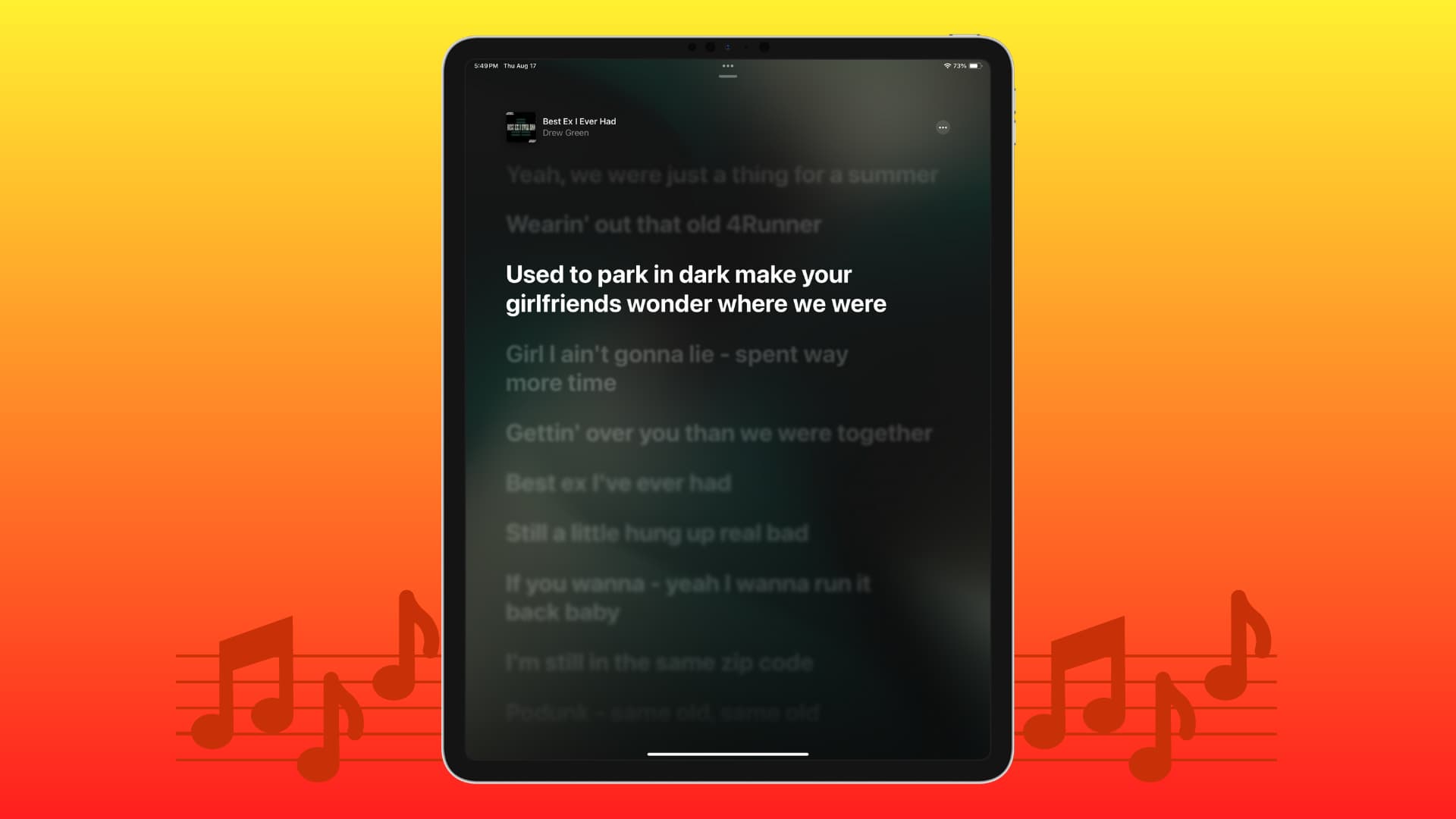
If you enjoy listening to music on your iPad or iPhone, you may want to sing along sometimes. You can view your time-synced lyrics in full-screen mode, as well as the playback options for the song. These improvements make listening to your favorite songs and artists even better.
iPhone or Android phone
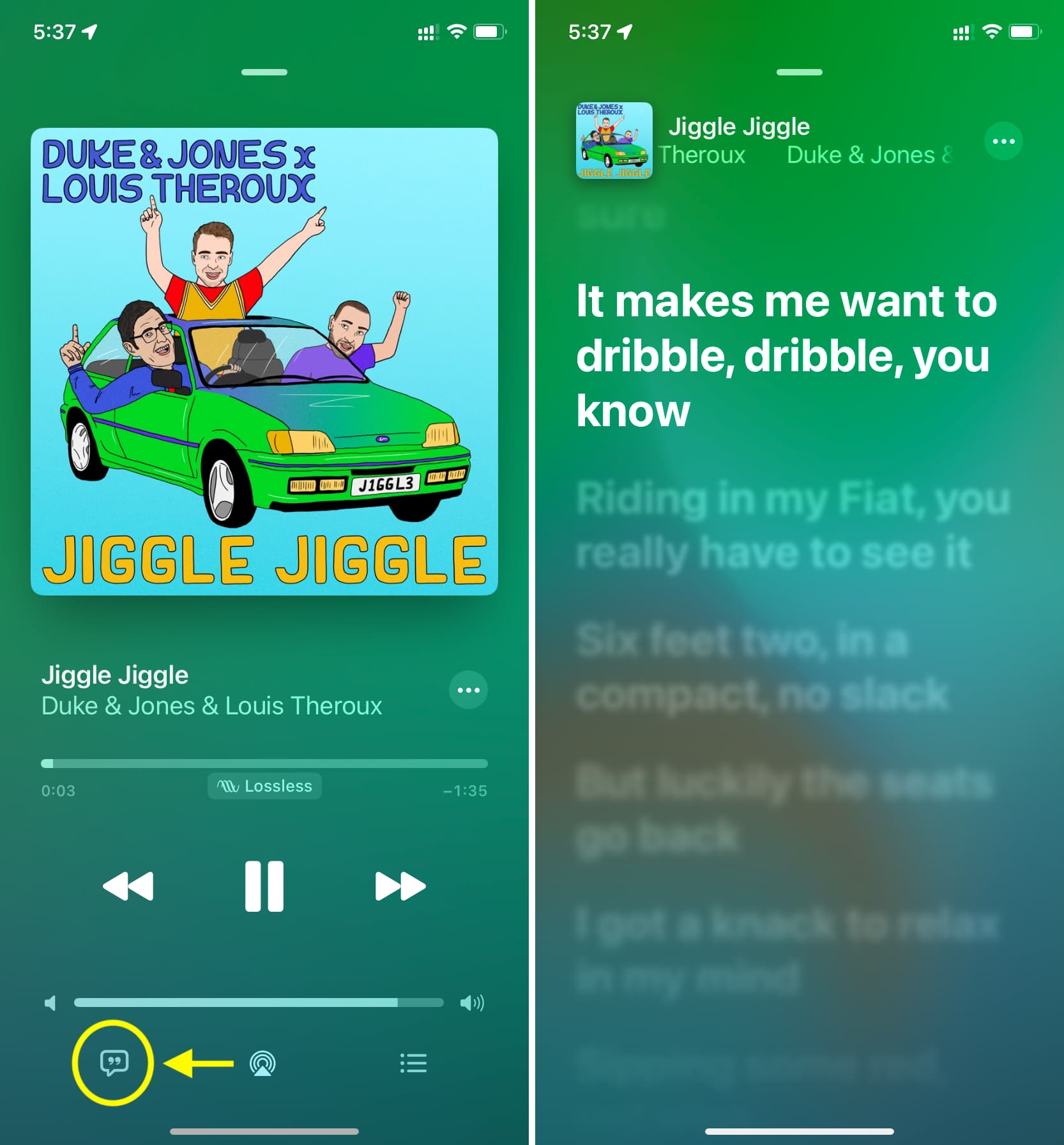
- Play a song in the Apple Music app and go to the Now Playing screen.
- Tap the Lyrics button.
- Initially, you’ll see other controls on the screen. But after five seconds, the lyrics will automatically start showing on the full screen.
iPad
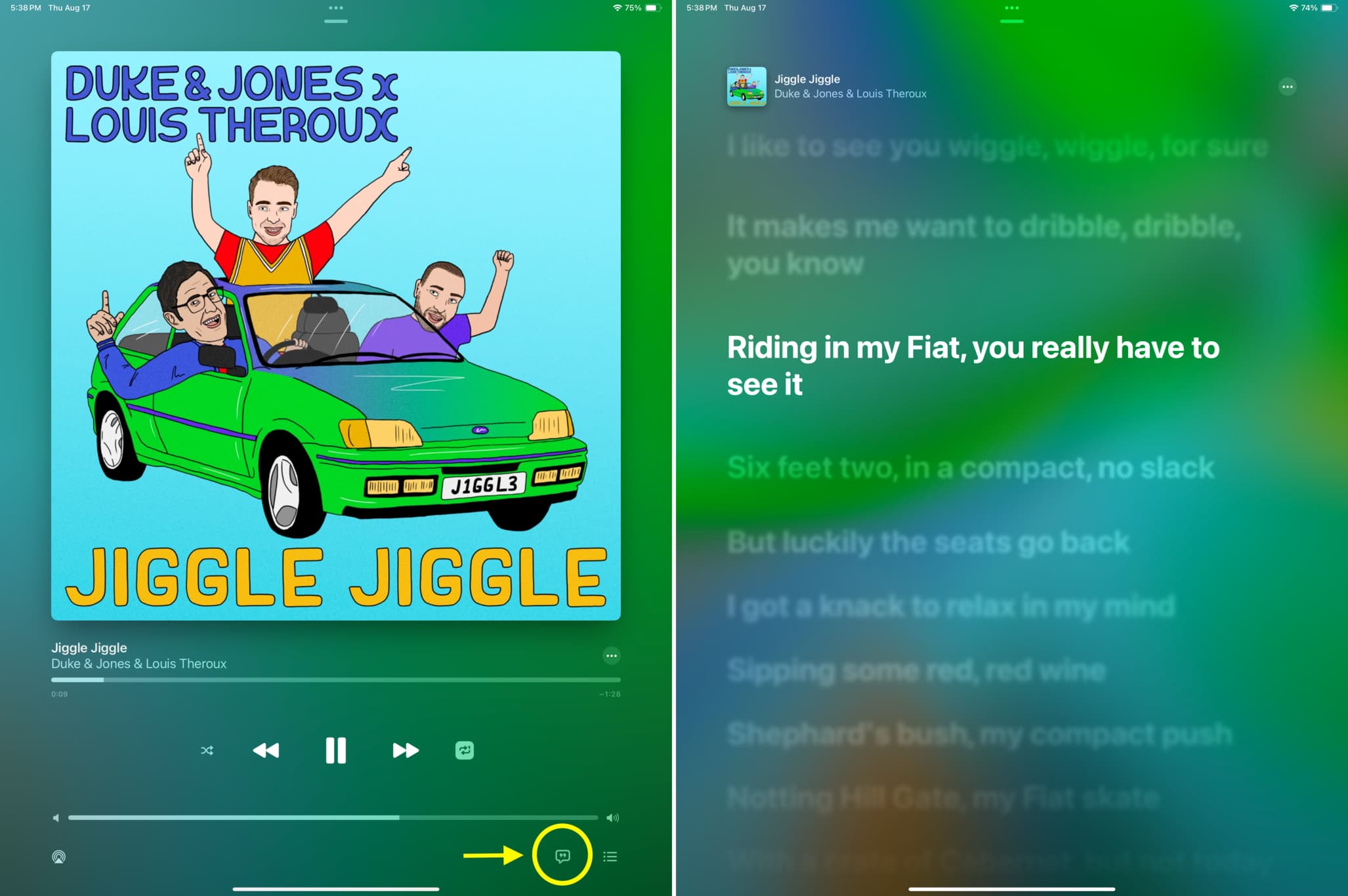
- Play the song on Apple Music and go to the Now Playing screen.
- Tap the Lyrics button.
- If your iPad is in portrait orientation: Lyrics will automatically take up your entire screen in portrait view, making them easier to read and follow along.
- If your iPad is in landscape orientation: Real-time lyrics will appear large on the right side, with album art and playback controls on the left; you can’t have only the lyrics take the full screen.
Mac
Play a song and click the lyrics button at the bottom of the screen. You cannot enable full screen for lyrics on Mac, but you can drag the left divider to make the lyrics panel a bit wider.

The process is a bit lengthy if your Mac is running an older version of macOS:
1) Play a song inside the Music app.
2) Click the tiny album art at the top or click Window > Mini Player from the menu bar.

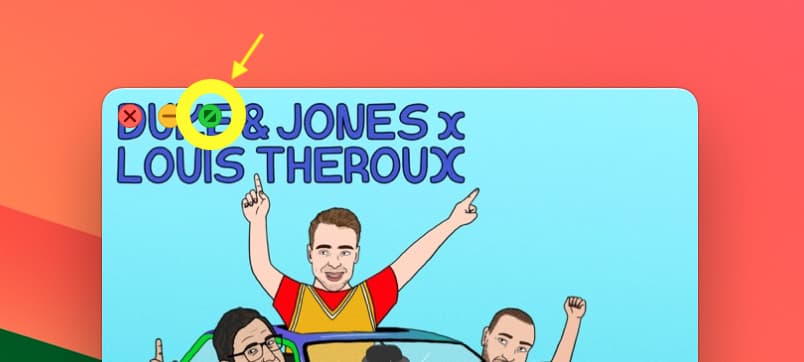
3) Click the green maximize button in the top left corner of the Music app Mini Player.
4) Click the Lyrics button on the left if you don’t already see the lyrics on the right half of the screen.
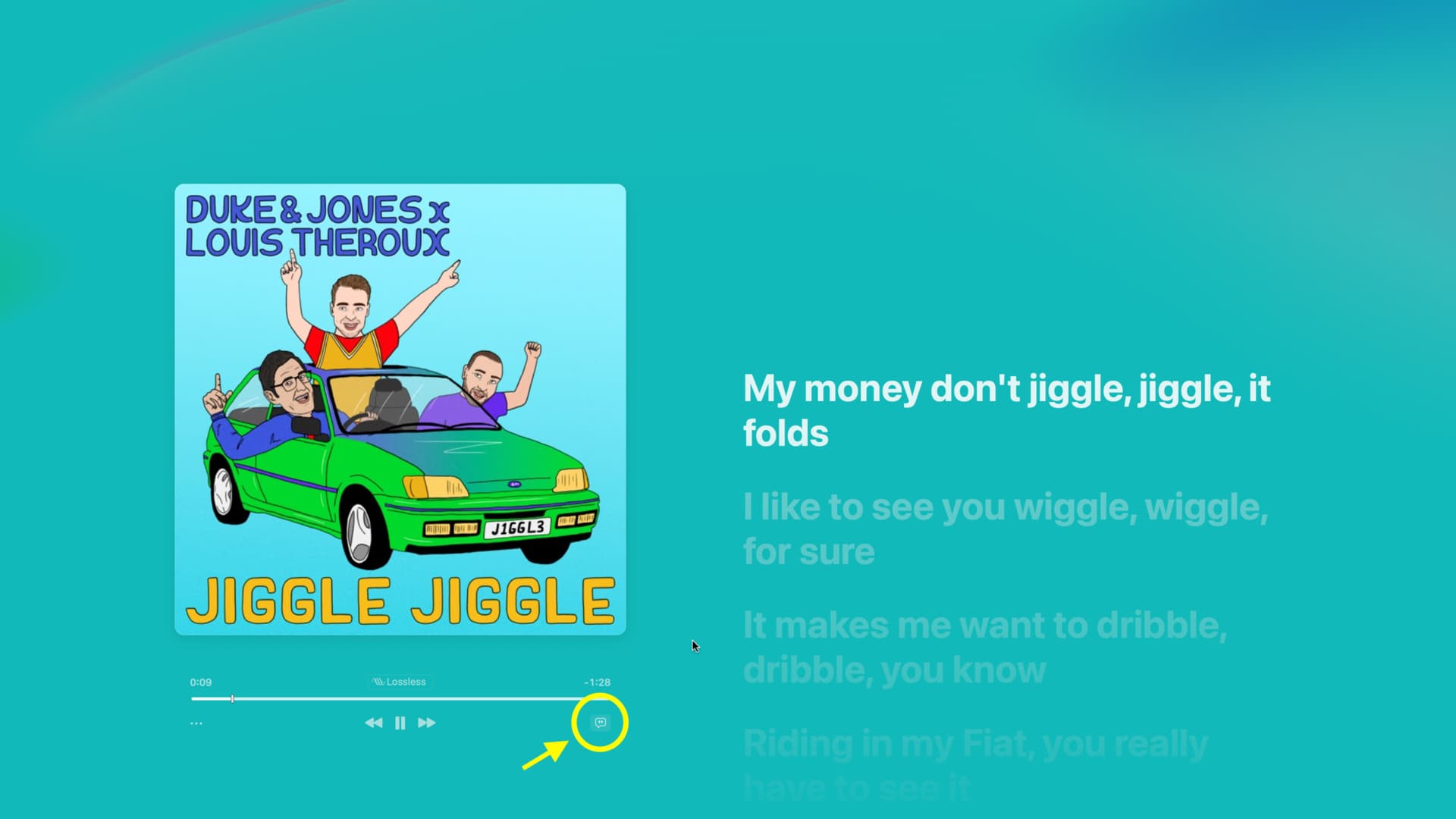
Having real-time lyrics fill up your screen can make singing along to your favorite tunes that much better. And if you have a pal singing with you, you’ll both get the words right with a larger view.
On the same tune: