Learn how to manually add the current date and time to your iPhone photos or use a third-party app to automatically timestamp your snaps.
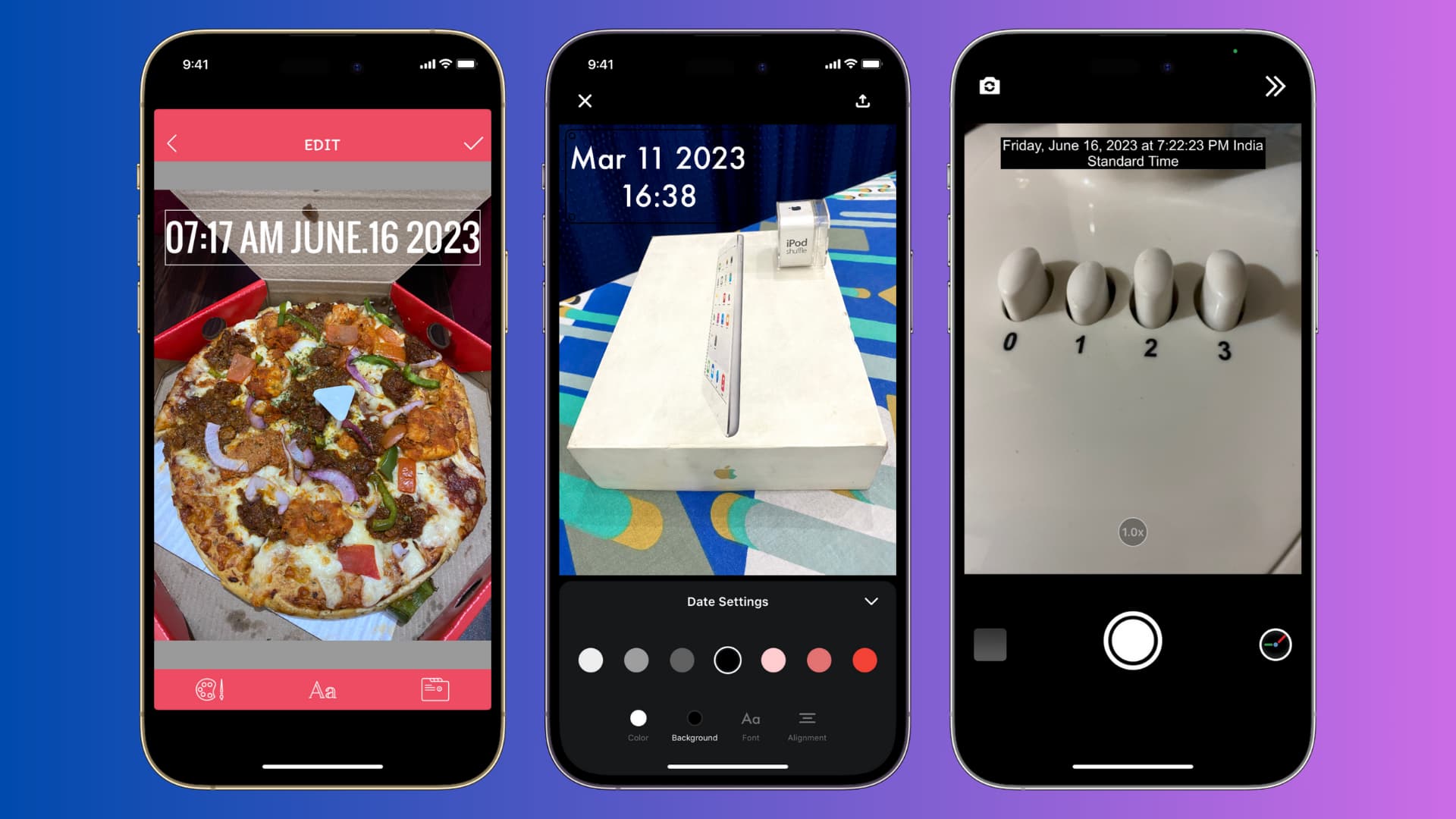
Digital cameras, before the age of smartphones, usually added a small timestamp in orange or yellow to a corner of the photo to make it clear when the image was taken.
Nowadays, when you snap a photo with your iPhone, information such as date, time, and location is also saved in the image file. This is called metadata, and you can tweak or remove it from images yourself.
However, embedded dates and times are only visible in specialized apps, such as Photoshop or the built-in Photos app. Thankfully, you can use free iOS apps to timestamp your iPhone photos, making it clear when each image was taken.
The Timestamp app
You can overlay the date and time over your photographs to serve as the timestamp using dedicated apps that allow you to add text or image-based watermarks to your iPhone photos. However, it requires you to add these details manually.
Therefore, to make things easier, you can use the Timestamp app, which reads image metadata and automatically embeds the date and time the shot was taken into your image. Alternatively, this app also offers the option to stamp the current date or any date you prefer.
Tip: The app modifies the original image, so you may want to duplicate the image in the Photos app to retain the original timestamp-free version.
1) Download and open the Timestamp Images app on your iPhone.
2) Tap Configure Timestamp and adjust the timestamp color, size, outline, format, location, and more to your liking. Any changes made here can be instantly previewed at the top. Once satisfied, hit Done in the top-left corner.

3) Choose whether to use the Current Date, Taken Date (the date the image was shot), or Set Date (any custom date).
4) Tap Select from Camera Roll > Sounds Good and give the app permission to access your Photos library. Select one or more images and tap the checkmark or Add to have the app apply the watermark and save the resulting images to the Photos app. You can also take a photo and have it stamped with the current time.

The Photo Date Stamper app
1) Download and open the DateStamper app on your iPhone or iPad.
2) Allow the app to access your photos, then tap an image to open it.
3) Hit the Stamp Photo button to apply the date the image was taken from metadata if it exists.
4) Touch the share icon and choose Save Image to save the image with the timestamp applied to the Photos app.

To use a custom date instead, hit the three-dotted menu, choose Change Date & Time, pick a desired time, and tap the Stamp Photo button to overlay the selected date on top of the image.
The Timestamp Camera app
This is a compelling camera app that automatically adds the current date, time, and location to the photos and videos you take with it. If you’d like to snap all photos with the timestamp automatically applied, this is the easiest way to do it.
1) Download and open the Timestamp Camera app on your iPhone or iPad.
2) Permit the app to use the camera, microphone (to record videos), and location to geotag the pictures.
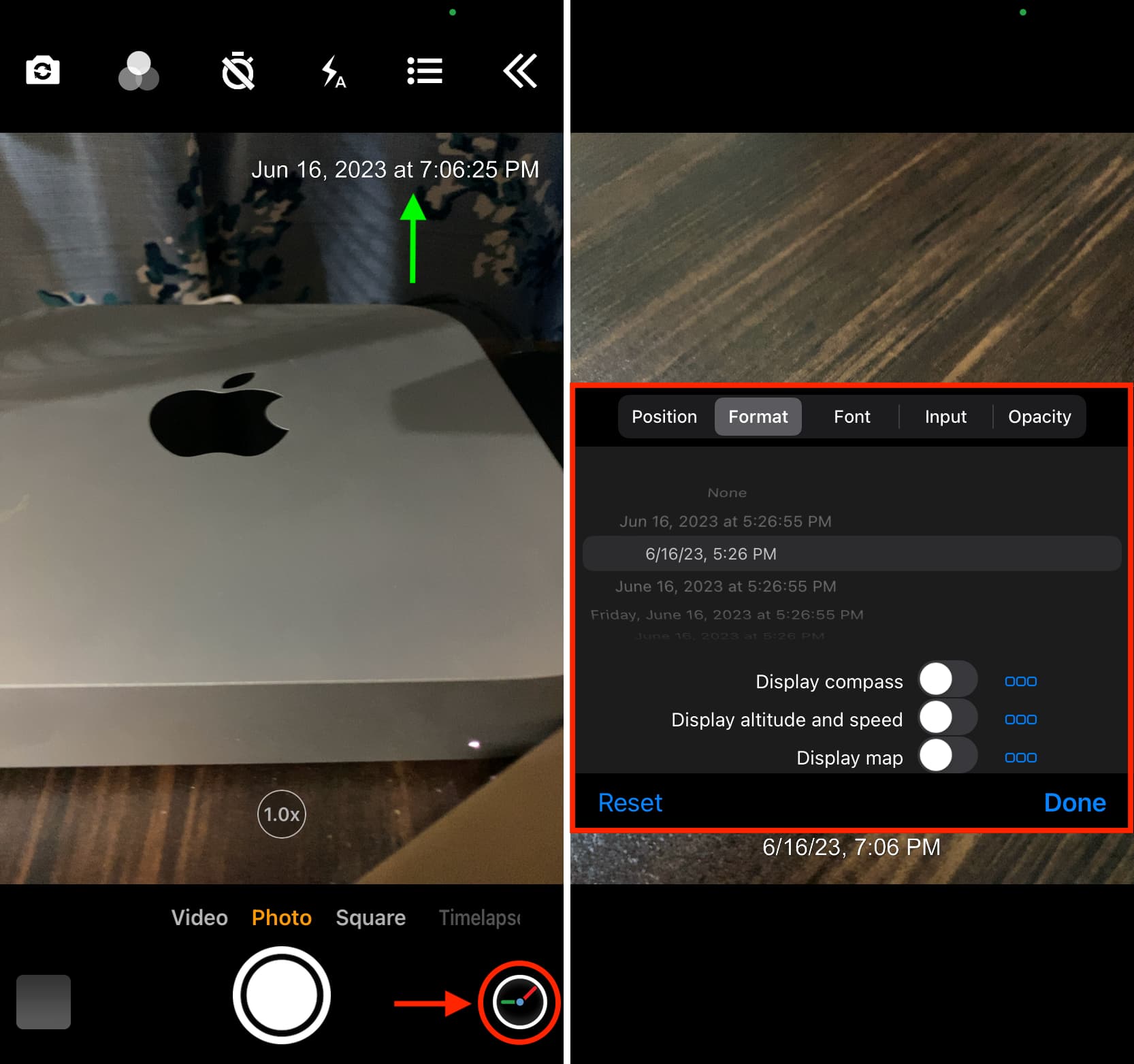
3) Touch the shutter button to snap an image with the current date and time displayed in the top-right corner automatically applied.
4) To customize the timestamp style, tap the clock icon in the lower right corner and adjust the timestamp position, format, font, opacity, and other settings. You can even overlay a compass over your photographs, along with altitude, speed, and a display map. These are all extremely handy options, so be sure to take a few minutes to explore everything. Don’t forget to tap Done to save the changes!
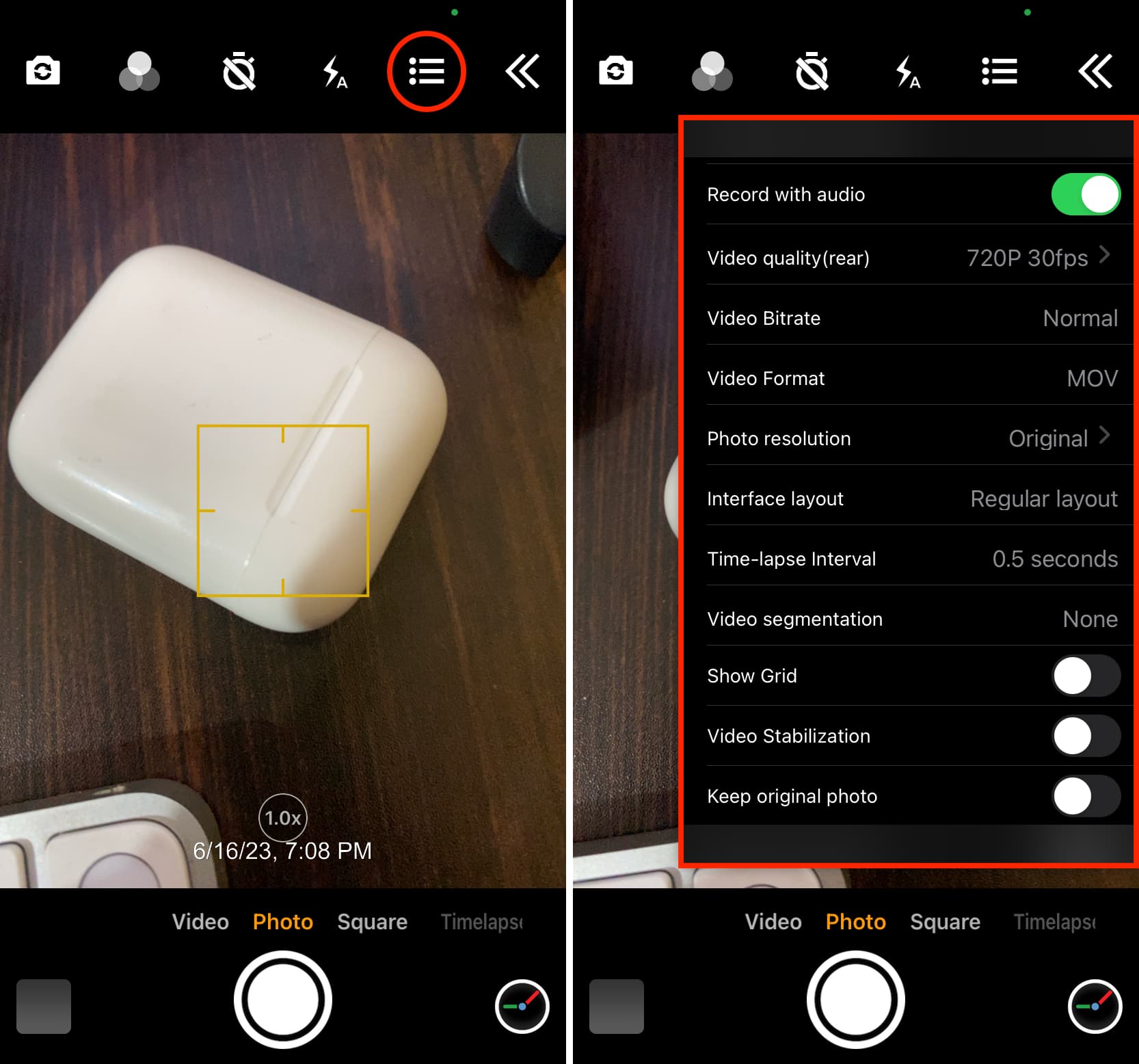
You can also tap the menu button at the top to further tweak your camera settings.
Timestamp Camera provides a companion app, Timestamp Photo and Video, to add timestamps to existing iPhone photos. You can also try the TimeStampIt app.
On the same note: How to blur, pixelate, and hide sensitive parts of a photo on iPhone or iPad