In this tutorial, we will help you figure out how much free space is available on your Apple TV, and discover which apps are taking up the most space.
How to check your Apple TV storage space

Learn how to master your Apple devices with our comprehensive tutorials. From iPhone and iPad to Mac, Apple Watch, AirPods, and more, our expert guides will help you unlock the full potential of your Apple products. Discover new features, tips, and tricks each day to enhance your user experience.
In this tutorial, we will help you figure out how much free space is available on your Apple TV, and discover which apps are taking up the most space.

Learn how to quickly delete all emails at once from the Apple Mail app on iPhone and iPad and reach inbox zero in no time.

iOS has always grouped alerts in the Notification Center in the order they were received. If you're overwhelmed with numerous notifications from apps and services on a daily basis, this can quickly clutter your view and push important notifications out of the view.
It is possible to change grouping of push alerts to have them compartmentalized according to their respective originating app and listed in the order you define.
In this tutorial, we'll detail how you can select, manage and adjust app grouping within the Notification Center on your iPhone, iPod touch or iPad.
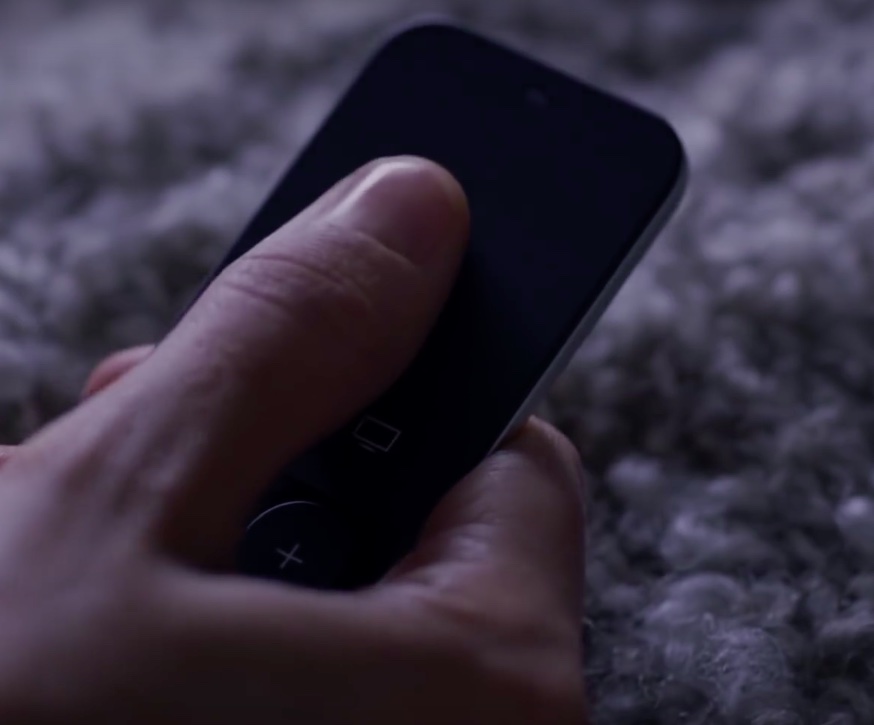
Your universal infrared remote which used to control your old Apple TV should work just fine with the fourth-generation Apple TV right out of the box. In some cases, however, your legacy remote might need configuring in order to learn the signals that the Siri Remote generates.
In this post, we're going to show you how you can program a universal infrared remote that came with your TV, cable box or DVD/Blu-ray player in order to navigate the entirety of tvOS, or use it with a prior Apple TV model.
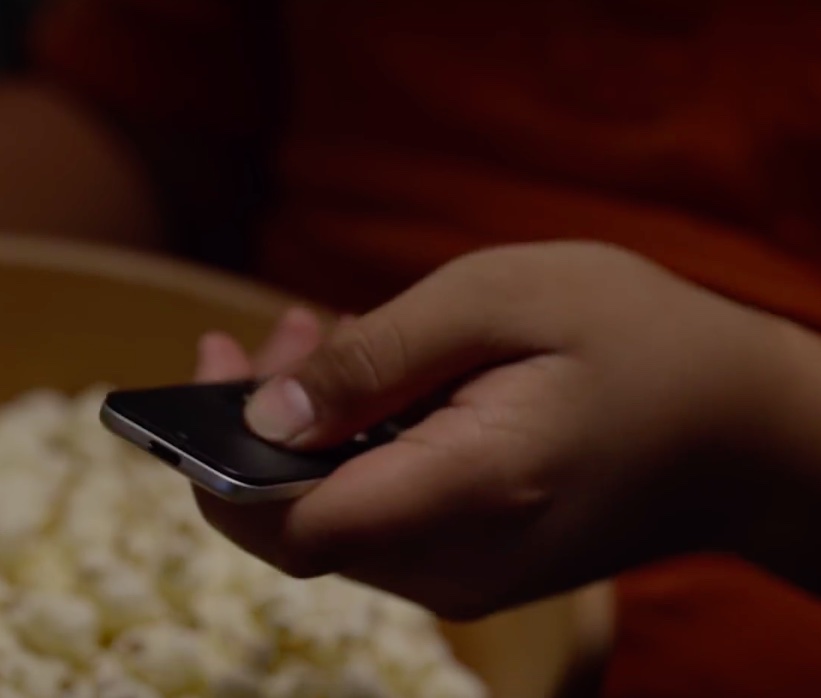
In addition to using your Siri Remote to navigate the tvOS user interface and play games on the fourth-generation Apple TV, you can program it to control power and adjust volume levels of your television set or home theater receiver.
That's because your Apple TV and the Siri Remote that came with it are compatible with HDMI-CEC and outfitted with a built-in infrared receiver and blaster.
This means owners of the new Apple TV can adjust the volume of their TVs and home theater receivers via the HDMI cable or line of sight, using just their Siri Remote.
In this tutorial, you'll learn how to program your Siri Remote and configure it to work with your home entertainment equipment.
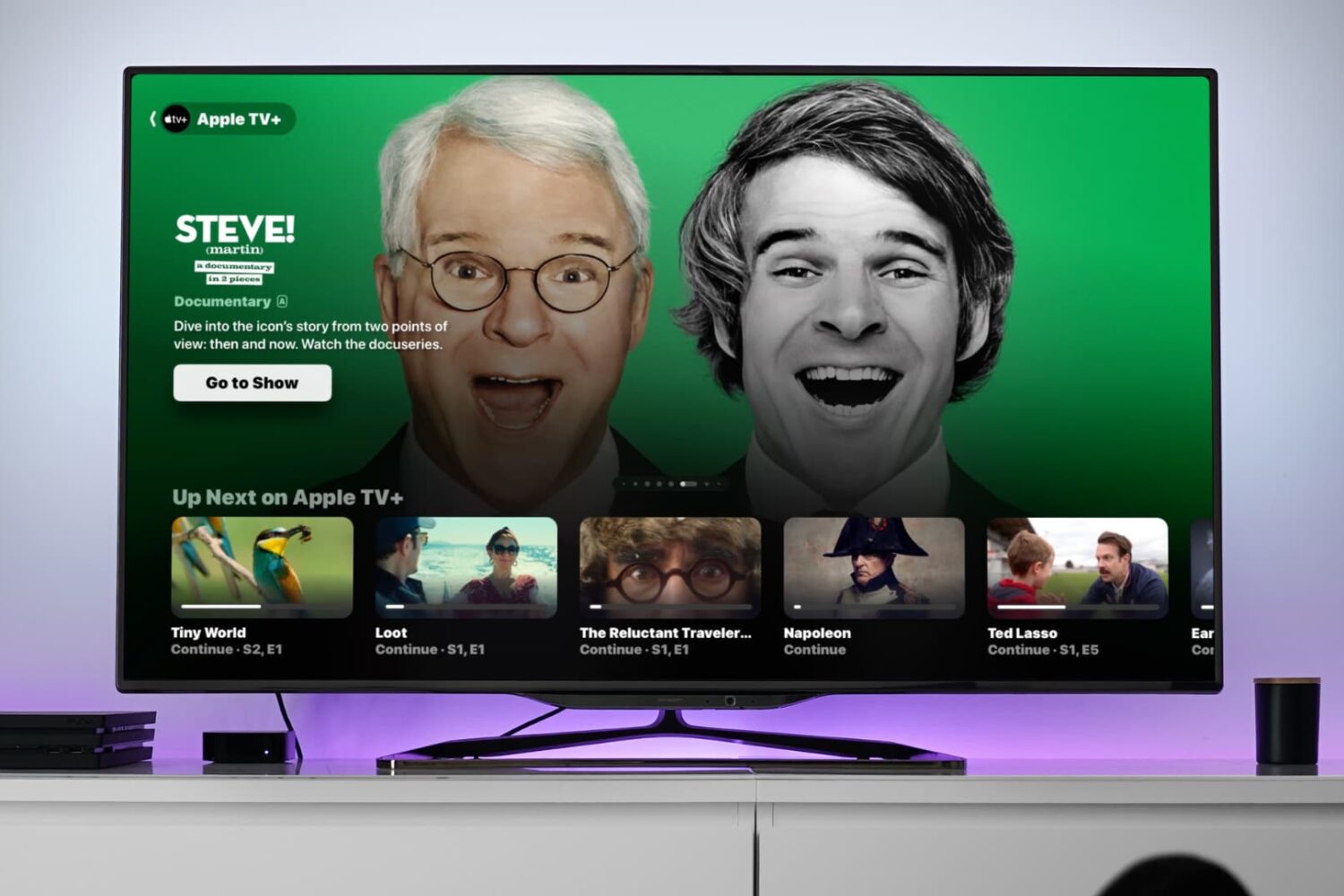
In this tutorial, we will show you how to change the resolution, frame rate, and dynamic range settings for video playback on your Apple TV to achieve the perfect viewing experience.

In October 2015, Apple began rolling out support for carrier billing on iTunes in select markets, starting with Germany. This feature joins the existing payment methods accepted on the App Store, iTunes Store and iBooks Store and permits customers to have apps and media bought through these content stores charged to their monthly mobile phone bill or deducted from their prepaid amount.
If your carrier supports it, you too can opt-in to pay for your iTunes Store, App Store, and iBooks Store purchases—and your Apple Music membership—through mobile phone billing.
In this tutorial, we're going to cover setting up mobile phone billing as your payment method in the iTunes Store, App Store or iBooks Store.

In this tutorial, we’ll show you how to check the battery percentage of your Apple TV Siri Remote or other Bluetooth devices connected to your Apple TV, such as game controllers or gamepads.
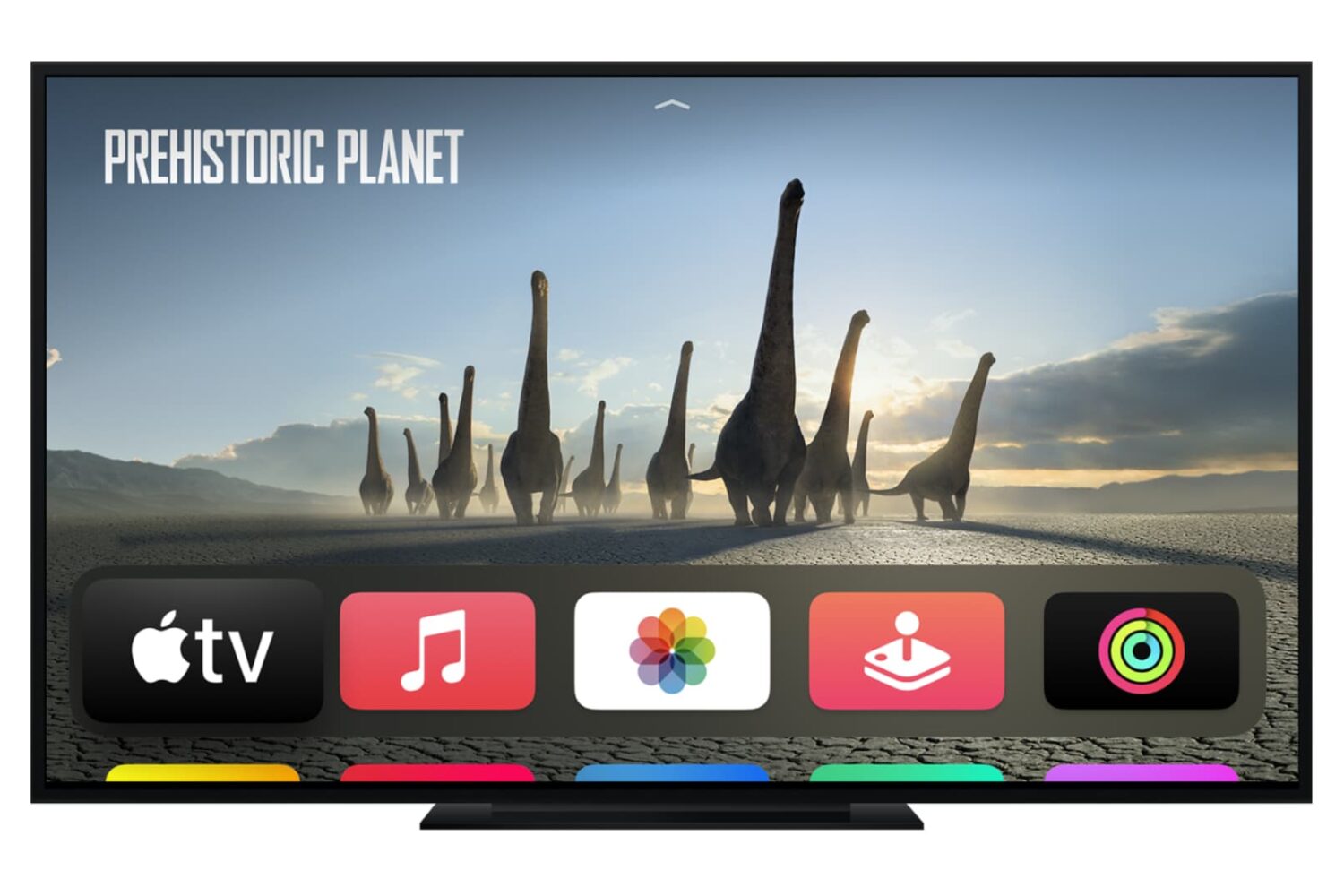
Check out the quick steps to see the Wi-Fi signal strength on your Apple TV if you’re experiencing network issues while watching videos.

Want to watch TV without disturbing others, or instead connect it to a loud wireless speaker? This tutorial shows you the easy steps to connect a Bluetooth earphone, headphone, or speaker to your Apple TV.
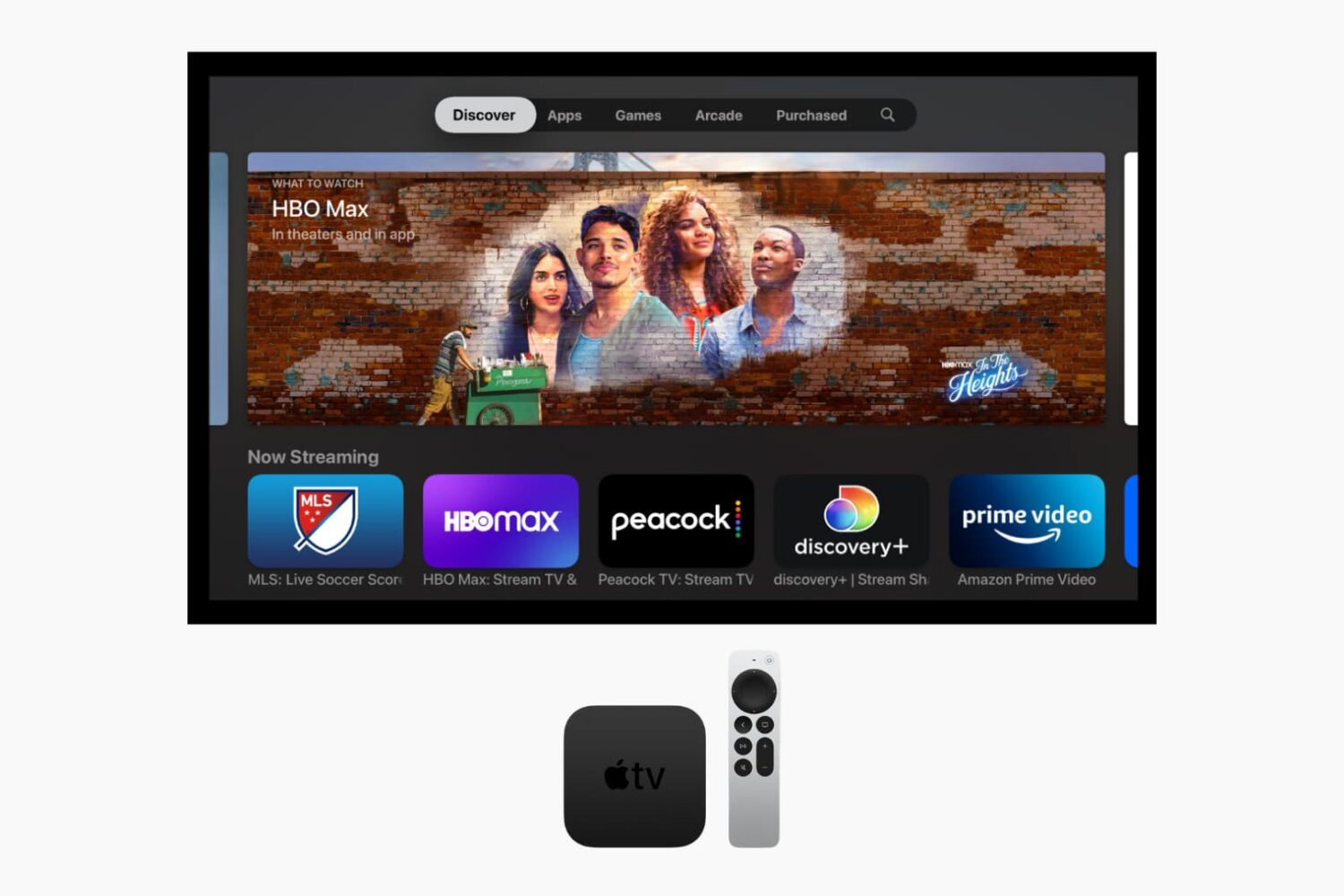
Learn how to forcefully close apps on your Apple TV if they are stuck and not working properly, or to free up system resources.
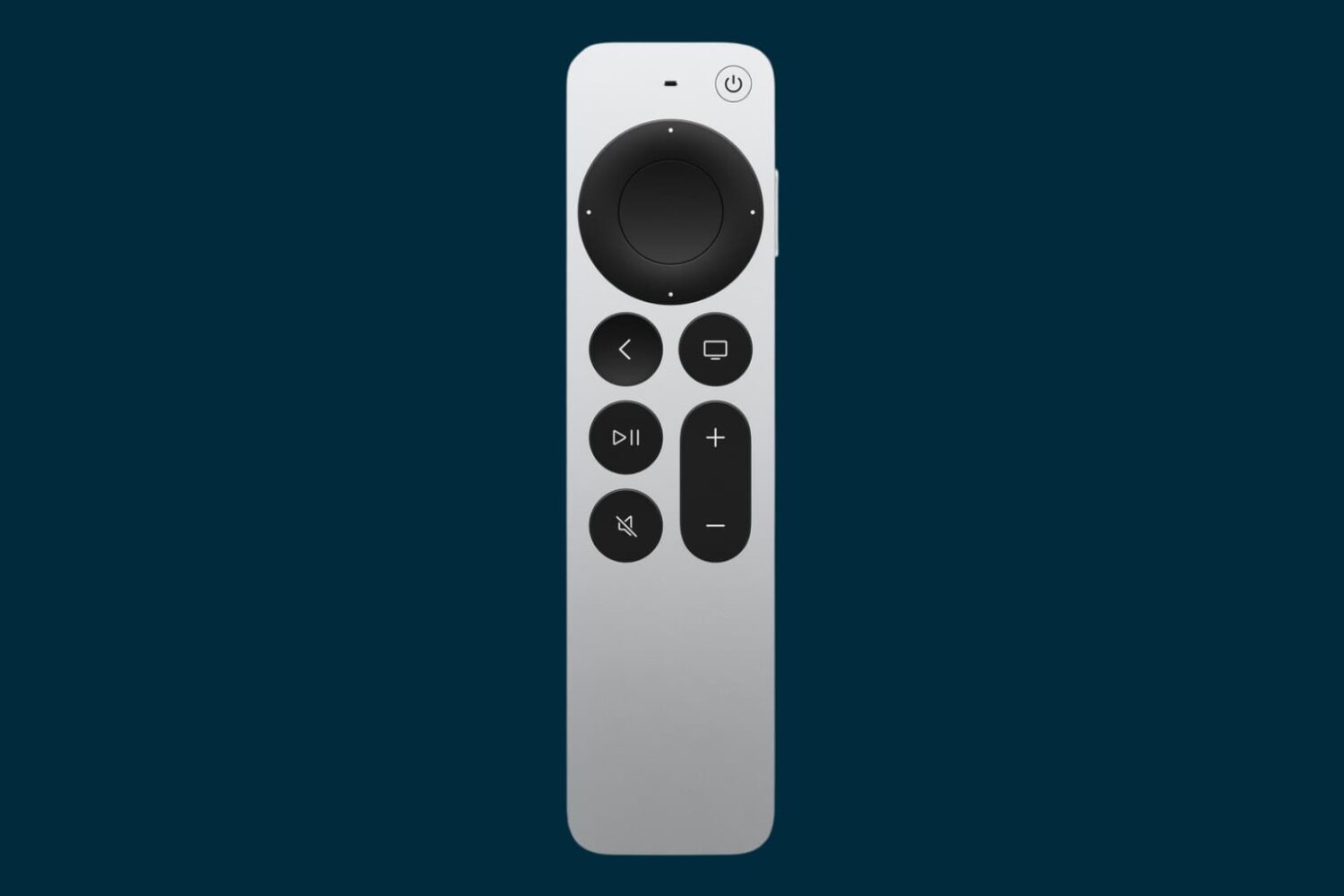
In this tutorial, we'll show you how to customize the Apple TV Siri Remote to your liking by adjusting the sensitivity of its Touch Surface or turning it off altogether.